Snooze Emails for Later
An email arrives that needs action — but not now. Not today. You could leave it unread and watch it sink, or flag it and forget the flag. Gmail's snooze sends it away and brings it back at the exact time you choose, surfacing at the top of your inbox right when you can act on it.
TL;DR / Quick Fix
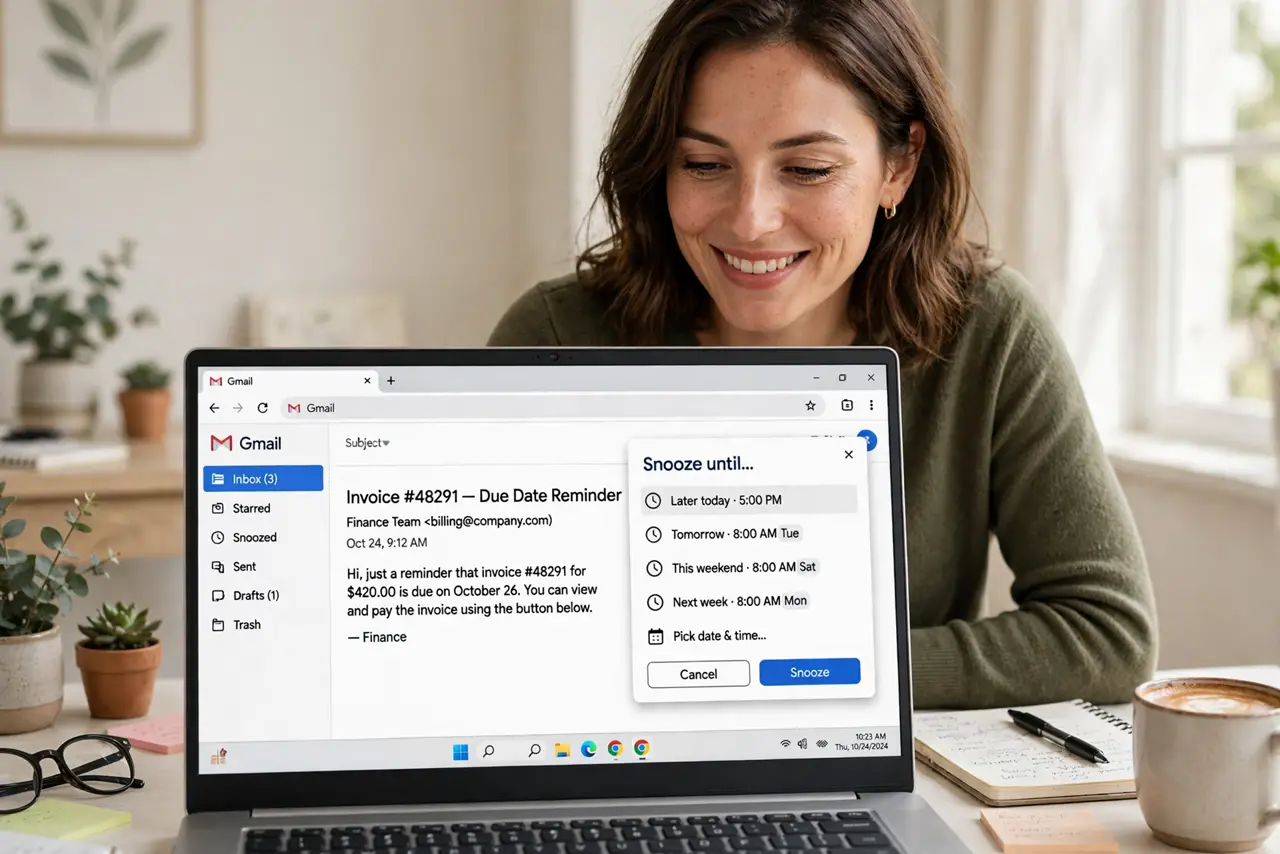
Quick fix: hover an email, click the clock icon, and pick when it should return — later today, tomorrow, or a custom date. The email leaves your inbox and reappears on top at the chosen time. Use it for anything actionable-but-not-now instead of leaving it to rot as unread.
Follow these steps
- Find the email to defer. Pick the email that needs action later — a bill due Friday, a reply you will write tomorrow. Snooze is for actionable mail with a future moment, not for mail you are avoiding forever.
- Click the clock icon. Hover the email in the list and click the clock (snooze) icon, or open the email and use the snooze option in the toolbar. The time-picker appears immediately.
- Choose the return time. Pick Later today, Tomorrow, Next week, or set a custom date and time. Match the moment to the action: bills return the morning they are due, not the night before.
- Trust the return. The email vanishes from the inbox and reappears at the top when the time comes, marked as snoozed. It is not archived into oblivion — the return is the whole point.
- Manage snoozed mail. Snoozed emails live under the Snoozed label in the sidebar. Open it to see everything waiting, and un-snooze anything whose moment arrived early.
- Pair snooze with filters. Newsletters you always read on weekends can be filtered then snoozed on a rhythm. Filters handle the sorting; snooze handles the timing.
What NOT to do
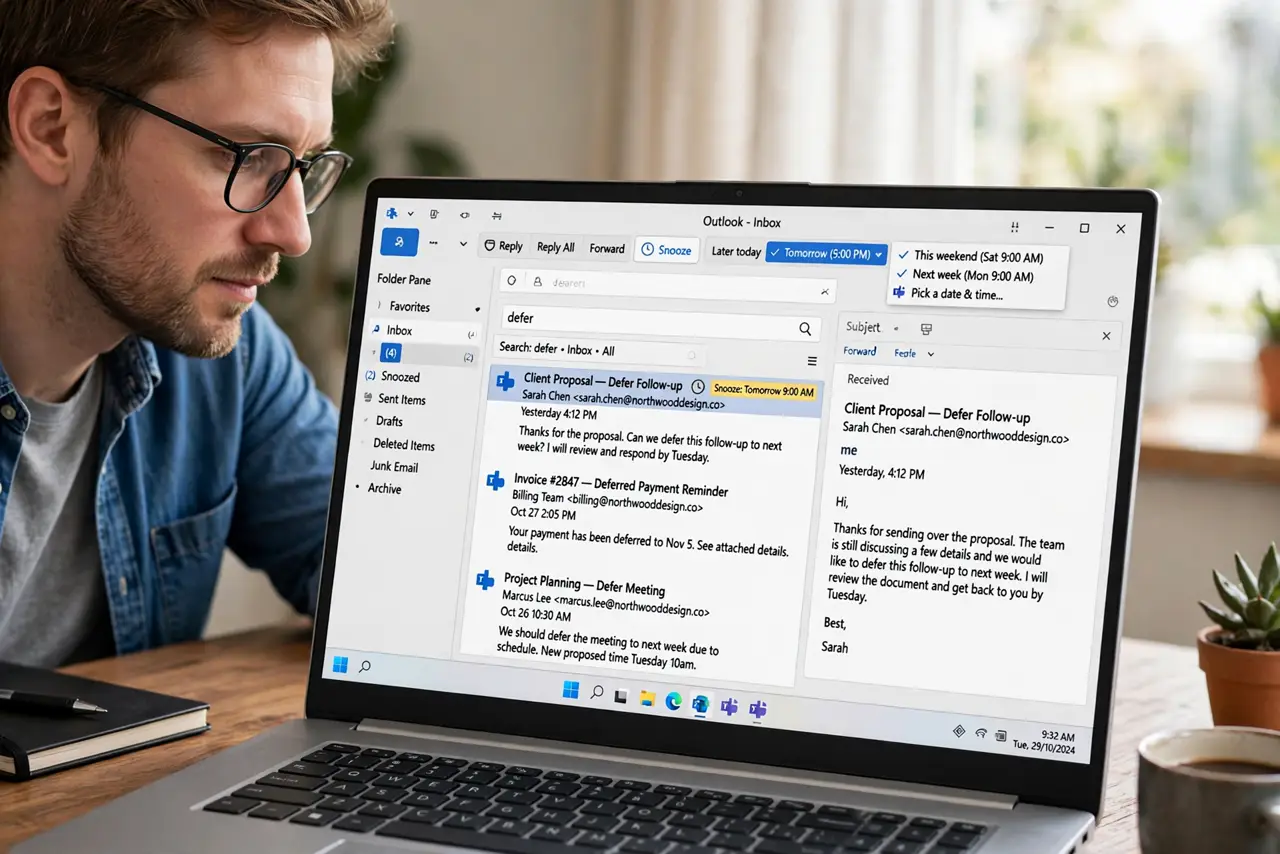
- Do not snooze mail you will never act on. Snoozing is deferral, not deletion — archive or unsubscribe instead of rescheduling forever.
- Do not snooze without a real moment in mind. 'Sometime later' becomes a second inbox of guilt; attach each snooze to an actual time.
- Do not use snooze for urgent mail. If it needs action within the hour, do it now — snooze is for hours and days, not minutes.
- Do not forget the Snoozed folder exists. Check it weekly; a snoozed email whose moment passed is a task you dropped.
Frequently asked questions
Where do snoozed emails go?
They leave the inbox and wait under the Snoozed label, then return to the top of the inbox at the chosen time. Nothing is deleted or archived permanently.
Can I snooze on the Gmail phone app?
Yes — swipe or use the email menu to find Snooze, with the same time options. Phone and desktop stay in sync.
What is the difference between snooze and remind?
Snooze moves the email itself back into your inbox later. A reminder or task is a separate note — snooze keeps the original message attached to the moment.