Templates in Gmail? Basics
You type the same email over and over — the quote reply, the meeting follow-up, the 'thanks for applying' note. Gmail templates save those as reusable drafts you insert in one click. Set one up once, and repetitive emails take seconds instead of minutes. Here's the whole workflow.
TL;DR / Quick Fix
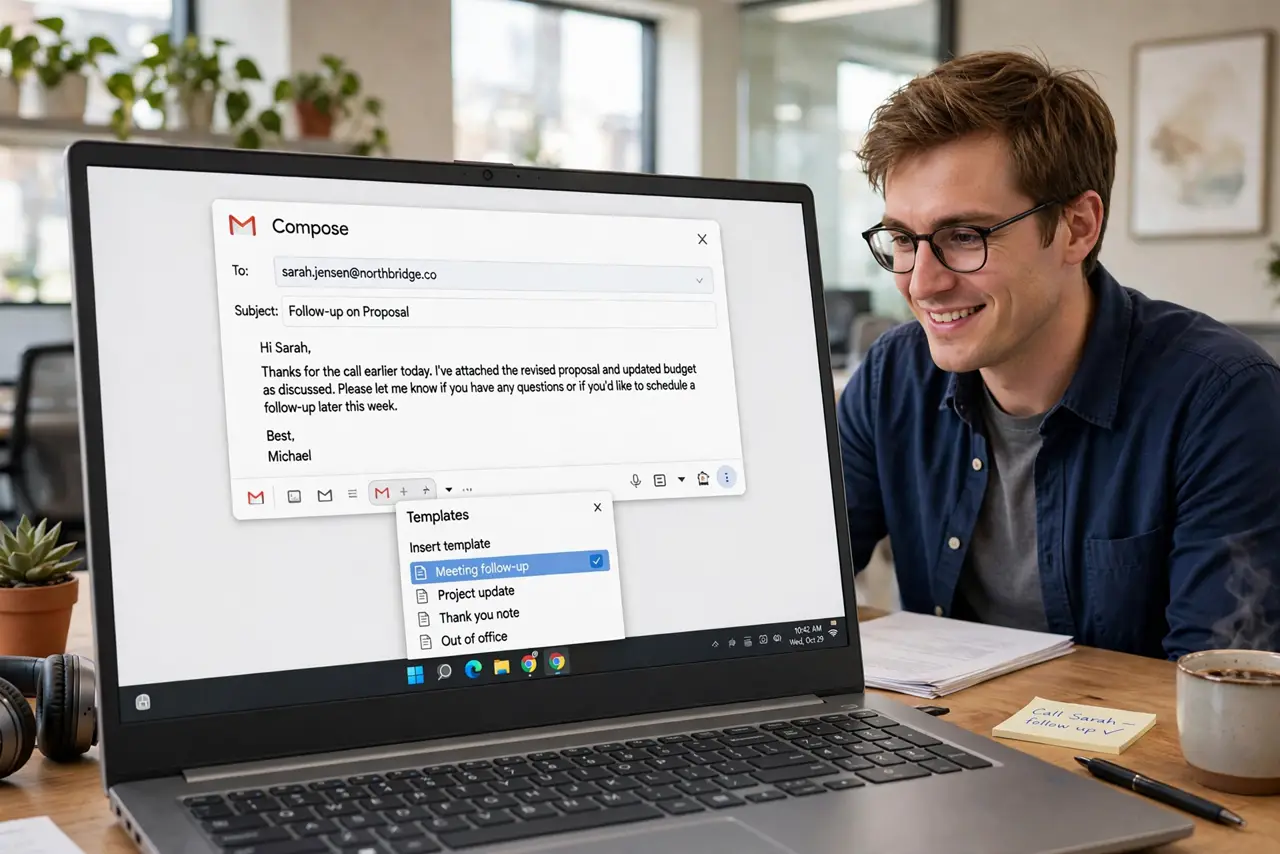
Quick fix: in Gmail settings, go to Advanced and enable Templates. Compose your reusable email, click the three dots, save it as a template. Next time, open compose, pick the template from the same menu, personalize the blanks, and send.
Follow these steps
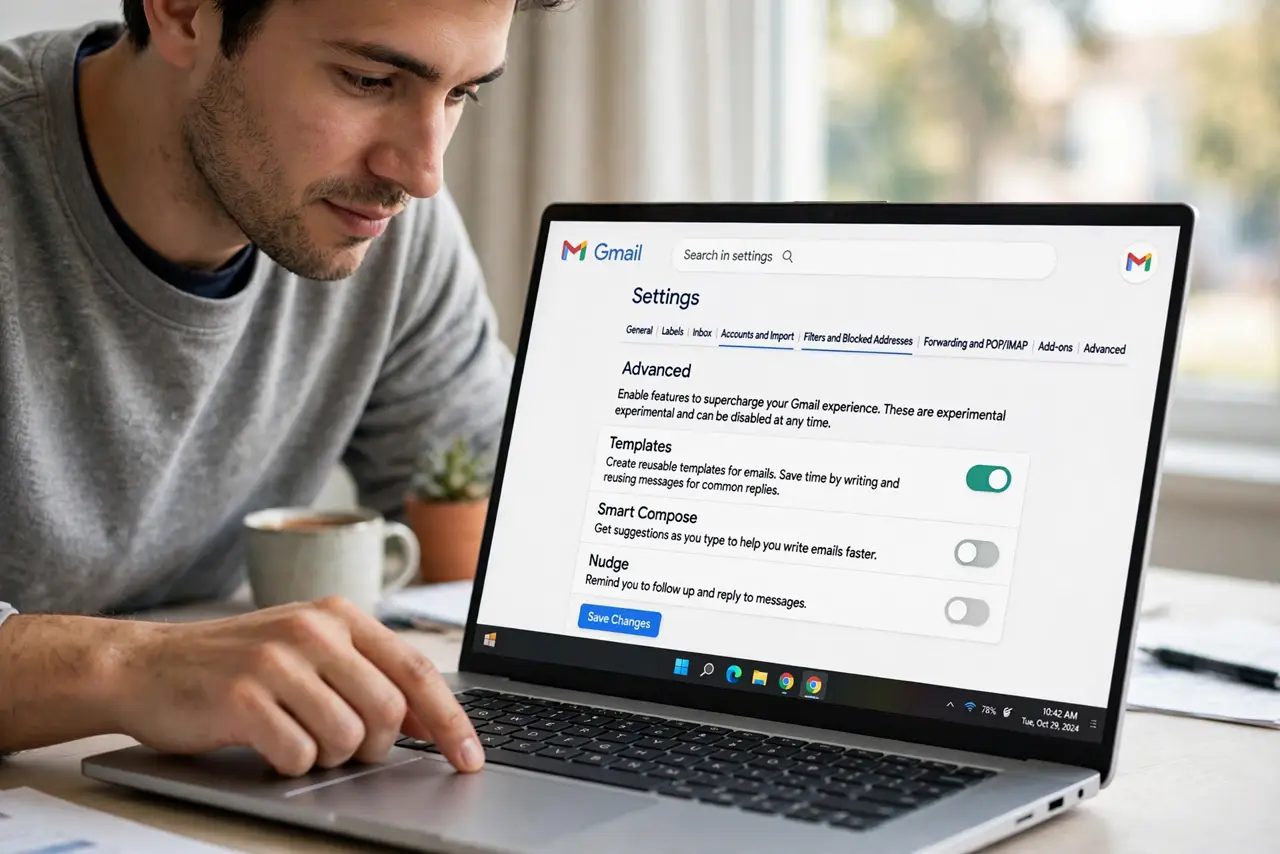
- Enable Templates first. Templates are off by default. Go to Gmail Settings, Advanced tab, and enable Templates — save, and Gmail reloads with the feature active.
- Create your first template. Compose a new email with your reusable text, using obvious placeholders like [NAME] for the bits you'll personalize. Click the three-dot menu, Templates, Save draft as template.
- Insert it in one click. New compose window, three-dot menu, Templates, pick your saved template — the text drops in. Replace the placeholders with real details before sending.
- Keep templates generic and short. The best templates are 80% fixed, 20% personalized. If you're rewriting half of it each time, split it into two templates — see canned response tips for the balance.
- Update templates when things change. Prices, links, job titles — templates rot. Review them quarterly; an outdated template sent to a client is worse than typing fresh.
- Use them with filters for power. Combine templates with Gmail filters: auto-reply templates for common inquiries turn your inbox into a semi-automated assistant. Start manual, automate once the template proves itself.
What NOT to do
- Do not send a template without personalizing the placeholders. A literal [NAME] in a client email is the fastest way to look careless.
- Do not create a template for every tiny variation. Ten near-identical templates are harder to maintain than one flexible template with a few blanks.
- Do not put sensitive personal data in shared templates. Templates sync to your account — keep passwords and private details out of them.
- Do not forget attachments aren't in templates. If the email needs a file, attach it fresh each time — templates save text only.
Frequently asked questions
How many templates can I have?
Gmail allows up to 50 templates — plenty for most people. If you need more, you're probably over-templating; consolidate.
Can I share templates with my team?
Not directly in Gmail — templates are per-account. Teams often share the text in a doc and each person saves their own copy.
Do templates work in the Gmail app?
You can insert saved templates in the mobile app, but creating and managing them needs the desktop site. Set them up at your desk, use them anywhere.