Gmail Vacation Replies
You are on vacation and emails pile up unanswered — or worse, someone urgent assumes you are ignoring them. Gmail's vacation responder answers automatically while you are away, with your dates and message, so nobody wonders. Set it before you leave, not from the beach. Here is the two-minute setup.
TL;DR / Quick Fix
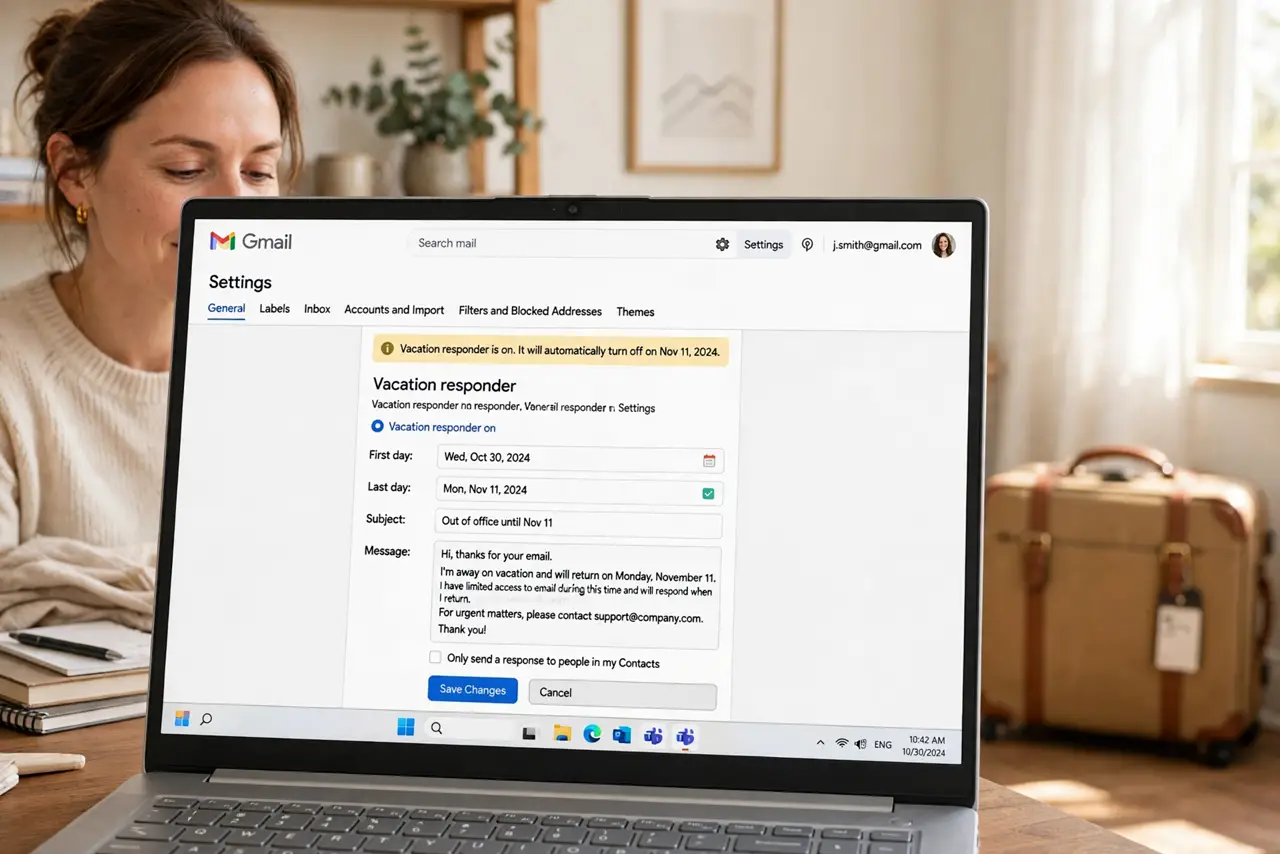
Quick fix: in Gmail settings on a computer, open Vacation responder, set your dates, write the message, and turn it on — replies go out automatically while you are away. Limit it to contacts if you prefer. Set an end date, or it keeps replying after you return.
Follow these steps
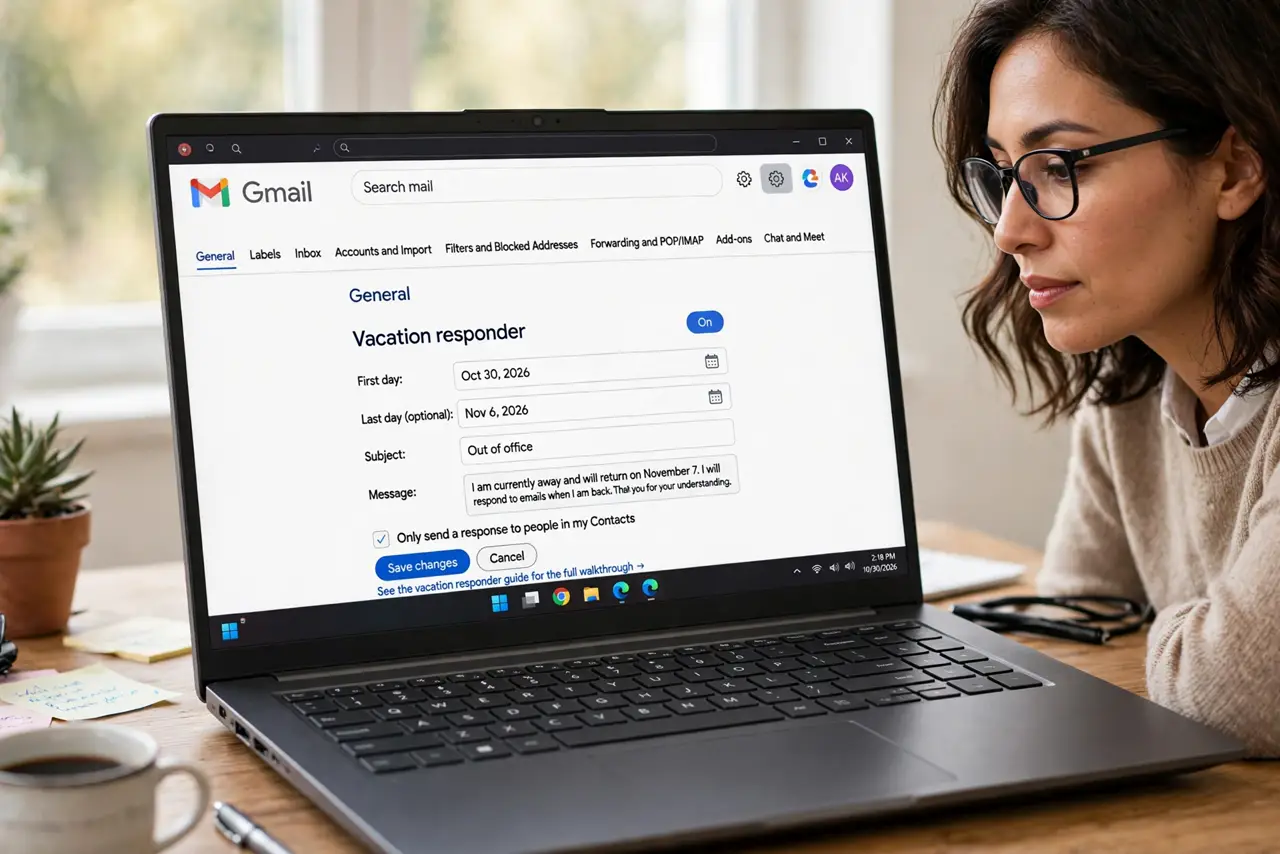
- Open Gmail settings. On a computer, click the gear icon, See all settings, and scroll to the Vacation responder section at the bottom of the General tab — see the vacation responder guide for the full walkthrough.
- Set the date range. Enter the first and last day. The end date is the part people forget — without it, the responder keeps replying after you are back at your desk.
- Write a clear message. Say you are away, when you return, and who to contact urgently. Keep it short — see how to avoid reply loops with other auto-responders.
- Limit the audience if you want. You can restrict replies to people in your contacts. For public-facing addresses, the restricted option cuts down on auto-reply spam.
- Test it before you leave. Send yourself an email from another address and confirm the auto-reply arrives and reads correctly. Fix typos now, not from the beach.
- Turn it off when back. Even with an end date, verify it is off on your first day back. A stale vacation reply is embarrassing and confusing.
What NOT to do
- Do not set it from your phone at the airport. Use a computer where you can write carefully — rushed auto-replies have typos.
- Do not forget the end date. An auto-reply that outlives the vacation confuses everyone and looks unprofessional.
- Do not promise a reply date you cannot keep. Under-promise on your return — a day of buffer beats a broken promise.
- Do not include too much detail. Say you are away and who covers — not your hotel, flight, or that the house is empty.
Frequently asked questions
Will it reply to every email?
Once per sender every few days — Gmail throttles it so one person does not get ten auto-replies.
Can I set it for only some senders?
You can limit it to contacts. For finer control, pair it with a filter that auto-replies selectively.
Does it work if Gmail is closed?
Yes — it is server-side. Once enabled, it replies whether your computer is on or not.