Hard Drive Not Detected in BIOS? Fix It
When BIOS setup shows no hard drive, the computer cannot boot from it, but the drive itself may still be fine. A loose cable, a dead port, or a BIOS setting can hide a healthy drive, so check those before you replace anything. If the drive clicks on startup, back up first, because that is a different and more urgent fault.
TL;DR / Quick Fix
Quick fix: Enter BIOS setup and confirm the drive is missing. Unplug the PC and reseat both drive cables. Then work through the remaining steps in order, checking one change at a time, and stop for a technician if you see damage, swelling, or a burning smell.
Follow these steps
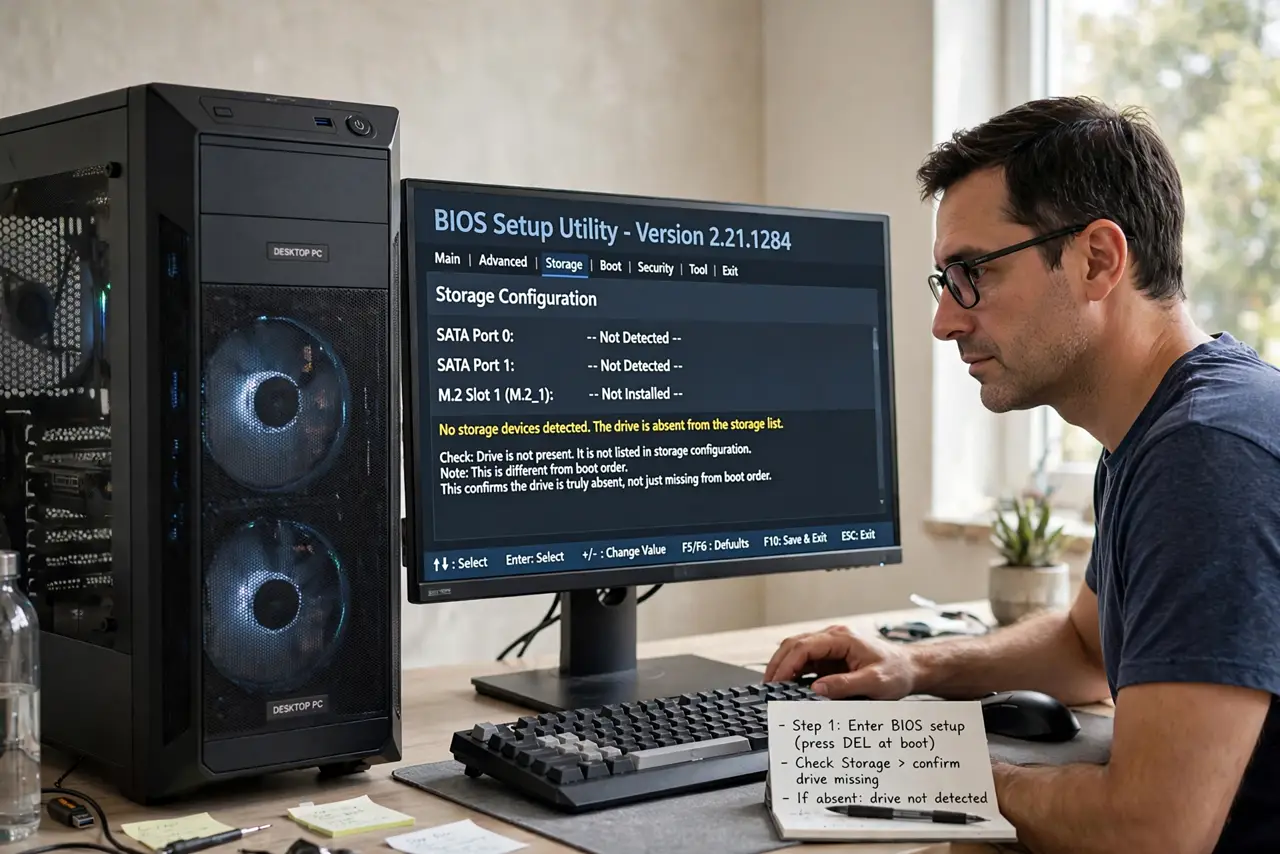
- Enter BIOS setup and confirm the drive is missing. Restart, enter BIOS setup with the key shown on screen, and check the storage list. Confirm the drive is truly absent, not just missing from the boot order list.
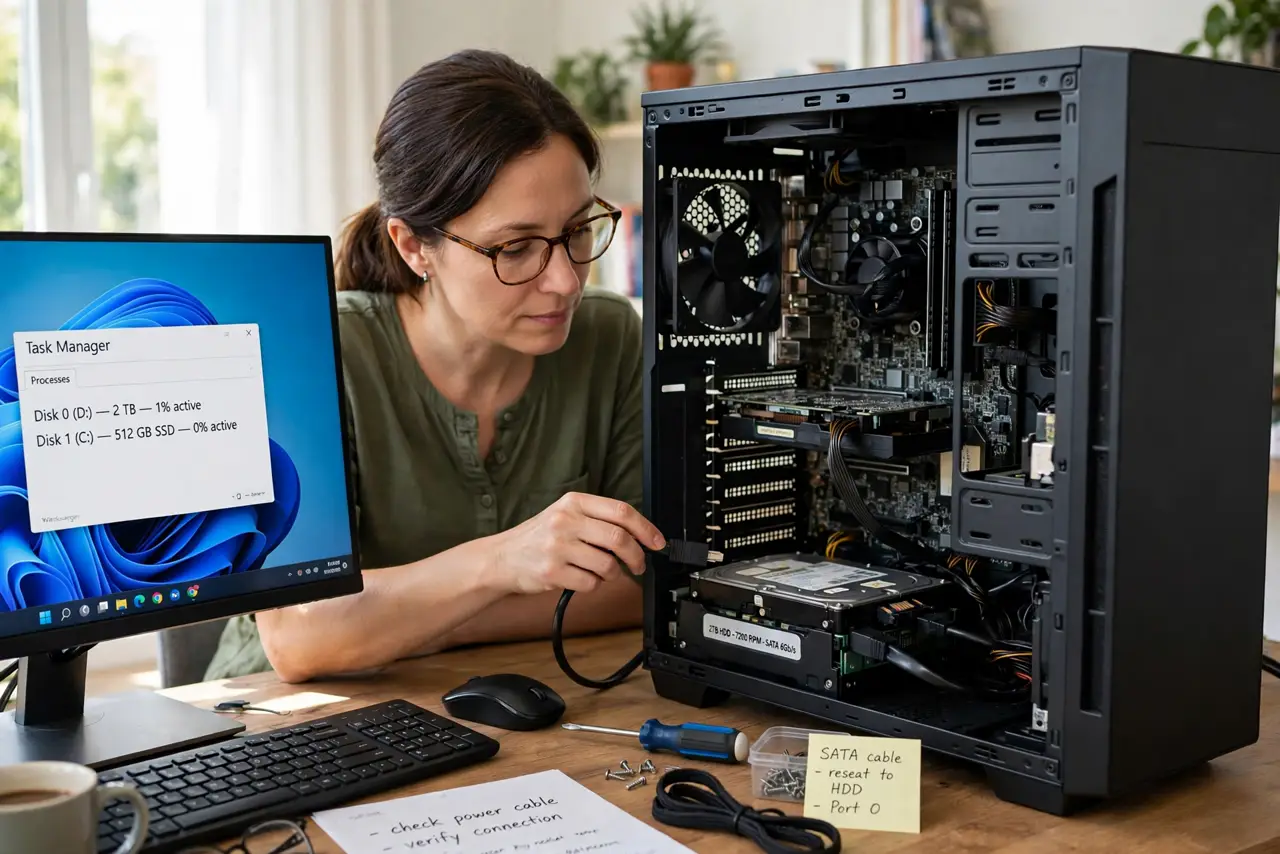
- Unplug the PC and reseat both drive cables. Shut down, unplug the power cable, and push the data and power cables firmly into the drive and the board. A cable that looks connected can be a fraction loose.
- Try a different data port and cable. Move the data cable to another port on the board, and if you can, try a spare cable. This separates a port fault from a cable fault in one test.
- Check whether the drive spins or vibrates. Power on briefly with the side panel off and feel gently for vibration, or listen for spin-up. A drive that never spins may have a power problem, not a data problem.
- Test the drive in another PC if you can. Connect the drive to a second PC or a drive dock. If it appears there, your first PC board or port is at fault; if it appears nowhere, the drive itself is suspect.
- Check BIOS storage settings for your drive type. In BIOS setup, confirm the storage mode matches your drive type and that the port is enabled. A port disabled by a reset BIOS can hide a healthy drive.
What NOT to do
- Do not open the hard drive itself. There is nothing user-serviceable inside, and opening it destroys the drive for good.
- Do not keep swapping cables while the PC is powered on. Power off and unplug before touching drive cables, or you can damage the drive and the board.
- Do not format a drive that suddenly appears. Formatting wipes data, so back up first if the drive shows up again after a cable fix.
- Do not assume a missing drive means lost files. A cable or port fault leaves files untouched on the drive, so test the drive elsewhere before giving up on it.
Frequently asked questions
Why does BIOS not see a drive Windows saw yesterday?
A cable can work loose, a port can fail, or a BIOS reset can disable a port. The drive and its files are often untouched, which is why cable and port tests come first.
Is a drive that never spins dead?
Not necessarily: try another power cable and port first. If it never spins on any power connection, the drive electronics are likely at fault.
What if the drive appears on another PC?
Your files are safe, and the fault is in the first PC. Check its ports, cables, and BIOS settings, or ask a technician to test the board.