Laptop Ports? Basics
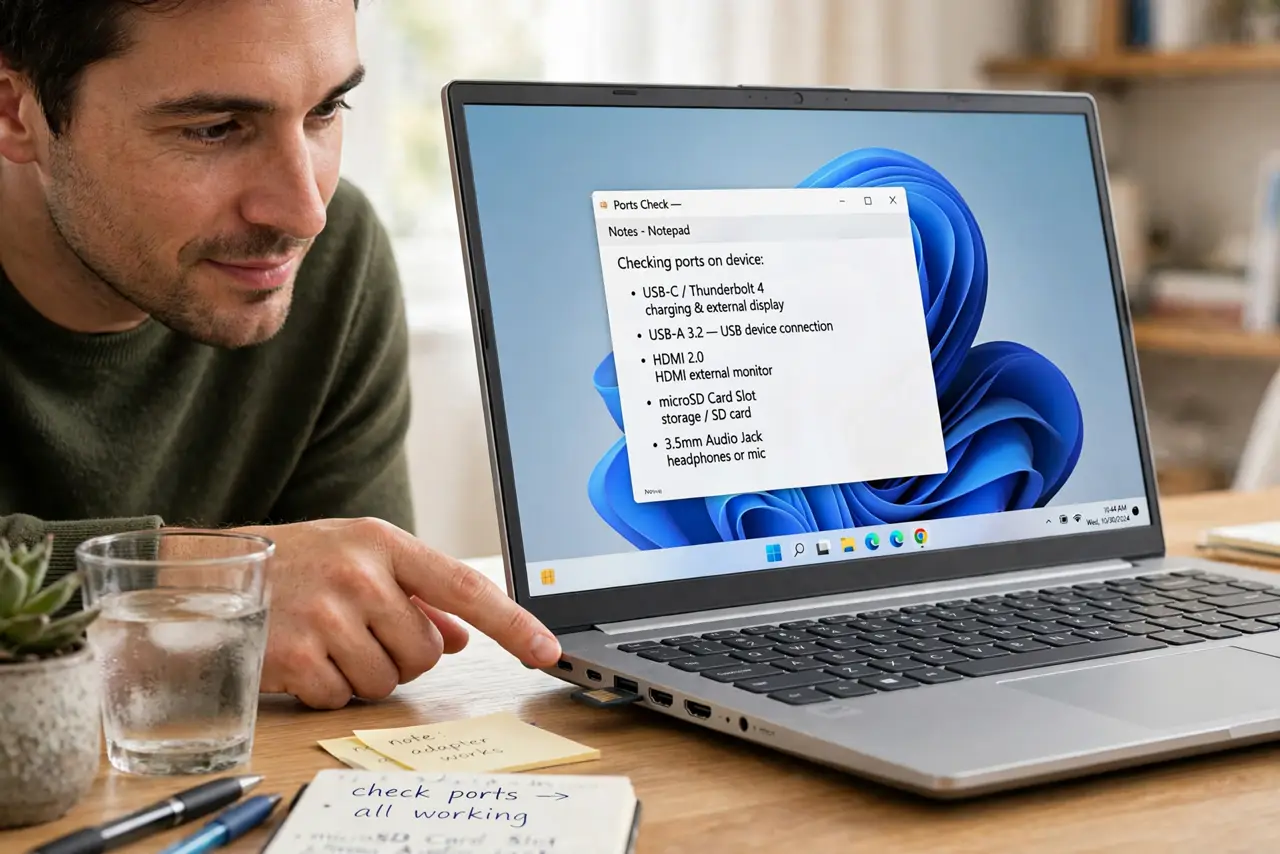
Your new laptop has two identical-looking USB-C ports, one of which charges, both of which may or may not do video, and a headphone jack that feels like a relic. Laptop ports have become a confusing alphabet soup — and buying the wrong dongle setup wastes real money. Here is what each port does and how to check before you buy.
TL;DR / Quick Fix
Quick fix: not all laptop ports do the same job — USB-C ports may or may not carry video or charge the laptop, so check your model's specs before buying docks or monitors. Count what you actually plug in daily, then buy one good hub instead of five cheap dongles.
Follow these steps
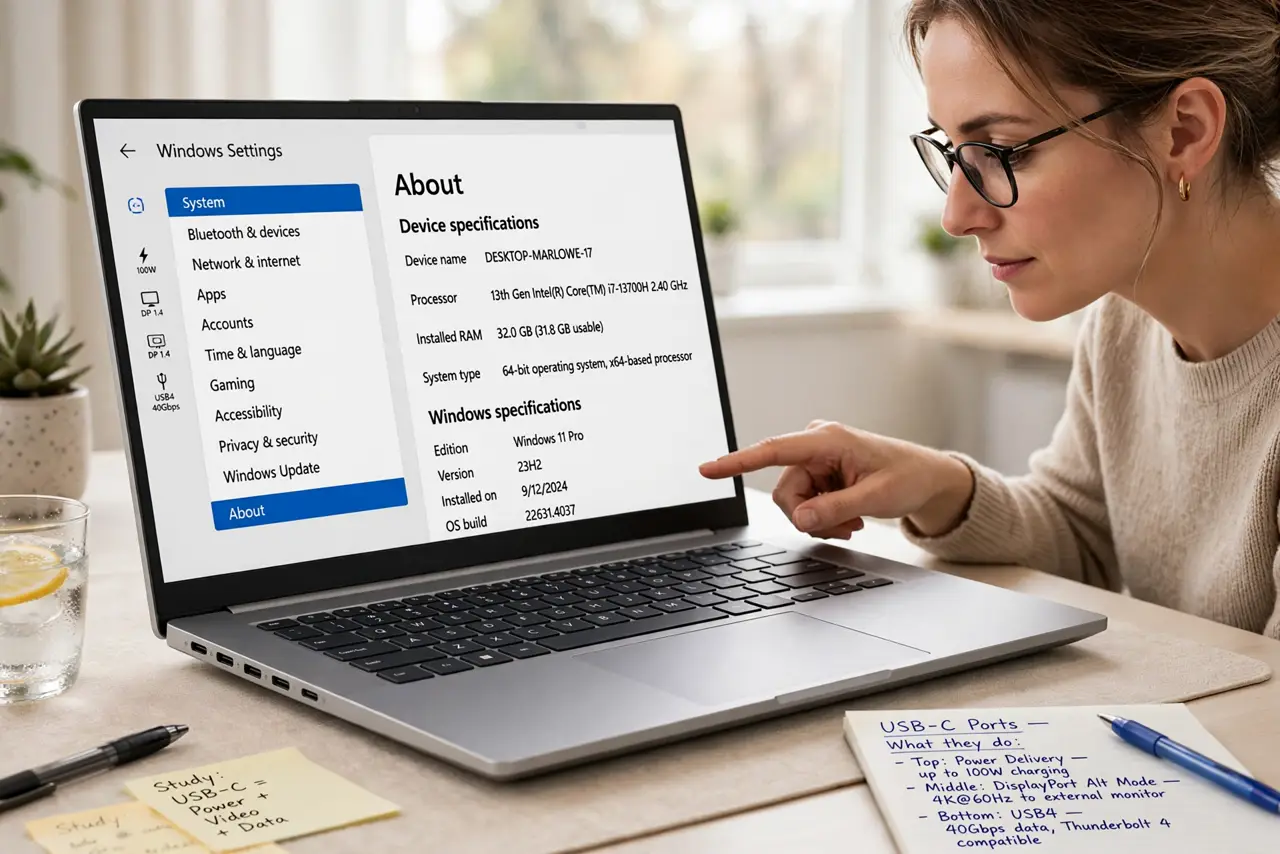
- Learn the USB-C lottery. USB-C is a shape, not a capability. A port might do data only, data plus video, or everything including charging. Your laptop's specs page lists which — check before buying any dock, monitor, or hub. This one check prevents most port frustration.
- Know your video outputs. HDMI is the universal standard for TVs and projectors. DisplayPort (often over USB-C) suits monitors better at high refresh rates. See DisplayPort vs HDMI if you are choosing a monitor connection.
- Count your daily devices. List everything you plug in on a normal day: charger, mouse receiver, external drive, monitor, headset. If the laptop has fewer ports than your list, you need a hub or dock — decide before purchase, not after.
- Buy one good hub, not five dongles. A single quality USB-C hub with the ports you need beats a tangle of adapters. Cheap hubs cause the classic miseries: flickering monitors, dropped drives, and slow charging.
- Check charging wattage. Some USB-C ports charge the laptop, some do not — and hubs pass through limited wattage. A hub that delivers 60W will slowly drain a laptop that needs 90W under load.
- Keep one port free. Whatever your count, leave a spare. The device you forgot — the presentation clicker, the client's USB stick — always appears at the worst moment.
What NOT to do
- Do not assume every USB-C port does video. Data-only USB-C ports are common and will never drive a monitor.
- Do not buy the cheapest hub. Bargain hubs are the source of flickering screens, disconnecting drives, and mysterious slowdowns.
- Do not ignore the headphone jack's absence. If you use wired audio daily and the laptop dropped the jack, budget for a USB adapter now.
- Do not carry five dongles when one hub works. A single hub lives in your bag; five dongles live in five different lost places.
Frequently asked questions
Why does my USB-C dock not charge my laptop?
The dock's power delivery is lower than your laptop needs, or that specific port does not accept charging. Check both the dock's wattage and the port's specs.
Can I connect two monitors through one USB-C port?
Sometimes — it needs DisplayPort Alt Mode with MST or Thunderbolt, plus a dock that supports it. Verify all three links before buying.
Is Thunderbolt worth paying extra for?
For one 4K monitor and basic peripherals, no. For dual 4K, fast external SSDs, or pro docks, yes — Thunderbolt's bandwidth earns its premium.