Mini PCs? Basics
A mini PC is a full Windows computer the size of a paperback book — it hides behind your monitor, sips power, and handles everyday work without breaking a sweat. They have quietly become the smart alternative to bulky towers for home offices and media centers. Here is what they do well, where they fall short, and how to pick one.
TL;DR / Quick Fix
Quick fix: a mini PC is a computer in a tiny box — great for office work, browsing, and media centers, sipping power and desk space. Check the processor generation, get 16GB of RAM, and confirm the ports match your monitor. Skip them for serious gaming or heavy video editing.
Follow these steps
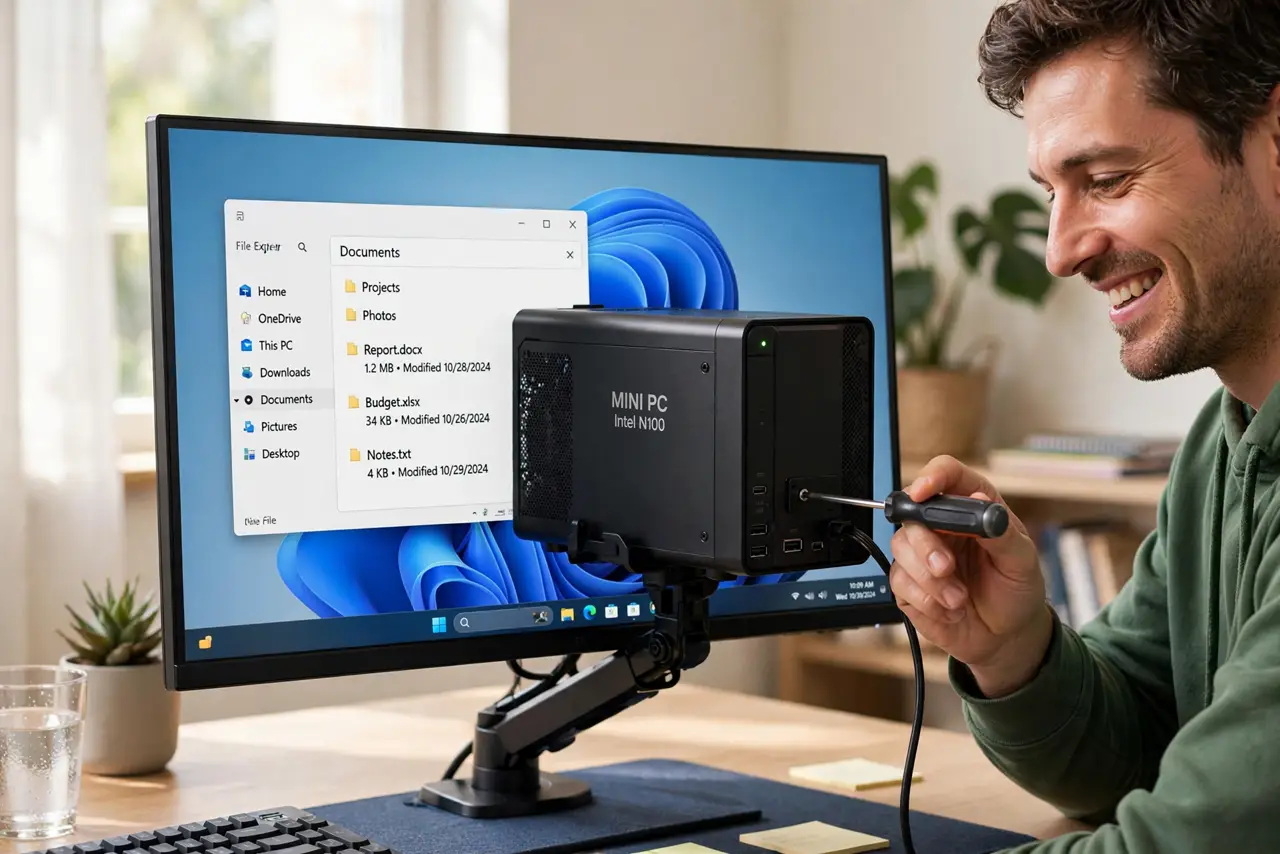
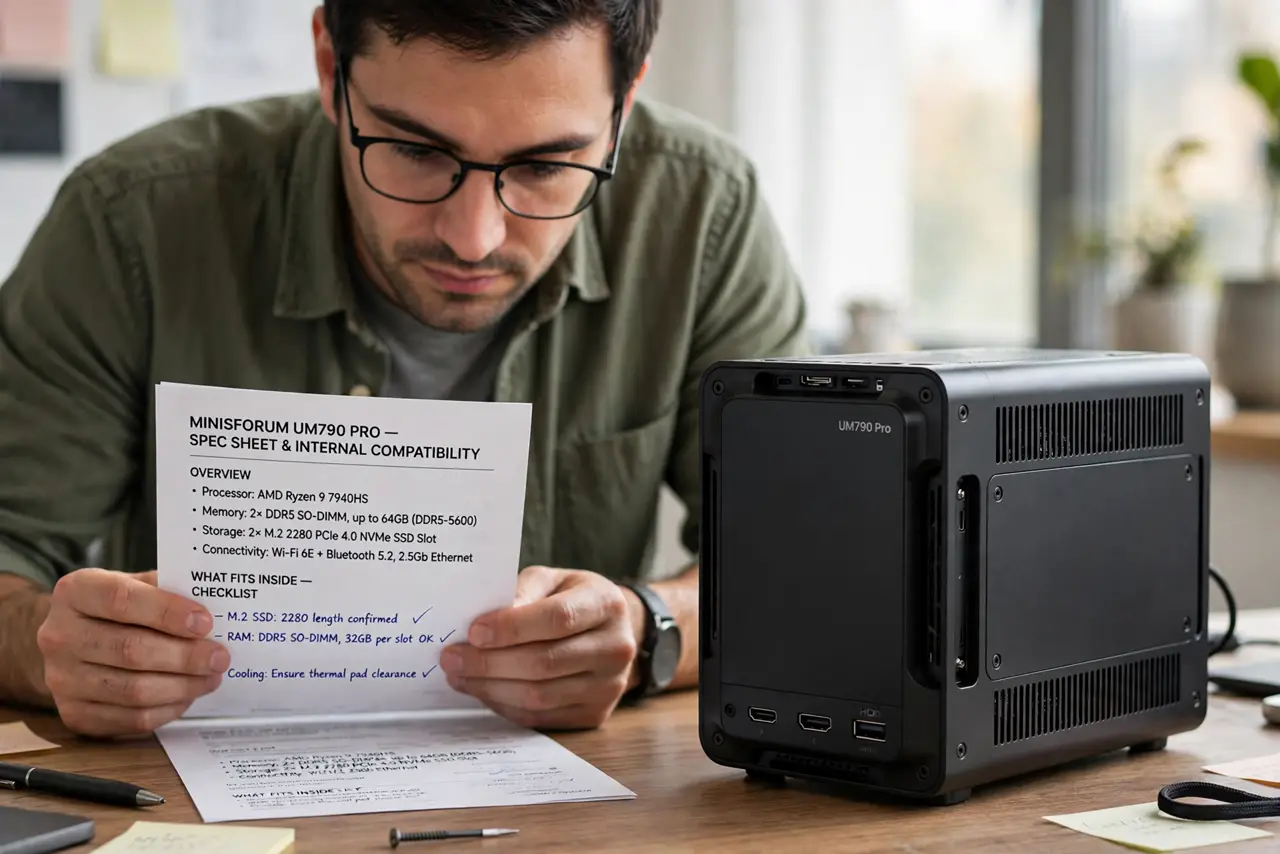
- Understand what fits inside. Modern mini PCs pack laptop-grade processors, SSDs, and Wi-Fi into a box the size of a sandwich. For web, office, and streaming they feel identical to a tower — compare the all-in-one alternative if you want the screen included too.
- Match the processor to your work. Office and browsing: any recent Core i3/Ryzen 3 or better. Light photo editing: i5/Ryzen 5. The chip generation matters more than the brand — a newer i3 beats an older i7.
- Get enough RAM from day one. Many mini PCs have soldered or hard-to-reach RAM, so buy 16GB upfront. 8GB works for basics today but leaves no headroom for tomorrow's browser tabs.
- Check ports before you buy. Count your needs: HDMI or DisplayPort for the monitor, USB-A for old peripherals, USB-C for docks. A missing port means dongle life — verify against your actual desk setup.
- Plan the mounting. Most include a VESA bracket to hide behind the monitor — the cleanest setup there is. Just leave ventilation room; tiny boxes still need airflow.
- Know the limits honestly. Gaming, 3D rendering, and heavy video editing need real towers with real cooling. A mini PC is a laptop without a screen, not a workstation in disguise.
What NOT to do
- Do not buy a mini PC for gaming. Integrated graphics and tiny cooling cannot be upgraded into a gaming rig.
- Do not cheap out on RAM to save $30. Upgrading later is often impossible — 16GB from day one.
- Do not hide it in a sealed cabinet. Small boxes overheat fast without airflow; heat shortens their life.
- Do not assume all mini PCs are equal. No-name boxes skimp on cooling and support — stick to established makers.
Frequently asked questions
Can a mini PC replace my desktop tower?
For office work, browsing, and media — absolutely. For gaming or heavy creative work, no; those still need a tower's power and cooling.
Are mini PCs noisy?
Usually very quiet — most use laptop-style cooling. Fanless models exist for silent media centers, at the cost of some performance.
Do mini PCs come with Windows?
Most do, with Windows preinstalled. Barebones kits exist for enthusiasts who want to add their own RAM, SSD, and OS.