Thunderbolt Docks? Basics
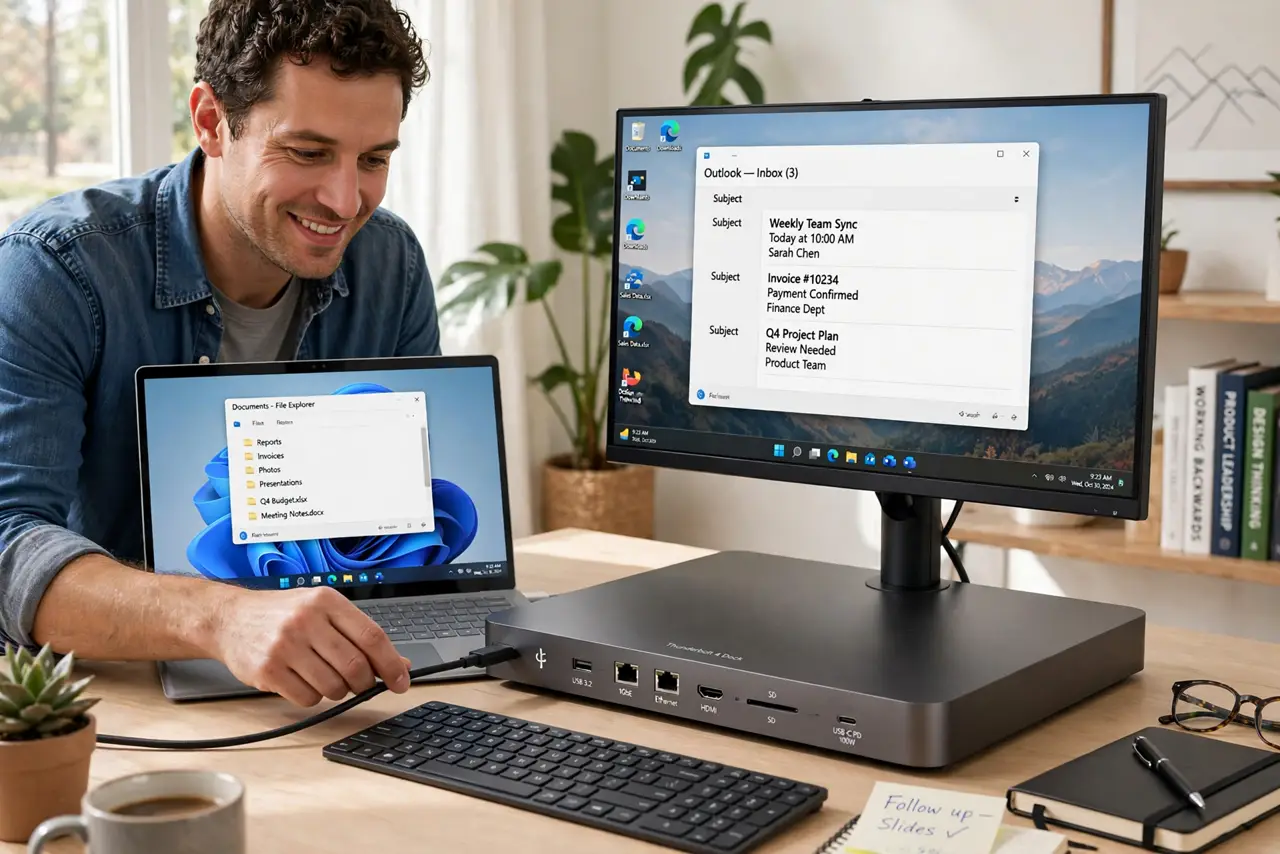
A Thunderbolt dock turns one cable from your laptop into a full desk setup — monitors, keyboard, drives, network, and charging, all through a single plug. It is the cleanest desk upgrade a laptop owner can buy, and also the priciest dock category. This guide covers how to pick one that actually matches your laptop and monitors.
TL;DR / Quick Fix
Quick fix: a Thunderbolt dock connects your laptop to monitors, drives, and power over one cable. Confirm your laptop has a Thunderbolt port, match the dock's wattage to your laptop, and check monitor support at your resolution. It costs more than a USB-C dock — buy it for serious setups.
Follow these steps
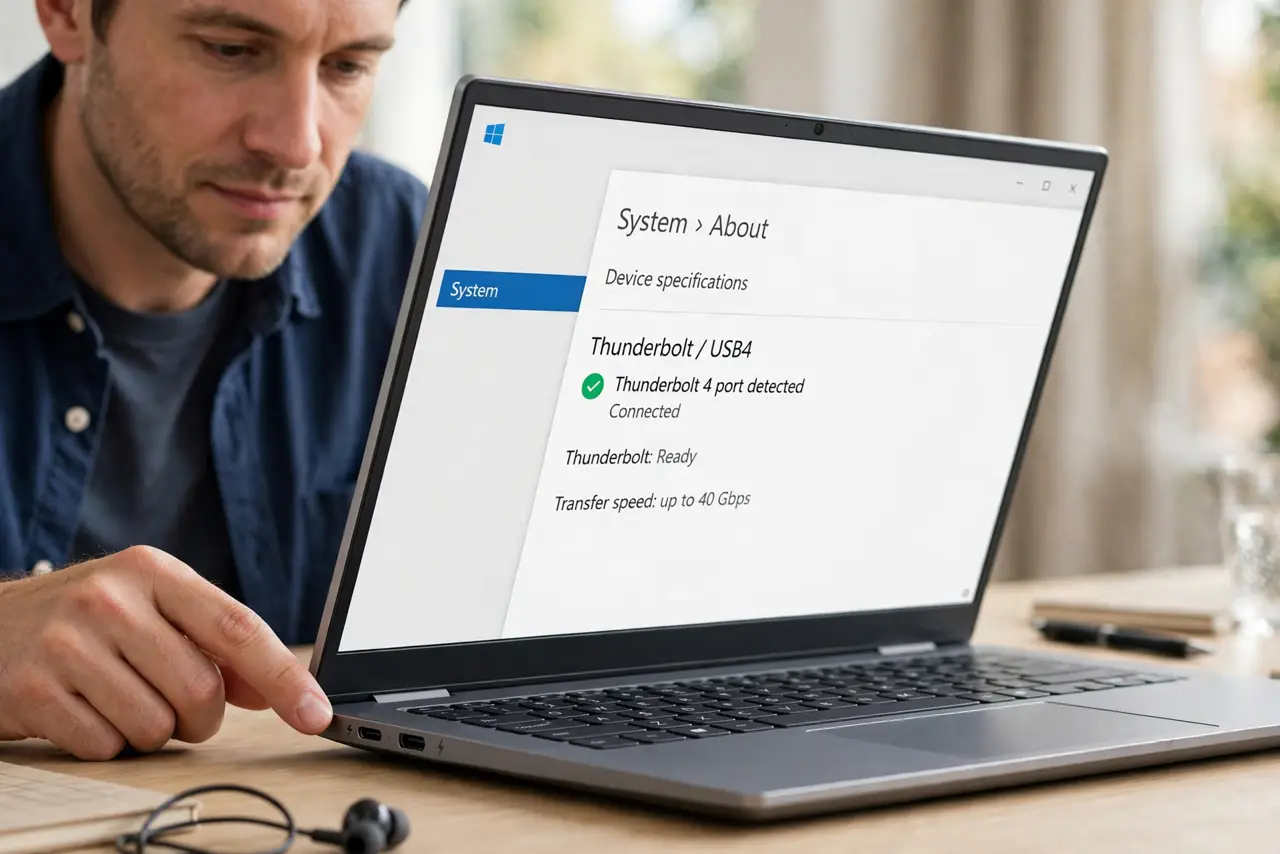
- Confirm you have a Thunderbolt port. Look for the lightning icon next to the USB-C port, or check the laptop specs. Thunderbolt looks identical to USB-C — see Thunderbolt vs USB-C if you are unsure which port you have.
- Match the power wattage. The dock charges your laptop over the same cable — check its wattage against your laptop's charger. A 90W dock will slowly drain a laptop that wants 130W under heavy load.
- Count monitors and resolution. Check how many monitors the dock drives and at what resolution and refresh rate. Dual 4K needs a much beefier dock than one 1080p screen — this is where cheap docks disappoint.
- Use a real Thunderbolt cable. The cable matters as much as the dock. Short passive cables (under ~0.8m) carry full speed; longer ones need to be active and cost more. Learn to identify the right cable before buying spares.
- Plug peripherals into the dock. Keyboard, mouse, webcam, drives, Ethernet — everything lives on the dock permanently. One cable to the laptop connects and disconnects your whole desk in a second.
- Test sleep and wake early. Dock quirks show up in sleep/wake behavior and monitor detection. Test thoroughly during the return window — firmware updates fix many issues, but only if the maker still supports the dock.
What NOT to do
- Do not buy a Thunderbolt dock for a USB-C-only laptop. It will work as a basic USB-C dock, but you pay Thunderbolt prices for features your port cannot use.
- Do not ignore the wattage math. An underpowered dock means the battery drains during heavy work despite being 'plugged in.'
- Do not daisy-chain docks through adapters. Each adapter is a failure point — go direct with proper cables wherever possible.
- Do not assume all Thunderbolt docks are equal. Port selection, monitor support, and power delivery vary wildly — compare the spec sheet against your actual desk, not the marketing photo.
Frequently asked questions
Thunderbolt dock or USB-C dock?
Thunderbolt if you drive multiple high-resolution monitors or need maximum bandwidth; USB-C if one monitor and basic peripherals cover you. USB-C docks cost much less.
Can one cable really charge my laptop?
Yes, if the dock's wattage meets your laptop's needs. Check both numbers — this is the most common disappointment with docks.
Do docks work with Mac and Windows?
Yes, Thunderbolt is cross-platform. Macs have their own monitor-count limits per model though — verify against Apple's specs for your specific Mac.