Thunderbolt vs USB-C? Difference
The ports look identical — because Thunderbolt uses the USB-C connector. But underneath, they are different technologies with different speeds and capabilities, and the naming mess confuses everyone. Knowing which you have decides what docks, monitors, and eGPUs you can actually use.
TL;DR / Quick Fix
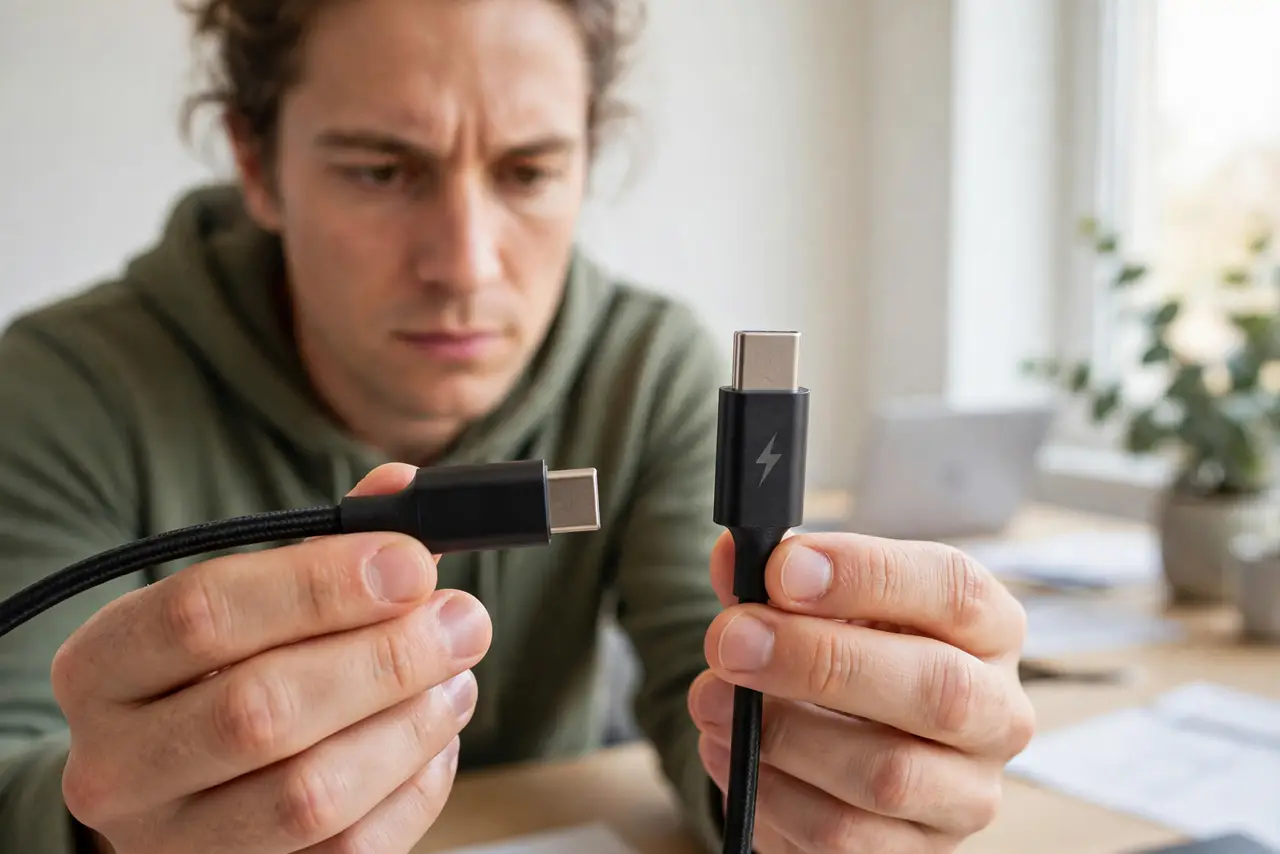
Quick fix: Thunderbolt is a faster superset that uses the USB-C connector — look for the lightning-bolt logo on the port. Thunderbolt drives multiple 4K monitors and high-speed storage; plain USB-C may not. The cables are not interchangeable for full speed — use a Thunderbolt-rated cable for Thunderbolt gear.
Follow these steps
- Learn the shape-vs-speed distinction. USB-C is the connector shape; Thunderbolt is a technology that travels over it. A USB-C port may or may not be Thunderbolt — the lightning logo tells you.
- Check for the lightning logo. Ports and cables marked with the small lightning bolt are Thunderbolt. No logo usually means plain USB-C — check the spec sheet when the marking is absent.
- Know what Thunderbolt unlocks. Multiple high-resolution monitors, 40 Gbps storage, and external GPUs need Thunderbolt bandwidth. Plain USB-C handles one monitor and everyday peripherals fine.
- Buy the right cable. A Thunderbolt device on a plain USB-C cable falls back to slower speeds — or fails. Thunderbolt-rated cables cost more but are required for the full feature set.
- Do not pay for Thunderbolt you will not use. If your life is one monitor and a keyboard, plain USB-C does everything. Thunderbolt's premium pays off only for demanding setups — see whether a docking station even needs it.
- Check both ends. The laptop port, the cable, and the dock or monitor must all be Thunderbolt for Thunderbolt speeds. One plain-USB-C link caps the whole chain.
What NOT to do
- Do not assume every USB-C port is Thunderbolt. Most are not — the identical shape is the entire source of confusion.
- Do not buy Thunderbolt docks for plain USB-C laptops. They may partially work, but you are paying for bandwidth the laptop cannot provide.
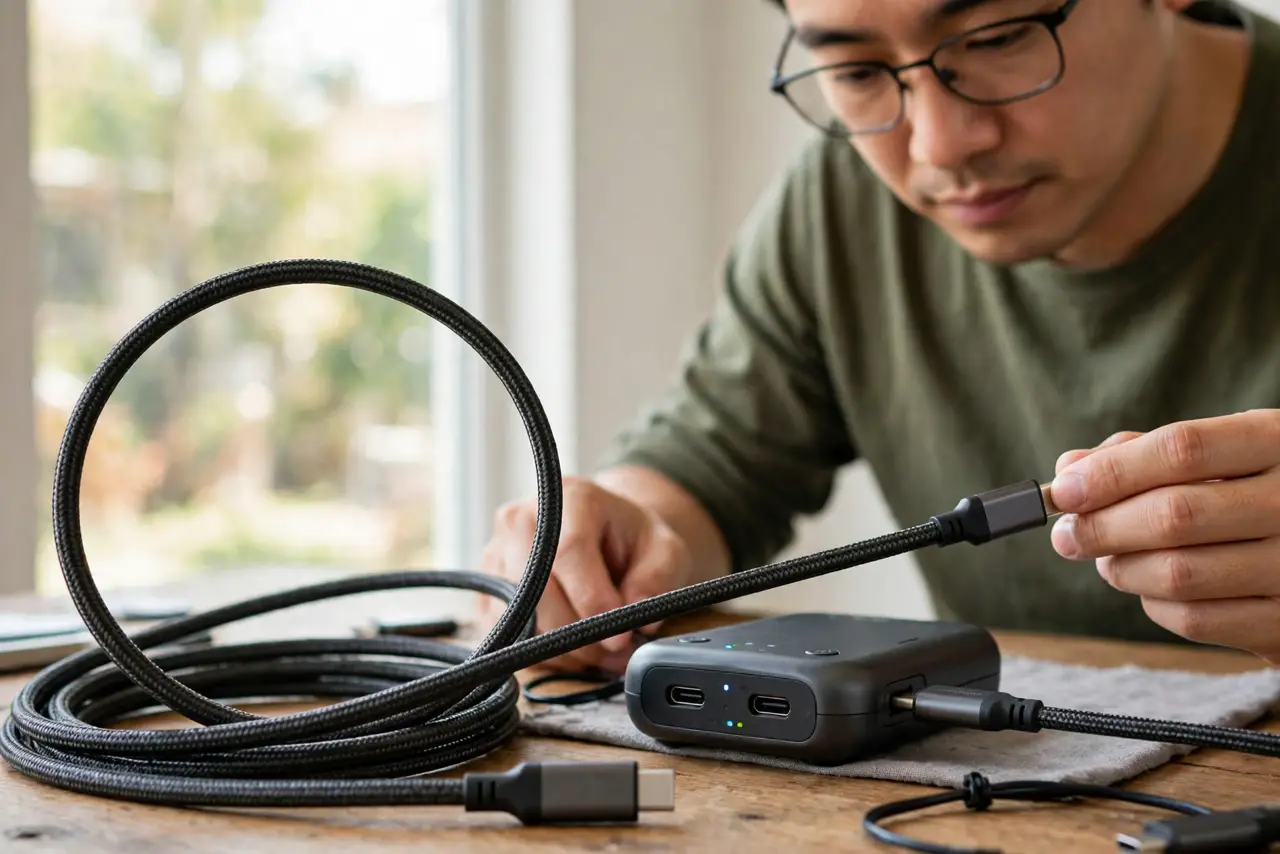
- Do not use long passive cables for Thunderbolt. Beyond about half a meter, passive cables lose Thunderbolt speeds — active cables cost more for a reason.
- Do not confuse Thunderbolt versions casually. Thunderbolt 3, 4, and 5 differ in guaranteed capabilities — match versions when buying docks and monitors.
Frequently asked questions
Is Thunderbolt worth it?
For multi-monitor creators, fast external storage, and future-proofing — yes. For email-and-browser laptops — no, plain USB-C is plenty.
Can I plug USB-C devices into Thunderbolt ports?
Yes — Thunderbolt ports accept all USB-C devices. The compatibility only fails in the other direction, expecting Thunderbolt from plain USB-C.
Why are Thunderbolt cables so expensive?
Active electronics inside the cable maintain the 40 Gbps signal. It is real engineering, not branding — but buy only the length and rating you need.