USB-C Alt Mode? Basics
Your laptop's USB-C port looks identical to every other USB-C port, but some carry video to a monitor and some don't. The difference is DisplayPort Alt Mode — a feature that repurposes the port's pins to output video. Without it, a USB-C monitor shows nothing no matter how good the cable is. Here is how to check and what to buy.
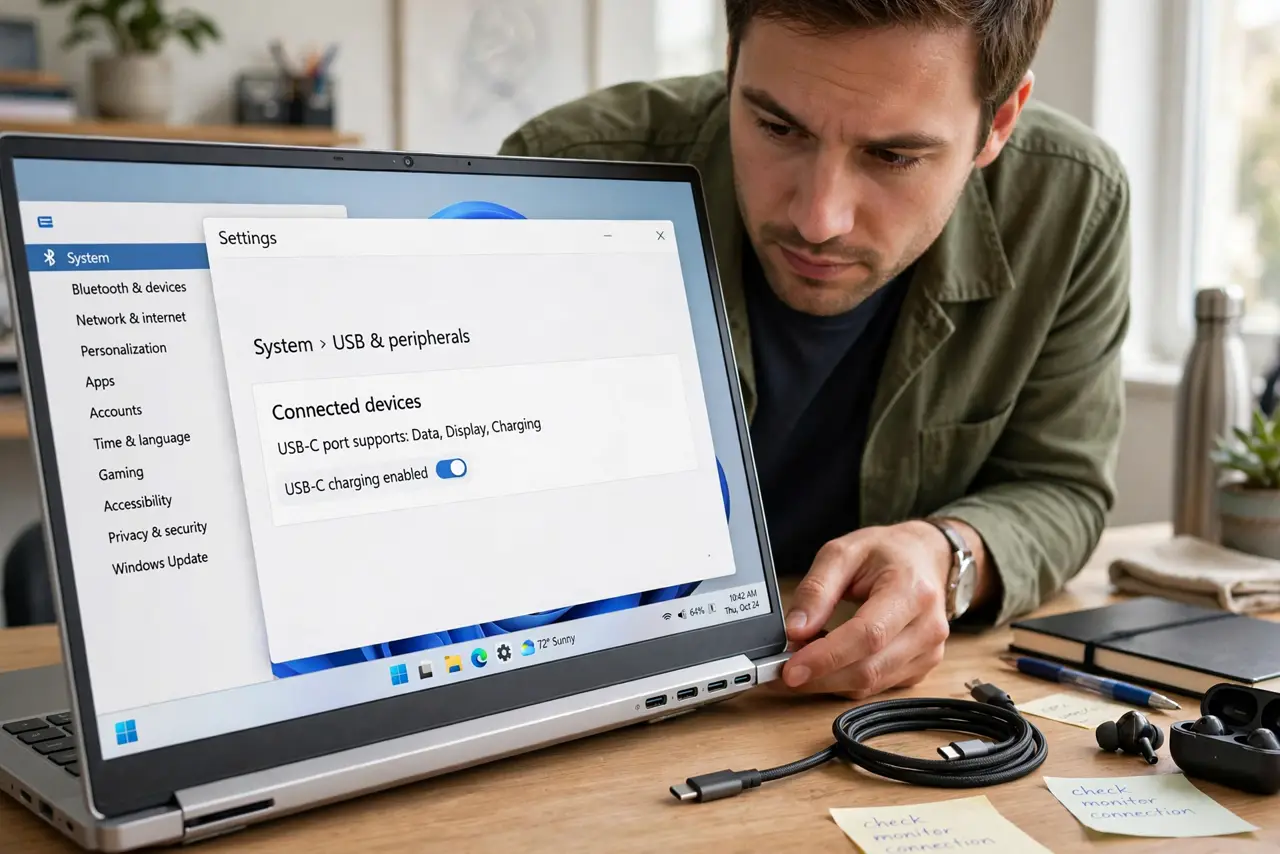
TL;DR / Quick Fix
Quick fix: USB-C Alt Mode lets a USB-C port output video — but not every port has it. Check specs for 'DisplayPort Alt Mode' or a DisplayPort icon beside the port. Use a cable rated for video; many USB-C cables are charge-only. Without Alt Mode, no cable will carry video.
Follow these steps
- Understand what Alt Mode does. USB-C is just a connector shape — Alt Mode repurposes its high-speed lanes to carry DisplayPort video (and sometimes HDMI). The port looks the same with or without it, which is why this confuses everyone. Alt Mode is a capability, not a shape.
- Check your laptop's specs. Look for 'DisplayPort Alt Mode,' 'DP Alt Mode,' or Thunderbolt in the official specs — Thunderbolt ports always include it. A tiny DisplayPort icon printed beside the port is the physical tell. No mention anywhere usually means no video.
- Use a video-rated cable. Many USB-C cables are charge-only and physically cannot carry video. A cable that charges but moves no data will never drive a monitor. Use the cable bundled with the monitor, or one explicitly rated for DisplayPort Alt Mode.
- Distinguish Thunderbolt from plain USB-C. Thunderbolt 3/4 ports (lightning icon) always support video and carry more of it — dual 4K, for example. Plain USB-C with Alt Mode handles a single monitor fine. The Thunderbolt vs USB-C guide helps you tell cables and ports apart.
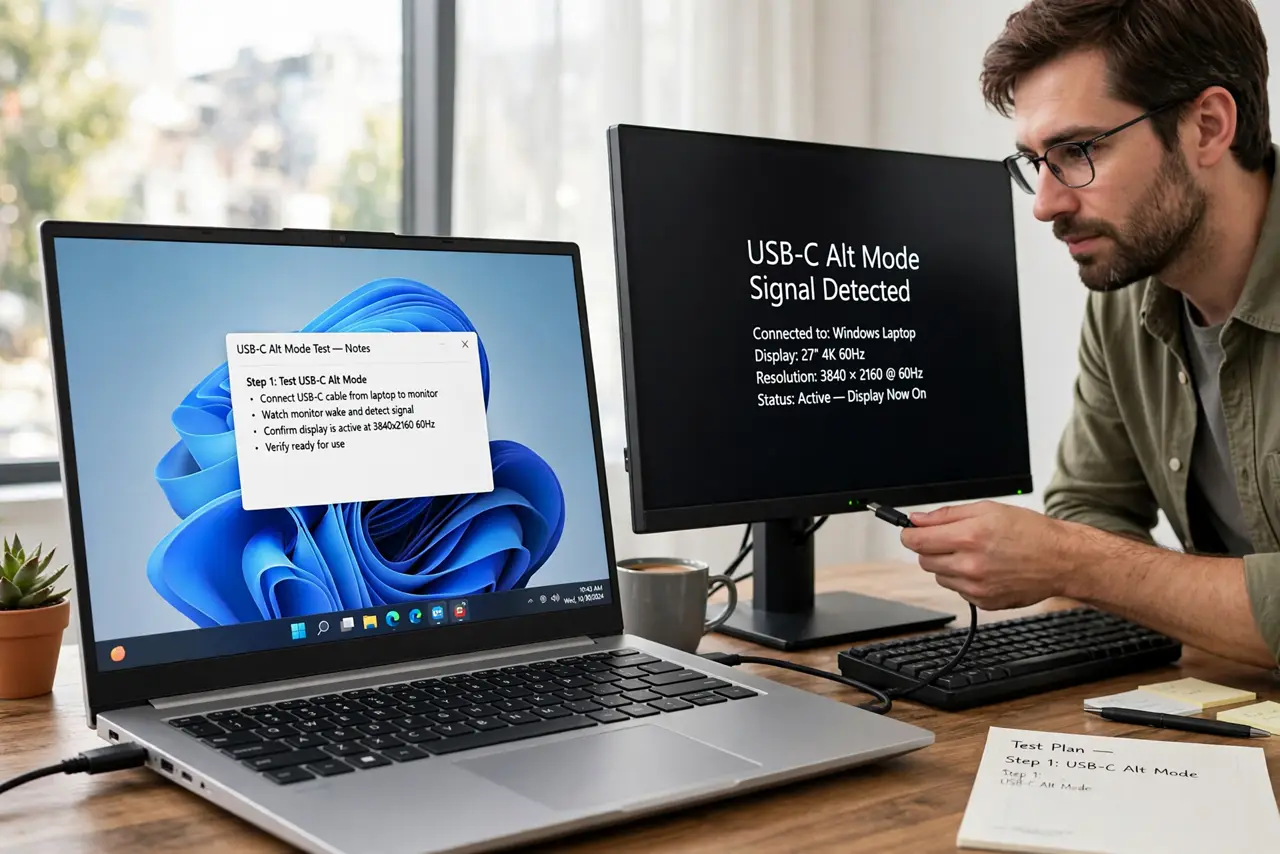
- Test methodically when it fails. No signal? Swap in the monitor's bundled cable first, then try the other USB-C port — many laptops have Alt Mode on only one port. Update graphics drivers before assuming hardware failure.
- Know the dock shortcut. A USB-C dock with video output still needs Alt Mode on the laptop port — the dock can't invent it. If your port lacks Alt Mode, a DisplayLink dock (which compresses video over plain USB data) is the workaround, with some latency cost.
What NOT to do
- Do not assume all USB-C ports on one laptop are equal. Manufacturers commonly enable Alt Mode on one port only — check each.
- Do not buy a premium cable to fix a port without Alt Mode. No cable adds a missing capability.
- Do not confuse USB-C charging wattage with video support. A 100W charge-capable cable may still be video-blind — separate specs.
- Do not force the connector. USB-C is reversible, but a damaged port or debris can mimic an Alt Mode failure — inspect before diagnosing.
Frequently asked questions
How do I know if my port supports Alt Mode?
Check the laptop's official spec sheet for DisplayPort Alt Mode, or look for the DisplayPort icon beside the port. When in doubt, the manufacturer's support page for your exact model settles it.
Can Alt Mode drive two monitors?
Usually not from one port — Alt Mode typically carries one video stream (Thunderbolt can carry two). For dual monitors over one cable, you need Thunderbolt or a DisplayLink dock.
Does Alt Mode affect charging?
No — power delivery is independent. A port can charge at full wattage with or without Alt Mode; video support is a separate feature.