USB Flash Drive Speeds? Explained
Two flash drives, same size, one costs triple — the difference is speed, and it is enormous. A bargain USB 2 drive copies a movie in twenty minutes; a good USB 3 drive does it in one. But the speed game has traps: the port, the fine print, and the fake specs. Here is how to buy actual speed.
TL;DR / Quick Fix
Quick fix: buy USB 3 drives from known brands and plug them into USB 3 ports — ten times faster than USB 2. Ignore headline speeds; check reviews for sustained write speed. A cheap USB 2 drive is fine for documents; for big files, speed is worth paying for.
Follow these steps
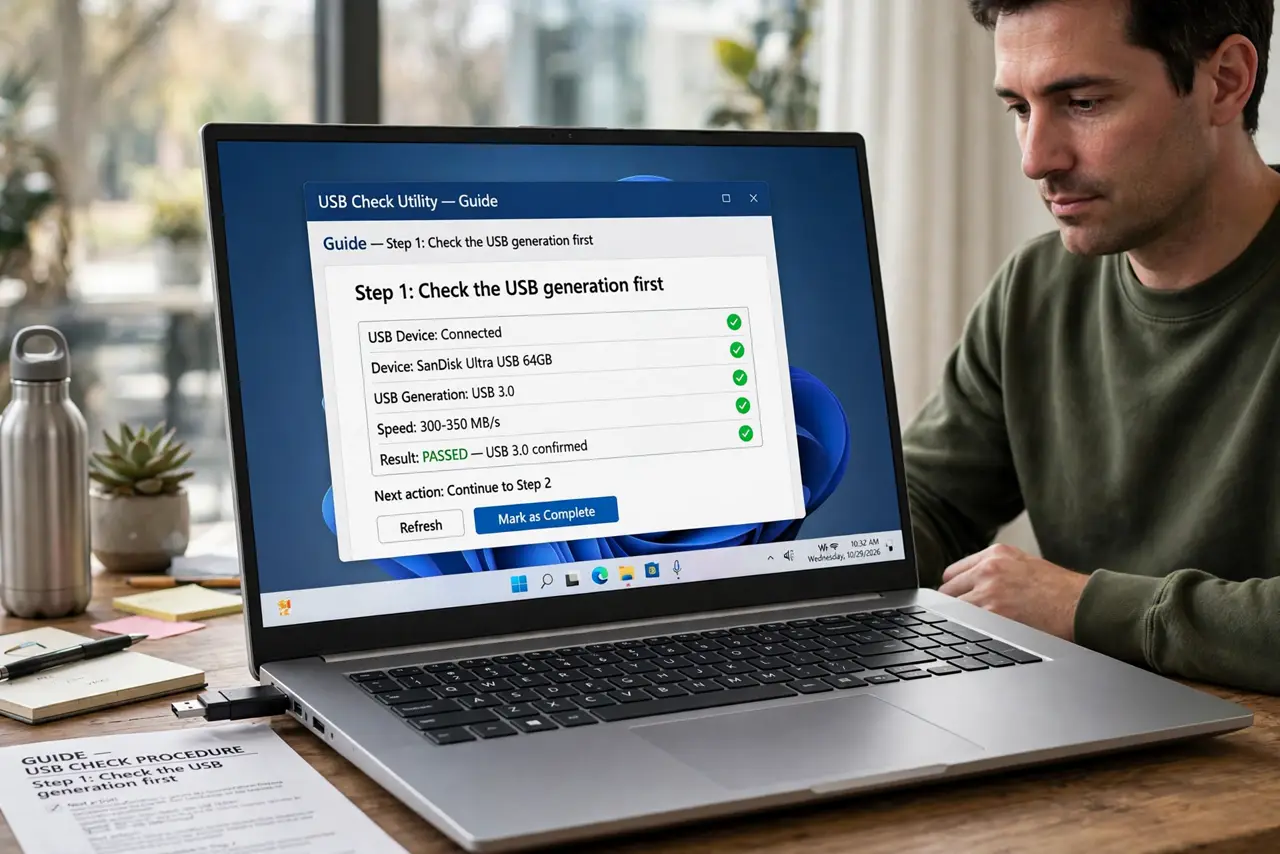
- Check the USB generation first. USB 2 drives top out at real-world speeds that feel glacial for gigabytes. USB 3 drives are an order of magnitude faster — the generation matters more than any other spec.
- Learn the physical tells. Blue plastic insert and the SS (SuperSpeed) logo mark USB 3 — see how to tell USB 2 and 3 apart. No markings and black insert usually means USB 2.
- Match the drive to a fast port. A USB 3 drive in a USB 2 port runs at USB 2 speed — and front ports can be slower than rear ones. The chain is only as fast as its slowest link.
- Read reviews for sustained writes. Advertised speeds are burst reads. Copying big files needs sustained write speed, which cheap drives often fudge — independent tests reveal the truth.
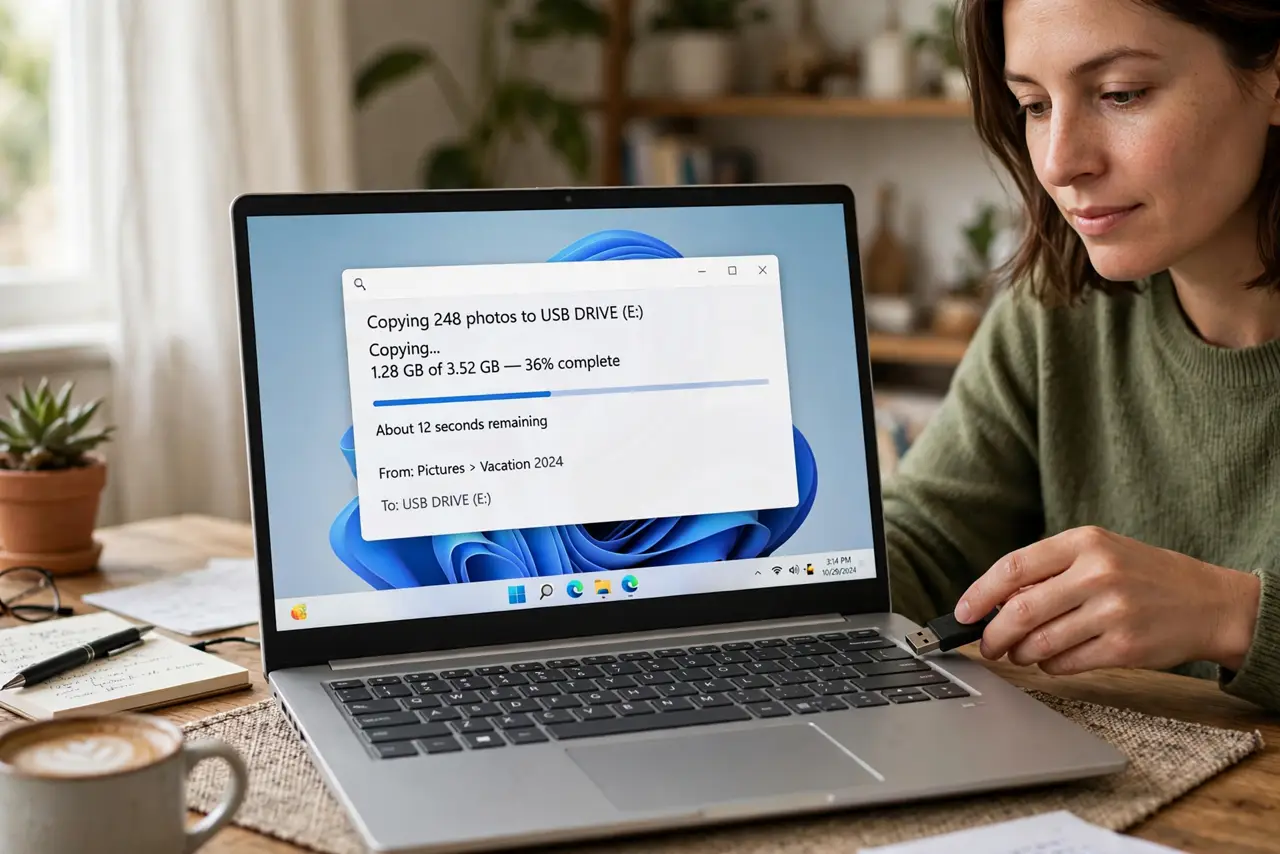
- Size the speed to the job. Documents and installers: any drive works. Video files, disk images, and backups: buy speed, because slow writes turn a five-minute job into an hour.
- Test bargain drives for fakes. Suspiciously cheap high-capacity sticks get the same fake-capacity test as SD cards — the scam does not care about the form factor.
What NOT to do
- Do not buy unbranded high-capacity sticks at impossible prices. They are either painfully slow, fake capacity, or both.
- Do not judge speed by the package's big number. That is burst read speed; your file copies live and die by sustained writes.
- Do not leave a slow drive as your only backup medium. Backups you dread running do not get run — speed determines whether the backup habit survives.
- Do not yank the drive mid-write to 'save time.' Corrupted files from unsafe removal waste more time than the proper eject ever did.
Frequently asked questions
Is USB 3 worth it for small files?
Less dramatically — small files are limited by overhead more than raw speed. But USB 3 drives still finish mixed jobs noticeably faster.
What about USB-C flash drives?
Same speed logic, different connector — check the generation (USB 3 vs 2) the same way. The connector shape alone guarantees nothing.
How long do flash drives last?
Years for occasional use; heavy daily rewriting wears them faster. For archival storage, refresh the data every few years regardless.