USB Wi-Fi Adapters? Basics
A USB Wi-Fi adapter gives an old computer modern Wi-Fi, replaces a dead built-in card, or adds a faster standard than the laptop shipped with — all for the price of a pizza. Plug it in, install the driver, and the old machine is back on fast wireless. This guide shows how to pick one that actually helps.
TL;DR / Quick Fix
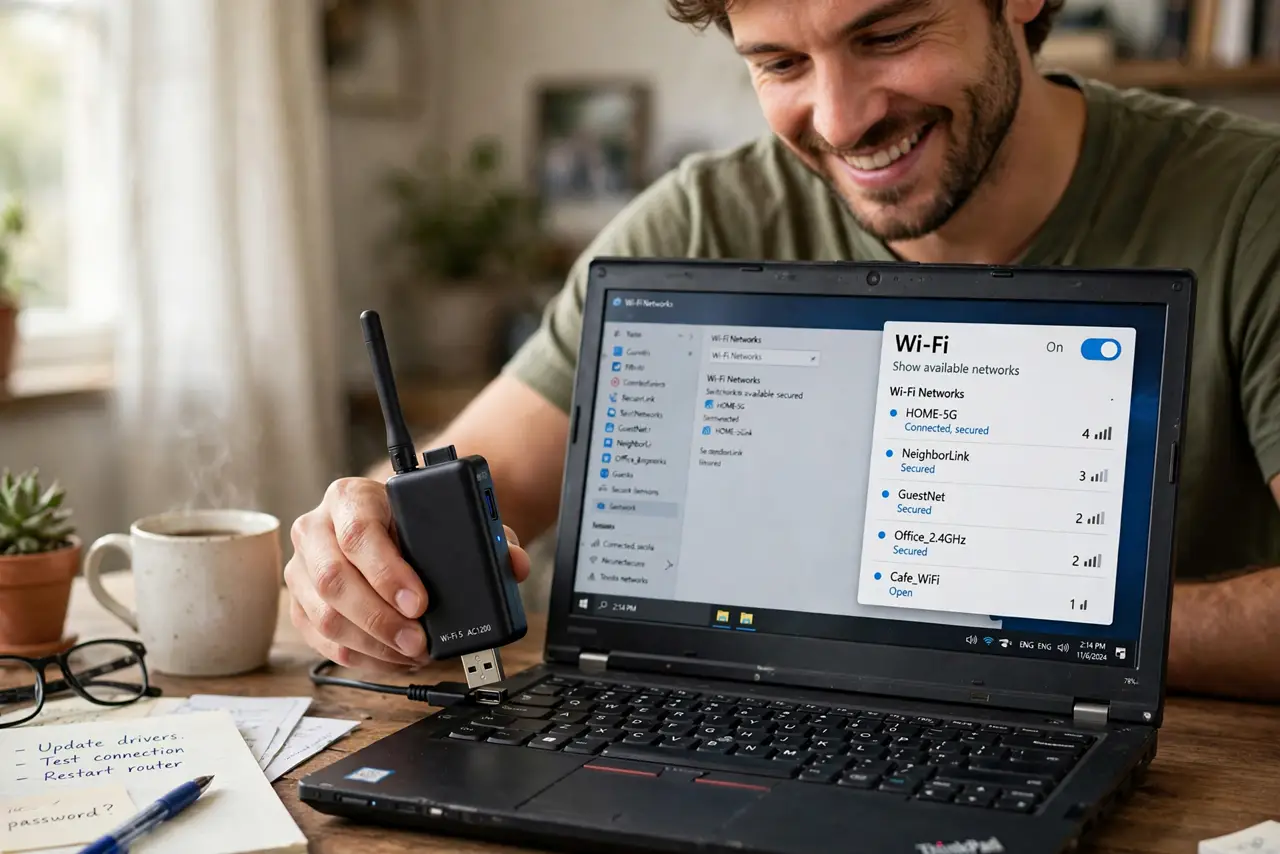
Quick fix: a USB Wi-Fi adapter gives an old PC modern Wi-Fi or replaces a dead built-in card. Match the Wi-Fi generation to your router and use USB 3.0. For desktops a PCIe card performs better. Keep the driver updated; stale drivers cause most dropouts.
Follow these steps
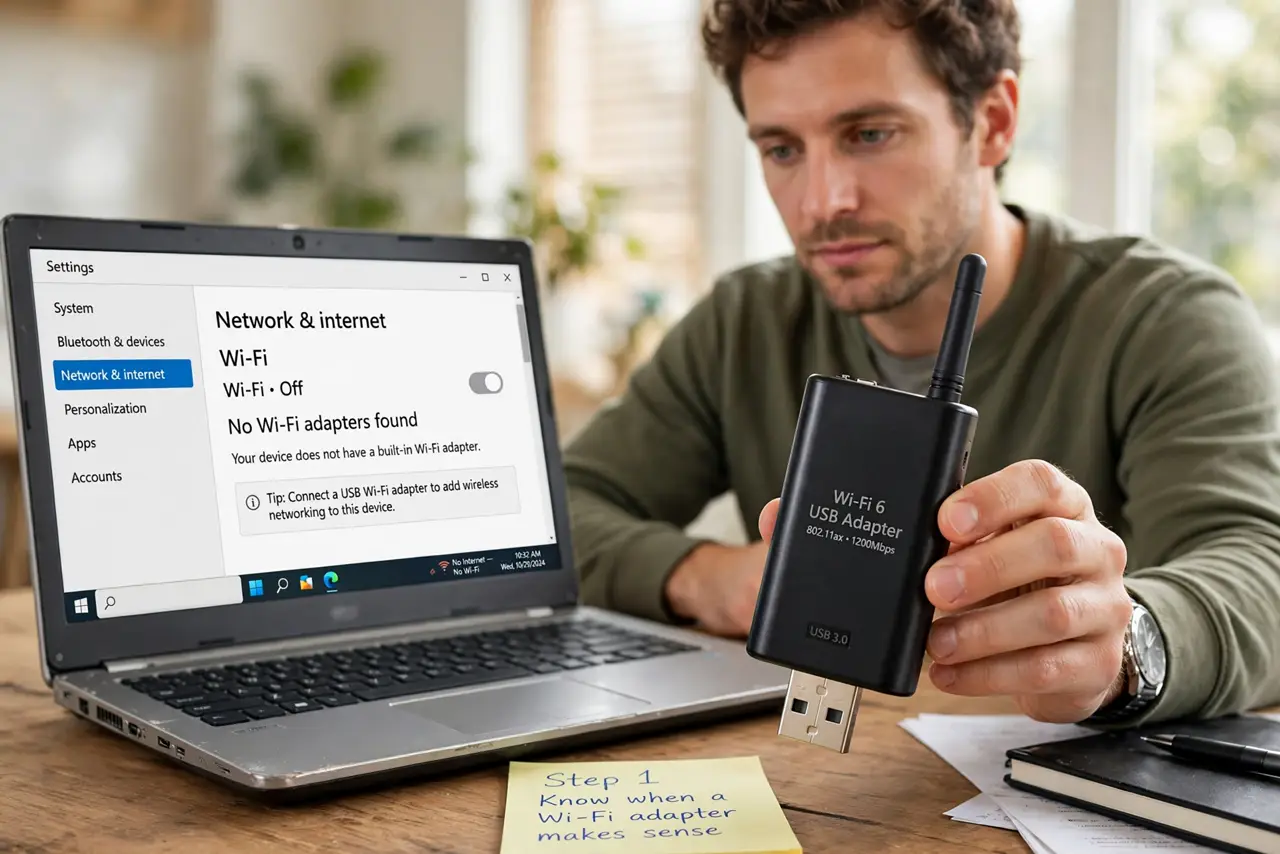
- Know when it makes sense. Old laptop stuck on slow Wi-Fi, built-in card dead, or desktop with no wireless at all — those are adapter cases. If the built-in Wi-Fi already matches your router, an adapter adds nothing.
- Match the Wi-Fi generation. Buying a Wi-Fi 6 adapter for a Wi-Fi 5 router wastes money; buying Wi-Fi 5 when your router does Wi-Fi 6 leaves speed on the table. Match the adapter to the router.
- Use a USB 3.0 port. USB 2.0 caps throughput well below what modern Wi-Fi delivers. Plug the adapter into a USB 3.0 (blue) port or you bottleneck the very upgrade you bought.
- Install the driver properly. Windows usually finds one automatically, but the maker's driver is better. The adapter driver guide walks through clean installation when plug-and-play misbehaves.
- Check it is actually enabled. If the adapter is not working at all, Windows may have disabled it — the disabled adapter fix is a two-minute check before you blame hardware.
- Consider PCIe for desktops. Desktop PCs do better with an internal PCIe Wi-Fi card — bigger antennas, no USB bottleneck, nothing sticking out to snap off. USB adapters are for laptops and quick fixes.
What NOT to do
- Do not buy the cheapest no-name adapter. Rock-bottom adapters ship ancient chips with terrible drivers — spend a little more for a known brand.
- Do not expect miracles on USB 2.0. The port bottlenecks before the Wi-Fi does — USB 3.0 or the upgrade is theater.
- Do not snap it off. Tiny nano adapters are convenient and fragile — one bump against a bag can crack the port. Remove it before traveling.
- Do not forget the driver after Windows updates. Major updates sometimes replace your good driver with a generic one — reinstall the maker's driver if speed collapses post-update.
Frequently asked questions
Will a USB adapter make my internet faster?
Only if your built-in Wi-Fi was the bottleneck — old standards or a dead card. It cannot make your plan faster than the plan itself.
Why does my adapter keep disconnecting?
Usually power saving (Windows turning it off), a stale driver, or a USB 2.0 port. Disable USB selective suspend for the adapter first.
Can I use two Wi-Fi adapters at once?
Technically yes, but Windows uses one at a time for internet. The use case is niche — bridging or monitoring, not double speed.