Set Up a HomePod
You unboxed a HomePod, plugged it in, and now it is glowing and waiting — but the setup dance between iPhone and speaker has a few steps where people get stuck. The whole thing takes about ten minutes when it goes smoothly: Wi-Fi handoff, room assignment, and voice settings. Here is the smooth path, plus the fixes for the common stalls.
TL;DR / Quick Fix
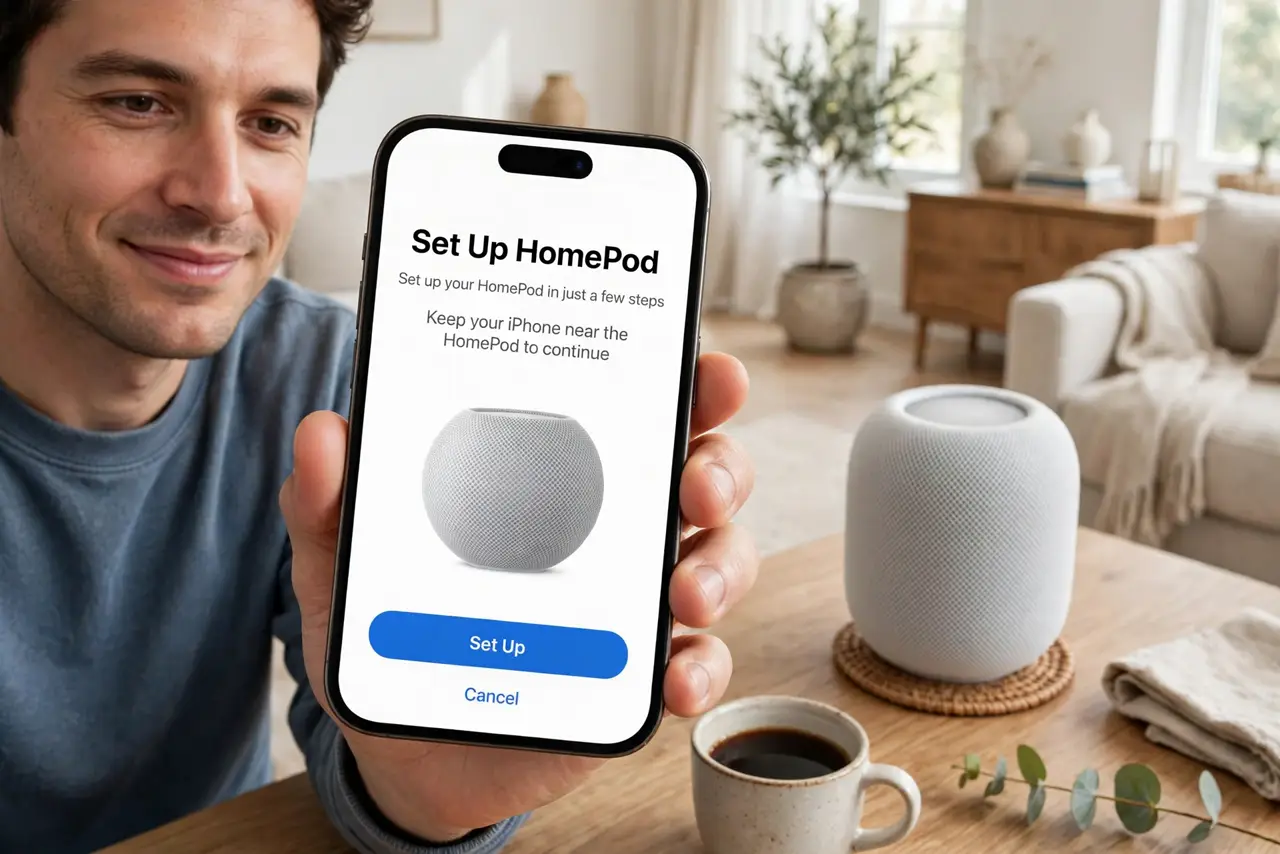
Quick fix: plug in the HomePod, hold your iPhone nearby, and tap Set Up when the prompt appears. Keep Bluetooth and Wi-Fi on, with both on the same network. If the prompt never appears, open the Home app and add the accessory manually — it takes about ten minutes total.
Follow these steps
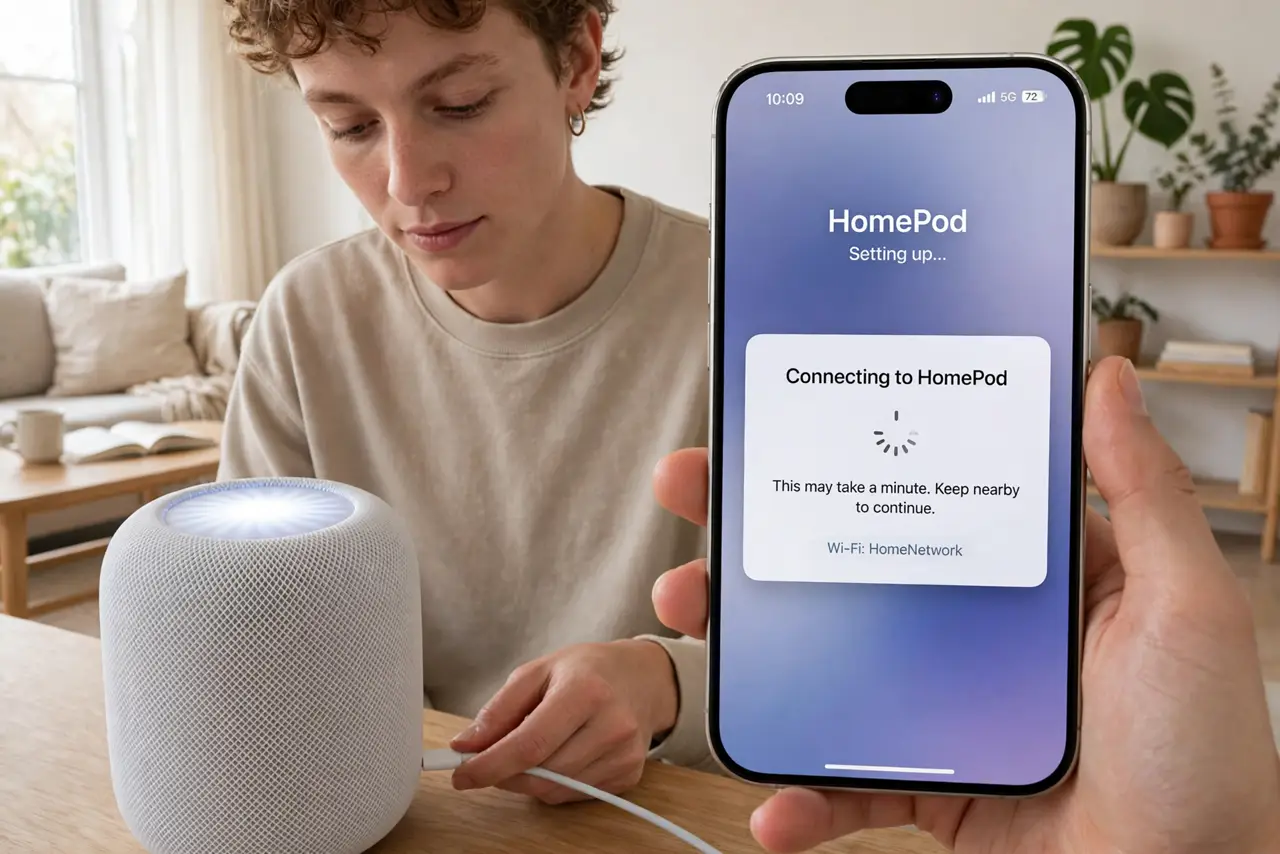
- Plug it in and wait for the glow. Connect the power cable and wait for the white spinning light on top. That means it is ready to pair — do not press anything yet.
- Hold your iPhone close. Unlock your iPhone, turn on Bluetooth and Wi-Fi, and hold it near the HomePod. A setup card should pop up within seconds — tap Set Up and follow the prompts.
- Add it manually if no prompt appears. Open the Home app, tap the plus button, and choose Add Accessory. The HomePod should appear as a nearby device — this manual route fixes most nothing-happens stalls.
- Assign it to a room. Pick which room the HomePod lives in. This matters later for commands like turn off the bedroom lights and for stereo pairing with a second speaker.
- Choose who can use it. In the Home app, set who can make personal requests — only you, or everyone at home. Think about the privacy tradeoffs before enabling personal requests for guests.
- Test voice and music. Ask it to play a song and set a timer. If it mishears you constantly, move the HomePod away from walls and noise sources — placement affects the microphones a lot.
What NOT to do
- Do not set it up on a different Wi-Fi network than your iPhone. Mismatched networks are the top reason pairing stalls.
- Do not enable personal requests for everyone without thinking. Guests could then read your messages and calendar aloud.
- Do not place it in an enclosed cabinet. The sound muffles and the microphones struggle — it needs open air.
- Do not unplug it mid-update. If the light is spinning during a software update, leave it alone until it finishes.
Frequently asked questions
Why won't my iPhone find the HomePod?
Check Bluetooth and Wi-Fi are on, both devices on the same network, and your iPhone updated. Restarting the iPhone and unplugging the HomePod for ten seconds fixes most discovery failures.
Can two people use one HomePod?
Yes — add household members to the Home app and enable voice recognition, so each person gets their own music, messages, and calendar.
Does HomePod work without an iPhone?
Not for setup — you need an iPhone or iPad to configure it. After setup it plays independently, but deep settings always need the Home app.