Lock Down Instagram Privacy
Your Instagram shows where you eat, who you are with, and when you are home — to anyone who follows you, including the followers you do not remember approving. Locking down the privacy settings takes fifteen minutes and turns your account from a public broadcast into a space for people you actually know. Here is the full checklist.
TL;DR / Quick Fix
Quick fix: set your Instagram to private, review your follower list for strangers, and turn off activity status and location tagging. Check Settings > Privacy yearly — new features often default to public. Remove unknown followers rather than blocking; it is quieter. Fifteen minutes closes the biggest stalker-friendly gaps.
Follow these steps
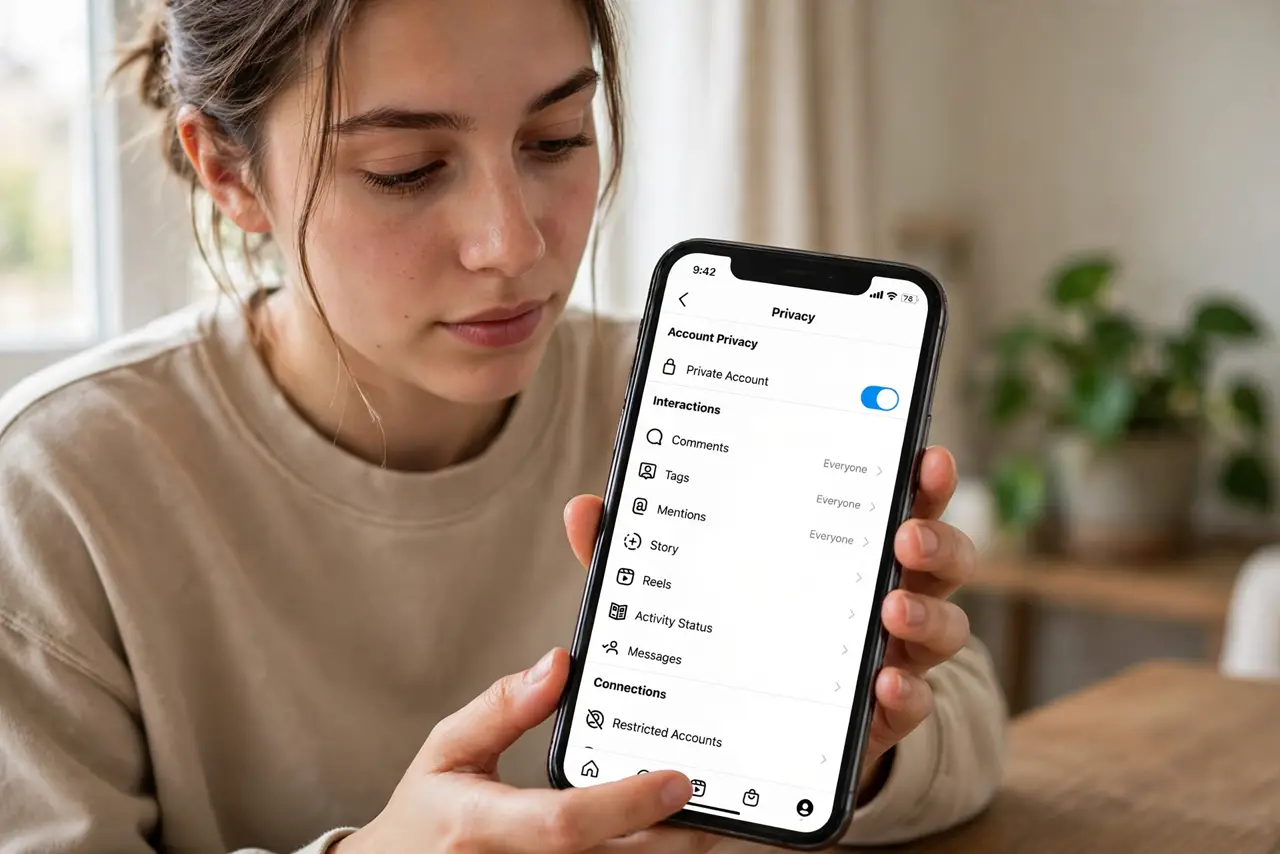
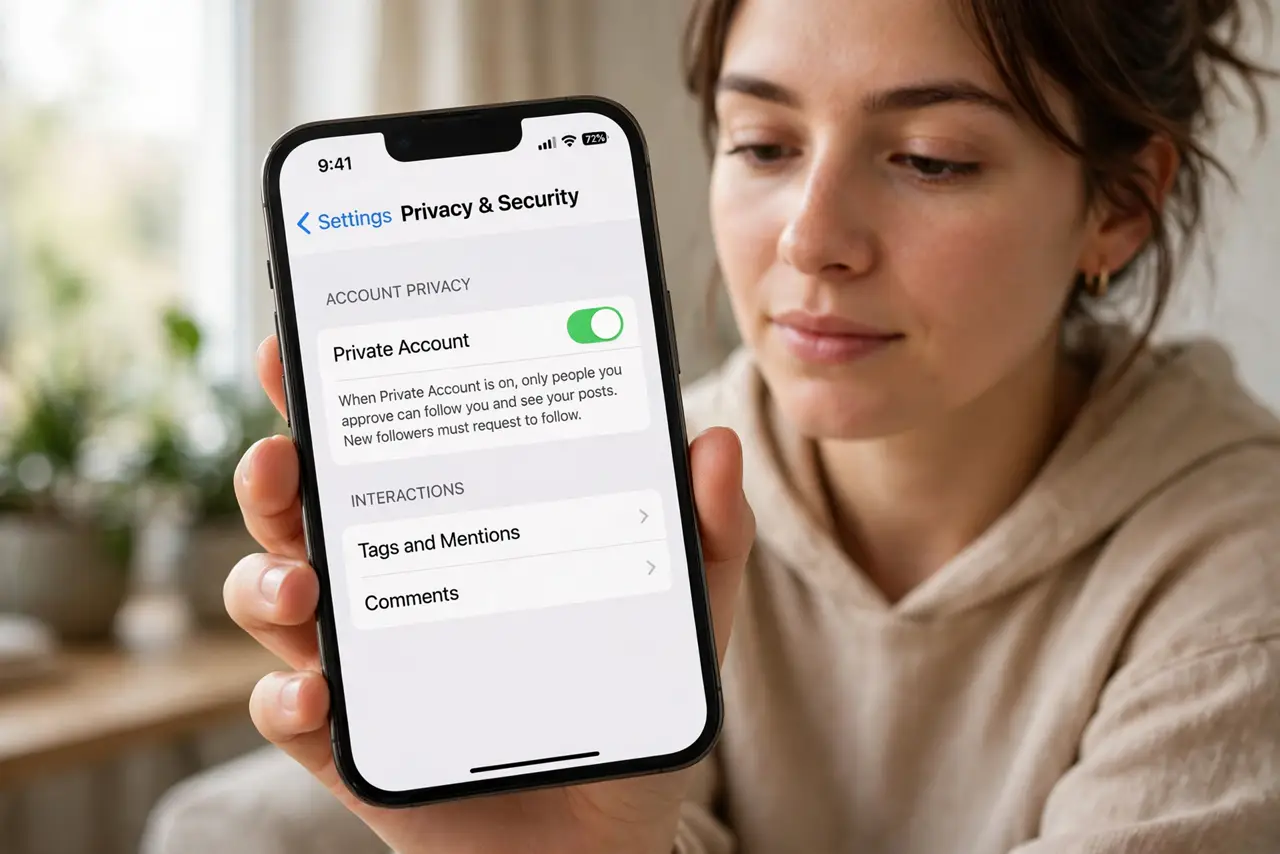
- Switch to a private account. Settings > Privacy > Private Account. Now strangers cannot see your posts — they must request to follow. For personal accounts, this is the single biggest privacy win.
- Audit your followers. Scroll the follower list and remove anyone you do not recognize. Remove is quieter than block — no notification, no drama, they are just gone.
- Turn off activity status. Privacy > Activity Status off. Strangers do not need to know when you are online — and the green dot is a stalker's favorite feature.
- Stop tagging locations in real time. Posting the restaurant while you are still there tells everyone where you are. Post after you leave, or skip the tag — location history is the most misused Instagram data.
- Lock down story and message controls. Stories > Close Friends for personal stuff; Messages > who can message you set to people you follow. Strangers should not have a direct line to your DMs.
- Review tagged photos and mentions. Privacy > Tags and Mentions — require approval before tags appear on your profile. Other people's tags put you places you never chose to be.
What NOT to do
- Do not accept follow requests from strangers to be polite. Every unknown follower is someone watching your life — the request button owes you nothing.
- Do not post real-time location. The vacation photo can wait until you are home — wish you were here posted from the airport is a burglary invitation.
- Do not assume private means invisible. Screenshots exist, followers share, and your profile photo and bio stay public regardless.
- Do not link Instagram to every third-party app. Each connection is another company holding your data — prune them in Settings > Website permissions.
Frequently asked questions
Will going private hurt my reach?
For personal accounts, no — you are not chasing reach. For creators, it is a real tradeoff; use Close Friends lists instead of full private.
Can someone tell I removed them as a follower?
No notification is sent, but they will notice your posts vanished if they look. It is still far quieter than a block.
What about old public posts?
Switching to private hides them from non-followers instantly. For extra safety, archive the posts you would not show a stranger today.