The 80% Charge Limit?
You plug in your iPhone and it stubbornly stops at 80%, even though you wanted a full charge. That is not a bug — it is a battery-health feature that caps charging to reduce long-term wear. Apple added an explicit 80% limit option, and older models use Optimized Battery Charging to do something similar. Here is how it works, when to keep it, and how to allow 100% on the days you need it.
TL;DR / Quick Fix
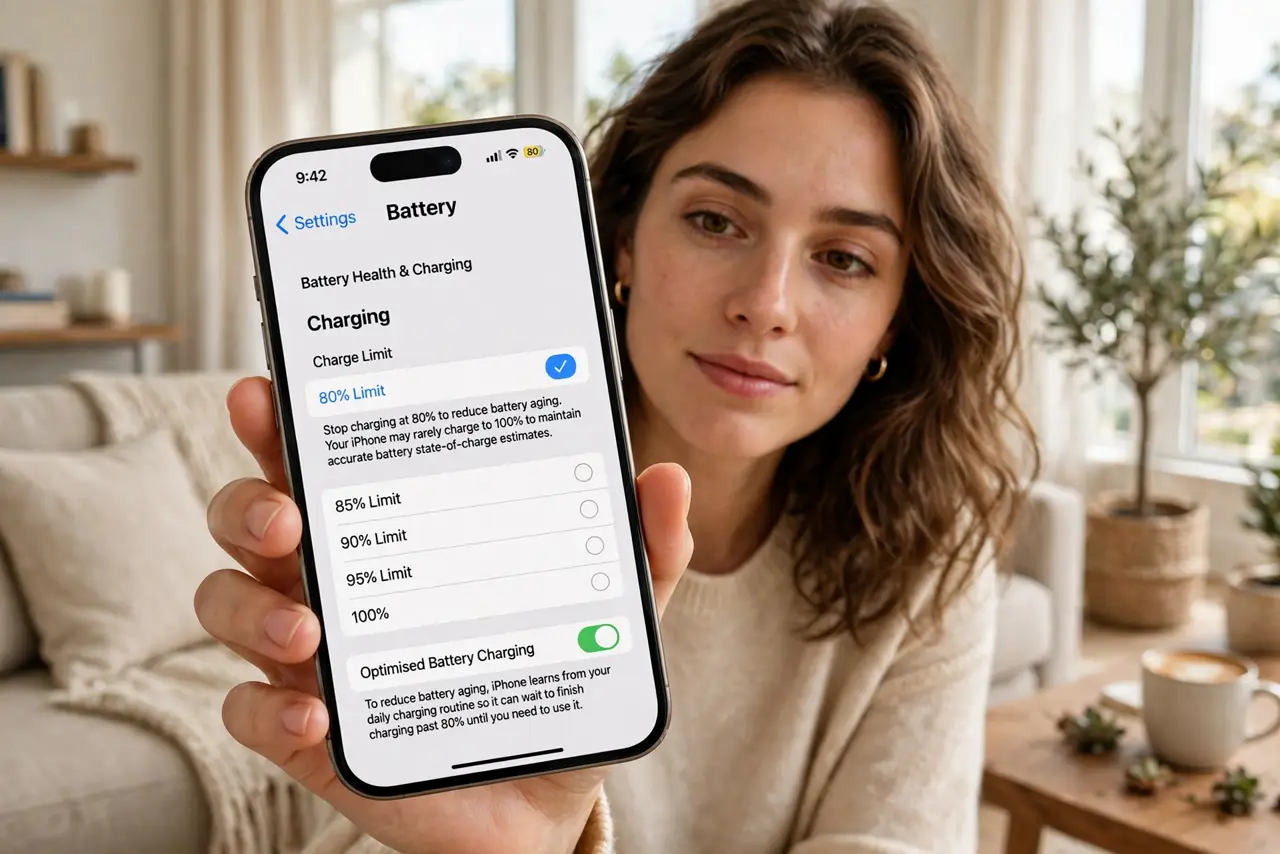
Quick fix: your iPhone stops at 80% because of the charge-limit feature protecting long-term battery health. Check Settings → Battery → Charging and pick 80%, 90%, or Optimized charging. Keep 80% for daily use and allow a full charge on travel days. Less time at 100% means slower battery aging.
Follow these steps
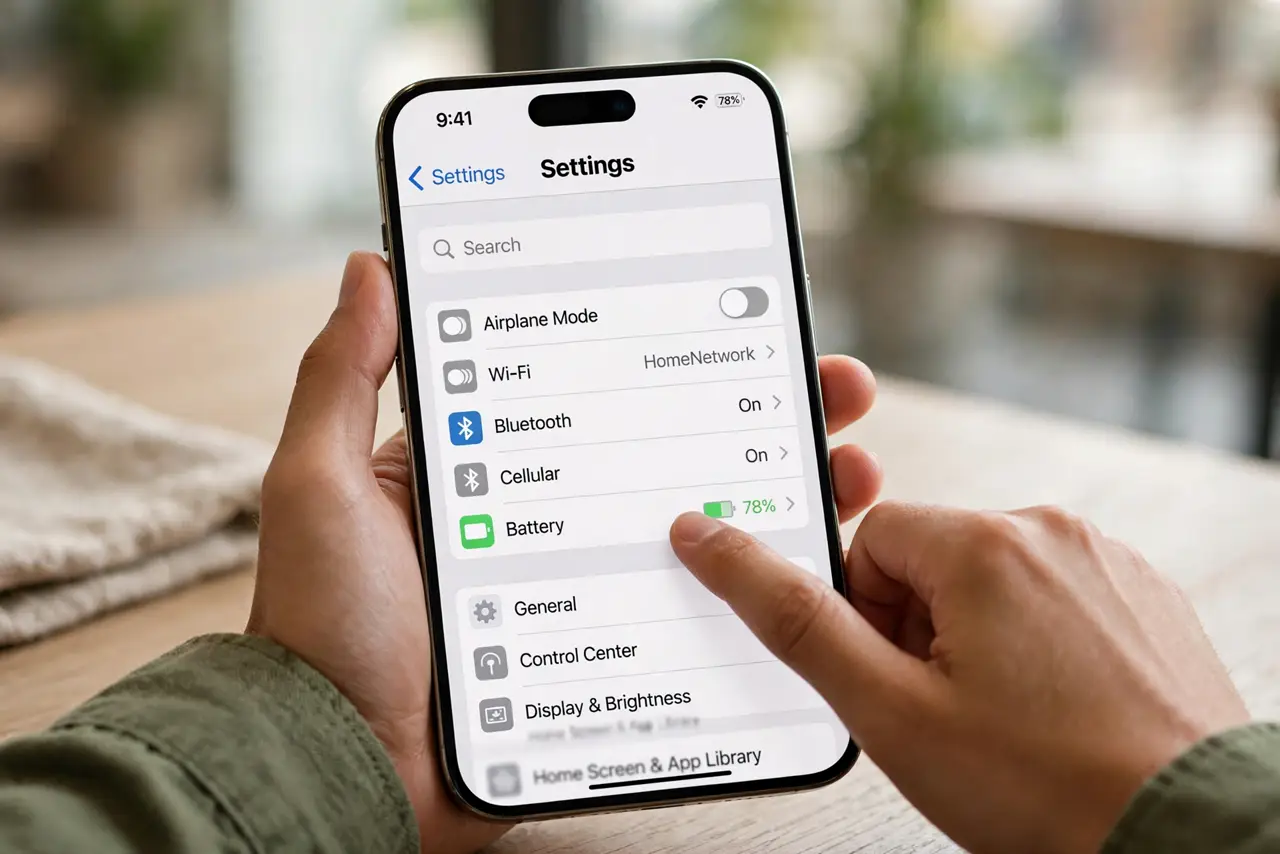
- Find the charging settings. Open Settings → Battery → Charging. This is where Apple keeps the 80% limit, the 90% limit, and Optimized charging. If you do not see these options, your iPhone model or iOS version predates them — older phones only get Optimized Battery Charging.
- Understand the 80% limit. With the 80% limit on, charging hard-stops at 80% and stays there. Batteries age fastest when held at 100%, so capping daily charges at 80% measurably slows wear. It is ideal if you charge overnight and rarely need a full day of heavy use.
- Understand Optimized charging. Optimized charging learns your routine and holds the phone at 80% overnight, finishing to 100% shortly before you wake. You get a full battery in the morning with far less time sitting at 100%. If your routine changes, it may occasionally finish early or late.
- Choose based on your day. Daily office routine: 80% limit. Unpredictable days: 90% limit or Optimized. Travel or long days out: temporarily switch to the full-charge option, then switch back. The setting is a tap away, so there is no reason to leave it at 100% all the time.
- Check your battery health context. If your battery already shows reduced capacity, the 80% limit matters even more — it slows further decline. Check Settings → Battery → Battery Health & Charging to see where you stand. A fast-dropping battery has other causes worth ruling out.
- The same idea exists on Android. Many Android phones offer a similar cap — often called 'Protect battery' or an 85% limit under battery settings. The logic is identical: cap daily charges, allow full ones when needed. Laptop charge caps exist for the same reason.
What NOT to do
- Do not leave the phone at 100% on the charger for days. A battery held at full charge and warm ages fastest — the 80% limit exists precisely for this.
- Do not turn the limit off permanently 'just in case.' Switch to 100% for the travel day and switch back; the daily wear is what costs you a battery replacement.
- Do not use a hot car dashboard as a charging spot. Heat plus a full charge is the worst combination for battery lifespan.
- Do not trust third-party 'battery saver' apps to do this. The real limit lives in Settings — apps cannot cap charging on iPhone and add nothing on Android.
Frequently asked questions
Why does my iPhone stop at 80% even with the limit off?
Heat. iPhones pause charging at 80% when the phone gets too warm, as a safety measure — move it somewhere cooler and charging resumes. The 80% limit setting is separate from this thermal pause.
Will the 80% limit make my battery last the day?
For light to moderate use, usually yes. If you regularly end the day under 20%, use the 90% limit or Optimized charging instead — a dead phone is worse than slightly faster battery wear.
Does wireless charging affect the limit?
No — the limit works the same on wireless chargers. Wireless charging does generate more heat though, which is its own small aging factor.