iPhone AirDrop Not Found by Others? Fix It
You want to receive a photo, but your iPhone never appears on the other person's AirDrop list. AirDrop needs the right receiving setting and both radios on, and one wrong toggle hides you completely. The fix is usually quick, and it matches the checks in our guide to AirDrop not working between Apple devices.
TL;DR / Quick Fix
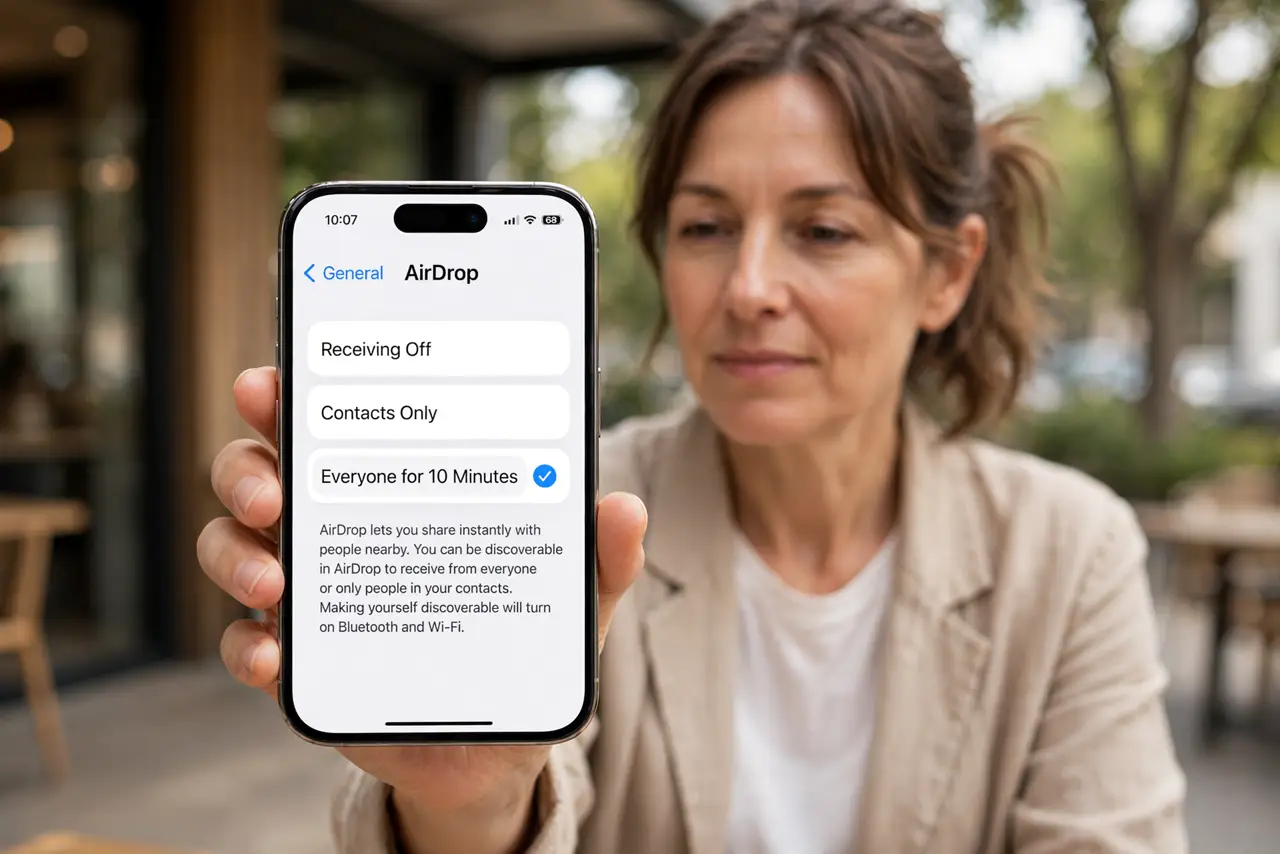
Quick fix: set AirDrop receiving to Everyone for 10 Minutes. Turn Wi-Fi and Bluetooth off and on, move closer with the phone unlocked, turn off Personal Hotspot, restart both devices, and check for a VPN or restriction blocking AirDrop. Test the fix right away today.
Follow these steps
- Set AirDrop receiving to Everyone for 10 Minutes. Open Settings, then General, then AirDrop, and choose Everyone for 10 Minutes. Contacts Only fails when the sender is not saved in your contacts, so Everyone is the best test setting.
- Turn Wi-Fi and Bluetooth off and on. Open Control Center and turn both Wi-Fi and Bluetooth off, wait ten seconds, and turn them back on. AirDrop needs both radios, even though it does not need a Wi-Fi network.
- Move closer and unlock your phone. Stand within a few feet of the sender and unlock your iPhone. A locked phone or a phone across the room may not appear in the AirDrop list at all.
- Turn off Personal Hotspot. If Personal Hotspot is on, turn it off before trying AirDrop. Hotspot mode can block AirDrop discovery, and this is one of the most common hidden causes.
- Restart both devices. Restart your iPhone and ask the sender to restart theirs. A restart clears a stuck wireless state on either side, and it often fixes discovery when toggles alone do not.
- Check for a VPN or a restriction. Turn off any VPN, then check Settings, then Screen Time, then Content and Privacy Restrictions, for an AirDrop block. A VPN or restriction can hide your phone from nearby devices.
What NOT to do
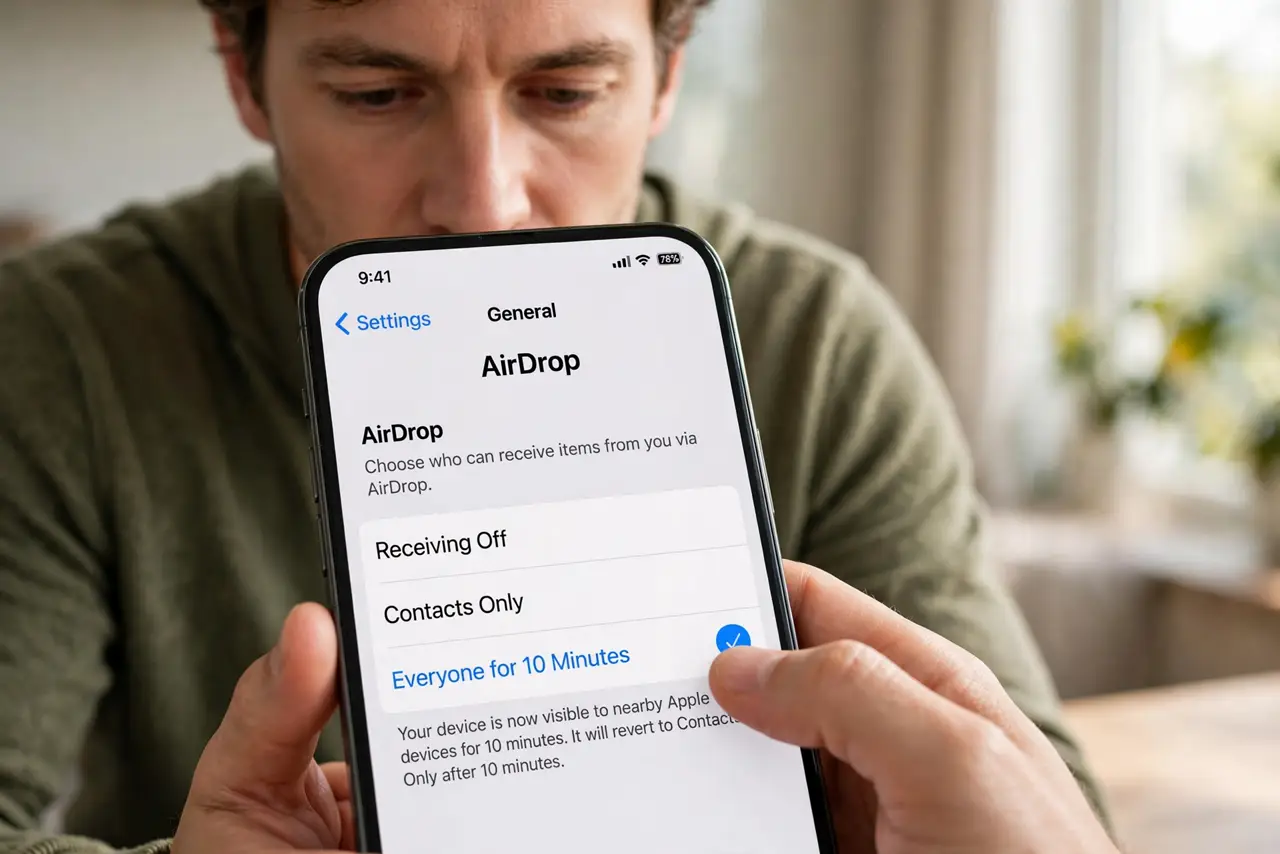
- Do not turn AirDrop off and on repeatedly without changing the receiving setting. The receiving setting is what hides you, not the switch itself.
- Do not assume the sender's phone is broken. Test with a second nearby device first, so you know which side has the problem.
- Do not leave receiving on Everyone permanently. Switch back to Contacts Only after the transfer, so strangers nearby cannot send you files.
- Do not reset network settings as a first step. Check receiving, radios, Hotspot, and distance first, since those fix most cases.
Frequently asked questions
Why can others see my phone but I cannot see theirs?
The receiving setting or radios on their phone may be off. Ask them to check AirDrop receiving, Wi-Fi, and Bluetooth.
Does AirDrop need Wi-Fi?
It needs Wi-Fi and Bluetooth turned on, but not a Wi-Fi network. It works directly between devices.
Is Everyone for 10 Minutes safe?
Yes, for a short transfer. It switches back automatically, and you still approve each file before it arrives.