Wireless CarPlay
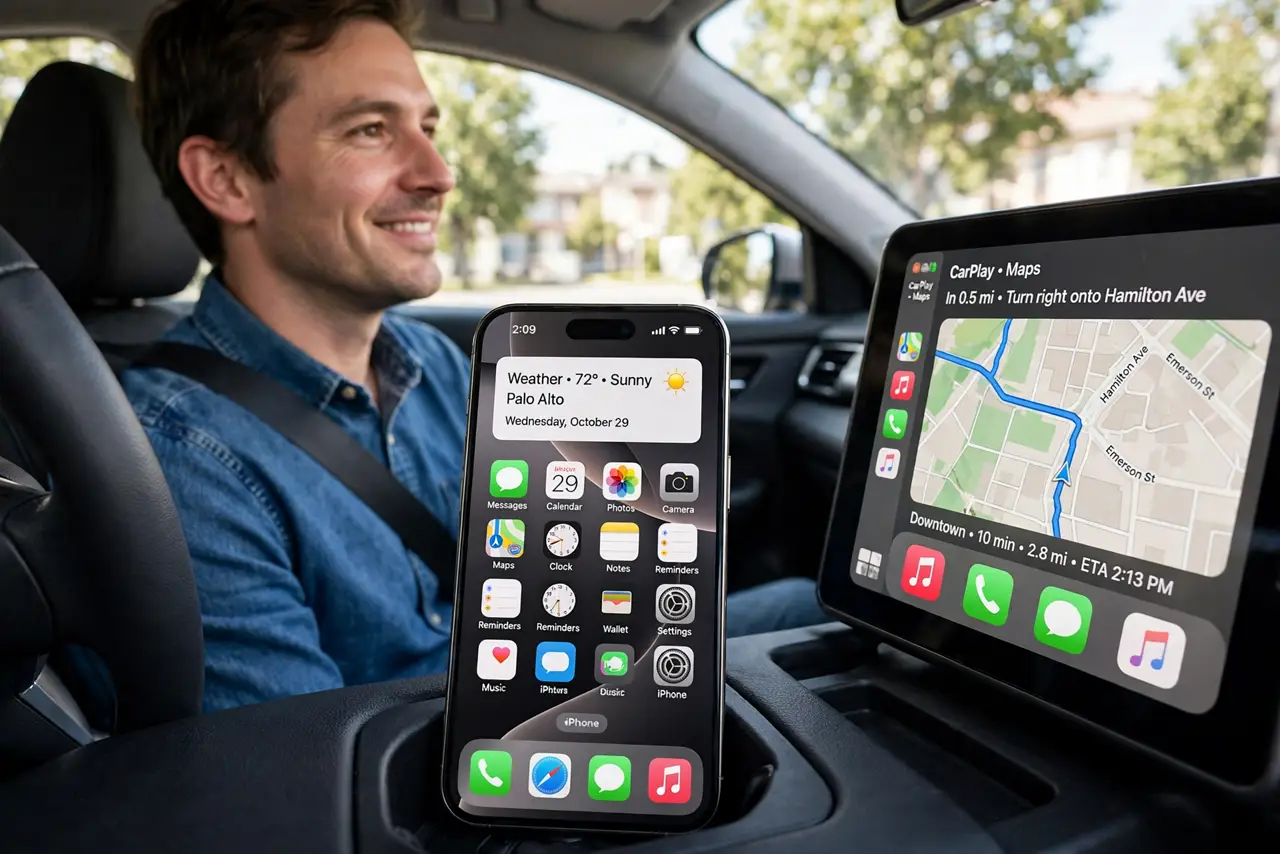
Plugging in a cable every time you get in the car gets old fast — and cables fray, ports loosen, and the phone slides off the seat. Wireless CarPlay connects automatically over Bluetooth and Wi-Fi, so you just get in and drive. Here is how to check your car supports it and get it paired.
TL;DR / Quick Fix
Quick fix: pair your iPhone to the car over Bluetooth, then look for the CarPlay prompt or a Wi-Fi network from the car to finish wireless setup. Once paired, CarPlay connects automatically when you start the car. If it drops, forget the car in CarPlay settings and pair fresh.
Follow these steps
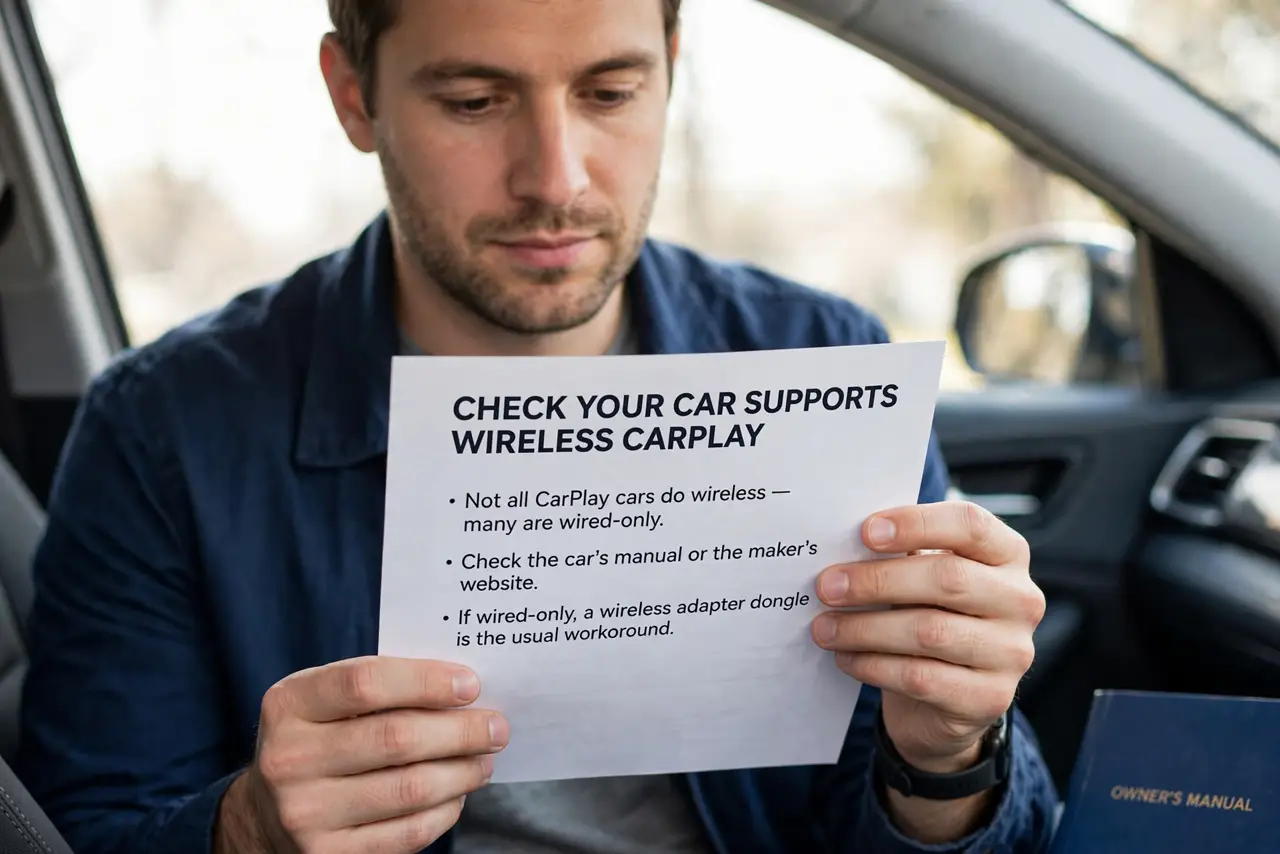
- Check your car supports wireless CarPlay. Not all CarPlay cars do wireless — many are wired-only. Check the car's manual or the maker's site. If yours is wired-only, a wireless adapter dongle is the usual workaround.
- Pair over Bluetooth first. With the car on, pair your iPhone to the car's Bluetooth like any accessory. This is the handshake that starts wireless CarPlay setup — learn the CarPlay basics if you are new to it entirely.
- Accept the CarPlay prompt. After Bluetooth pairs, the car or the iPhone should offer CarPlay — sometimes as a Wi-Fi network to join. Accept it and the wireless connection completes.
- Test the auto-connect. Turn the car off, wait a minute, and start it again. Wireless CarPlay should connect on its own within half a minute. If it does not, something in the pairing is off.
- Fix drops by re-pairing. If the connection drops mid-drive, the classic fix is forgetting the car in iPhone Settings, General, CarPlay, and pairing fresh. Also check the wireless disconnect fixes for deeper troubleshooting.
- Keep a cable as backup. Wireless is convenient but wired is more stable and charges the phone. Toss a cable in the glove box for long trips.
What NOT to do
- Do not buy a wireless adapter before checking compatibility. Adapters only work with cars that already have wired CarPlay — they cannot add CarPlay to a car without it.
- Do not leave Wi-Fi off and expect wireless CarPlay. It needs both Bluetooth and Wi-Fi on — airplane mode kills it.
- Do not pair while driving. Set it up parked; fumbling with Bluetooth menus at speed is dangerous.
- Do not ignore car firmware updates. Makers fix CarPlay bugs in infotainment updates — check the car's update menu if pairing keeps failing.
Frequently asked questions
Does wireless CarPlay drain the battery?
Yes, faster than wired — it uses Wi-Fi and Bluetooth constantly. For long drives, use a wireless charger or plug in.
Why is there audio lag on wireless CarPlay?
A small delay is normal over wireless. Wired CarPlay has less lag if it bothers you.
Can two phones use wireless CarPlay?
One at a time. The car connects to whichever paired phone is present — manage priority in the car's Bluetooth settings.