Use Driving Focus
Every buzz from your phone while driving is a small invitation to look away from the road. Driving Focus silences notifications automatically when you are driving and can even auto-reply that you are behind the wheel. Set it once and your phone handles the discipline for you.
TL;DR / Quick Fix
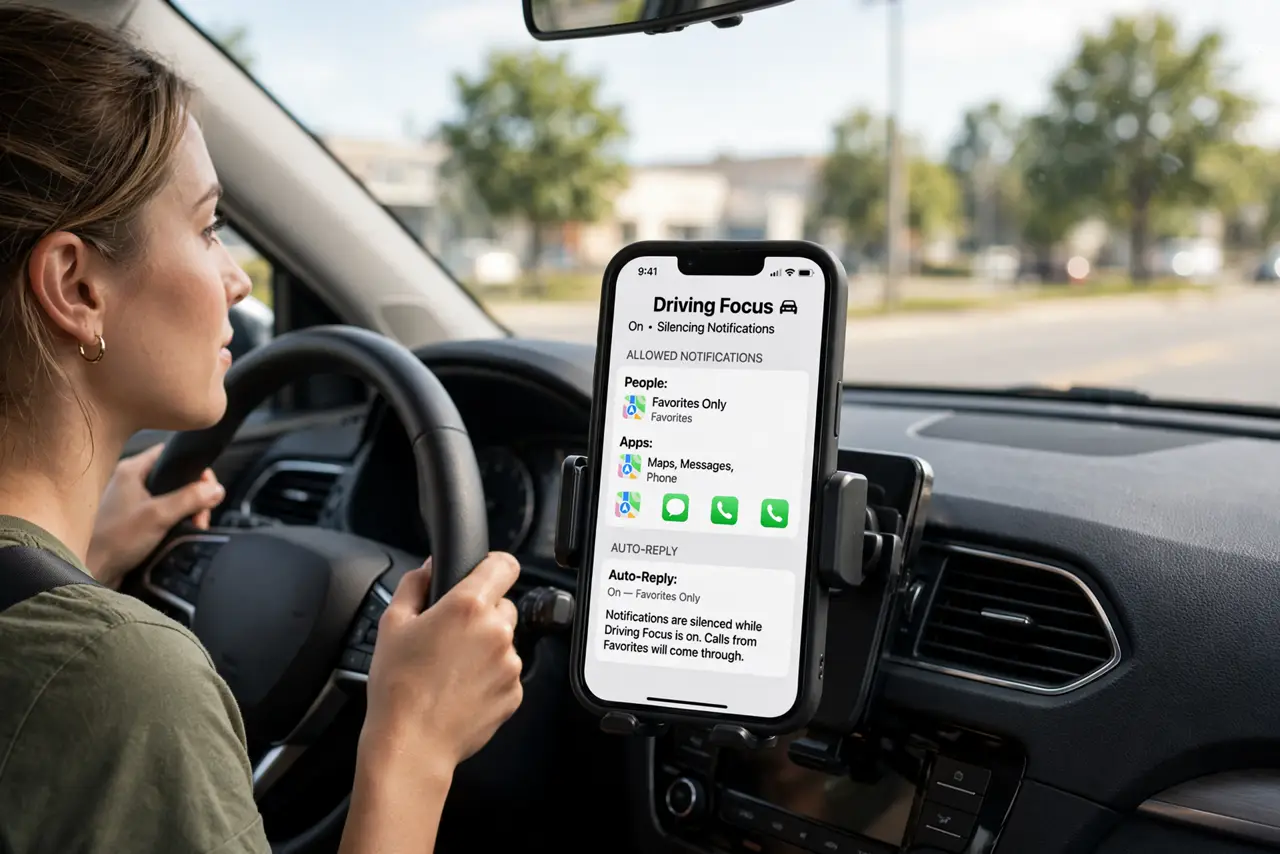
Quick fix: on iPhone go to Settings, Focus, Driving, and turn on Activate Automatically. Add an auto-reply message so texters know you are driving. Calls from favorites still come through, and passengers can tap I'm Not Driving to use the phone normally.
Follow these steps
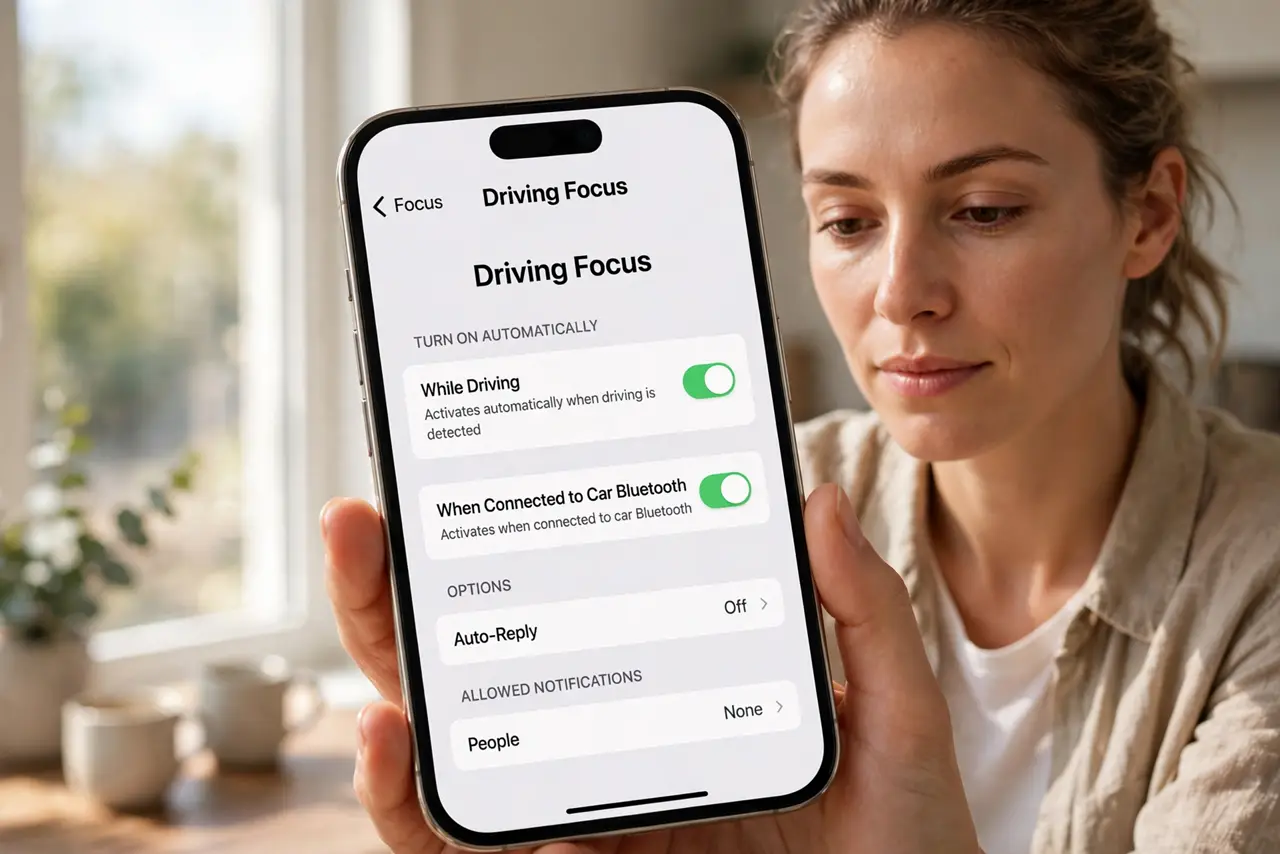
- Turn on Driving Focus. Go to Settings, Focus, tap the plus if Driving is not listed, and add it. Set Activate Automatically so it engages when driving motion is detected or when connected to car Bluetooth.
- Write your auto-reply message. Under Auto-Reply, customize the message texters receive — something like 'I'm driving and will reply when I arrive.' This kills the social pressure to answer immediately.
- Choose who can break through. By default, calls from Favorites ring through; everything else waits. Add truly urgent contacts to the allowed list and leave everyone else silenced — the point is fewer interruptions, not zero contact.
- Let it share with CarPlay. Driving Focus pairs naturally with CarPlay — navigation and music keep working while messages stay quiet. If CarPlay itself misbehaves, the CarPlay fixes sort the common causes.
- Show passengers the bypass. If a passenger needs the phone, they tap I'm Not Driving when Focus activates. Teach regular passengers this once so nobody fights the feature.
- Review what it blocked later. After the drive, check silenced notifications in Notification Center. Nothing is deleted — Driving Focus only delays, so you miss nothing important.
What NOT to do
- Do not turn it off because one person complained. The auto-reply exists precisely so people learn you answer after driving — give it a week.
- Do not allow all apps through 'just in case.' Every exception weakens the feature — keep the allowed list to genuine emergencies.
- Do not text at red lights and call it safe. Studies show the distraction lingers after you look up — the phone stays down until parked.
- Do not forget it also works as a passenger trigger. If it activates on a bus or train, tap I'm Not Driving instead of disabling the whole feature.
Frequently asked questions
Will Driving Focus block emergency calls?
No. Calls to emergency numbers always work, and repeated calls from the same person within minutes can break through — urgent matters still reach you.
Can I schedule it instead of auto-activate?
Yes — set it to turn on during your commute hours, or trigger it via a driving automation. Auto-activation by motion is the simplest reliable option.
Does it notify people I'm driving?
Only if you enable Auto-Reply, and only for messages. It never announces anything on its own — you control the message and the audience.