eSIM via QR Code? Basics
Your carrier emailed a QR code instead of mailing a SIM card — welcome to eSIM. An eSIM is a digital SIM built into your phone; the QR code carries the activation details that link your number to it. Scanning it takes a minute when it works, and produces cryptic errors when it does not. Here is the plain walkthrough.
TL;DR / Quick Fix
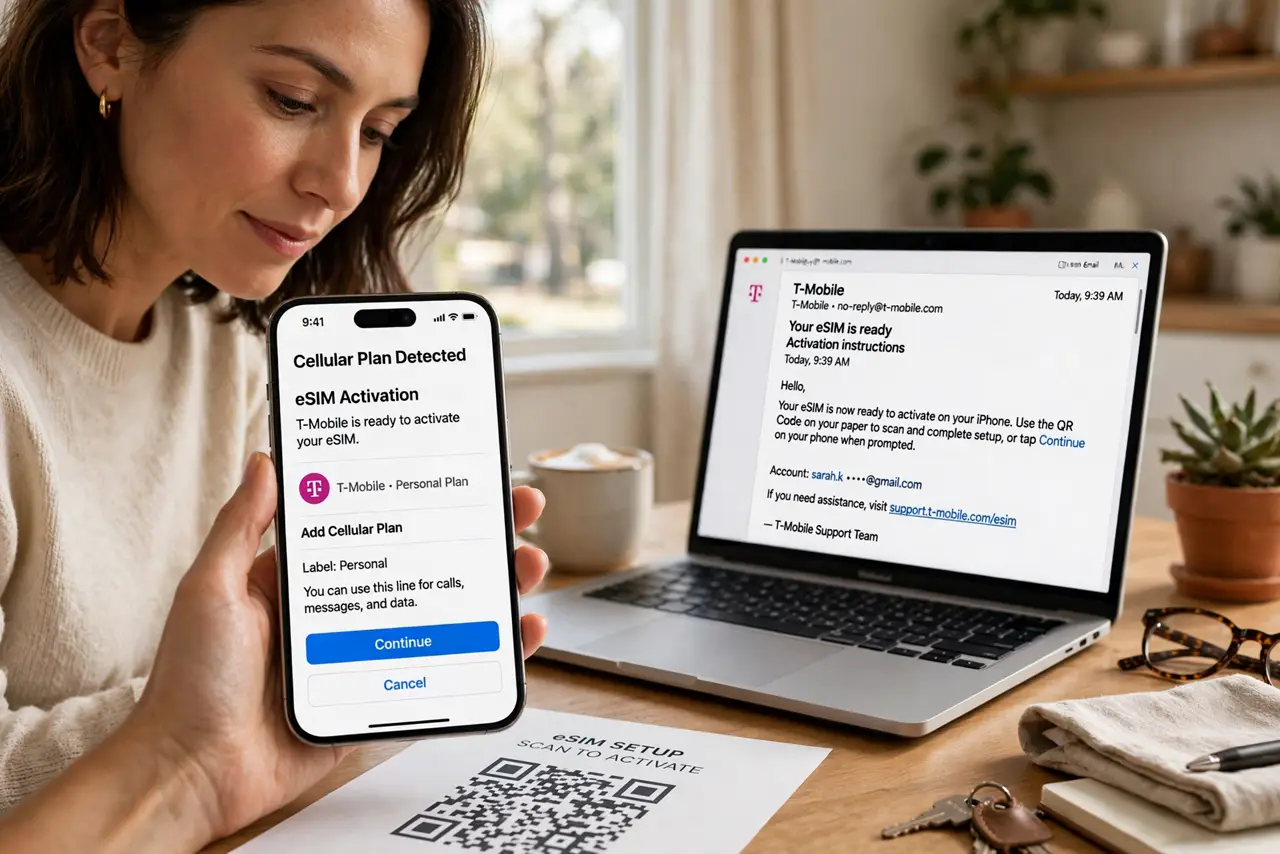
Quick fix: to activate an eSIM from a QR code, connect to Wi-Fi, open Settings > Cellular > Add eSIM, and scan the carrier's code. Keep the QR email until the line works — codes are often single-use. If scanning fails, enter the details manually.
Follow these steps
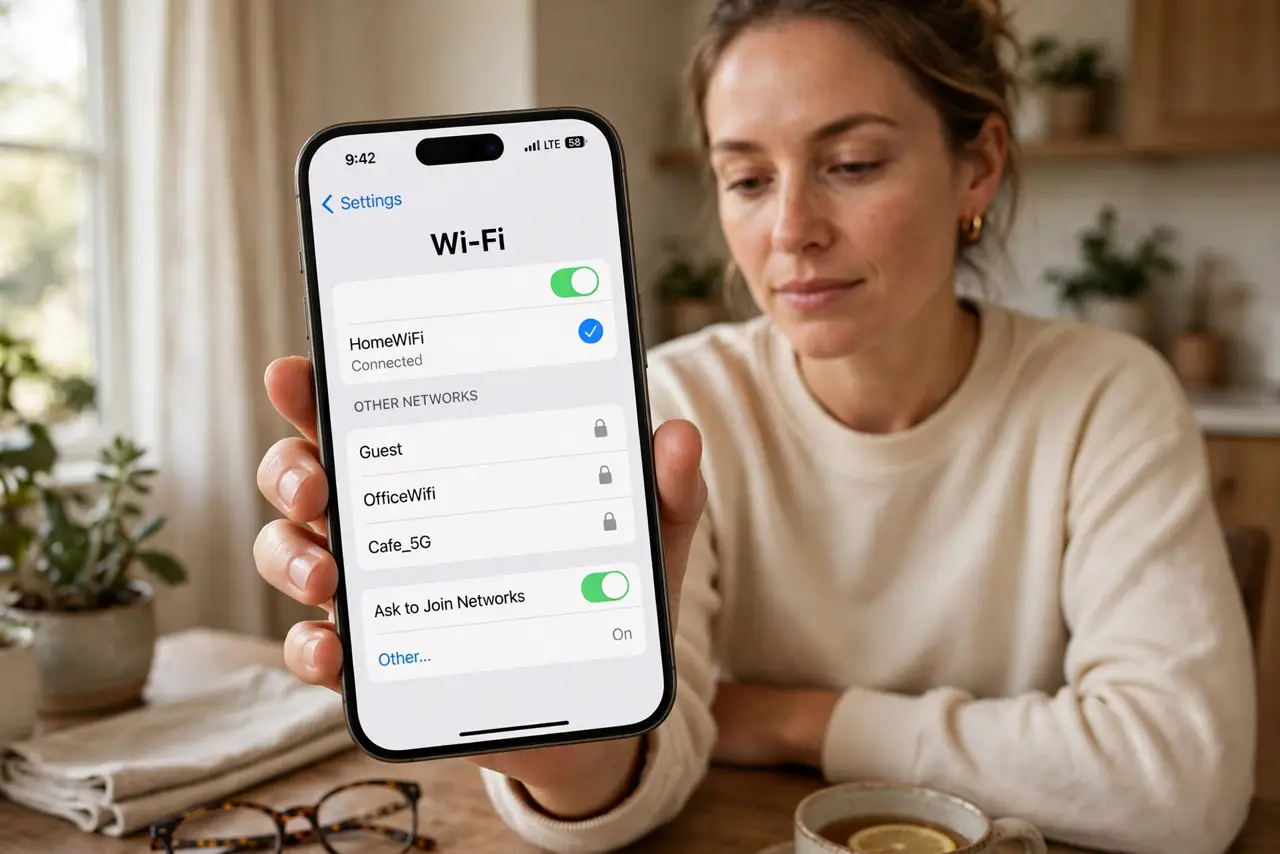
- Connect to Wi-Fi first. eSIM activation downloads a profile from the carrier — it needs internet. Do this on Wi-Fi before you need the cellular line, not standing in an airport with no connection.
- Scan the code in Settings. On iPhone: Settings > Cellular > Add eSIM > Use QR Code. On Android: Settings > Network > SIMs > Add eSIM. Point the camera at the carrier's code and follow the prompts — see travel eSIM activation if it is a travel plan.
- Keep the QR code until it works. Many eSIM QR codes are single-use — once scanned, they cannot be reused. Do not delete the carrier's email until the new line shows signal and can call.
- Enter details manually if scanning fails. Every QR email includes manual entry details (SM-DP+ address and activation code). Typed entry bypasses camera and glare problems — it is the reliable fallback, not a defeat.
- Label the line. If you now have two lines (physical SIM plus eSIM), label them — Personal, Work, Travel — in the cellular settings. Unlabeled dual lines cause wrong-number calls; see the dual eSIM guide for managing both.
- Test before you depend on it. Make a call, send a text, load a page on cellular data. Confirm everything works while you still have Wi-Fi and the old SIM — not when you are already traveling.
What NOT to do
- Do not delete the QR email after scanning. Single-use codes cannot be reissued instantly — keep it until the line is proven working.
- Do not activate without Wi-Fi. The profile download needs internet — no connection, no activation, no service.
- Do not assume the old SIM deactivates cleanly. Confirm with the carrier which line is live — dual-active surprises cause billing confusion.
- Do not scan a QR from an unofficial seller blindly. eSIM QR codes from shady resellers can be invalid or already used — buy from the carrier or reputable sellers.
Frequently asked questions
The QR code will not scan. What now?
Clean the camera lens, improve lighting, and hold steady — or skip straight to manual entry with the SM-DP+ details from the same email.
Can I move my eSIM to a new phone?
Usually yes through the carrier's app or a new QR code — it is rarely automatic. See eSIM transfer issues for the pitfalls.
Does eSIM work abroad?
Yes — travel eSIMs are one of its best uses. Buy the travel plan, activate on Wi-Fi before departure, and land connected.