The Fitness App? Basics
Apple's Fitness app promises to close your rings and track your activity, but half the features seem hidden and the numbers do not always match your watch — or your Android fitness app shows different steps than your tracker. The app is simpler than it looks once you know where everything lives. This guide covers setup, the rings, and the common data hiccups.
TL;DR / Quick Fix
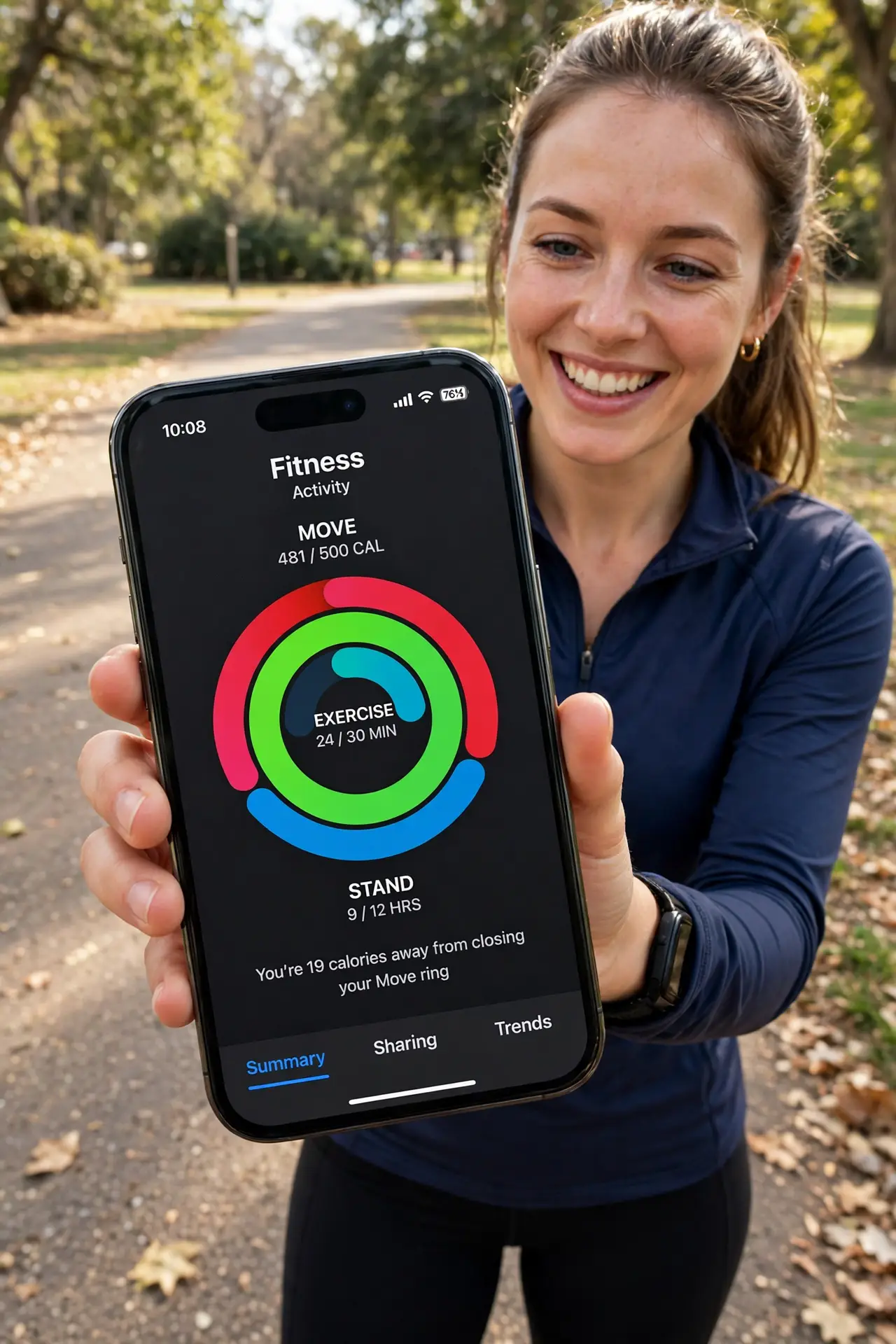
Quick fix: open the Fitness app and finish setup with your age, weight, and daily Move goal. The rings track Move, Exercise, and Stand hours. If data looks wrong, check that Motion and Fitness is enabled under Settings, Privacy and Security. The iPhone counts steps even without an Apple Watch.
Follow these steps
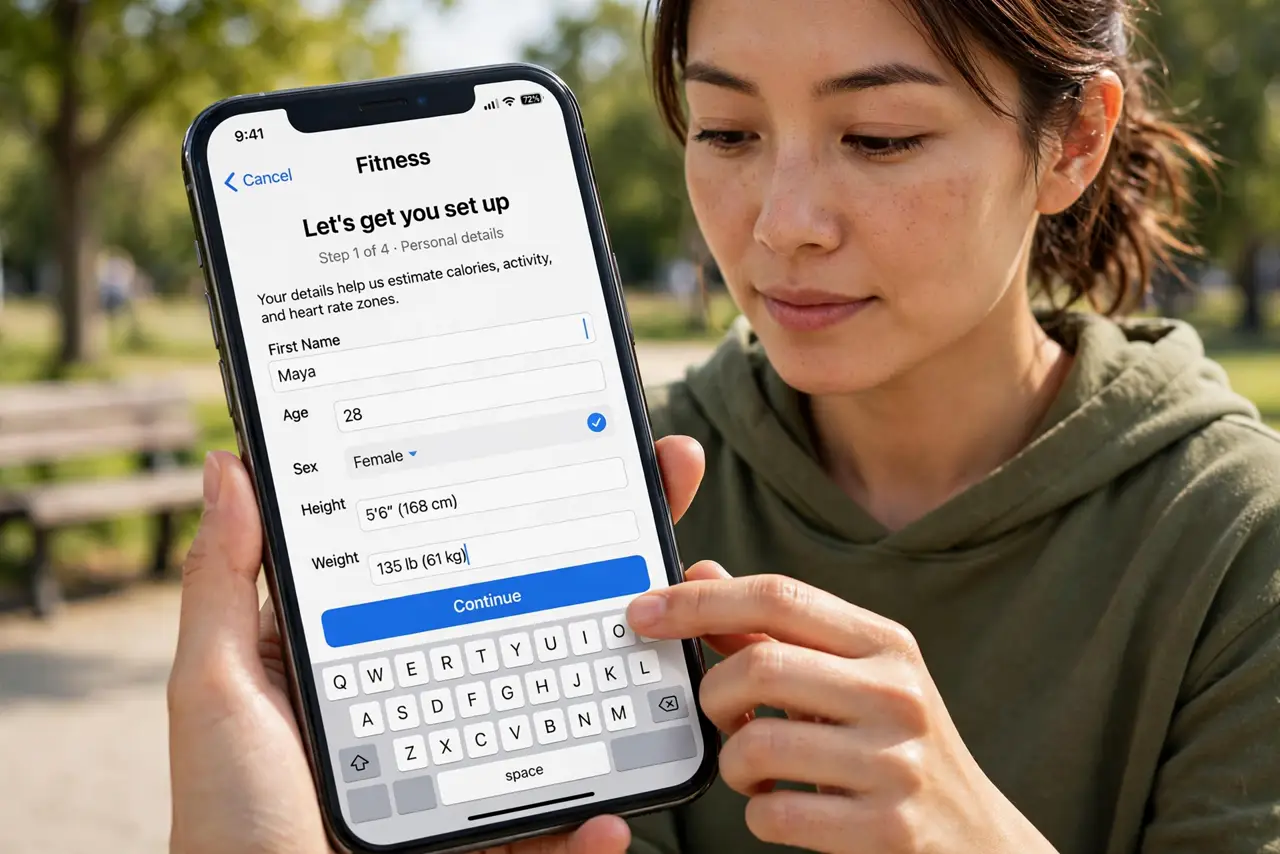
- Complete the initial setup. Open the Fitness app and enter your details — it sets a sensible daily Move goal. You can change the goal later by tapping it; start modest and raise it once closing rings feels easy.
- Learn the three rings. Move (red) is active calories, Exercise (green) is brisk minutes, Stand (blue) is hours with at least a minute of movement. Closing all three daily is the game's whole point.
- Enable Motion and Fitness access. Go to Settings, Privacy and Security, then Motion and Fitness, and make sure Fitness is allowed. Without this, the app cannot count steps and the rings stay empty.
- Connect your watch or tracker. An Apple Watch feeds the Fitness app precise data automatically. Third-party trackers sync through Apple Health — check the Health app's sources if numbers disagree.
- Fix duplicate or missing workouts. If a workout appears twice or never appears, the culprit is usually two apps writing the same data — the duplicate workouts guide sorts out which source to keep.
- Share with a friend for motivation. The Sharing tab lets you compete on ring closures with friends. Friendly competition closes more rings than willpower alone — invite one person and try a week.
What NOT to do
- Do not set an extreme Move goal on day one. An unreachable goal kills motivation in a week — start low and raise it monthly.
- Do not trust two trackers at once. Phone plus watch plus a third-party app triple-counts steps unless you pick one source of truth.
- Do not delete the Health app to fix Fitness. Fitness reads from Health — deleting the source breaks the app, not fixes it.
- Do not ignore the Stand ring. It is the easiest ring and the one most desk workers miss — a one-minute walk each hour closes it.
Frequently asked questions
Do I need an Apple Watch to use the Fitness app?
No — the iPhone alone tracks steps and estimates the rings. The watch adds heart rate and precise workouts, but the app works fine without it.
Why do my steps differ between apps?
Each app reads different sensors or sources. Pick one as your source of truth — usually Apple Health — and ignore the rest.
What is Fitness+ and do I need it?
Apple's subscription workout video service. It is optional — the free Fitness app tracks everything without it.