Headphone Safety Alerts?
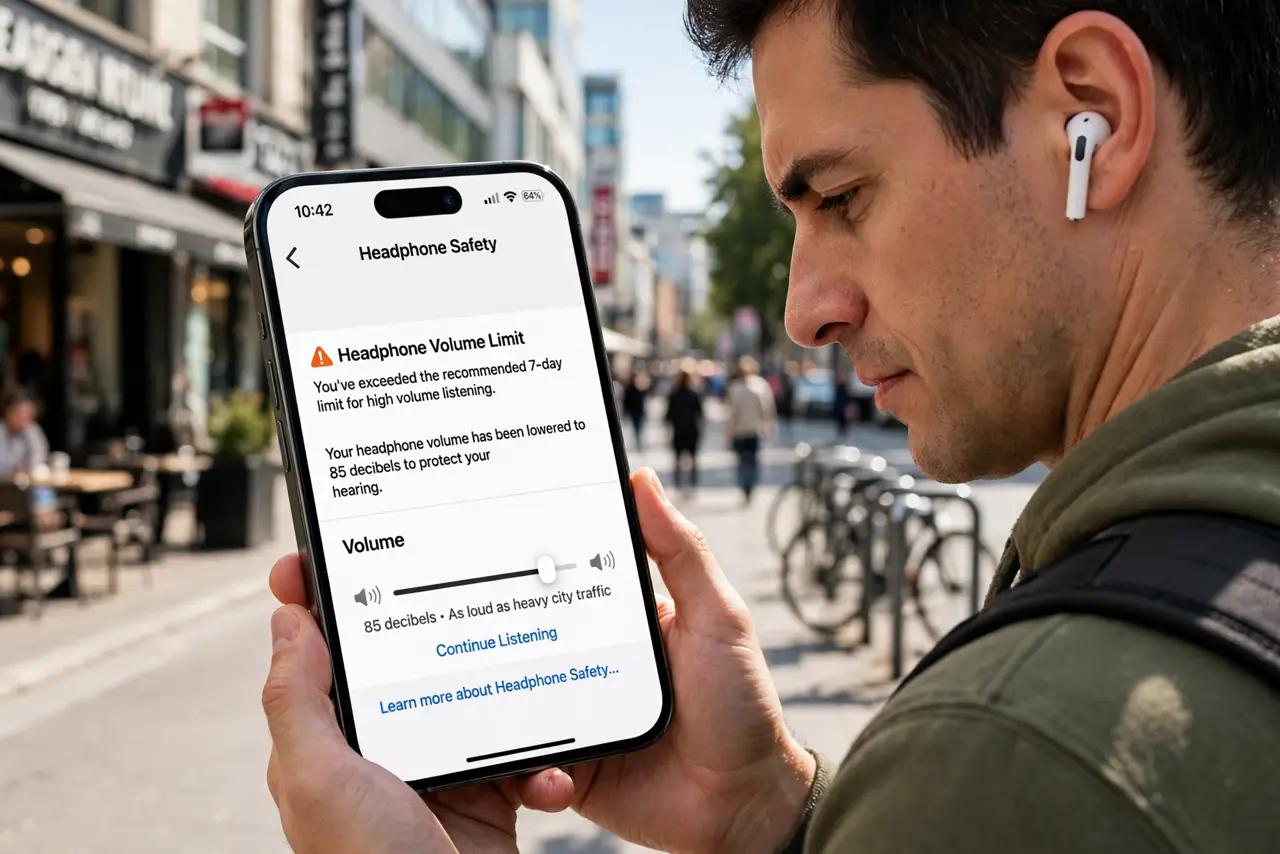
Your iPhone keeps lowering the volume on its own and nagging you about headphone safety — even when the music did not seem that loud. iOS monitors your listening levels and enforces volume limits in many regions, with alerts you can partially control. This guide explains what the alerts mean and how to adjust them.
TL;DR / Quick Fix
Quick fix: open Settings, then Sounds and Haptics, then Headphone Safety, to see your exposure levels. You can turn off Reduce Loud Sounds, but in some regions the limit is legally required and cannot be disabled. Check the 7-day exposure in Health to see whether the alerts are justified.
Follow these steps
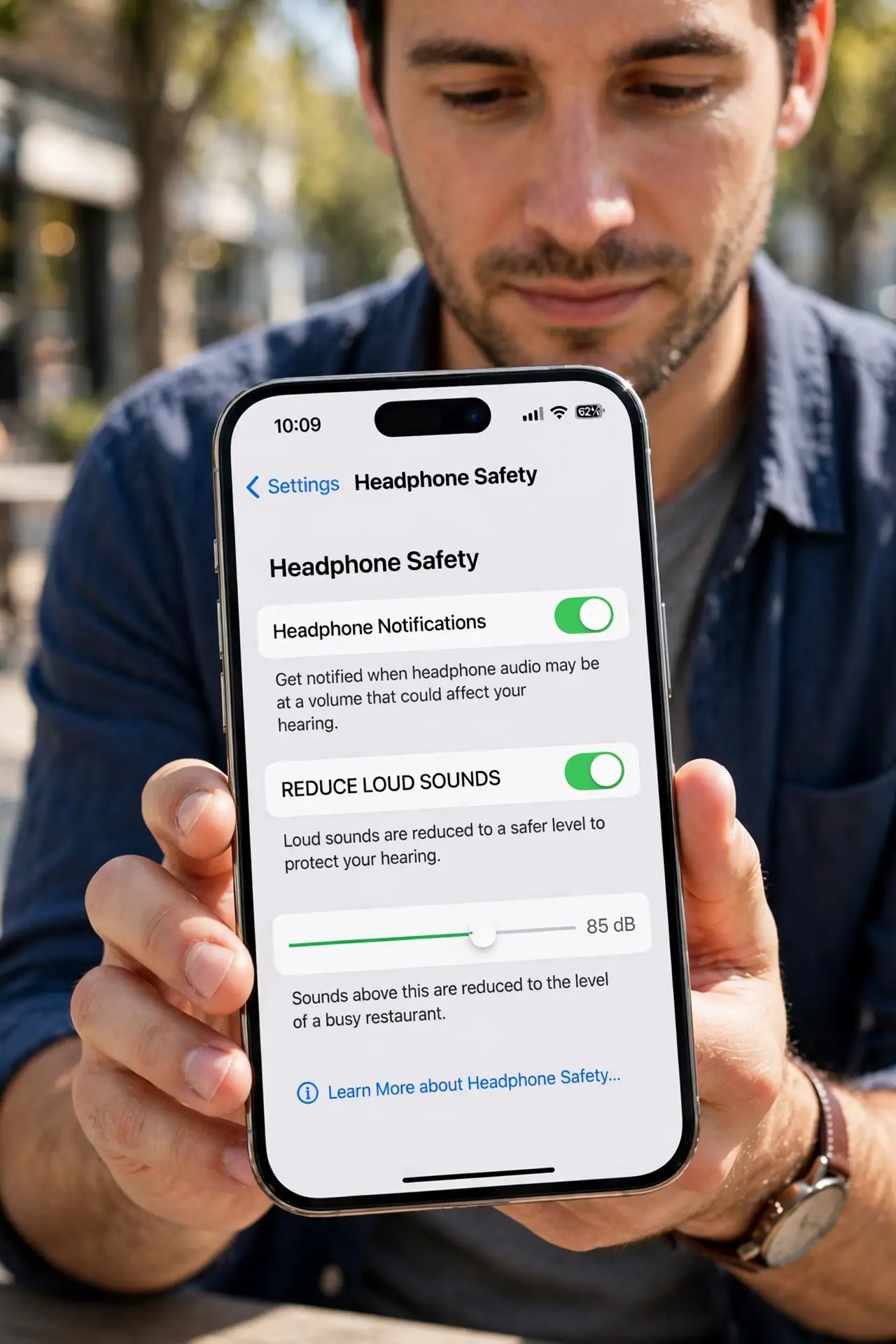
- Open Headphone Safety settings. Go to Settings, Sounds & Haptics, then Headphone Safety. This screen shows your audio exposure and the Reduce Loud Sounds toggle — the source of the automatic volume drops.
- Understand Reduce Loud Sounds. When on, the iPhone caps headphone volume at your chosen decibel level. In some regions this is mandatory and the toggle is locked — that is law, not a bug.
- Check your 7-day exposure. Open Health, Browse, Hearing, then Headphone Audio Levels. If the chart shows frequent loud exposure, the alerts are doing their job — your ears will thank you later.
- Rule out false triggers. Loud environments can fool the measurement, and some undetected headphones confuse volume tracking. If alerts seem wrong, check what the phone thinks is connected.
- Adjust the limit level. Where allowed, set the cap to a level that protects hearing without constant nagging — 85 decibels is the commonly recommended safe threshold for long listening.
- Mind Bluetooth delay too. If audio also lags behind video, that is a separate Bluetooth latency issue — different setting, different fix.
What NOT to do
- Do not max out volume to defeat the alerts. The limits exist because sustained loud listening damages hearing permanently — the alerts are the warning, not the enemy.
- Do not assume the alerts are broken. In regulated regions the cap cannot be turned off; fighting it wastes time.
- Do not ignore genuine overexposure. Regular red zones in the Health chart mean real risk — lower the volume or shorten sessions.
- Do not confuse safety alerts with a faulty jack. Automatic volume reduction is software behavior, not broken hardware.
Frequently asked questions
Why does my iPhone keep turning the volume down?
Reduce Loud Sounds is capping your exposure, or a regional limit is enforced. Check Headphone Safety settings to see which.
Can I turn off headphone notifications completely?
Where the law requires them, no. Elsewhere, toggling off Reduce Loud Sounds stops the automatic reductions.
Are earbuds worse than over-ear headphones?
Earbuds sit closer to the eardrum, so the same volume hits harder. Over-ears at moderate volume are generally gentler.