Use Live Voicemail
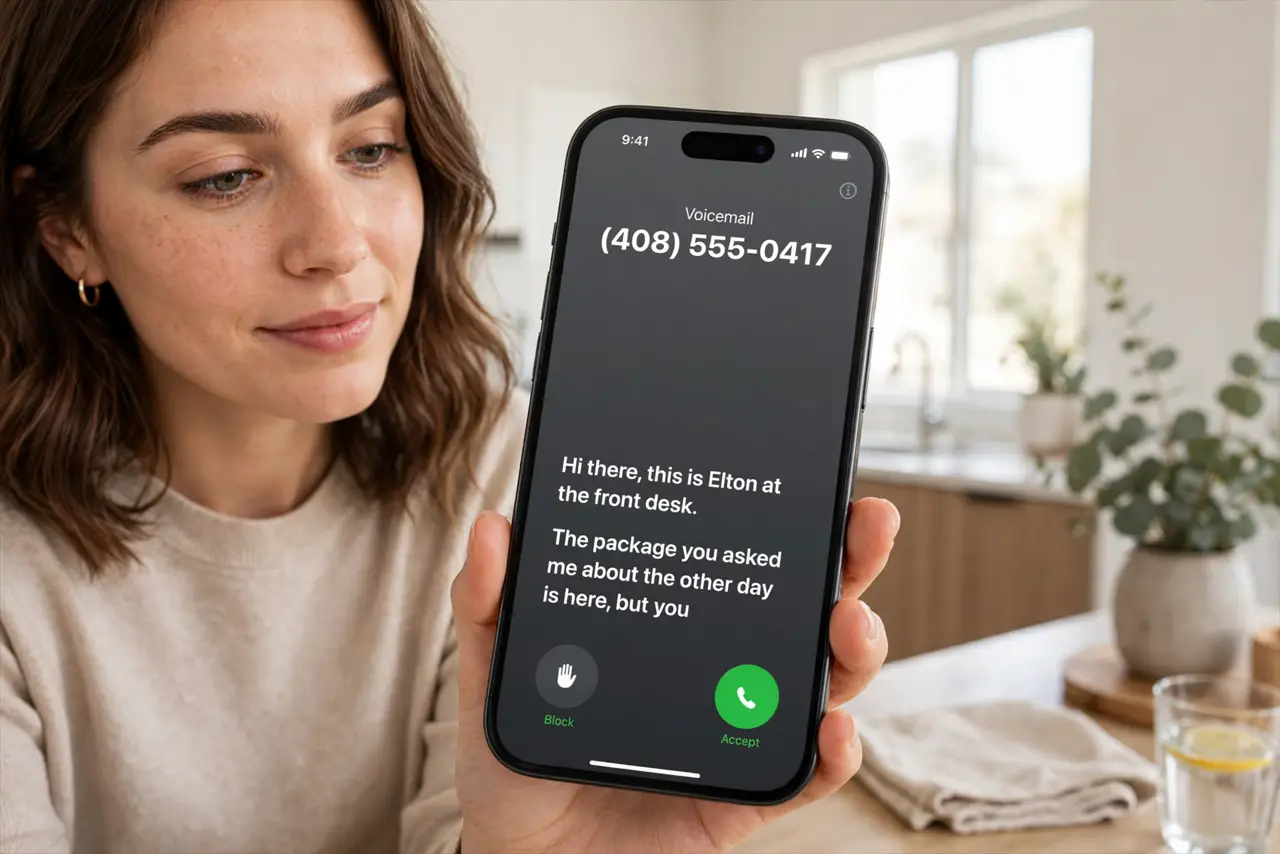
Someone calls, you cannot answer, and instead of a mystery voicemail later you watch their message appear as live text — then pick up mid-sentence if it matters. That is Live Voicemail: real-time transcription of the message as it is being left. It is brilliant for screening spam, if you can find the switch.
TL;DR / Quick Fix
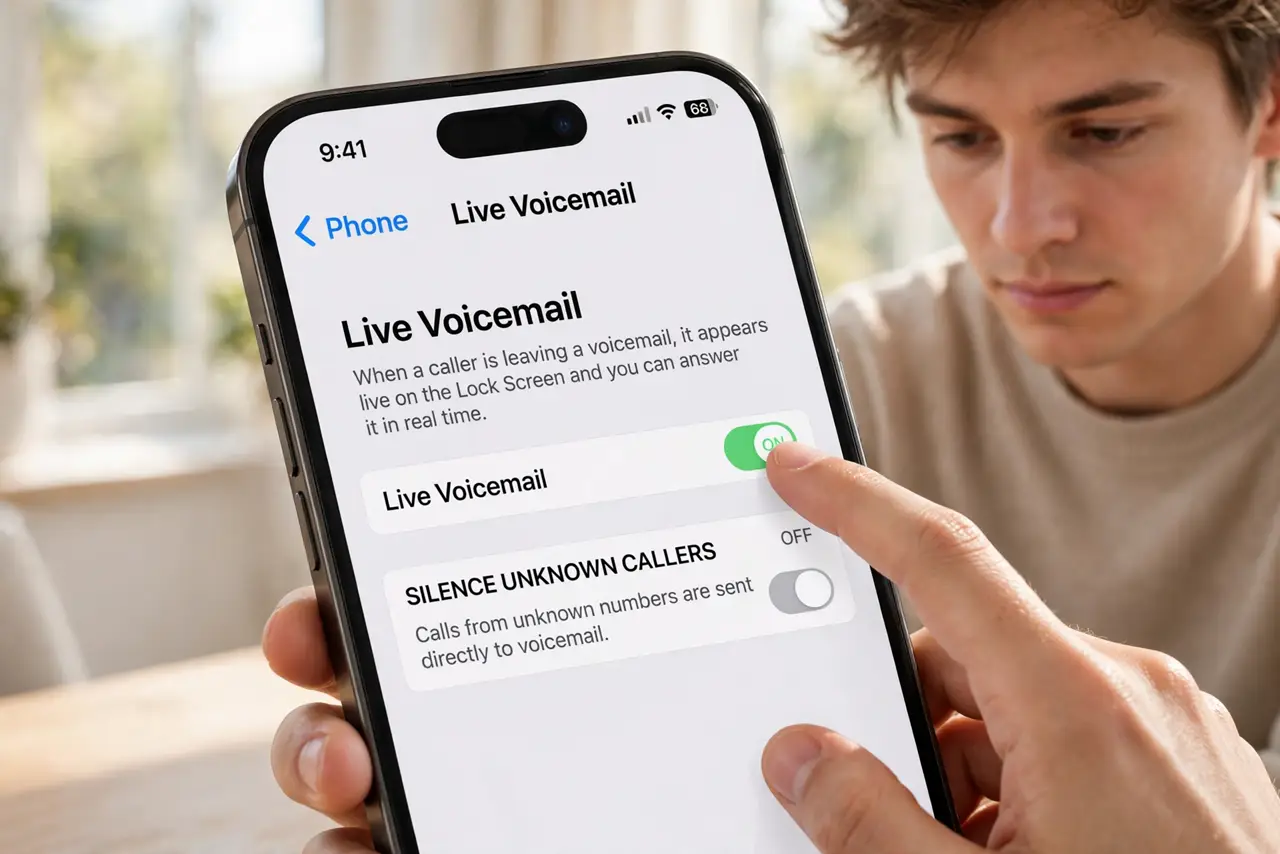
Quick fix: in Settings go to Phone, then Live Voicemail, and turn it on. When someone calls, you will see the message transcribed live and can pick up mid-message. It needs iOS 17 or later — if the toggle is missing, update your software first.
Follow these steps
- Turn on Live Voicemail. Go to Settings, then Phone, then Live Voicemail, and enable it. If the toggle is missing entirely, your iOS version or region does not support it — update first.
- Let a call go to voicemail. When a call comes in, decline or ignore it. Instead of silence, you will see the Live Voicemail screen with the caller's message transcribing in real time.
- Read before you decide. Watch the transcript: spam reveals itself in the first sentence, and real callers state their business. This is the screening superpower — no more mystery voicemails.
- Pick up mid-message. If the message matters, tap Accept to jump into the call live. The caller never knows you were reading along.
- Fix blank transcripts. If the screen appears but no words show, check your language settings and connection — the blank transcript fix covers the usual causes.
- Know the classic version too. Live Voicemail is separate from traditional visual voicemail. If you prefer the old inbox style, see the visual voicemail guide for that setup.
What NOT to do
- Do not expect it in every region. Carrier and region support varies — the toggle simply does not exist where unsupported.
- Do not assume transcripts are perfect. Accents, noise, and mumbling defeat transcription; treat it as a gist, not a quote.
- Do not forget spam still rings once. Live Voicemail screens the message; silencing unknown callers stops the ring.
- Do not leave it on if you hate it. It is one toggle — turn it off and voicemail behaves exactly like before.
Frequently asked questions
Does the caller know I'm reading live?
No — they hear a normal voicemail greeting and have no idea you are watching the transcript.
Why is Live Voicemail missing from Settings?
Outdated iOS or an unsupported region or carrier. Update your software; if it is still absent, your carrier does not support it yet.
Can I save a live transcript?
The message saves as a normal voicemail with its transcript, which you can keep, share, or delete like any other.