Mail Privacy Protection?
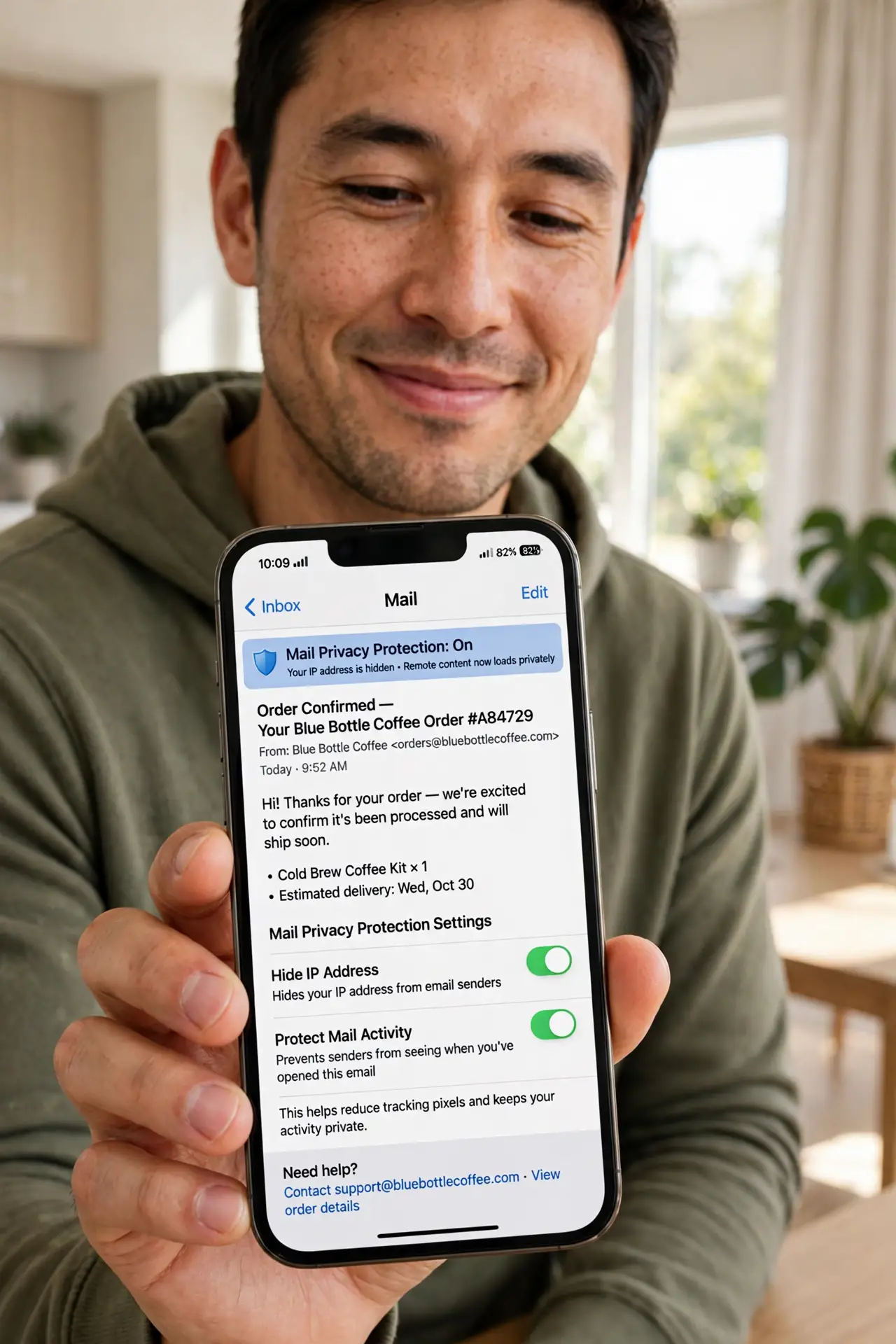
Every marketing email you open can report back: when you opened it, where you were, even your IP address — via invisible tracking pixels. Apple's Mail Privacy Protection blocks that surveillance by hiding your IP and pre-loading remote content privately. It's one toggle, it's free, and it meaningfully shrinks email tracking.
TL;DR / Quick Fix
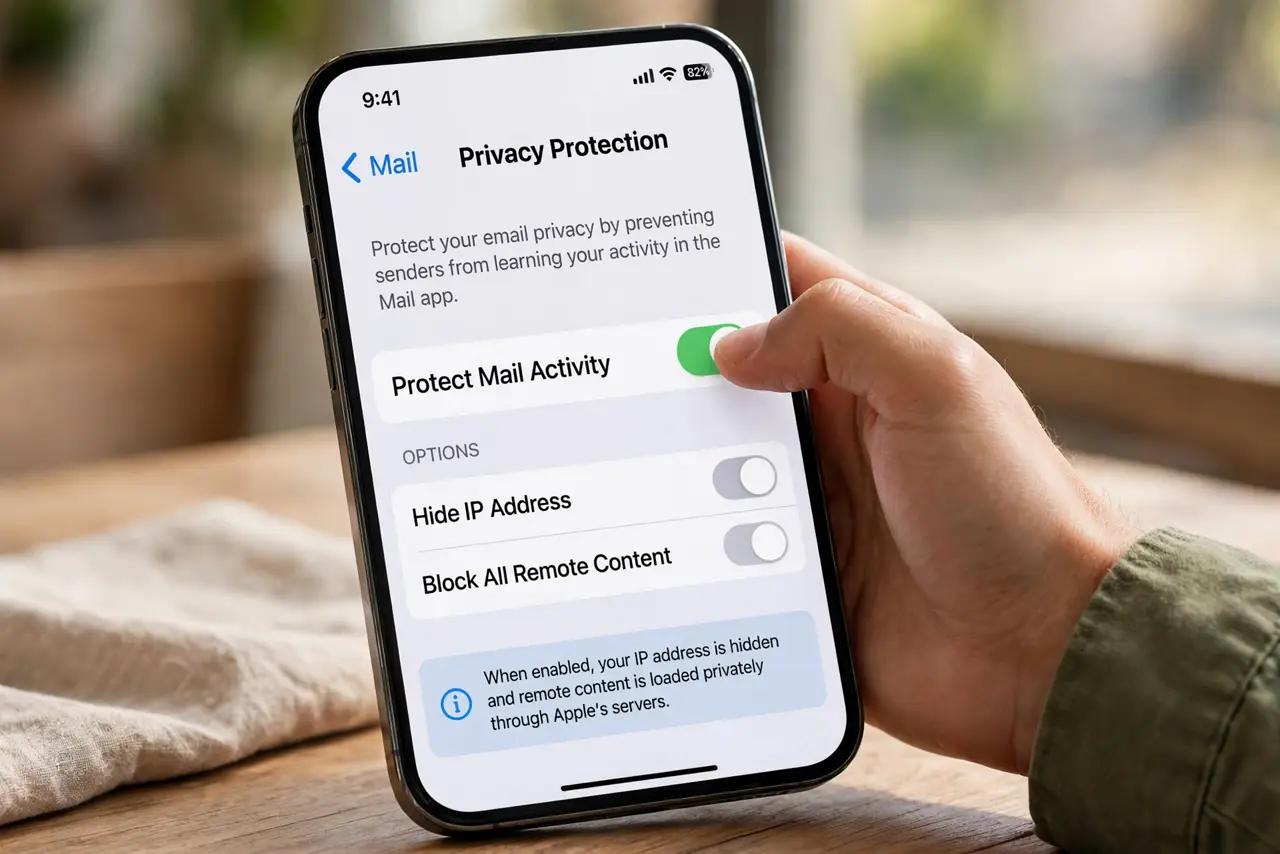
Quick fix: go to Settings, Mail, Privacy Protection, and turn on Protect Mail Activity. Your IP gets hidden and tracking pixels get neutered — senders can't tell when or where you opened their mail. It works automatically from then on, no per-email effort needed.
Follow these steps
- Turn on Protect Mail Activity. Settings, Mail, Privacy Protection — enable Protect Mail Activity. This single toggle hides your IP address and loads remote email content through Apple's private relay, defeating most tracking pixels.
- Understand what it blocks. It stops senders from knowing when you opened an email, your IP address, and your rough location. Marketing databases lose their open-rate data on you — that's the whole point.
- Know what it doesn't block. It doesn't stop spam, hide your email address, or block read receipts you explicitly send. And links you click still report back — privacy protection covers opens, not clicks.
- Keep it on for all accounts. The setting applies to the Mail app generally, covering iCloud, Gmail, and other accounts you read there. One toggle protects every inbox in the app.
- Pair it with hiding your address. For newsletters you don't trust, use Hide My Email to give them a random address. Tracking protection plus a disposable address is a strong combo against marketing surveillance.
- Check it's still on after updates. Major iOS updates occasionally reset privacy toggles. After updating, glance at the Mail privacy settings to confirm protection is still enabled.
What NOT to do
- Do not assume it makes you anonymous. Senders still see your email address and anything you click — it blocks open-tracking, not all tracking.
- Do not turn it off for 'faster loading.' The privacy relay adds negligible delay; the tracking data you'd leak is worth far more than milliseconds.
- Do not expect it in third-party email apps. This is an Apple Mail feature — Gmail's app and Outlook have their own (weaker) image-blocking options instead.
- Do not click tracking links thinking you're protected. Clicked links phone home regardless — privacy protection covers email opens, not your browsing.
Frequently asked questions
Will senders know I use it?
They'll see inflated or generic open data, but can't identify your opens specifically. Some marketers complain about it — which tells you it's working.
Does it block images?
No — it loads them privately instead of blocking them. You see the full email normally; the sender just can't track the load. For strict image blocking, see manual pixel blocking.
Does it work on Mac too?
Yes — the same Protect Mail Activity toggle exists in the Mac Mail app's privacy settings, protecting desktop opens the same way.