iPhone Maps Location Jumps Around? Fix It
Your blue dot jumps streets away and back again, making navigation useless. Location jumps happen when GPS is weak and the phone guesses from Wi-Fi and cell towers instead. The compass twin of this problem is a compass pointing the wrong way, which shares the calibration fix.
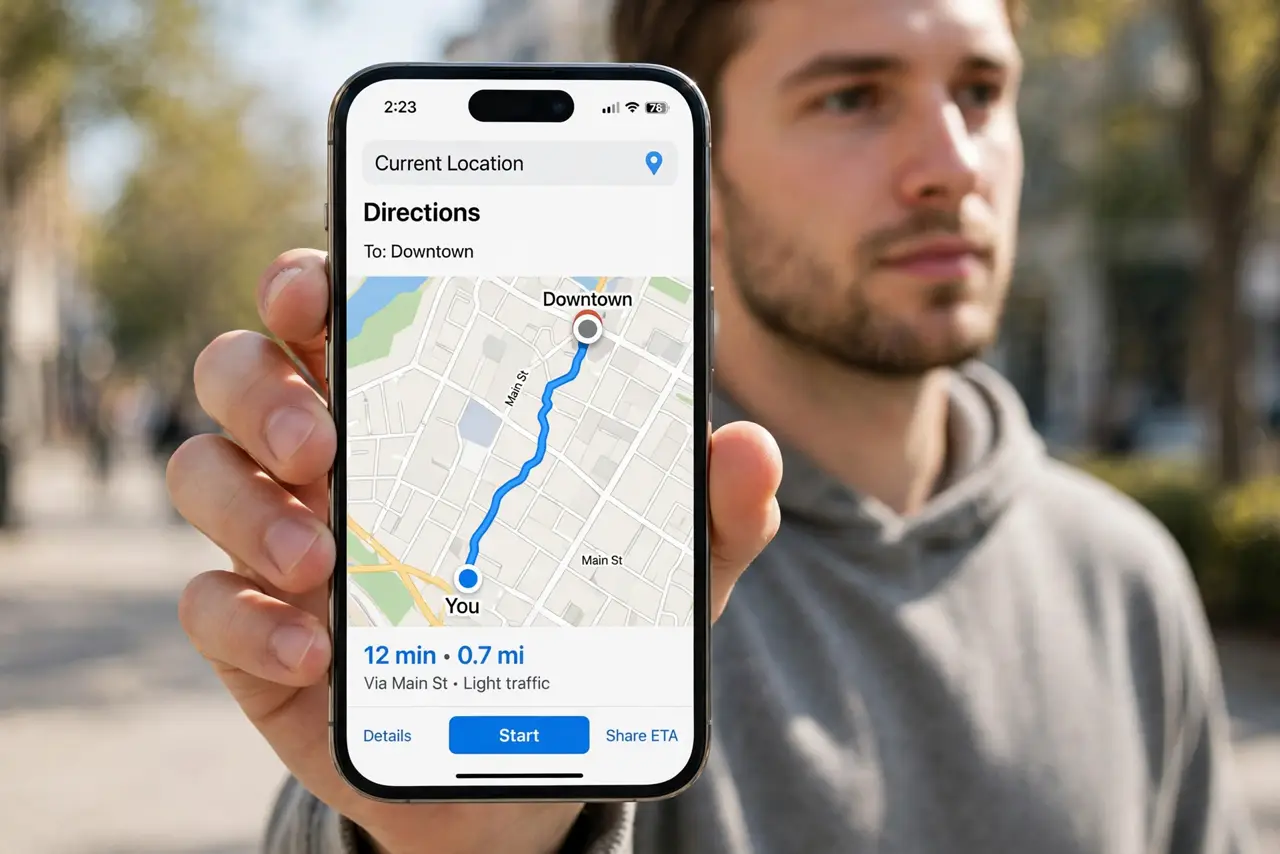
TL;DR / Quick Fix
Quick fix: step outside for a clear sky view, turn Wi-Fi on, set Maps location to While Using, calibrate the compass, restart the phone, and check for a case blocking signal. If it still fails, note exactly when it happens, then try again slowly once.
Follow these steps
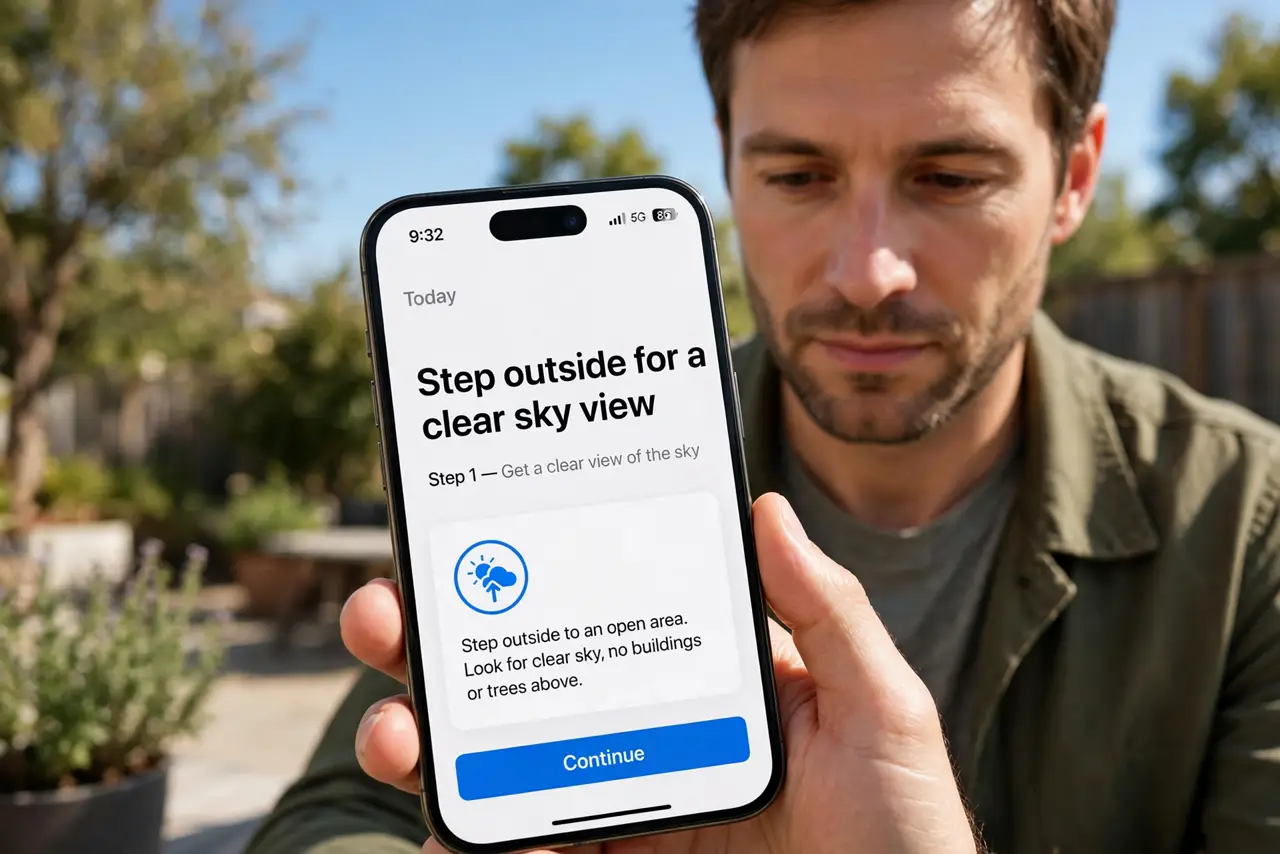
- Step outside for a clear sky view. Move outdoors with a clear view of the sky. GPS struggles indoors, in parking garages, and between tall buildings, and the dot jumps when the signal is weak.
- Turn Wi-Fi on, even without joining a network. Keep Wi-Fi on while navigating. The phone uses nearby Wi-Fi networks to refine location, and turning Wi-Fi off makes jumps worse.
- Set Maps location to While Using. Open Settings, then Privacy and Security, then Location Services, then Maps, and choose While Using the App with Precise Location on.
- Calibrate the compass. Open the Compass app and wave the phone in a figure-eight motion if prompted. A miscalibrated compass makes the dot and direction jump, especially when turning.
- Restart the phone. Restart the iPhone and open Maps again outdoors. A stuck location service after an update sometimes needs a restart to settle.
- Remove a case that blocks signal. Test navigation without a thick metal case or a magnetic mount. Metal near the phone can interfere with GPS and make the dot jump.
What NOT to do
- Do not trust a jumping dot for a turn. Wait until the dot settles before following directions, or you may turn down the wrong street.
- Do not turn off Precise Location for Maps. Approximate location makes jumps worse, not better, for navigation.
- Do not navigate only on cell signal indoors. Step outside first, so GPS can lock before you start moving.
- Do not ignore a dot that jumps after a drop. A damaged antenna can cause permanent jumps, and that needs professional repair.
Frequently asked questions
Why does my location jump indoors?
Because GPS is weak indoors and the phone guesses from Wi-Fi and towers. Step outside for a solid lock.
Does Wi-Fi really help GPS?
Yes. Nearby Wi-Fi networks refine the position, especially in cities where GPS alone is noisy.
Why does the dot jump when I turn?
Usually a miscalibrated compass. Calibrate it with a figure-eight motion.