iPhone Parental Controls Block a School App? Fix It
A school app will not open, install, or work, and parental controls are the wall. Screen Time can block apps by age rating, content restriction, or a disallowed list, and the fix is allowing the specific app. The mirror problem is Screen Time limits being ignored, where the same system is too loose instead of too strict.
TL;DR / Quick Fix
Quick fix: allow the app in Screen Time, check age ratings and content restrictions, allow app installs if needed, check downtime exceptions, and test the app. If it still fails after these steps, note exactly when it happens, since that pattern usually reveals the cause.
Follow these steps
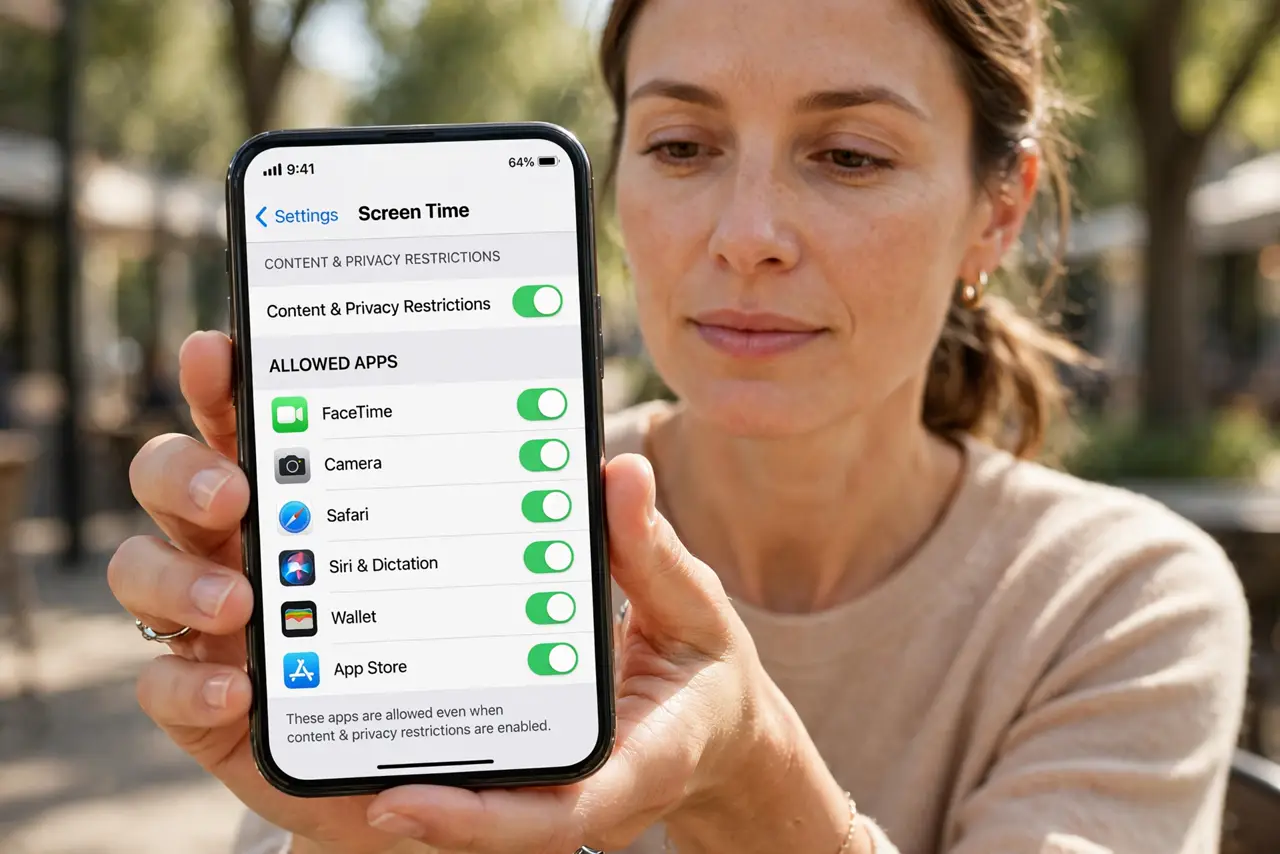
- Find which restriction blocks it. Open Settings, then Screen Time, then Content and Privacy Restrictions, and note what is restricted. Knowing whether it is an age rating, an app list, or installs narrows the fix.
- Allow the specific app. In Content and Privacy Restrictions, check Allowed Apps and content limits, and allow the school app specifically. Allowing one app is safer than turning restrictions off entirely.
- Check age ratings. Open Content Restrictions, then Apps, and check the age limit. A school app rated above the limit will be hidden or blocked until you raise the limit or allow it.
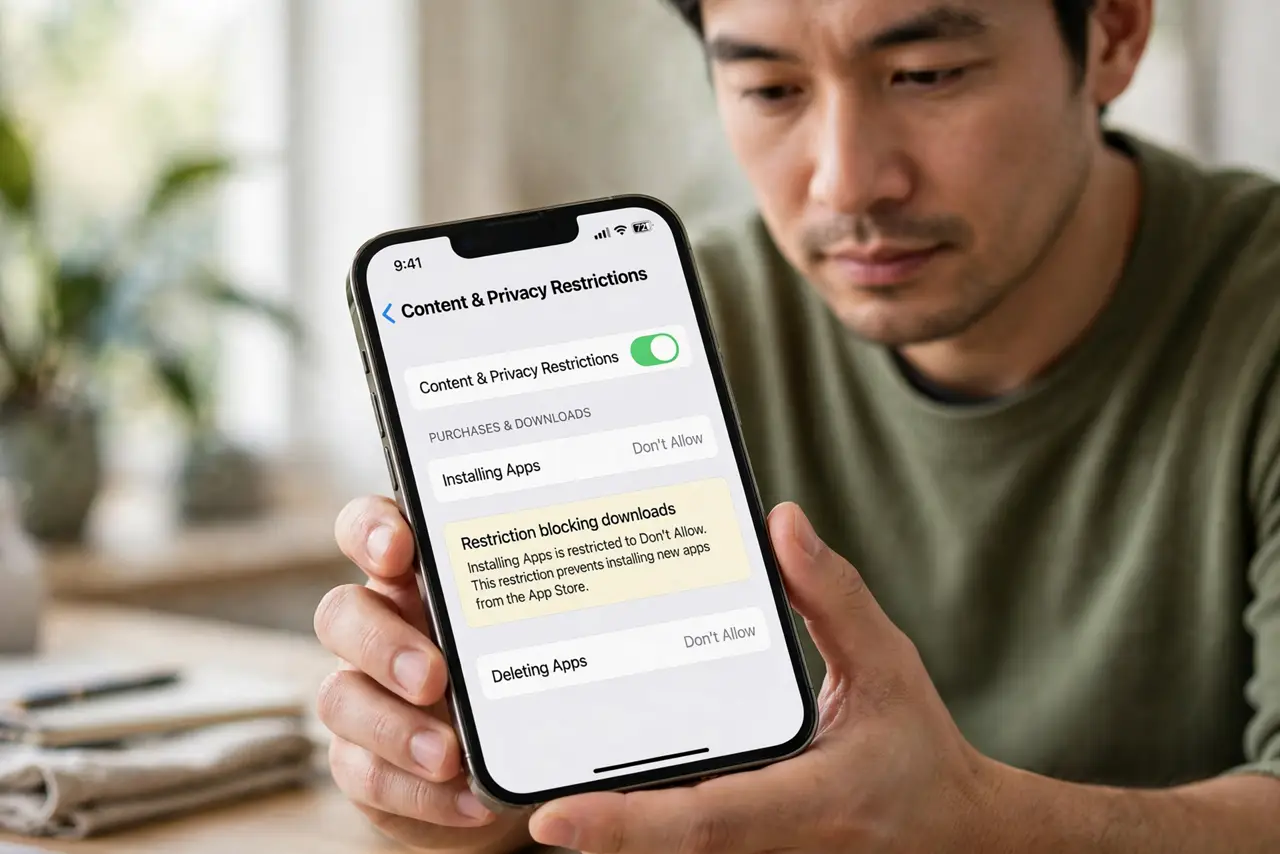
- Allow app installs if it will not install. In Content Restrictions, check iTunes Store settings for installing apps. If installs are blocked, the school app cannot download at all.
- Check downtime and Always Allowed. Open Downtime and Always Allowed. If the app is needed during downtime, add it to Always Allowed so homework hours do not block it.
- Test the app and re-tighten afterwards. Open the school app and confirm it works, then leave other restrictions in place. Fix only the one app, so the rest of the protection stays.
What NOT to do
- Do not turn off all parental controls to fix one app. That removes every protection, when allowing one app solves the problem.
- Do not share the Screen Time passcode with the child to fix it. The passcode is what keeps the limits working at all.
- Do not allow apps by age rating alone without checking. Raising the age limit broadly allows more than the school app.
- Do not delete the school app and reinstall it repeatedly. If the restriction is the cause, a fresh install will be blocked the same way.
Frequently asked questions
Why is the school app hidden?
Because an age rating or content restriction hides it. Allow it specifically or adjust the rating.
Why will the school app not install?
Because app installs are restricted. Allow installing apps in Content Restrictions.
Will allowing one app weaken protection?
Barely, if you allow only that app. The rest of the restrictions stay in place.