Scan Documents With iPhone?
Your iPhone is a surprisingly good scanner — the camera, with a little software help, crops, straightens, and cleans up documents into shareable PDFs. No scanner app purchase needed: the feature is built into Notes and Files. Here is how to get clean scans every time, from receipts to multi-page contracts.
TL;DR / Quick Fix
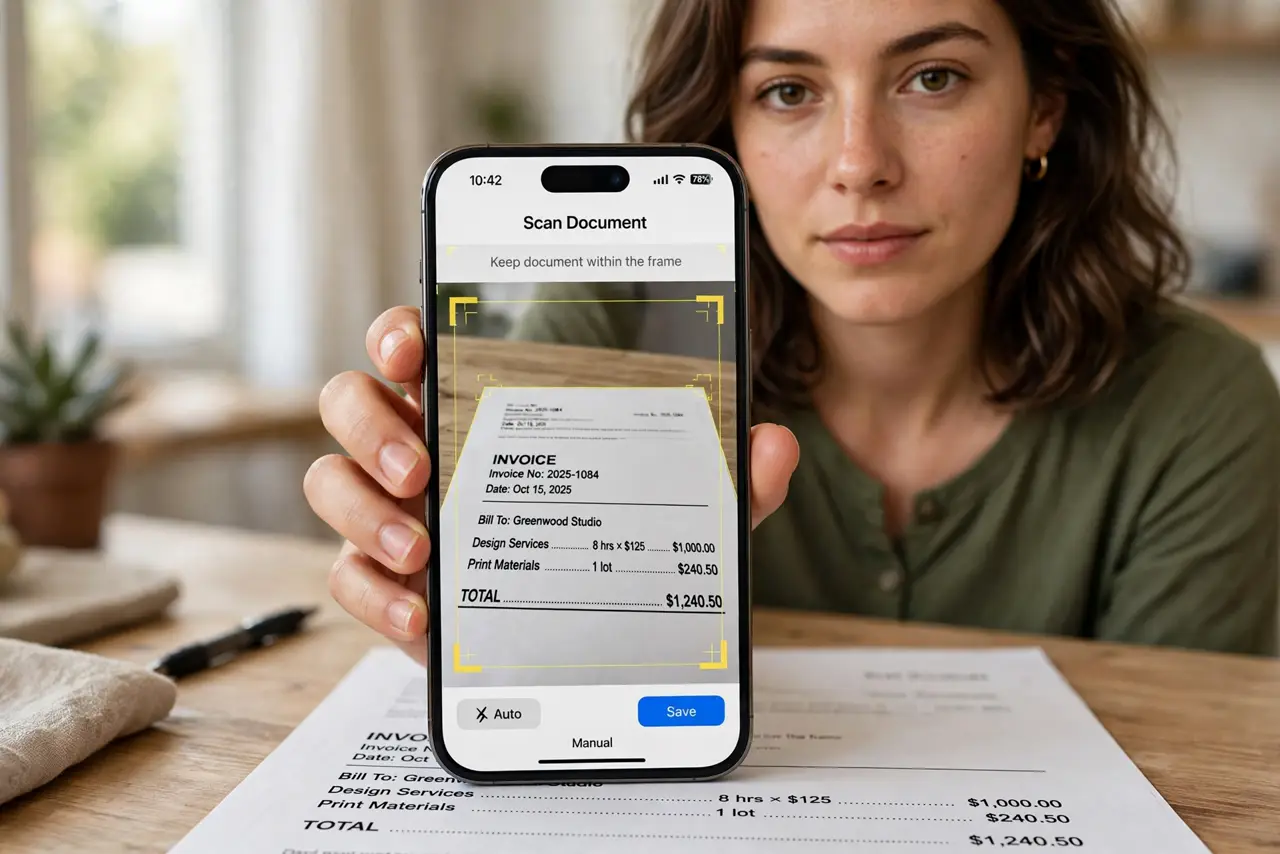
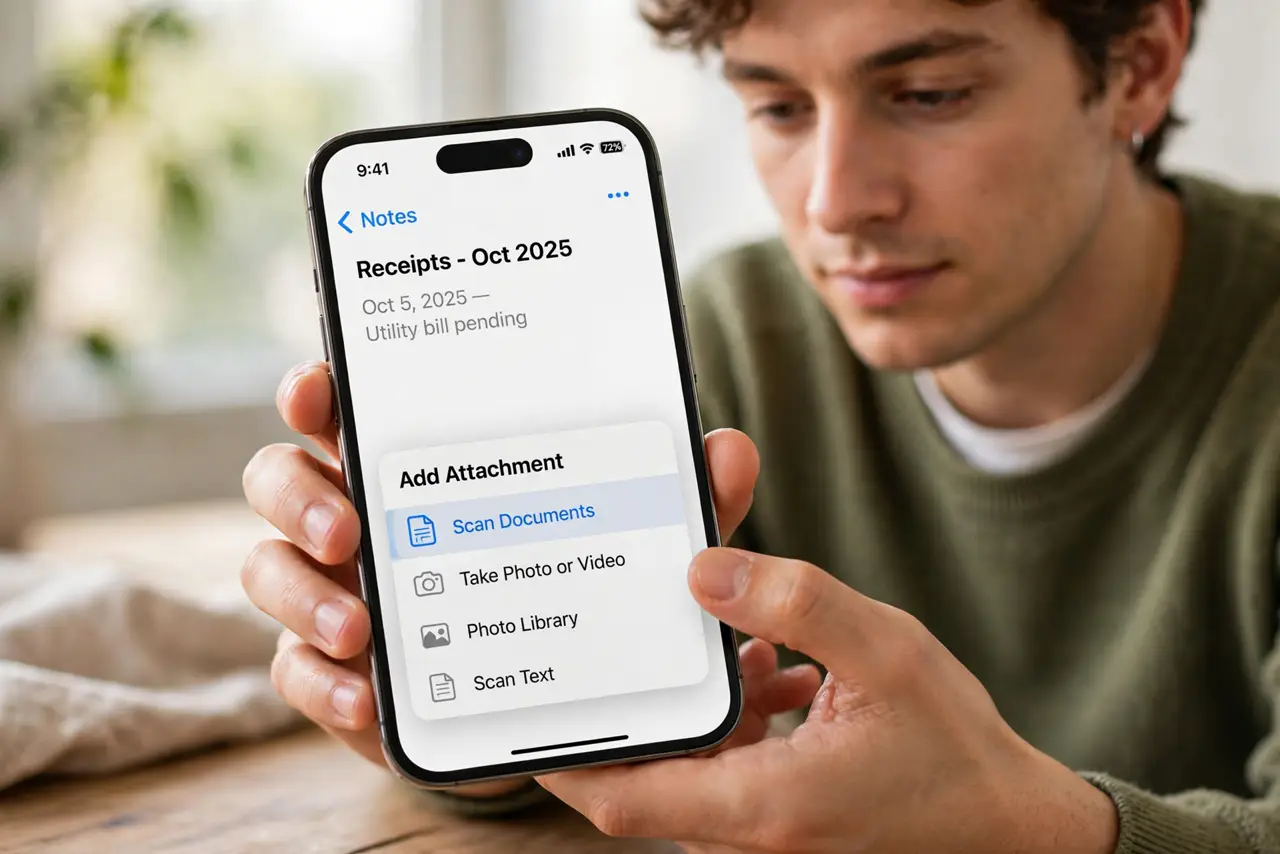
Quick fix: in the Notes app, tap the camera icon, choose Scan Documents, and point at the page — the iPhone auto-detects edges and saves a clean scan. Keep adding pages for multi-page documents, then share as PDF. Good lighting matters more than a steady hand.
Follow these steps
- Scan from the Notes app. New note > camera icon > Scan Documents. The viewfinder auto-detects the page edges — tap the shutter or let auto-capture fire. Each page joins the same scan set.
- Get the lighting right. Flat, even light without shadows or glare beats everything else. Near a window works; overhead spots create hotspots. This one factor decides scan quality.
- Adjust the corners manually. If auto-detection crops wrong, drag the corner handles before saving. A few seconds of adjusting beats a crooked scan you have to redo.
- Scan multi-page documents. Keep tapping to add pages — contracts, booklets, receipts all become one document. Reorder pages in the thumbnail view before finalizing.
- Save and share as PDF. From the note, share the scan as a PDF — to email, Files, or print. The Notes basics guide covers organizing scanned documents into folders.
- Try the Files app alternative. Files > Browse > ... > Scan Documents works the same way but saves straight to a folder — better when the scan is a file to file away, not a note.
What NOT to do
- Do not scan in dim yellow light. Poor lighting is the number one cause of ugly, unreadable scans.
- Do not buy a scanner app first. The built-in scanner handles 95% of needs — try it before paying.
- Do not skip the corner adjustment. Auto-detect is good, not perfect — crooked crops look unprofessional.
- Do not scan sensitive documents on a borrowed phone. Scans linger in Photos and Files — use your own device.
Frequently asked questions
How do I scan multiple pages into one PDF?
Keep adding pages in the same scan session, then share the result as a PDF — all pages bundle into one file automatically.
Are iPhone scans good enough for official documents?
For most purposes yes — banks, landlords, and HR departments accept them routinely. For archival or legal originals, a flatbed still wins.
Where do the scans get saved?
In the note you scanned from, or in Files if you scanned there. From either place you can share, print, or move them.