Schedule a Text to Send Later
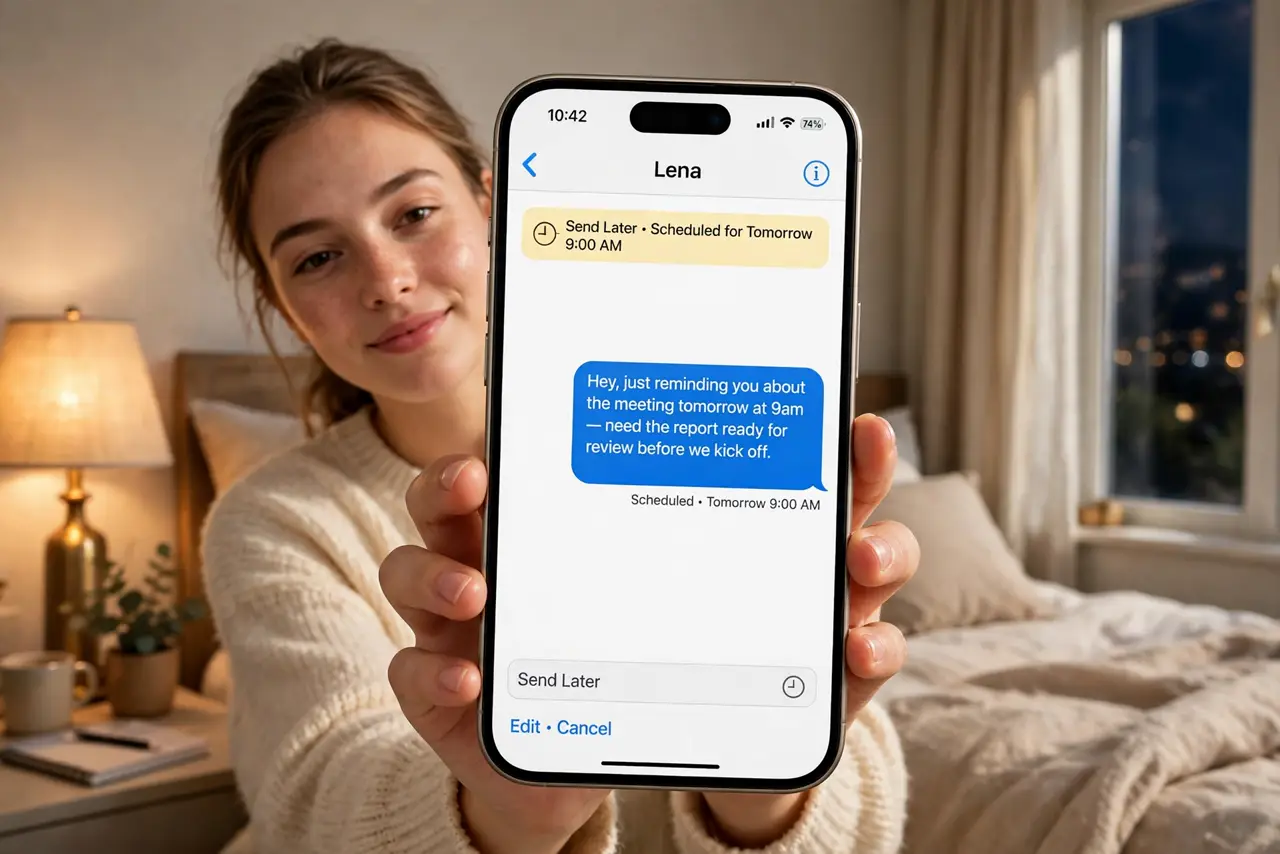
You think of the perfect message at 2 a.m., but sending it now would wake someone up — or look unprofessional. Scheduling a text to send later solves it: write now, deliver at a decent hour. On iPhone this works through the Shortcuts app or the built-in Send Later in Messages on newer iOS versions.
TL;DR / Quick Fix
Quick fix: on newer iOS, type your message in Messages, tap the + button, choose Send Later, and pick the date and time. On older versions, build a quick automation in the Shortcuts app. Either way, write it now and let the phone deliver it at the right hour.
Follow these steps
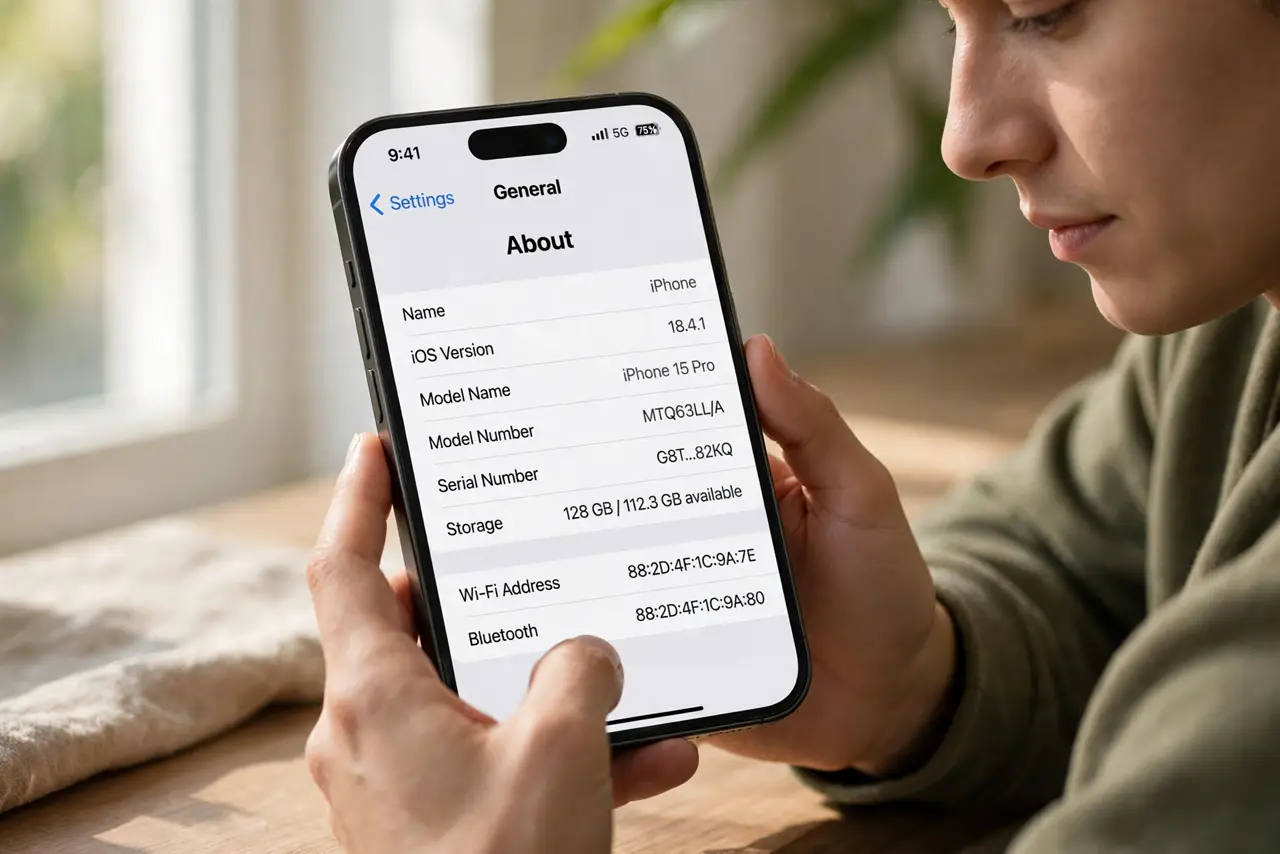
- Check your iOS version. Send Later in Messages needs a recent iOS — check Settings, General, Software Update. If you're on an older version, the Shortcuts method below is your route.
- Use Send Later in Messages. Open the conversation, type your message, tap the + button next to the text field, then Send Later. Pick the date and time — the message sits in the thread with a dashed outline until it sends.
- Edit or delete before it sends. Tap the scheduled message bubble to edit the text or change the time, or delete it to cancel. Once the time passes and it sends, it's a normal message — no take-backs.
- Build a Shortcut for older iOS. In the Shortcuts app, create a Personal Automation triggered by Time of Day, add the Send Message action, pick the contact and text. It's clunkier but works on any version.
- Mind the recipient's timezone. Scheduling across time zones is where good intentions go wrong — a 9 a.m. send in your zone can be 3 a.m. in theirs. Double-check before confirming, like the scheduled email problem.
- Confirm it actually sent. For anything important, check the thread after the scheduled time for the Delivered status. Scheduled messages need the phone on and connected — airplane mode at send time means it waits.
What NOT to do
- Do not schedule sensitive messages you might regret. A delayed send gives you time to reconsider — but once it goes, it's gone. Re-read before the deadline.
- Do not rely on scheduling for true emergencies. If it must arrive, send it now or call — scheduled delivery has too many failure points for urgent news.
- Do not schedule birthday messages months ahead on a phone you might replace. Automations don't always survive device transfers — keep a backup reminder.
- Do not assume the recipient sees it at the perfect moment. Delivery is on schedule; reading is on their schedule — don't schedule something that needs an instant reply.
Frequently asked questions
Does the phone need to be on?
Yes — the message sends from your phone at the scheduled time, so it must be powered on and connected. If the phone is off or in airplane mode, the message waits until the next opportunity.
Can I schedule on Android too?
Yes — Google Messages has a built-in schedule send: long-press the send button after typing. Samsung Messages has a similar option. The feature is standard on modern Android.
Why don't I see Send Later?
Your iOS is probably too old — update to the latest version. On older iOS, use the Shortcuts automation method, which works going back many versions.