Stolen Device Protection?
A thief watches you type your passcode, steals the phone, and suddenly your Apple ID, passwords, and bank apps are theirs — this exact attack made headlines. Stolen Device Protection is Apple's answer: when your iPhone is away from familiar places, changing critical settings requires Face ID plus a one-hour security delay. Turn it on and a stolen passcode becomes nearly useless.
TL;DR / Quick Fix
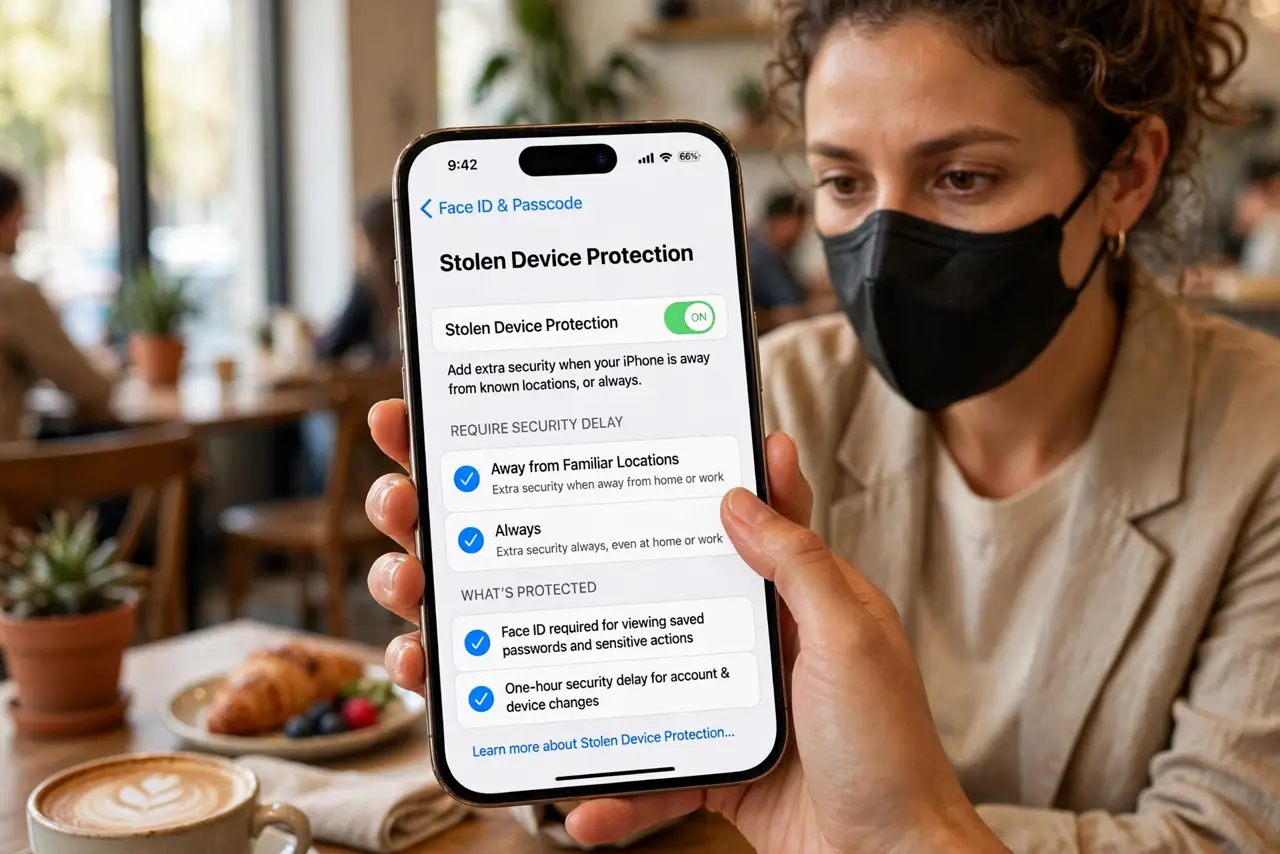
Quick fix: Stolen Device Protection requires Face ID plus a one-hour delay for changes when your iPhone is away from familiar places. Turn it on in Settings → Face ID & Passcode → Stolen Device Protection. A thief who saw your passcode still can't change your Apple ID or passwords.
Follow these steps
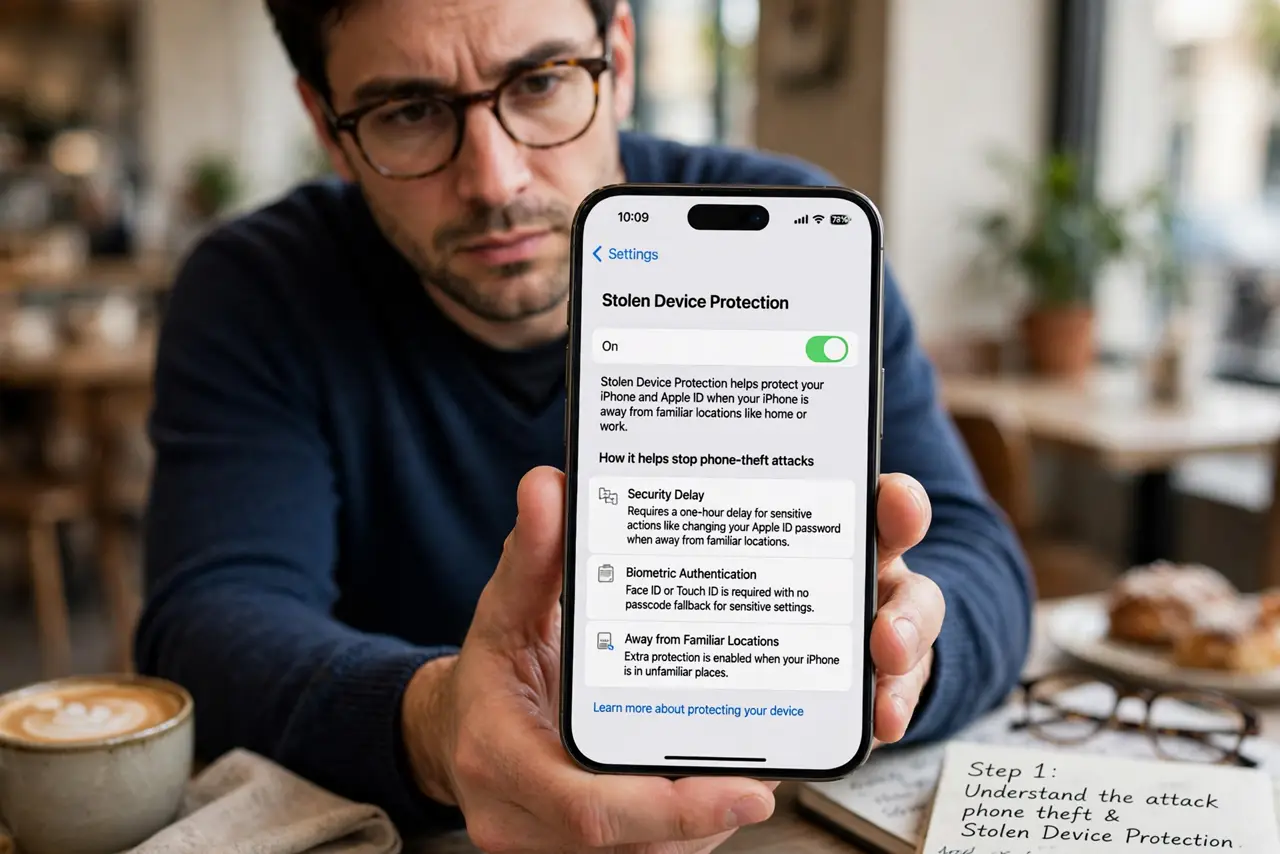
- Understand the attack it stops. Thieves shoulder-surf your passcode in bars and public places, then steal the phone. With just the passcode they could change your Apple ID password and lock you out forever. This feature exists because that attack became common.
- Turn it on. Go to Settings → Face ID & Passcode → Stolen Device Protection and enable it. Choose 'Always' for maximum protection or 'Away from Familiar Locations' so home stays convenient. There is no downside to leaving it on.
- Know what gets protected. Changing your Apple ID password, turning off Find My, erasing the phone, and accessing saved passwords now require Face ID — the passcode alone is not enough. Away from home, these also trigger a one-hour security delay with a second Face ID check.
- Understand the security delay. For the most sensitive actions away from familiar places, iPhone makes you wait an hour and authenticate with Face ID again. This gives you time to mark the phone lost via Find My before the thief can lock you out.
- Keep Face ID working well. The whole feature hinges on Face ID — a passcode fallback would defeat it. If you wear a mask often, set up Face ID with a mask so the protection never downgrades to passcode-only.
- Pair it with a strong passcode. Stolen Device Protection guards settings, but your passcode still unlocks the phone itself. Upgrade to an alphanumeric passcode so shoulder-surfers cannot memorize four digits at a glance.
What NOT to do
- Do not leave it off because 'it won't happen to me.' The attack targets anyone typing a passcode in public — enabling takes ten seconds.
- Do not type your passcode visibly in crowded places. Shield the screen with your hand — this feature is the backstop, not the plan.
- Do not choose 'Away from Familiar Locations' and assume home is safe. It is convenient, but 'Always' protects everywhere — pick based on your honest risk.
- Do not forget this doesn't replace Find My. Protection guards your accounts; Find My locates the phone — you need both.
Frequently asked questions
Will this annoy me in daily use?
Barely — at familiar locations (home, work) nothing changes. The extra Face ID checks and delays only appear in unfamiliar places, exactly when the risk is real.
What if Face ID fails and I'm traveling?
You wait out the security delay and try Face ID again — there is no passcode bypass by design. That strictness is what makes a stolen passcode useless to a thief.
Does Android have anything similar?
Android has theft-protection features like Theft Detection Lock and remote lock, but no exact equivalent of the security delay. iPhone owners should treat this as a must-enable.