Hotspot Over USB?
USB tethering shares your iPhone's mobile data with a computer over a cable — steadier than Wi-Fi hotspot, kinder to the phone's battery, and invisible to nearby snoopers. It is the best way to get a laptop online from your phone when Wi-Fi is untrustworthy. This guide shows the setup on iPhone and the Windows gotcha to know.
TL;DR / Quick Fix
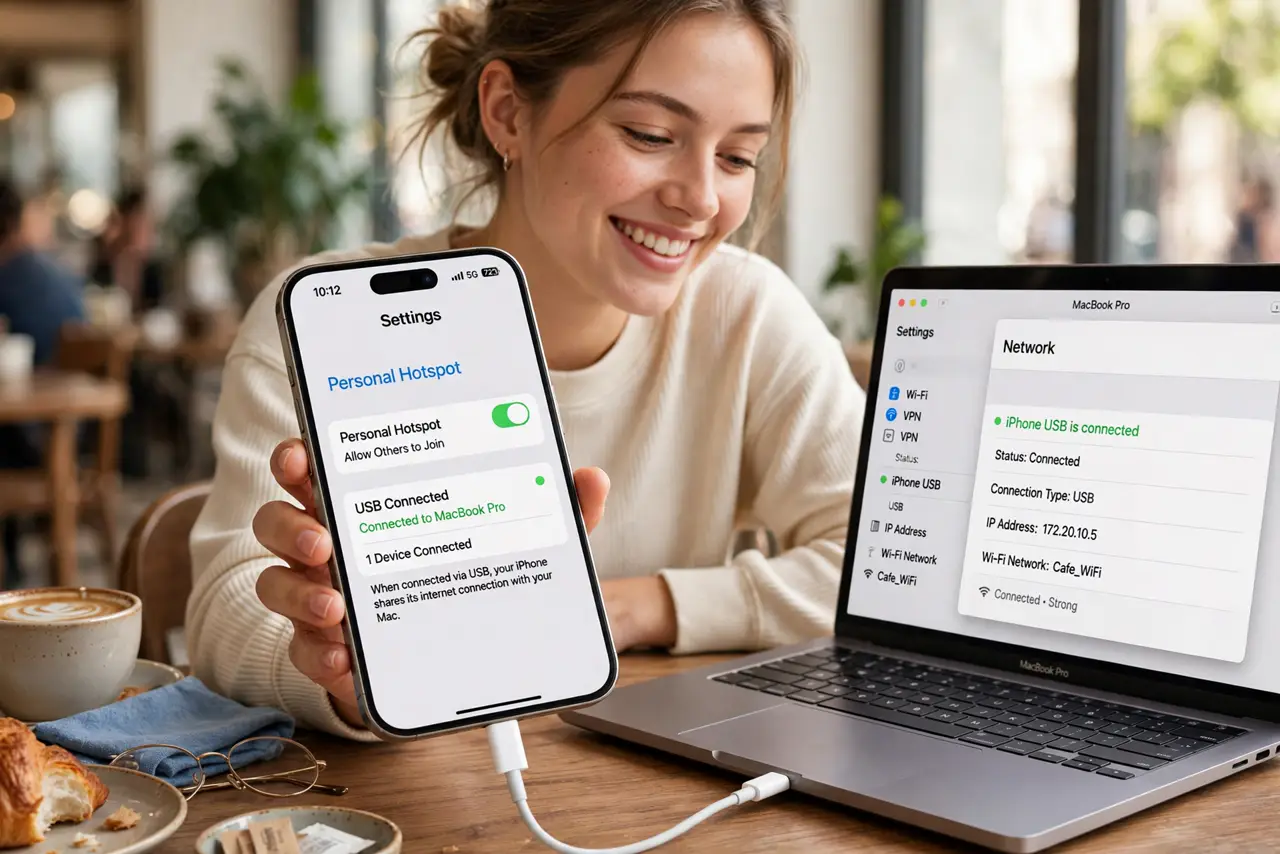
Quick fix: USB tethering shares your iPhone's data with a computer over a cable — steadier and more efficient than a Wi-Fi hotspot. Plug in, trust the computer, and enable Personal Hotspot. On Windows, install iTunes or Apple Devices for the driver. Watch your data cap.
Follow these steps
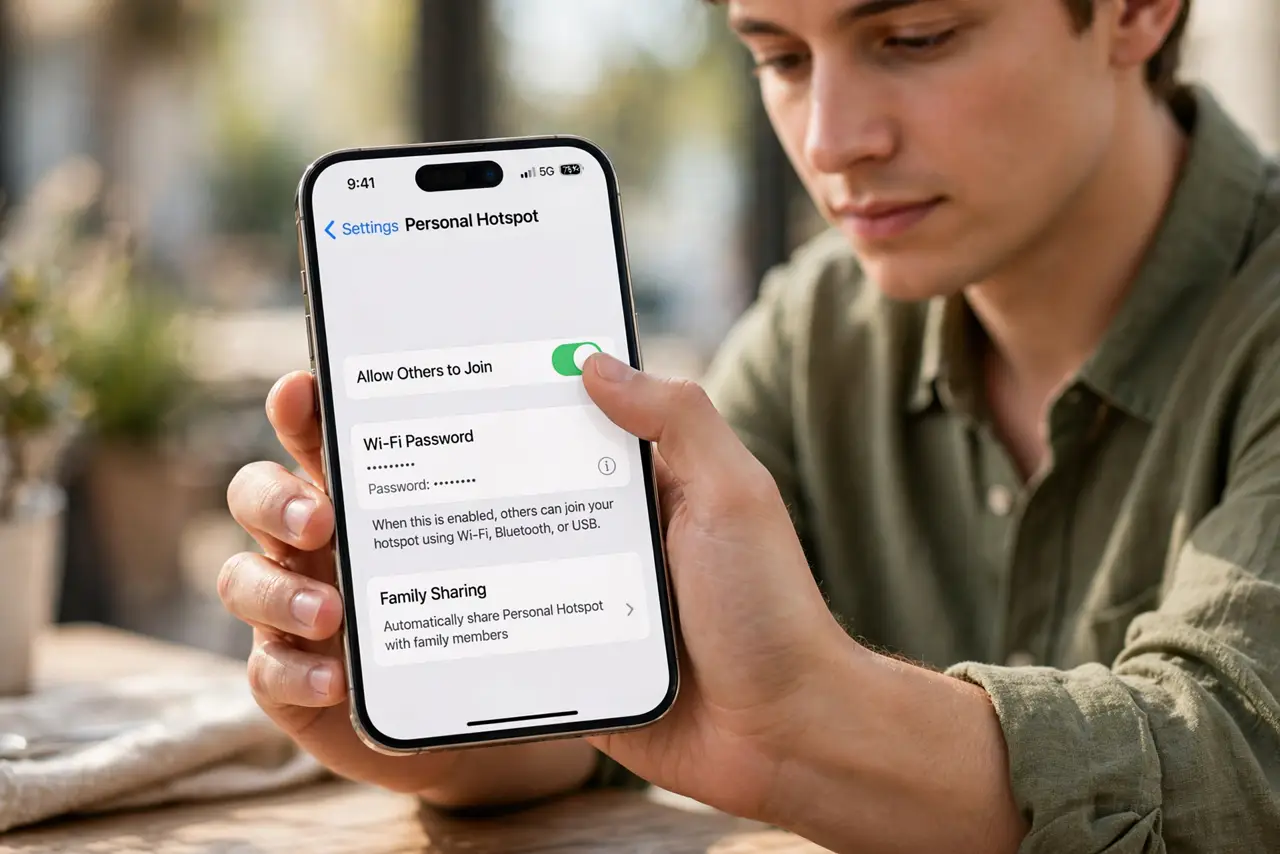
- Enable Personal Hotspot. On the iPhone, go to Settings, Personal Hotspot, and turn on 'Allow Others to Join.' USB tethering rides on this switch — without it, the cable does nothing.
- Plug in and trust. Connect the iPhone to the computer with a data-capable cable and tap Trust on the iPhone. Charge-only cables will not tether — use a proper data cable.
- Select the iPhone connection. On Mac it appears automatically as an iPhone USB device. On Windows, check the network adapters — if it does not appear, install iTunes (or Apple Devices) for the driver, which Windows needs to see the phone.
- Confirm you are online. Turn off the computer's Wi-Fi temporarily and load a page. If it loads, you are on the phone's data — check the iPhone's hotspot screen, which shows the connected device.
- Know the battery advantage. Unlike Wi-Fi hotspot, USB tethering charges the phone while sharing. See the USB vs Wi-Fi hotspot battery comparison — the cable wins on efficiency every time.
- Watch the data cap. Tethering burns data fast — background updates, cloud sync, and video all drink from your mobile plan. Disable automatic updates on the computer before a long tethered session.
What NOT to do
- Do not tether on a charge-only cable. It looks identical and charges fine, but no data flows — use a known data cable.
- Do not leave Personal Hotspot open. Anyone nearby cannot join USB tethering, but the hotspot switch also enables Wi-Fi sharing — turn it off when done.
- Do not stream video on a capped plan. An hour of HD video can eat gigabytes — tethering is for work, not Netflix, unless your plan allows.
- Do not skip the Trust tap. Without trusting the computer, the iPhone refuses the data connection silently — the most common 'it does nothing' cause.
Frequently asked questions
Is USB tethering faster than Wi-Fi hotspot?
Usually about the same speed — the limit is your mobile signal, not the link. USB wins on stability, latency, and battery, not raw speed.
Does my carrier allow tethering?
Most plans include some tethering, but a few charge extra or throttle it. Check your plan before a big session — the overage surprise is real.
Can I tether to two computers at once?
Not over one USB cable. Combine USB for one machine and Wi-Fi hotspot for others if you must share with several devices.