iPhone Video Plays Sideways? Fix It
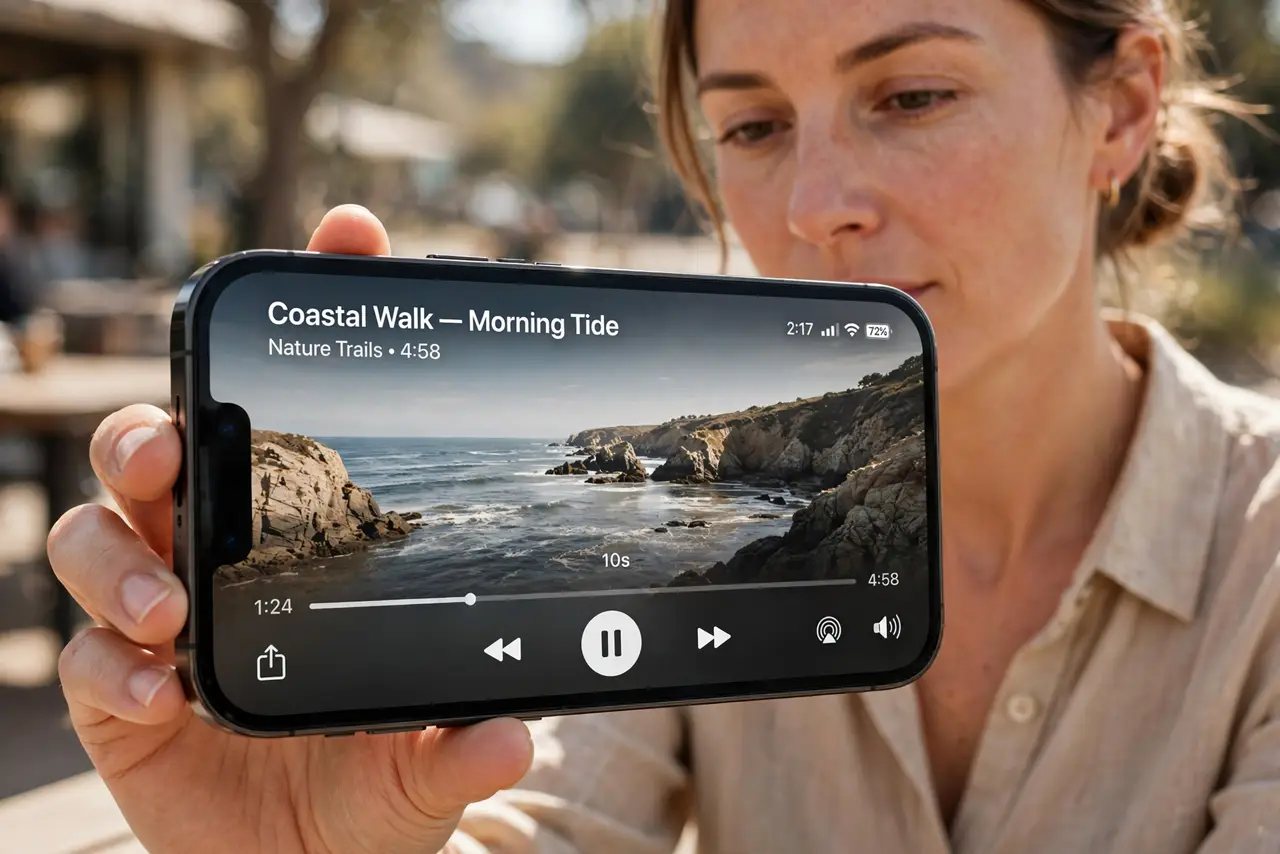
Your video plays sideways, and turning the phone does not fix it. A sideways video was usually recorded with orientation lock on, or it is playing in an app that ignores rotation. The fix depends on whether the clip itself is sideways or just the playback, and the still-image twin is an iPhone screen rotated and stuck.
TL;DR / Quick Fix
Quick fix: rotate the phone with orientation lock off, check rotation lock in Control Center, play the video in Photos, rotate the clip in Photos if it is truly sideways, and re-export it. If it still fails, note exactly when it happens before trying again.
Follow these steps
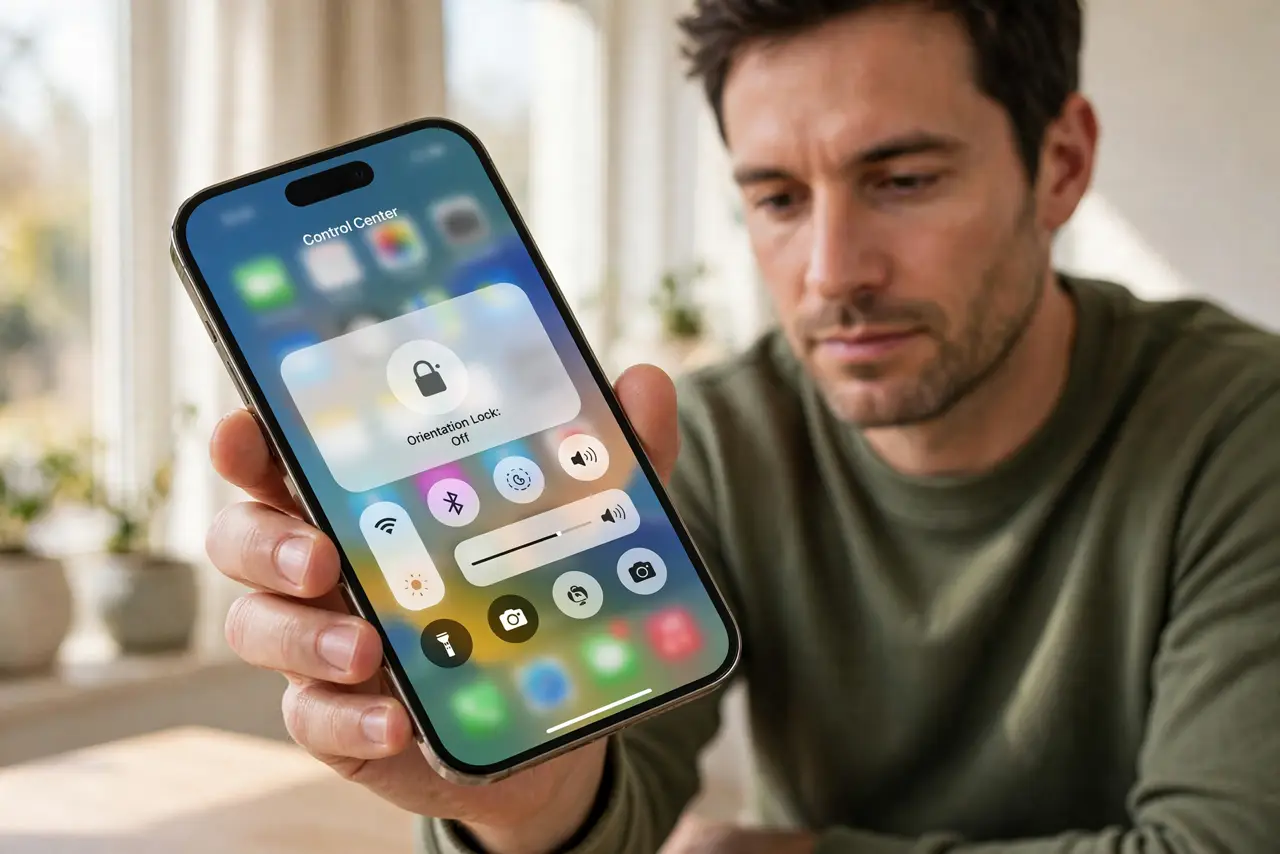
- Turn orientation lock off and rotate. Open Control Center and make sure the orientation lock is off. Then rotate the phone to landscape and play the video again.
- Play the video in Photos first. Open the video in Photos rather than a chat or social app. Some apps lock orientation, while Photos respects rotation and shows the true clip.
- Check how it was recorded. If it was recorded with the phone already sideways, it may be a landscape clip playing in a portrait player. Rotate the phone, not the clip, in that case.
- Rotate the clip in Photos if it is truly sideways. Open the video in Photos, tap Edit, then the crop and rotate tool, and rotate it upright. Tap Done to save the corrected orientation.
- Re-export or share after rotating. After rotating in Photos, share the corrected version. The original shared sideways stays sideways, so send the fixed clip instead.
- Restart if rotation stops responding. Restart the iPhone and test rotation in Photos. A stuck rotation state after an update sometimes needs a restart to clear.
What NOT to do
- Do not rotate the phone while recording and expect a fix. Orientation is set when recording starts, so start recording in the orientation you want.
- Do not assume every sideways video is broken. Many are landscape clips in a portrait player, and rotating the phone fixes them.
- Do not re-record a sideways video if Photos can rotate it. Rotating in Photos saves the moment without reshooting.
- Do not share the sideways original after fixing it. Share the rotated version, or recipients will still see it sideways.
Frequently asked questions
Why does my video play sideways?
Usually orientation lock is on, the player locks orientation, or the clip itself was recorded sideways.
Can I fix a sideways video without re-recording?
Yes. Rotate it in Photos with Edit, then crop and rotate, and save.
Why does it play fine in Photos but sideways elsewhere?
Because some apps lock orientation. Photos shows the true clip, so trust Photos first.