Board with Apple Wallet
Paper boarding passes get crumpled, lost, or left on the printer — and digging through email at the gate while the line builds is miserable. Apple Wallet keeps your boarding pass one tap away, surfaces it automatically at the airport, and updates itself when gates change. Here is how to board like it is 2026.
TL;DR / Quick Fix
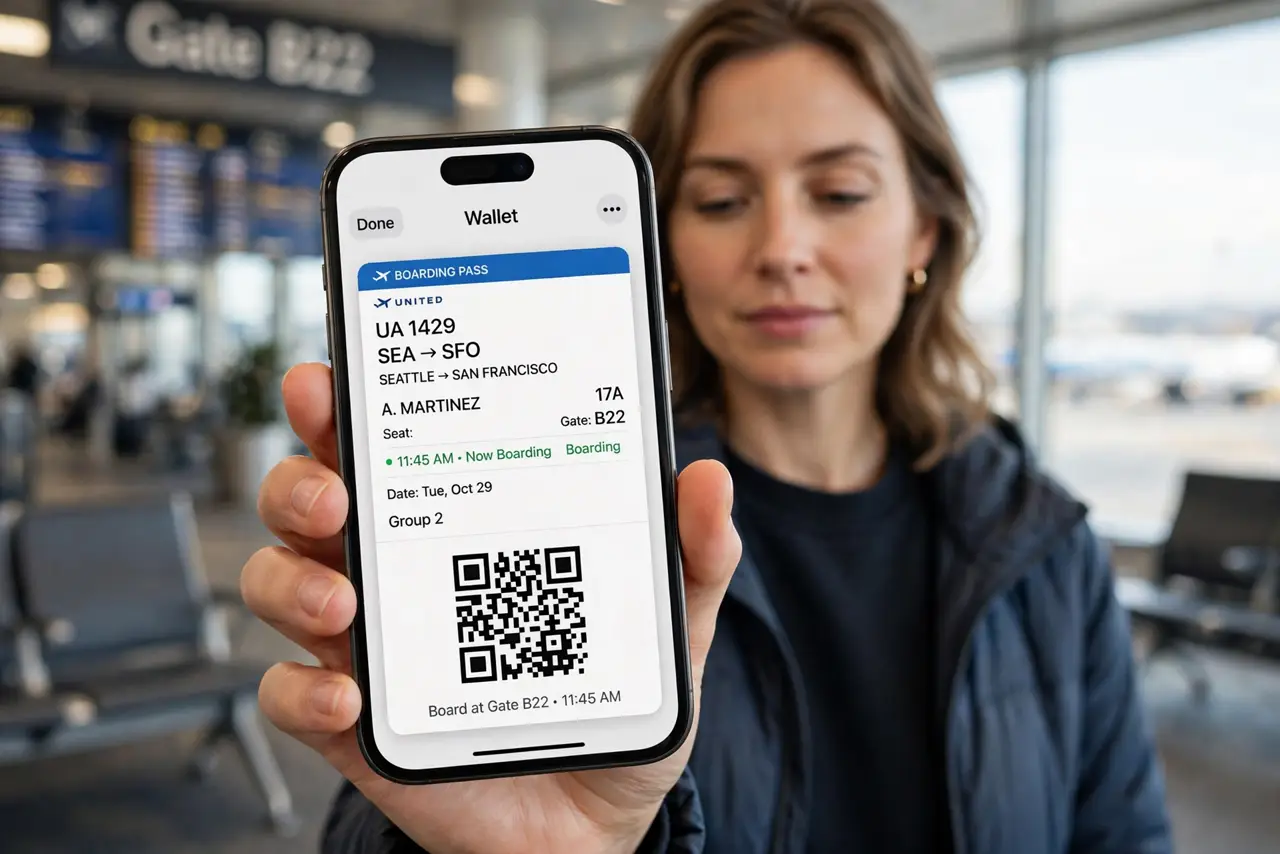
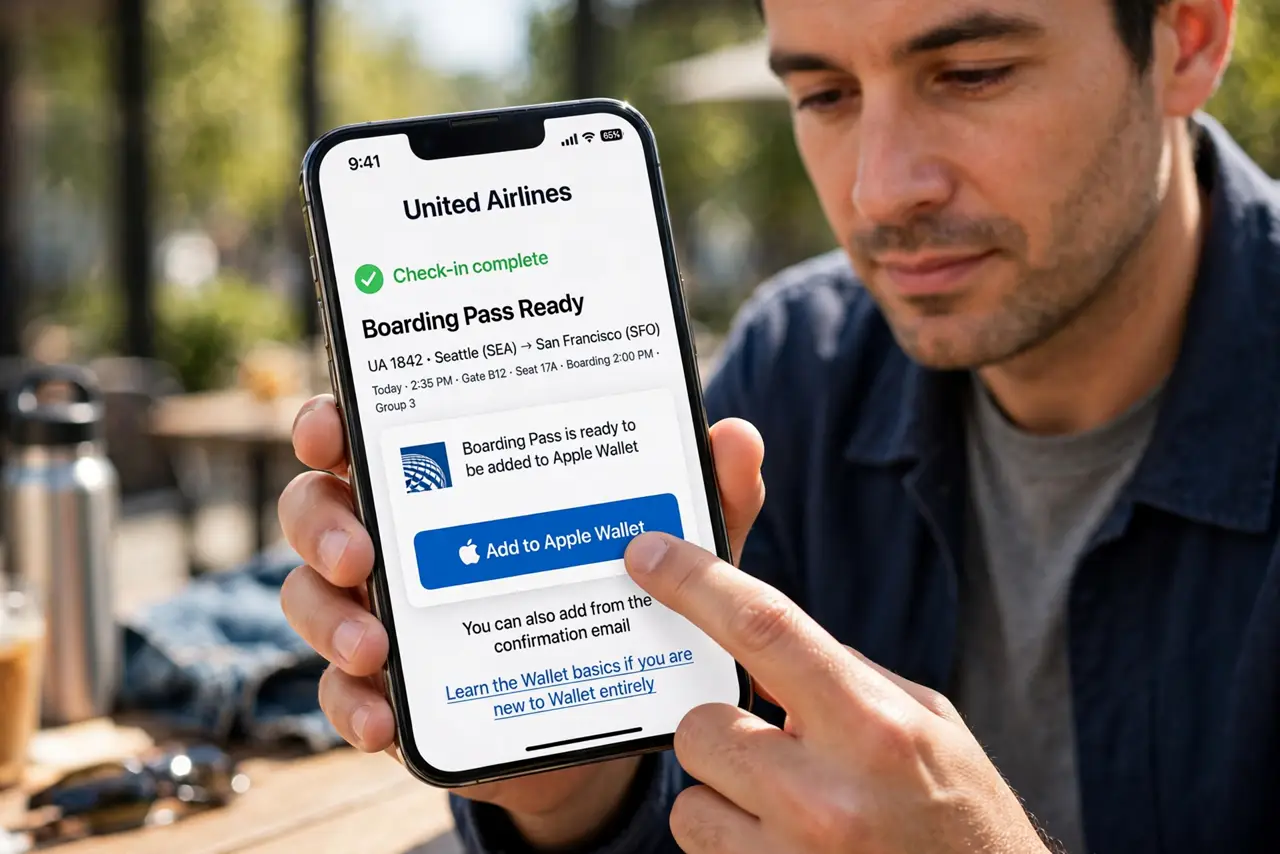
Quick fix: add your boarding pass to Apple Wallet from the airline app — tap Add to Apple Wallet and it appears with a QR code at the gate. Enable location alerts so the pass surfaces at the airport. Screenshot the code as backup in case the app glitches.
Follow these steps
- Add the pass from the airline app. After check-in, the airline app offers Add to Apple Wallet — tap it. You can also add from the confirmation email. Learn the Wallet basics if you are new to Wallet entirely.
- Verify the details. Open the pass and check name, flight, seat, and time. Catching a wrong date now beats discovering it at security — see the boarding pass details for what to verify.
- Enable location alerts. Let Wallet suggest the pass at the airport. With location on, the pass appears on the lock screen as you arrive — no digging through apps.
- Screenshot the QR code. Before leaving for the airport, screenshot the code. If the app glitches or the network dies, the photo still scans — and never post it publicly.
- Watch for gate updates. Wallet passes update automatically when gates or times change — faster than the departure boards sometimes. Keep notifications on for the airline app.
- Keep ID handy anyway. The pass boards you; it does not replace ID at security. Phone in one hand, ID in the other — the smooth-traveler stance.
What NOT to do
- Do not screenshot and post your boarding pass. The barcode holds personal data — posting it publicly is an identity-theft gift.
- Do not rely on the app alone at the gate. Screenshot the code before you leave — dead batteries and dead networks happen.
- Do not forget to check in first. The Wallet pass comes from check-in; no check-in, no pass, no matter how good the app is.
- Do not ignore the pass details. Wrong name spelling or date caught at home is a fix; caught at the gate is a crisis.
Frequently asked questions
Does the pass work offline?
Yes — once added, the QR code shows without internet. That is why the screenshot backup also works.
What if the gate changes?
The pass updates automatically with push updates. Keep the airline app's notifications on.
Can I add passes for family?
Yes — add each traveler's pass to their own phone, or keep them all on one phone for kids.