Pair a Keychron Keyboard
A Keychron keyboard arrives, you flip it on, and nothing pairs. Or it pairs to the wrong device, or the keys type the wrong symbols. Keychron's Bluetooth multi-device system is powerful once you learn its two switches and three channels — and maddening until you do. Here is the pairing routine that works every time.
TL;DR / Quick Fix
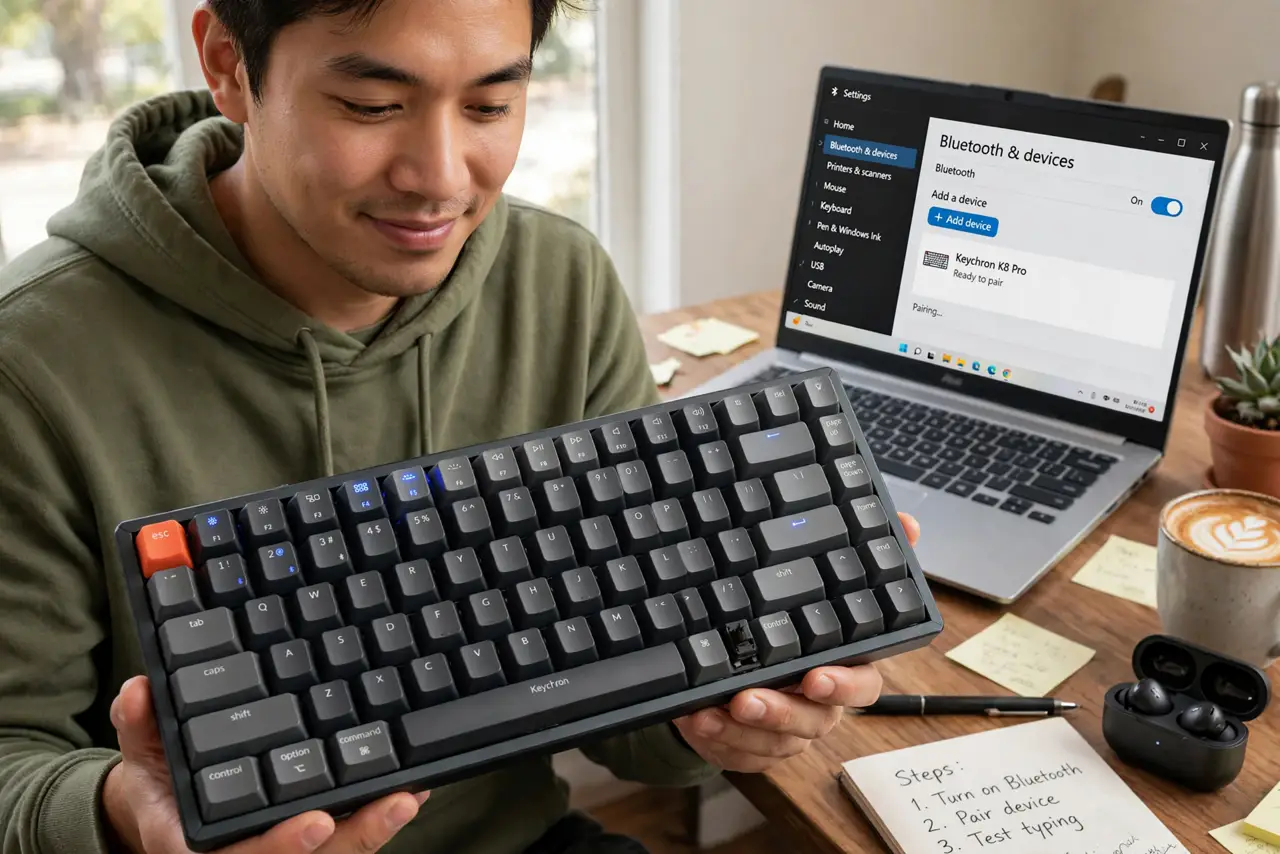
Quick fix: to pair a Keychron, flip the OS switch to match your system, hold Fn + 1 until the light blinks, then select it in Bluetooth settings. Each of the three channels pairs to a different device — switch between them with Fn + 1, 2, or 3.
Follow these steps
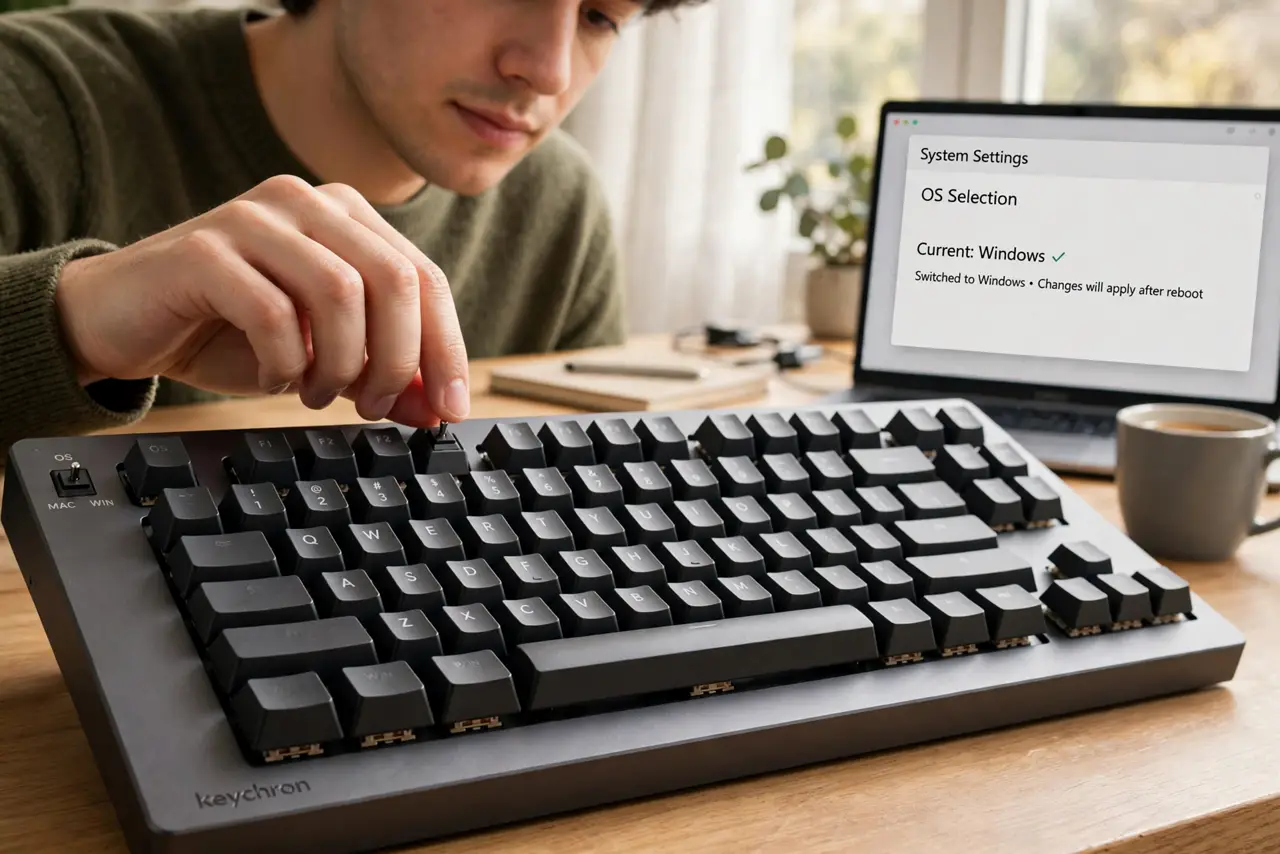
- Set the OS switch first. On the back or side edge, flip the OS toggle to Mac or Windows to match your computer. Skip this and every symbol key lands wrong — this tiny switch causes half of all 'my Keychron types weird' complaints.
- Switch to Bluetooth mode. Flip the connection switch from Cable to Bluetooth (or Off to BT on some models). The keyboard must be in Bluetooth mode before it advertises itself — cable mode never pairs, no matter how long you hold the keys.
- Put a channel into pairing mode. Hold Fn + 1 until the 1 key's light blinks rapidly. Channels 1, 2, and 3 each pair to a different device — the blinking means discoverable. A slow blink means it is trying to reconnect to a known device, not pairing fresh.
- Select it on your device. Open Bluetooth settings on your computer or phone and choose the Keychron when it appears. If it does not show up, toggle your device's Bluetooth off and on once — stale scans are the usual reason.
- Pair the other channels to other devices. Repeat with Fn + 2 for your tablet and Fn + 3 for your phone. Three channels, three devices — that is the whole point of the system. Name each device's Bluetooth entry so you know which is which.
- Switch between devices with Fn + key. Tap Fn + 1, 2, or 3 to hop between paired devices — no re-pairing. If a channel stops connecting, hold it to re-pair just that channel; the others keep working.
What NOT to do
- Do not pair while the cable is plugged in. Cable mode overrides Bluetooth on most models — unplug first, then pair.
- Do not ignore the OS switch. Wrong OS mode means wrong symbols on every key — check it before blaming Bluetooth.
- Do not re-pair all three channels when one fails. Fix only the broken channel; wiping everything triples the work.
- Do not forget which channel is which. A sticky note for week one beats mystery-switching between your phone and your work laptop.
Frequently asked questions
Why does my Keychron keep disconnecting?
Usually aggressive power saving — on the computer's Bluetooth settings, disable any option letting the computer turn off the device. Low keyboard battery causes dropouts too; charge it fully first.
Can I use it wired and wireless?
Yes — plug the cable in and flip to Cable mode for zero-latency wired use, perfect for gaming. Flip back to BT for wireless. The keyboard charges over the cable either way.
The keys type wrong symbols — is it broken?
Almost certainly the OS switch is set to the wrong system. Flip it to match your computer and the symbols snap back to normal instantly.