Require a Password for Every Kids App Purchase
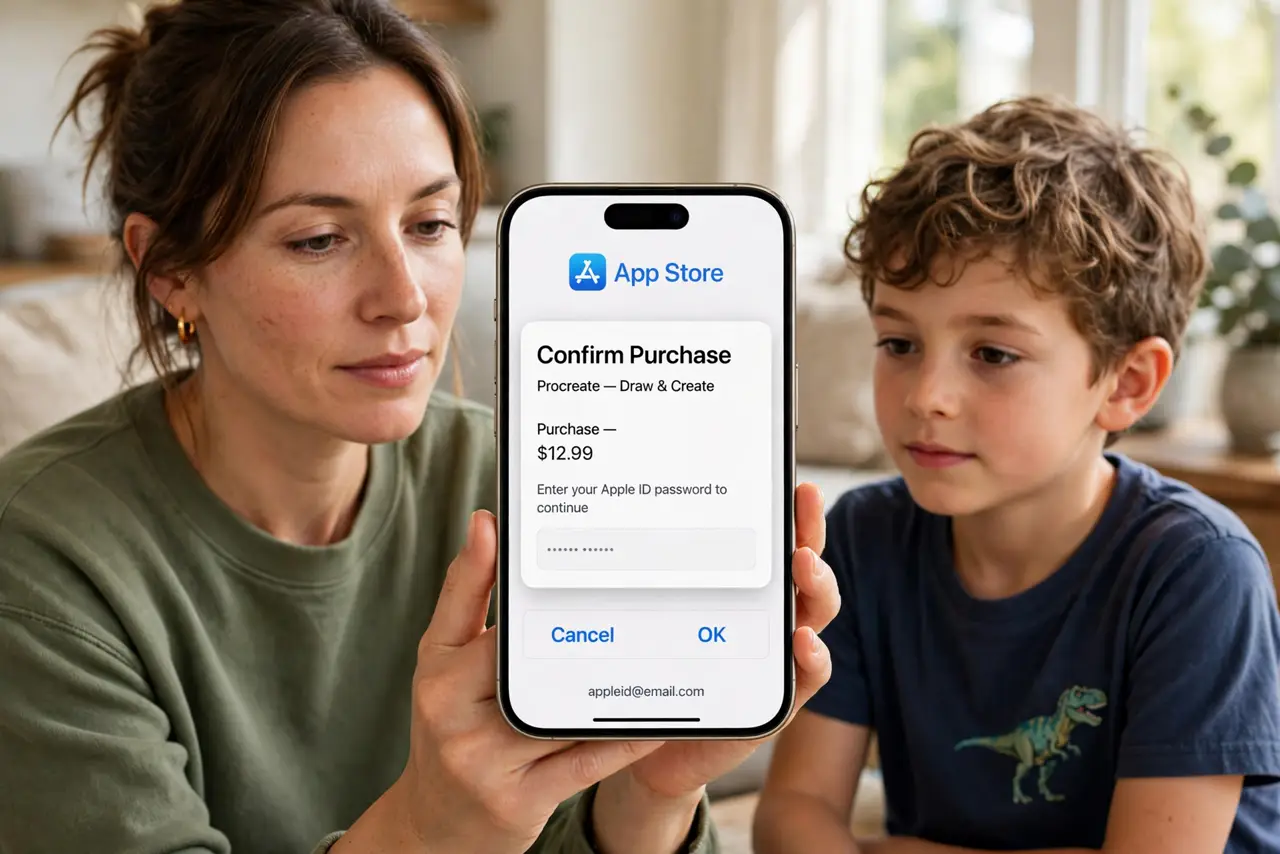
A kid taps through a game, and in-app purchases pile up on your card. Requiring your password for every purchase stops accidental and curious spending before it starts.
TL;DR / Quick Fix
Quick fix: open the app store purchase settings, set purchases to always require your password, and turn off one-tap buying. Then remove saved cards you do not need there, test with the child present, and explain the new rule clearly.
Follow these steps
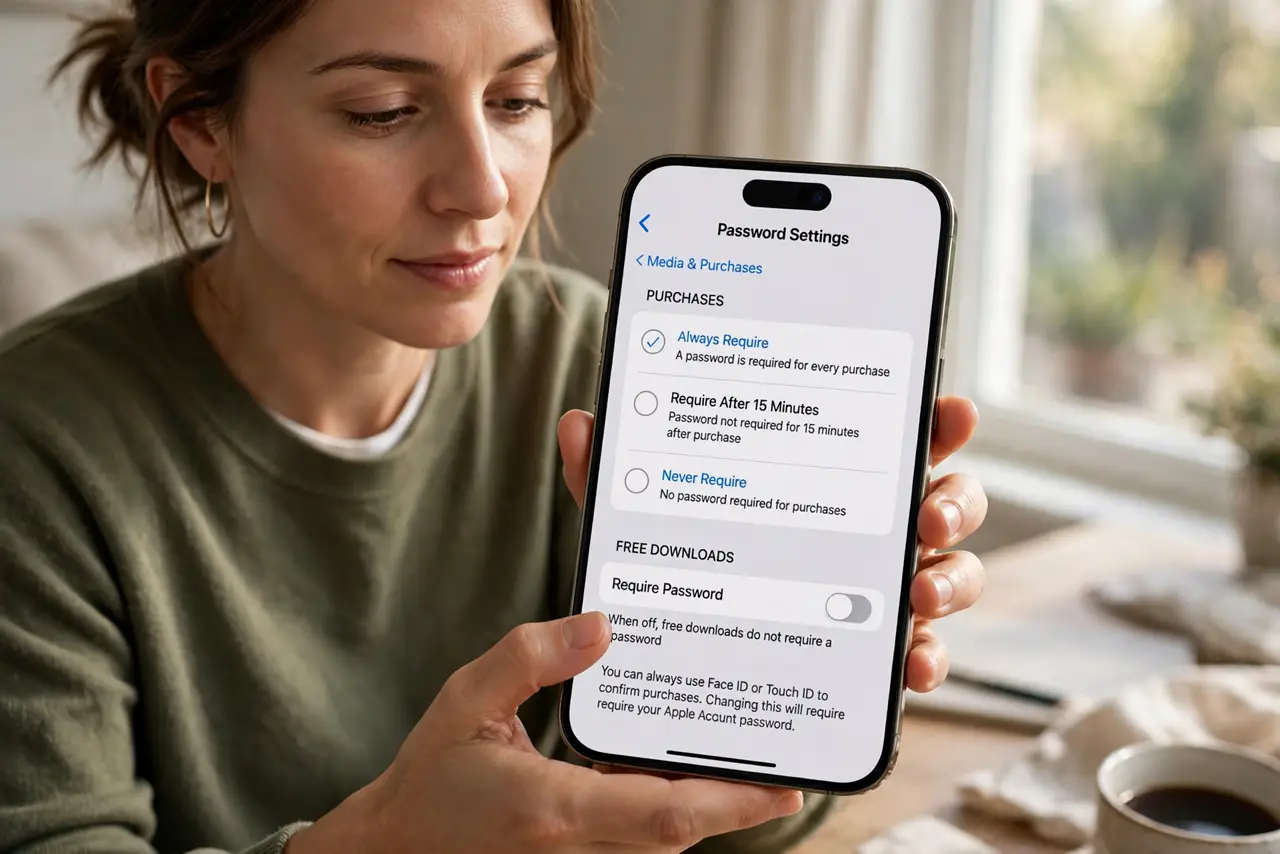
- Set purchases to always require a password. Open the app store settings and change purchase authentication to always require your password. Every purchase then needs you, not just a curious tap.
- Turn off one-tap and quick buying. Disable any express or one-tap purchase option on the store and inside games. Convenience buying is what turns a tap into a charge.
- Remove cards you do not need on the store. Keep only one payment method on the account, or none if the kid never needs paid apps. Fewer stored cards mean fewer ways to spend.
- Test the setting with the child watching. Try a free purchase together and confirm the password prompt appears. A live test proves the setting works better than any menu checkbox.
- Explain the rule in plain words. Tell the child that buying needs your password and your okay first. Pair the password rule with Screen Time limits for a fuller safety net.
- Check purchase history monthly. Review the store's purchase history once a month. A quick scan catches anything the settings missed before the bill surprises you.
What NOT to do
- Do not share your store password with the child. The whole point is that purchases need you, and a shared password removes the barrier entirely.
- Do not leave a grace period after one password entry. Some stores allow purchases for minutes after one approval, so set it to require the password every time.
- Do not assume free games are free. In-app purchases inside free games are where most surprise charges come from, so the password rule matters most there.
- Do not refund-hunt instead of preventing. Refunds for accidental kid purchases are slow and uncertain, while the password setting prevents the charge.
Frequently asked questions
Where is the always-require-password setting?
In the app store's purchase or authentication settings, usually under a password or purchase approval option. The exact path is shown in the store's own help pages.
Will this block free downloads too?
That depends on the store's options. Many let you require passwords for purchases while keeping free downloads easy, so check both settings.
What if a charge already happened?
Request a refund through the store's support right away, then turn on the password requirement so it cannot happen again.