Keep Kids Safe Online
Kids get devices earlier every year, and the internet does not come with training wheels. The goal is not surveillance — it is scaffolding: age-appropriate limits, open conversations, and safety nets that catch the big risks while kids learn judgment. A few settings plus honest talk beats any single app.
TL;DR / Quick Fix
Quick fix: keep kids safe online with layers — device parental controls, a family talk about what is okay to share, and router-level limits for bedtime. Teach them to bring weird messages to you instead of hiding them. Review the settings together every few months as they grow.
Follow these steps
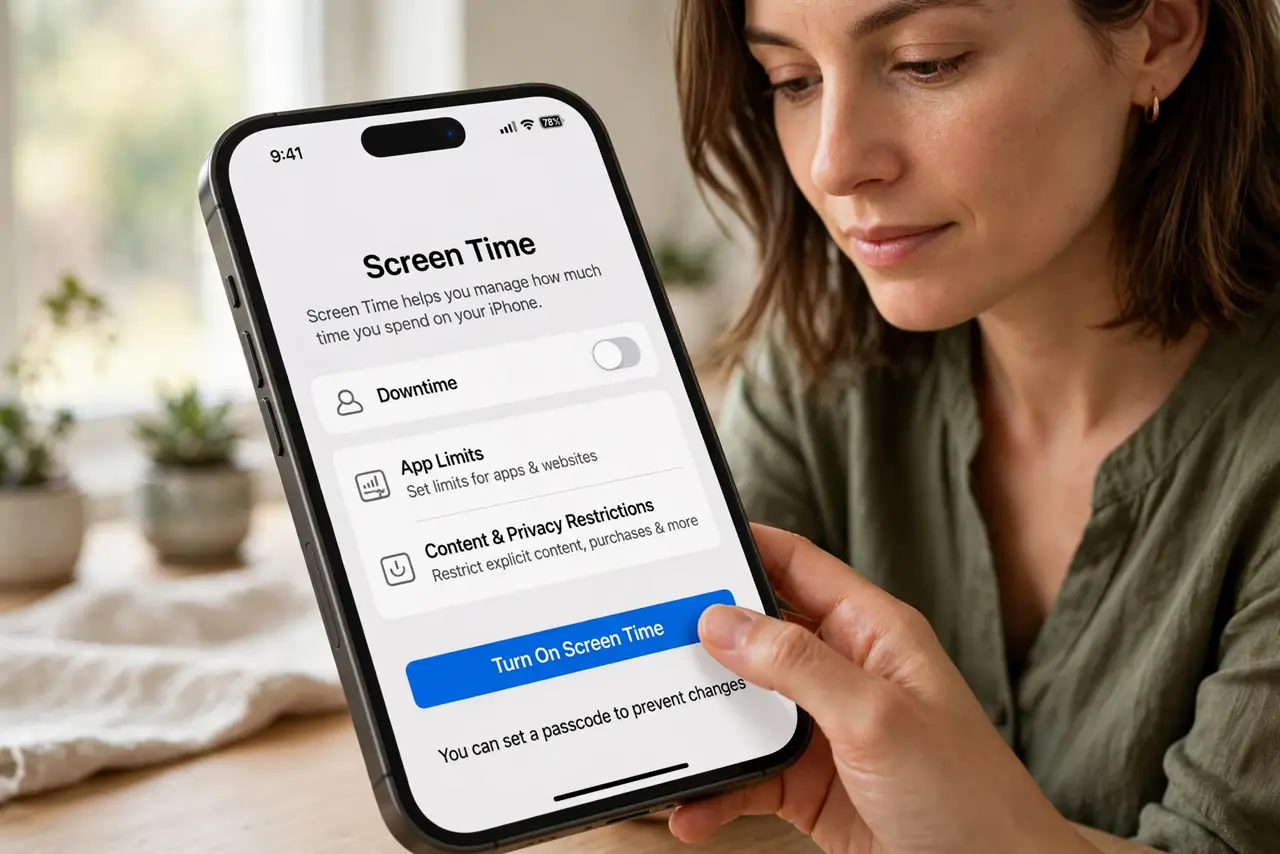
- Turn on the built-in parental controls. iPhone, Android, Windows, and game consoles all ship with free controls — screen-time limits, app approvals, and content filters. Third-party apps are rarely needed when the built-in ones are actually configured.
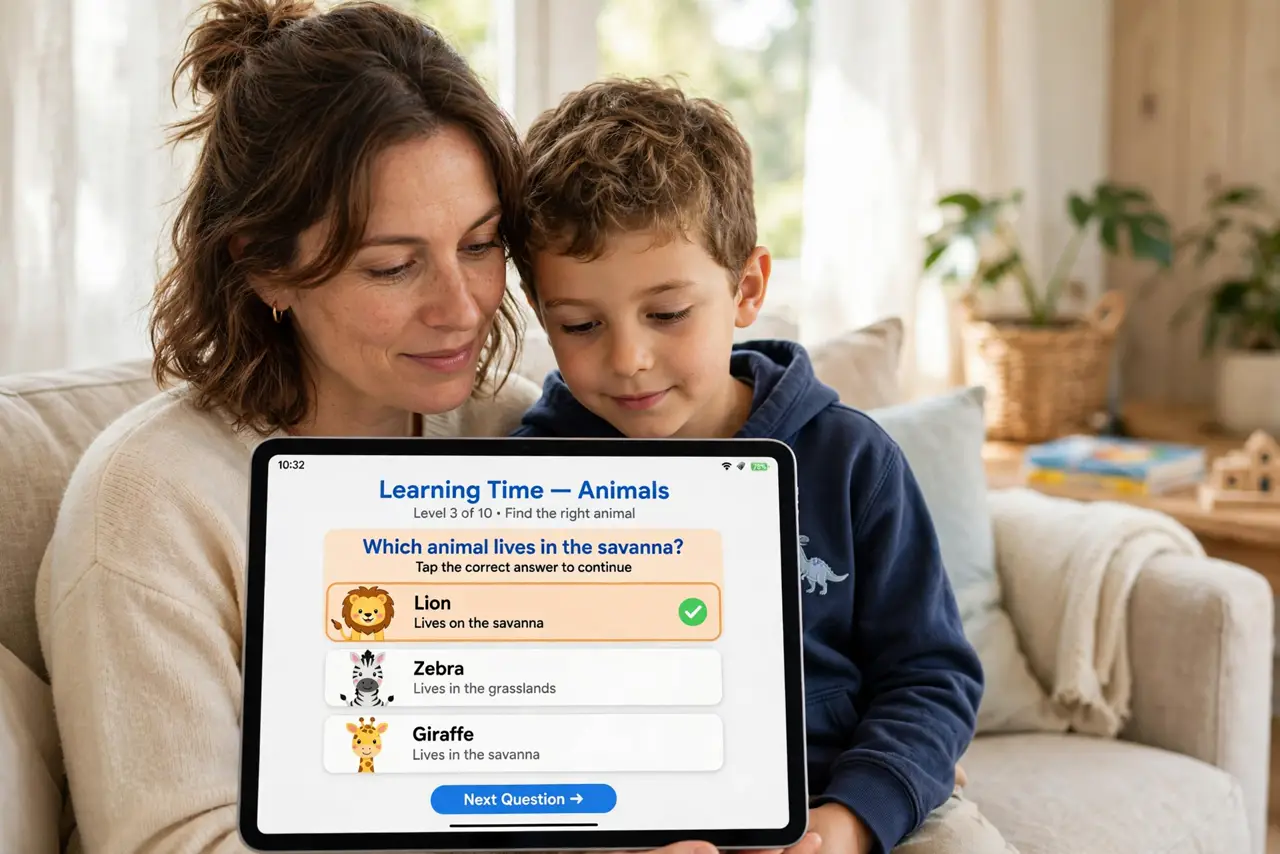
- Put the devices in shared spaces. A tablet used in the living room is naturally safer than one behind a bedroom door. This is not about spying — it is about friction that keeps casual risks away.
- Talk about what never gets shared. Full name, school, address, and photos with location — kids should know the list cold. Cover photo location risks specifically, since most kids have no idea photos carry GPS.
- Make telling you the safe choice. The number one safety tool is a kid who reports weird messages instead of hiding them. Promise calm first conversations about how to handle cyberbullying and creepy contacts — panic teaches silence.
- Set bedtime cutoffs at the router. Devices get smuggled past bedtime; Wi-Fi schedules do not. Router-level controls can pause a kids devices overnight without nightly arguments.
- Review together as they grow. A 7-year-old and a 14-year-old need different rules. Revisit settings every few months, loosen gradually, and explain the why — the goal is judgment, not permanent locks.
What NOT to do
- Do not rely on a single monitoring app as the whole plan. Kids route around one tool; layers and conversation survive.
- Do not read every message in secret. Covert surveillance destroys the trust that makes kids report real danger.
- Do not assume school devices are locked down. Check what the school actually filters — gaps are common.
- Do not use fear as the teaching method. Scare tactics teach avoidance of you, not of risk.
Frequently asked questions
What age should kids get a phone?
There is no magic age — maturity and need matter more. Many families start with a limited device for contact, then expand access gradually.
Are parental control apps worth paying for?
Usually not at first. Built-in OS controls cover the essentials free; paid apps add detail most families never use.
How do I talk about online strangers?
Plainly and early: some people online lie about who they are, and any request for photos or secrecy gets reported to you immediately — no punishment for telling.