Calibrate Your Laptop Battery
Your battery jumps from 40% to 7%, or dies at '20% remaining' — the percentage is lying because the battery gauge lost track of the true capacity. Calibration reteaches it. Here is the safe full-cycle method that works on most laptops.
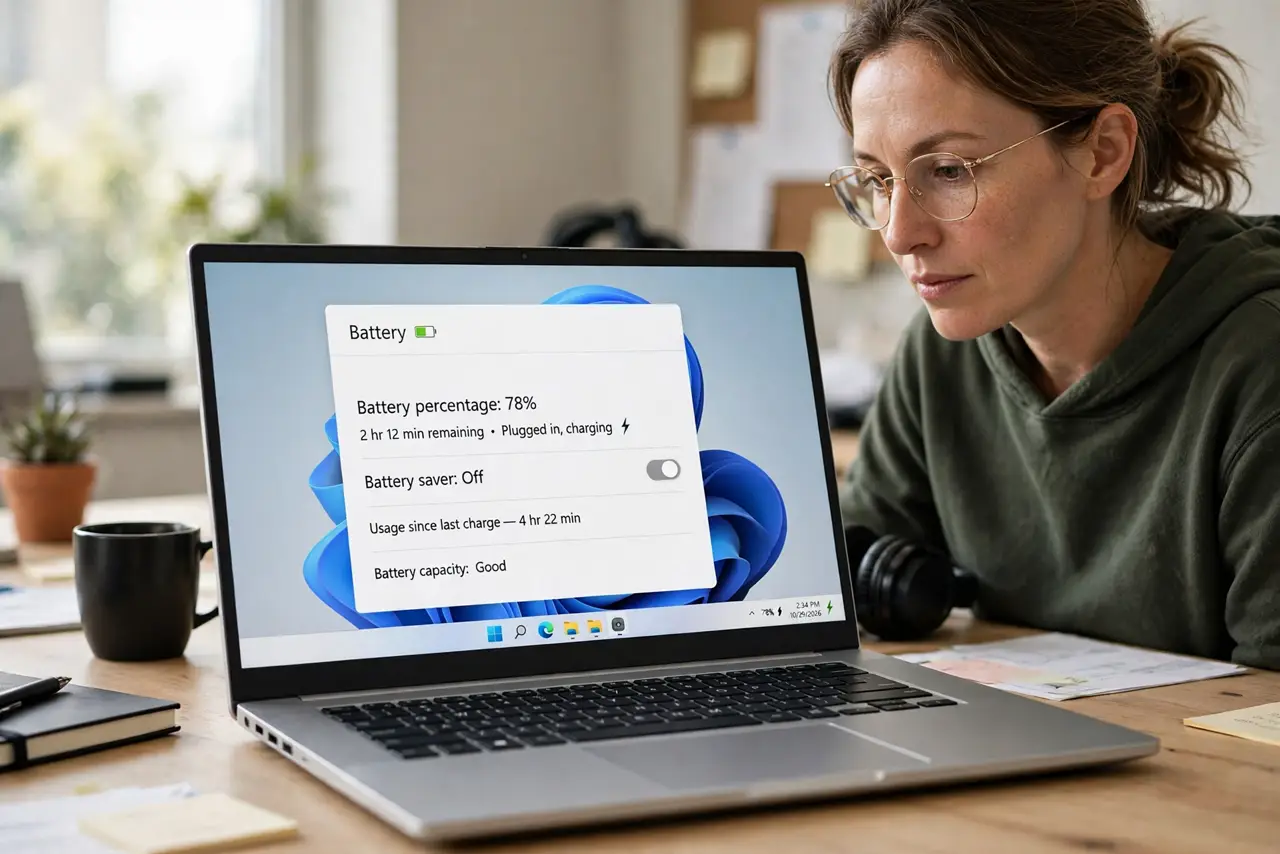
TL;DR / Quick Fix
Battery calibration fixes a lying percentage gauge: charge to 100%, keep charging two hours, then drain to shutdown through normal use, rest a few hours, and recharge fully uninterrupted. The gauge relearns the true capacity. Do this every few months — not weekly — since full cycles wear the battery.
Follow these steps
- Charge to 100% and hold. Keep it plugged in two extra hours past full to saturate the cells.
- Drain through normal use. Use the laptop until it sleeps or shuts itself down. No artificial drain apps needed.
- Let it rest. A few hours powered off lets the cells settle to a true empty reading.
- Recharge fully, uninterrupted. One clean full charge completes the lesson. Do not unplug midway.
- Check the gauge behavior. Percentages should now fall smoothly instead of jumping — see the jumping percentage pattern.
- Repeat every few months. Not weekly. Full cycles cost a little lifespan each time.
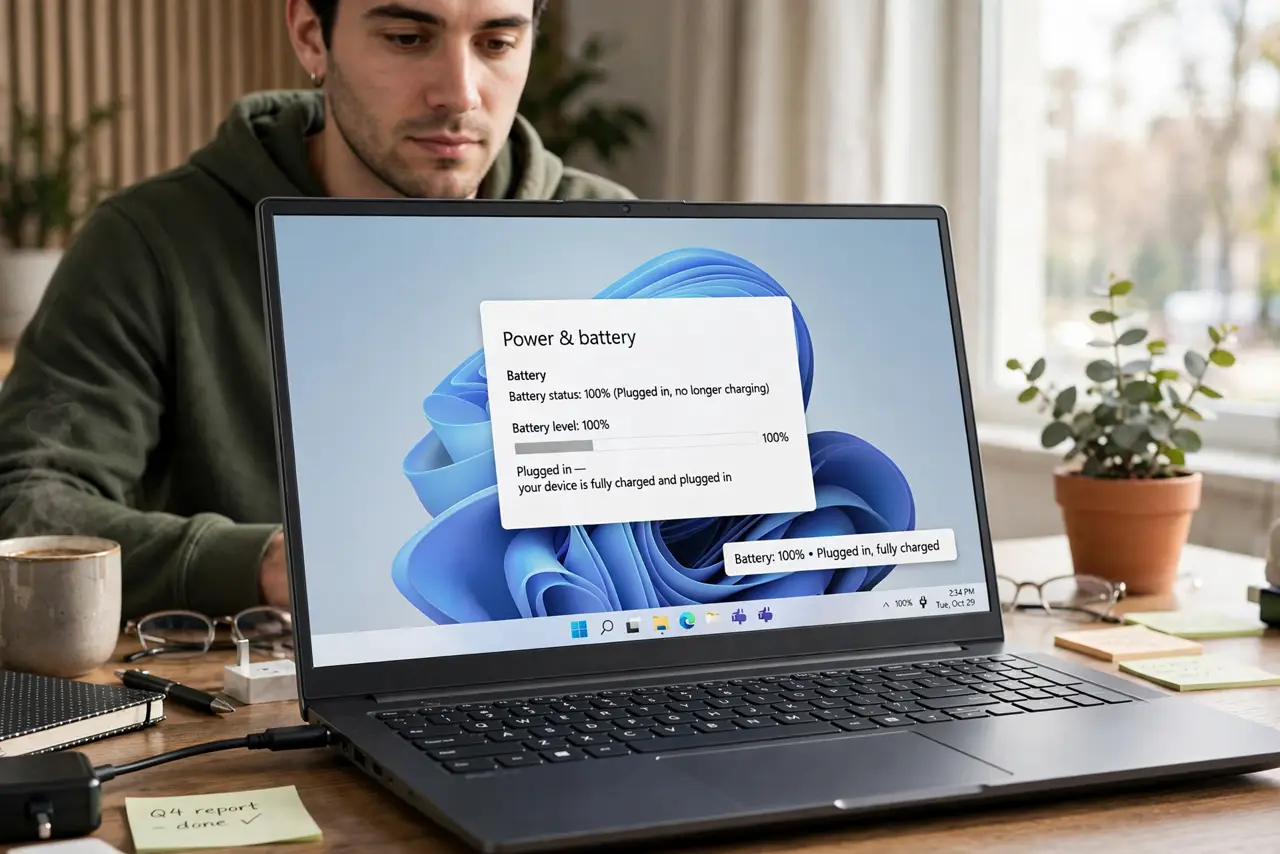
What NOT to do
- Do not calibrate weekly. Full charge cycles wear lithium batteries — calibration is medicine, not food.
- Do not drain to zero and leave it there for days. Recharge promptly after the drain step.
- Do not expect calibration to restore lost capacity. It fixes the gauge, not the chemistry.
- Do not confuse a stuck percentage with swelling. Check for bulging separately — see the swollen battery signs.
Frequently asked questions
How often should I calibrate?
Every two to three months is plenty for most laptops.
Will calibration give me more battery life?
No. It gives you accurate readings of the life you actually have.
Does this work on phones too?
The same principle applies, though phones tend to self-calibrate better than laptops.