Swollen Battery? The Warning Signs
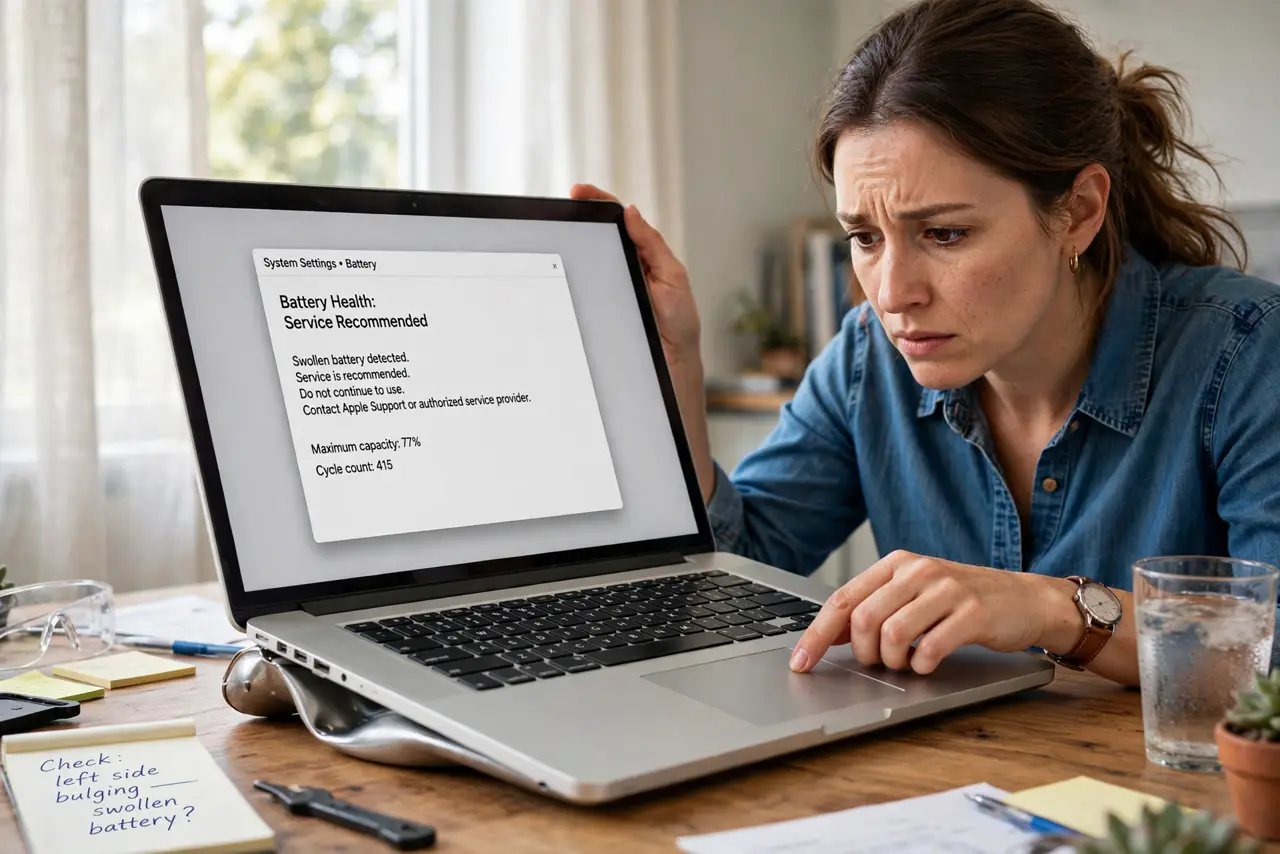
A trackpad that clicks oddly, a keyboard that bulges, a laptop that will not sit flat — these are the classic signs of a swollen battery, and it is the one battery problem you should never ignore. Here is how to recognize it and what to do next.

TL;DR / Quick Fix
A swollen battery pushes up the trackpad or keyboard and rocks the laptop on a flat table — stop using it if you see this. Don't puncture, press, or charge it further. Back up your data, power it down, and take it to a professional for safe removal and replacement.
Follow these steps
- Recognize the signs. Bulging case, stiff or raised trackpad, rocking on a flat desk, screen separating from the lid — any of these.
- Stop charging it immediately. Charging feeds the swelling. Unplug now.
- Back up your data quickly. Do it before powering down — your files matter more than the machine.
- Power it down and unplug. Less energy in the battery means less risk while you arrange repair.
- Do not puncture or press it. A punctured lithium cell can catch fire. See the swelling safety guide before handling it at all.
- Get professional replacement. The manufacturer or a reputable shop. This is not a DIY-first repair.
What NOT to do
- Do not ignore a bulge hoping it goes away. Swelling only gets worse, never better.
- Do not put a swollen device in the trash or recycling bin. It is a fire hazard — take it to battery recycling.
- Do not try to 'flatten' it by pressing. Pressure can puncture the cell.
- Do not keep using it 'just for a bit.' Heat and charging accelerate the failure.
Frequently asked questions
What causes battery swelling?
Gas buildup inside aging or defective lithium cells. Age, heat, and overcharging accelerate it.
Is a slightly swollen battery dangerous?
Treat any swelling as serious. It can escalate from 'slightly' to hazardous.
Will the manufacturer replace it?
Often yes — sometimes free under warranty or a known-defect program. Ask before paying.