Test a Laptop With an External Monitor
The laptop screen is dead, flickering, or suspect — and an external monitor is the fastest way to interrogate it. One cable answers the big question: is the laptop fine and only the screen broken? Here is how to run the test properly.

TL;DR / Quick Fix
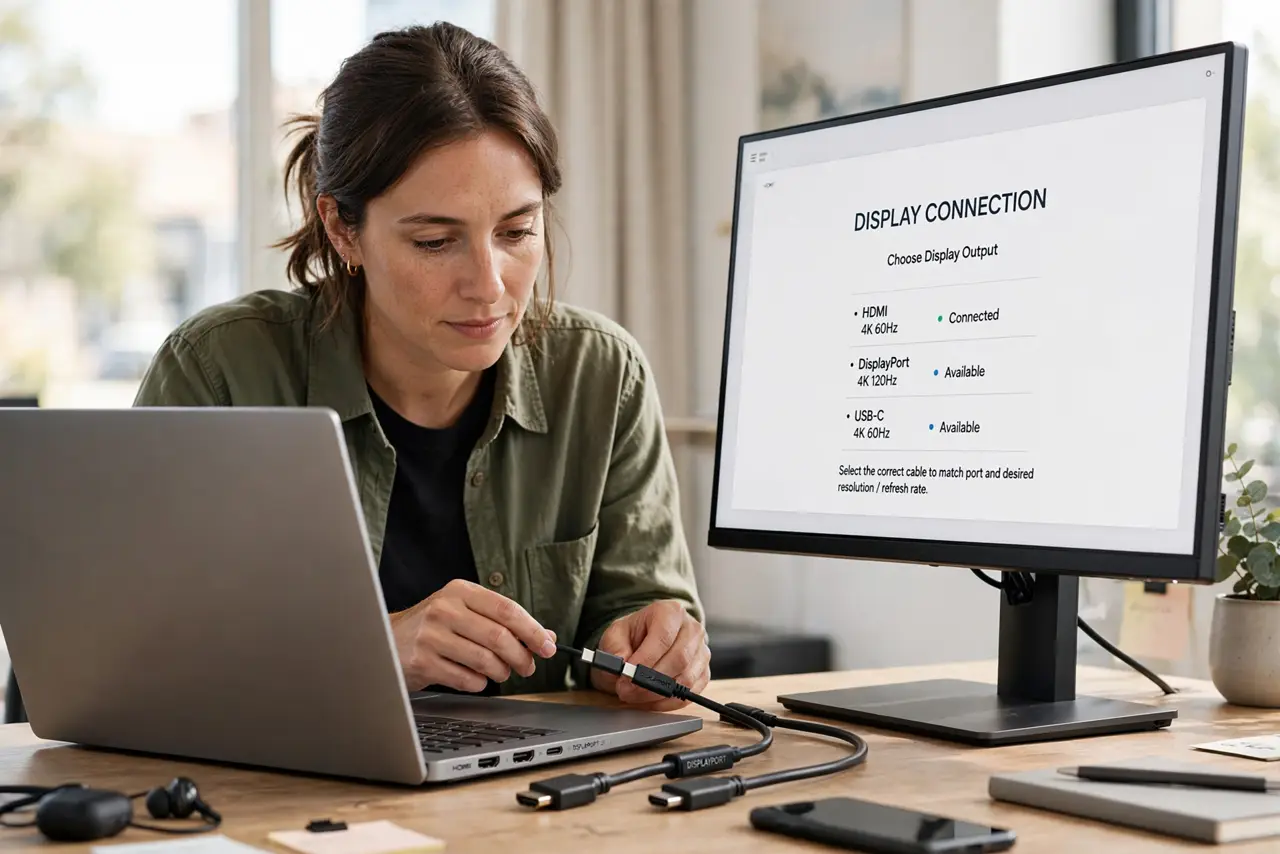
Connect a monitor or TV with HDMI, DisplayPort, or USB-C, switch the monitor's input, and toggle the laptop's display key. If the external screen shows your desktop, the laptop works and its built-in screen or cable is at fault. If both stay dark, suspect graphics or system failure.
Follow these steps
- Pick the right cable and port. HDMI, DisplayPort, or USB-C — check what the laptop offers. See the HDMI vs DisplayPort comparison if unsure.
- Connect with both powered on. Then switch the monitor to the correct input. Wrong input mimics a dead laptop.
- Toggle the laptop's display key. Usually Fn plus F4, F5, or F8 — it cycles internal, external, and both.
- Read the result. External picture means the laptop is alive and the built-in screen or cable is dead.
- Test with the lid closed if needed. Some laptops only output externally with the lid shut.
- Try a second cable before concluding. Cables fail more often than ports. One swap rules out the cheapest suspect.
What NOT to do
- Do not conclude 'laptop dead' from one dark external screen. Test the monitor with another device first.
- Do not force connectors. HDMI and DisplayPort look similar but are not interchangeable by force.
- Do not forget the monitor's input button. It is the most common false alarm in this test.
- Do not skip the display toggle key. Many laptops do not auto-switch to external.
Frequently asked questions
The external monitor works but the laptop screen doesn't — now what?
The built-in panel or its ribbon cable needs repair. The laptop itself is fine.
Nothing on either screen?
Suspect RAM, GPU, or system — work the no-POST checklist next.
Can I just use it as a desktop with the lid closed?
Yes. Many people run 'dead-screen' laptops exactly that way for years.