AirDrop's 10-Minute Window
AirDrop's Everyone option used to stay open until you remembered to close it — an open invitation for strangers to send you anything. Apple fixed it: Everyone now lasts ten minutes, then AirDrop closes itself. Here is how the timer works, what to set instead, and how to share without the risk.
TL;DR / Quick Fix
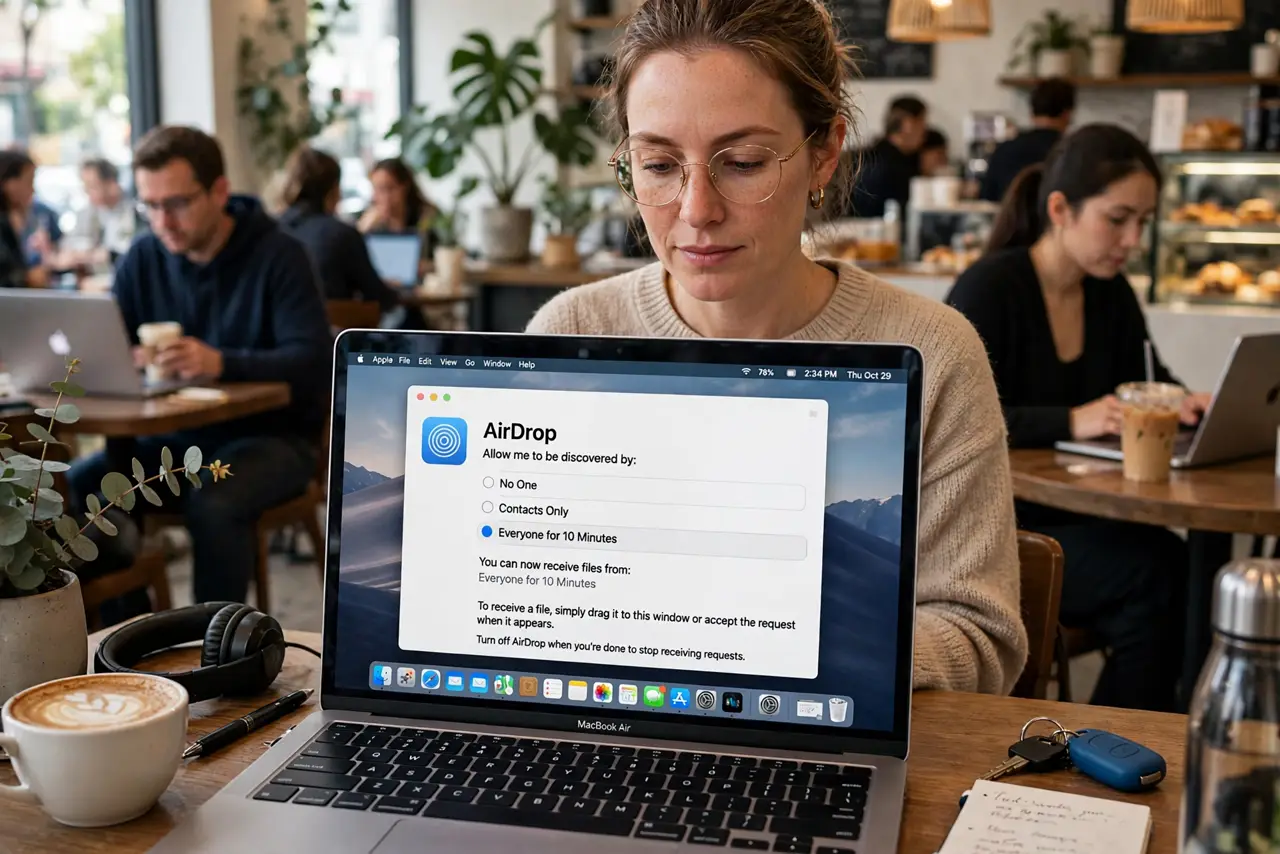
Quick fix: on Mac, set AirDrop to Contacts Only or Receiving Off when you are done sharing — the Everyone for 10 minutes option closes itself automatically. If strangers could reach you, someone left it open. Check Control Center before crowded places and keep it closed by default.
Follow these steps
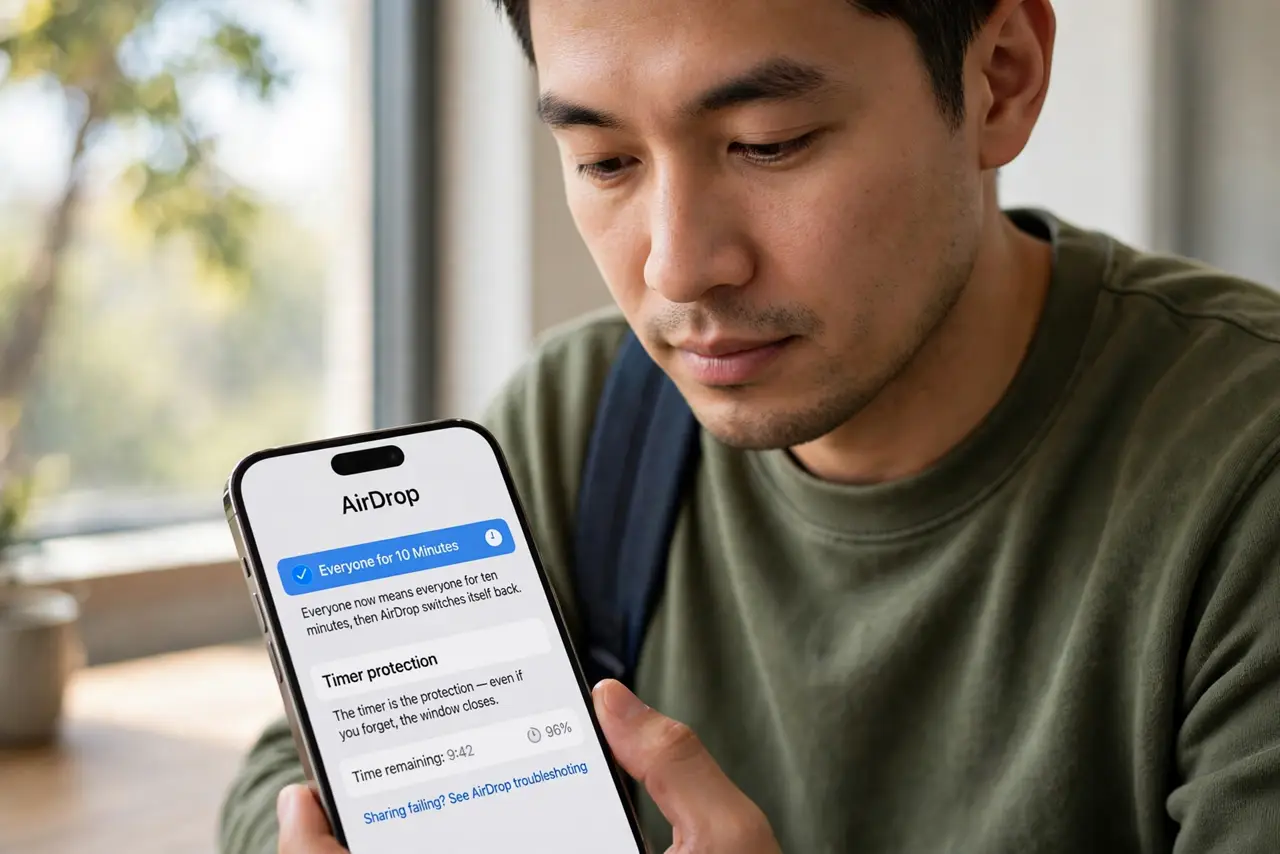
- Understand the 10-minute window. Everyone now means everyone for ten minutes, then AirDrop switches itself back. The timer is the protection — even if you forget, the window closes. See the AirDrop troubleshooting if sharing itself is failing.
- Set Contacts Only as your default. In Finder, AirDrop, or Control Center, choose Contacts Only. People in your contacts reach you anytime; strangers never do — see how contacts-only can block friends and when to widen it temporarily.
- Use Everyone only for the moment. Need to share with a stranger? Switch to Everyone, send, and let the timer close it. Ten minutes is plenty for one transfer.
- Turn receiving off in crowds. On a plane or in a busy cafe, set AirDrop to Receiving Off. Nobody can send you anything, wanted or not — the safest setting when you are not sharing.
- Check before crowded places. Make it a habit: Control Center, AirDrop, glance at the setting before you sit down in public. Five seconds prevents the surprise.
- Rename for easy finding. A clear device name helps friends find you when you do open up — see how to change your AirDrop name so the right person taps the right device.
What NOT to do
- Do not leave Everyone on permanently. The 10-minute timer helps, but Contacts Only is the correct default — open only when needed.
- Do not accept files from strangers. An unexpected AirDrop in public is never legitimate — decline it and close receiving.
- Do not assume Contacts Only is airtight. It relies on contact matching; in a crowd, Receiving Off is the stronger choice.
- Do not forget the timer already saved you. If you are reading this because a stranger sent something, check — the window probably closed itself already.
Frequently asked questions
Why did Everyone change to 10 minutes?
To stop unsolicited AirDrops from strangers. The timer closes the window automatically so an open setting cannot linger.
Can I still receive from non-contacts?
Yes — switch to Everyone for 10 minutes when you need it, then it closes itself. That is the intended workflow now.
Does the iPhone work the same way?
Yes — iPhone AirDrop has the same 10-minute Everyone limit and the same Contacts Only default recommendation.