Share Wi-Fi with QR
Guests arrive and the ritual begins: spelling out the Wi-Fi password letter by letter while everyone watches you type. A QR code ends it — guests scan, they join, no spelling, no typos. Your Mac can show the code for your network, and it is the fastest way to get Android visitors online.
TL;DR / Quick Fix
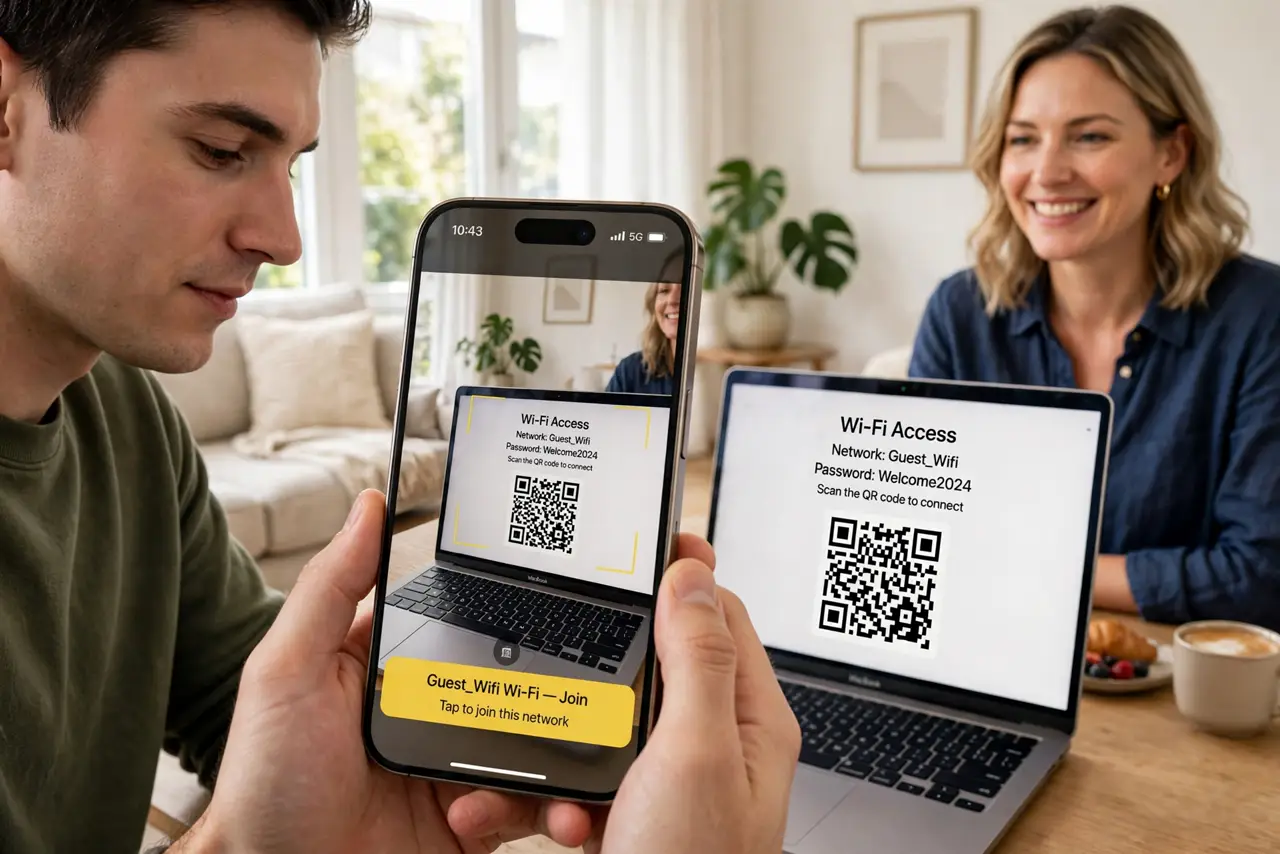
Quick fix: on Mac, open System Settings, Wi-Fi, and click the network name to show a QR code guests can scan — Android phones join instantly without typing the password. For iPhones, use the prompt that appears when they select the network. Change the password and the code updates too.
Follow these steps
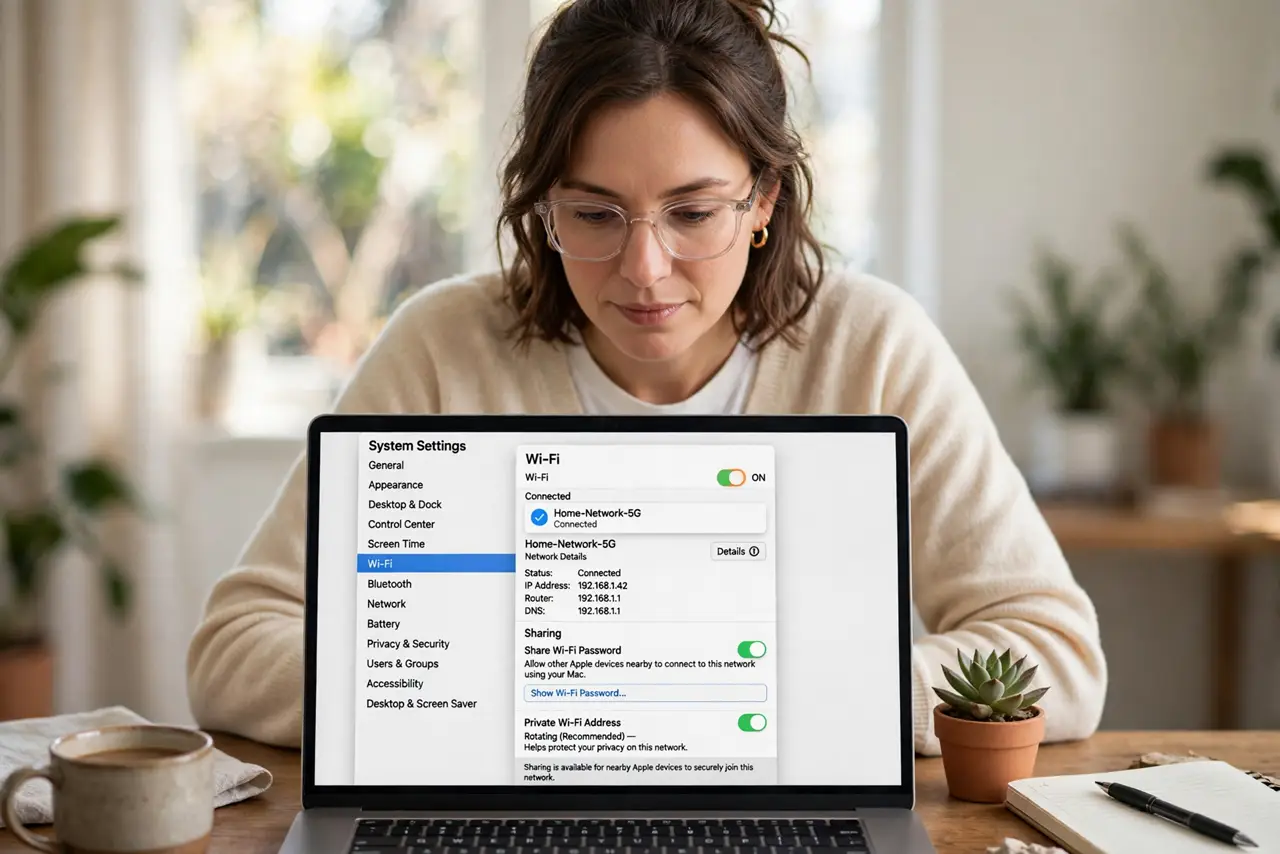
- Open the Wi-Fi settings. Go to System Settings, Wi-Fi, and find your connected network. The details view for the network holds the sharing options.
- Show the QR code. Click the network name or the info button to reveal the QR code. Hold the screen steady for guests to scan — see how Android does it if your guests want to share it onward.
- Have guests scan it. Android cameras and QR scanners read the code and join directly — no typing. iPhones get a native share prompt when they select your network nearby instead.
- Share safely. A QR code is your password in scannable form — only show it to actual guests. See the safe Wi-Fi sharing guide for the etiquette and risks.
- Update it when the password changes. Change the Wi-Fi password and the code regenerates. Old screenshots of the code stop working — which is exactly what you want.
- Consider a guest network. For frequent visitors, a separate guest network with its own QR code keeps your main network private. Most routers support one — worth the ten-minute setup.
What NOT to do
- Do not post the QR code publicly. It encodes your Wi-Fi password — a photo of it online gives the internet your network.
- Do not screenshot and share it widely. Every copy is a copy of your password — generate fresh for untrusted people.
- Do not forget it reveals the password. Anyone who scans it can read the password from their phone settings afterward.
- Do not use it as a substitute for a guest network. For parties and rentals, a separate network beats handing out main-network access.
Frequently asked questions
Do iPhones need the QR code?
Not usually — nearby iPhones get a native share prompt. The QR code is mainly for Android guests.
Why won't the code scan?
Screen brightness too low, glare, or the guest's camera app lacking QR support. Brighten the screen and try the camera app directly.
Can I print the QR code?
You can, for the fridge — but anyone who photographs it has your password. A guest network is safer for printed codes.