Track Items in Find My
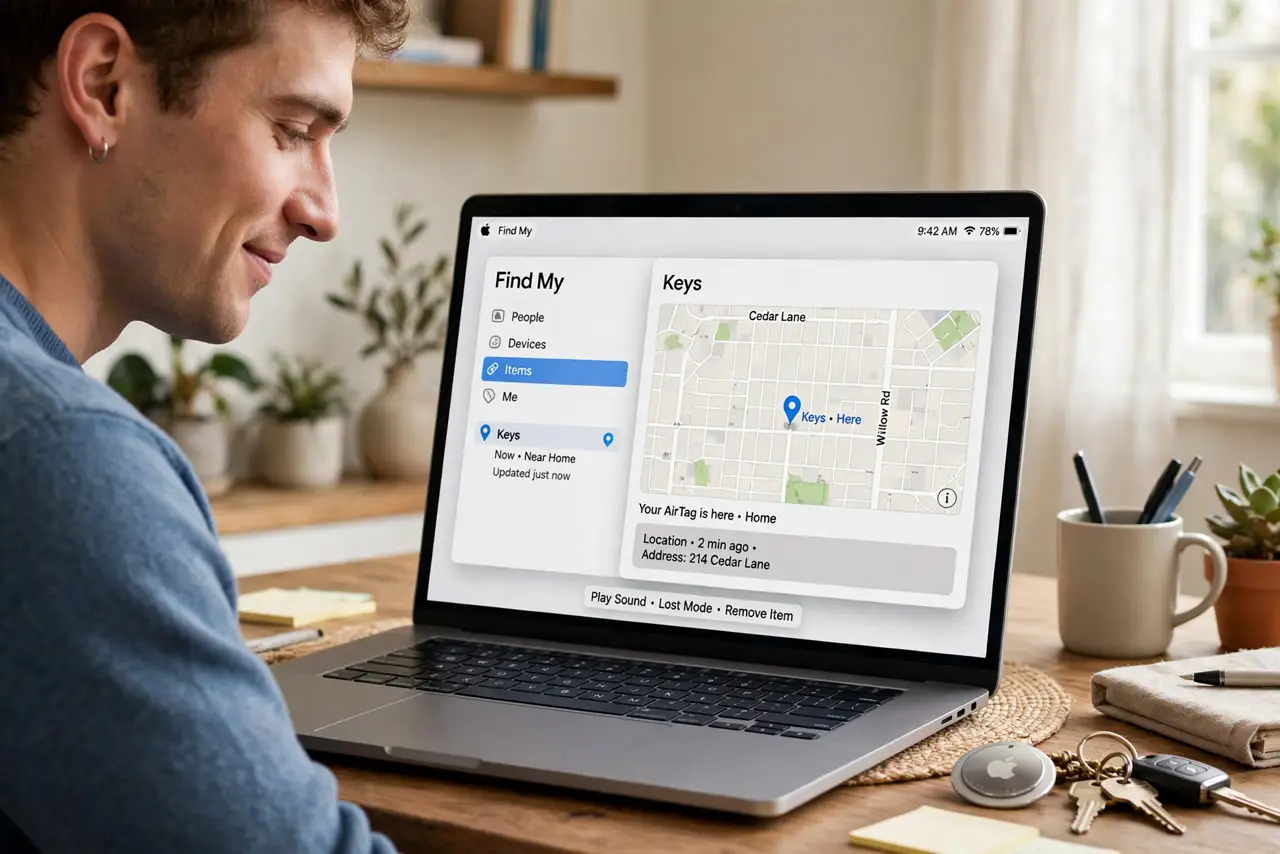
Keys, bags, and wallets grow legs — and replacing them costs more than the tracker that would have found them. Find My on the Mac tracks AirTags and compatible accessories, showing them on a map with directions. Here is how to add items, find them, and use the safety features.
TL;DR / Quick Fix
Quick fix: open Find My on Mac, click Items, and add your tracker — AirTags and third-party Find My accessories pair in seconds. Name each item clearly so alerts make sense. If an item will not pair, check its battery and Bluetooth first.
Follow these steps
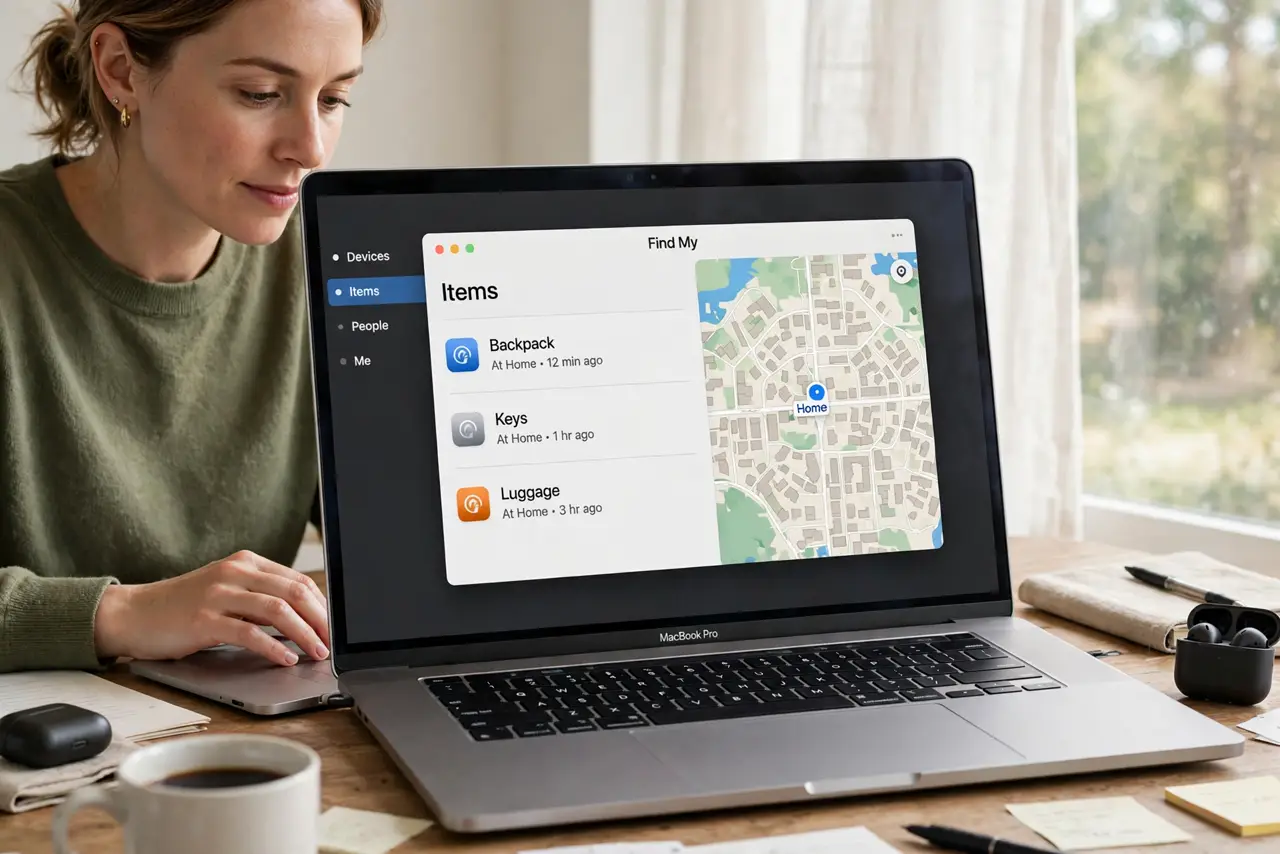
- Open Find My and go to Items. Launch Find My on the Mac and click the Items tab. This is home base for every tracker you own — see the iPhone Find My setup for the phone side.
- Add your AirTag. Hold the AirTag near the Mac and follow the pairing prompt — see the AirTag setup for the detailed steps. Name it after the item it guards: Keys, Backpack, not Tracker 1.
- Add third-party items. Find My-compatible accessories from other makers pair the same way. Check the maker's instructions for putting theirs in pairing mode.
- Find a lost item. Click the item to see it on the map, play a sound, or get directions. Precision finding on newer iPhones guides you to within inches.
- Use the safety features. Unknown tracker alerts warn you if someone else's AirTag travels with you — see the stalking checks and how to stop unwanted tracking. Know these before you need them.
- Share with family. Share an AirTag with family members — see the AirTag sharing guide. Shared items show for everyone, so the whole household can find the keys.
What NOT to do
- Do not name items vaguely. Tracker 1 means nothing at 11 p.m. — Keys, Work Bag, Passport are names that work under stress.
- Do not use trackers to follow people. Tracking a person without consent is illegal in most places — items only, with the safety alerts respected.
- Do not ignore unknown-tracker alerts. If your phone warns about a tracker moving with you, take it seriously — check the safety guides.
- Do not forget the battery. AirTag batteries last about a year — a dead tracker guards nothing. The app warns you; act on it.
Frequently asked questions
How accurate is item tracking?
Nearby: precise, down to inches with newer iPhones. Far away: it depends on passing Apple devices relaying the location.
Do AirTags need charging?
No — they use a replaceable coin battery lasting about a year. Swap it when the app warns you.
Can I track on the Mac alone?
Yes — Find My on Mac shows everything. The iPhone adds precision finding, but the Mac covers maps, sound, and directions.