Do Not Disturb on Mac?
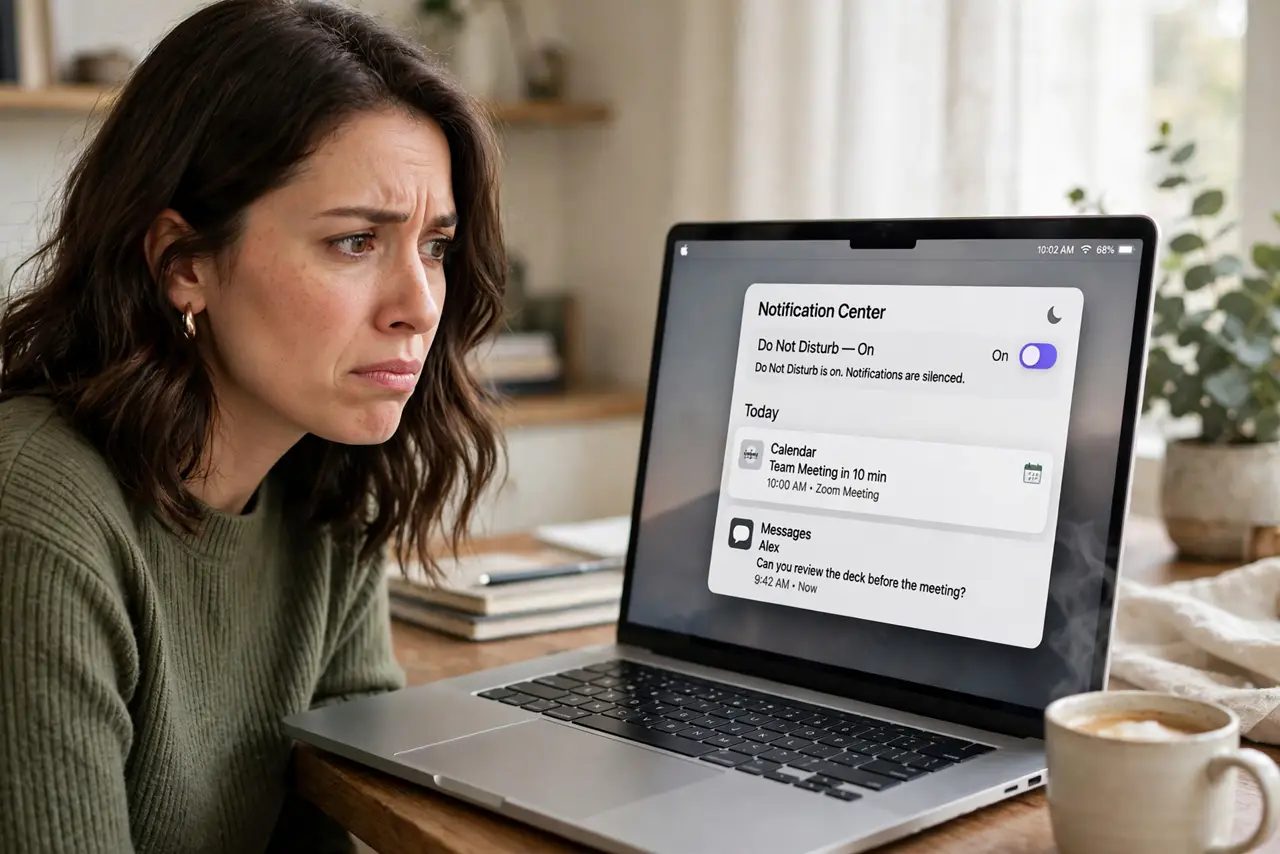
Your Mac stays silent when it should not — calls go quiet, messages never ding, and you miss things that matter. Do Not Disturb on macOS (now part of Focus) can turn itself on through a schedule, a location, or syncing from your iPhone. The good news: it is always reversible, and nothing gets deleted by checking. This guide walks through finding what switched it on and turning it back off.
TL;DR / Quick Fix
Quick fix: on a Mac, Do Not Disturb lives inside Focus — open System Settings, then Focus, to see which mode is active. Turn off any schedule or cross-device sharing you did not intend. Check your iPhone too, since one device can silence them all.
Follow these steps
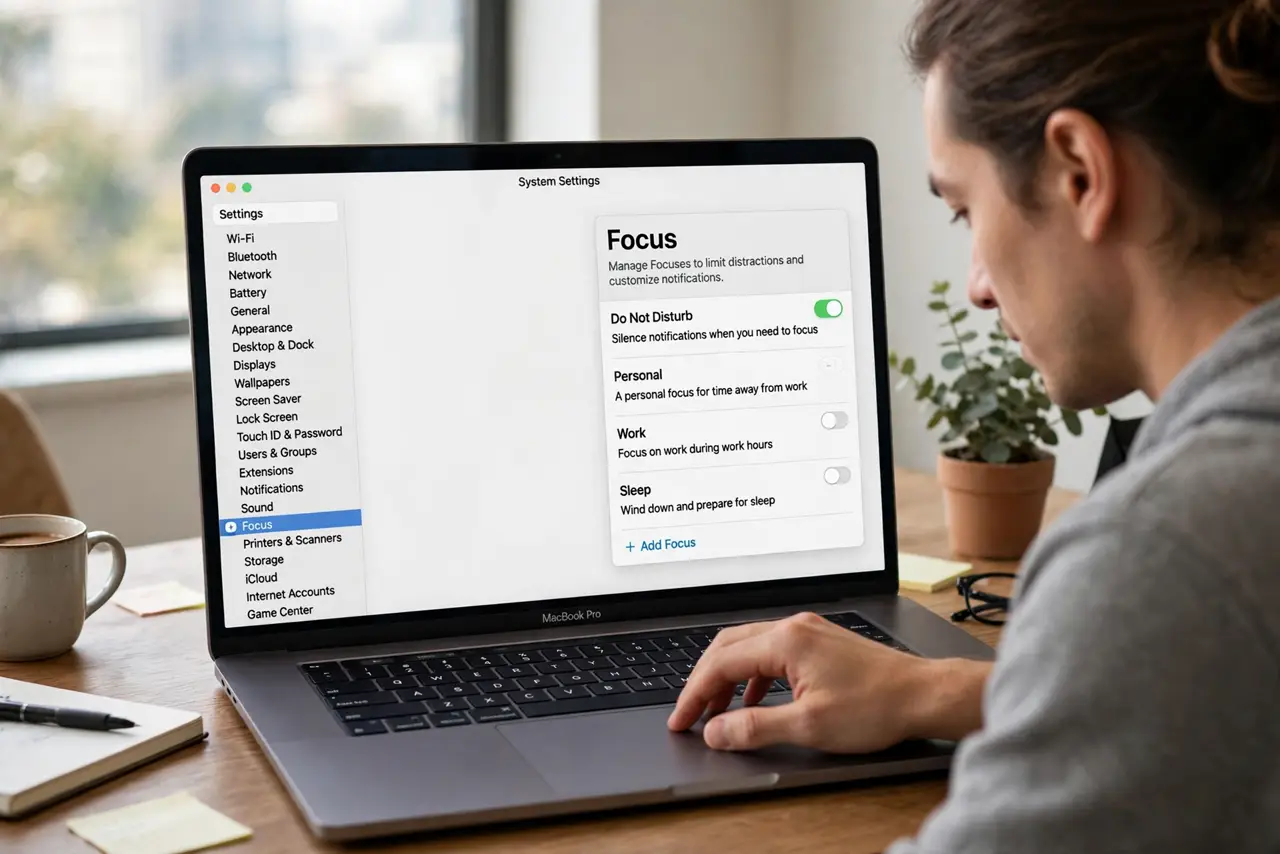
- Open Focus in System Settings. Click the Apple menu, then System Settings, then Focus. You will see Do Not Disturb and any other modes. The active one is highlighted, which immediately tells you what is silencing your notifications right now.
- Turn off the schedule you did not set. Click Do Not Disturb and look under Set a Schedule or Smart Activation. An old bedtime or work schedule keeps firing every day — delete or disable any schedule you do not want, and the mystery silencing usually stops.
- Check Share Across Devices. In the Focus settings, a toggle lets Focus sync between your Apple devices. If your iPhone turns on Do Not Disturb, your Mac follows — turn this off if you want each device to act independently.
- Look for location or app triggers. Focus can activate automatically at a place or when you open certain apps. A location-based trigger is a common surprise — review the automation list and remove the ones you did not create.
- Verify the menu bar shows the state. The Focus icon in the menu bar tells you at a glance when a mode is active. If you keep getting silenced, make sure the icon is visible so you can spot it and toggle it off quickly.
- Restart and retest. After changes, send yourself a test message or set a short timer. If notifications still stay silent, restart the Mac once — a stale Focus state occasionally needs a reboot to clear.
What NOT to do
- Do not delete notification settings in a panic. Do Not Disturb is a mode, not a setting to reset — wiping notifications loses your per-app choices for nothing.
- Do not assume one device means the problem is only there. Apple devices share Focus, so check the iPhone and iPad too.
- Do not leave Smart Activation on blindly. It learns patterns that can feel random; turn it off if you cannot predict when silence kicks in.
- Do not forget Screen Time can piggyback. Downtime and app limits can also silence things — rule them out before blaming Focus.
Frequently asked questions
Why does Do Not Disturb keep turning itself on?
Almost always a schedule, Smart Activation, or Share Across Devices pulling it from your iPhone. Review each of those three and the self-activating usually stops.
Can people still reach me in an emergency?
Yes — repeated calls from the same person within a few minutes can break through, and you can allow specific contacts in the Focus settings.
Does Do Not Disturb block alarms?
No, alarms still sound. It silences notifications and calls, not your clock — your morning alarm is safe.