A Family Purchase Will Not Share on Mac
Not every purchase can be shared, and family sharing only works when purchase sharing is actually on. When a purchase will not share, the usual causes are a sharing setting, an ineligible item, or a purchase made under a different account.
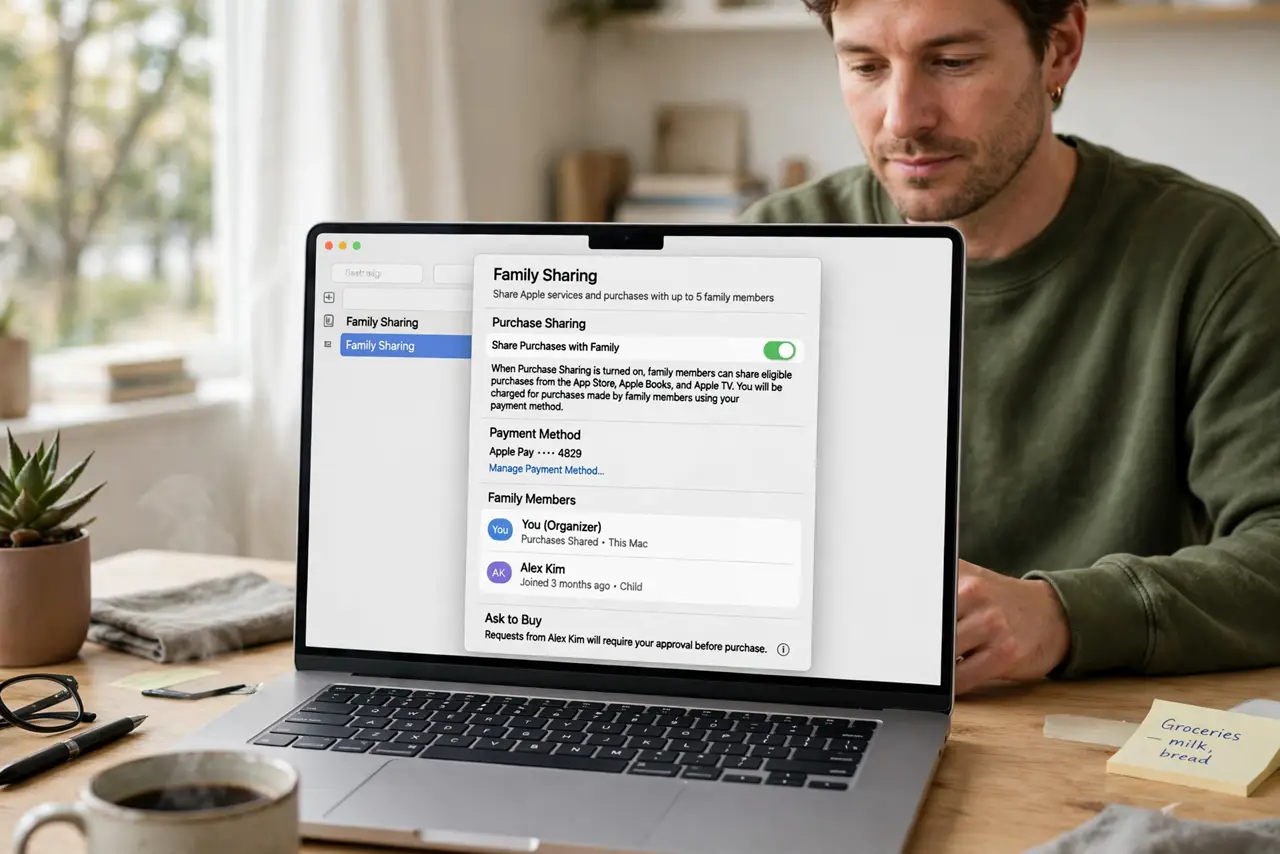
TL;DR / Quick Fix
Quick fix: check Family Sharing settings to confirm purchase sharing is on, and confirm the purchase was made by a family member. Then check the item itself, since subscriptions and some content types are not shareable even in a sharing family.
Follow these steps
- Confirm purchase sharing is on. Open Family Sharing settings and confirm purchase sharing is enabled. Without it, family members simply cannot see each other's purchases at all.
- Check who bought it. Confirm the purchase belongs to a family member's account, not an outside account. Purchases from outside the family group never appear for sharing.
- Check the item type. Look up whether this kind of item can be shared. Some subscriptions, consumable purchases, and individual plans are excluded from family sharing by their terms.
- Check the organizer settings. Confirm the family organizer has not restricted sharing or payment methods for the group. Organizer settings can quietly block sharing for everyone.
- Redownload from Purchased. Ask the family member to open their Purchased list and confirm the item is there. If it is, other members should find it under the family purchases section.
- Sign out and back in. If settings look right but the item still does not appear, sign out of media services and back in on the Mac. A stale store session can hide family purchases that are actually available.
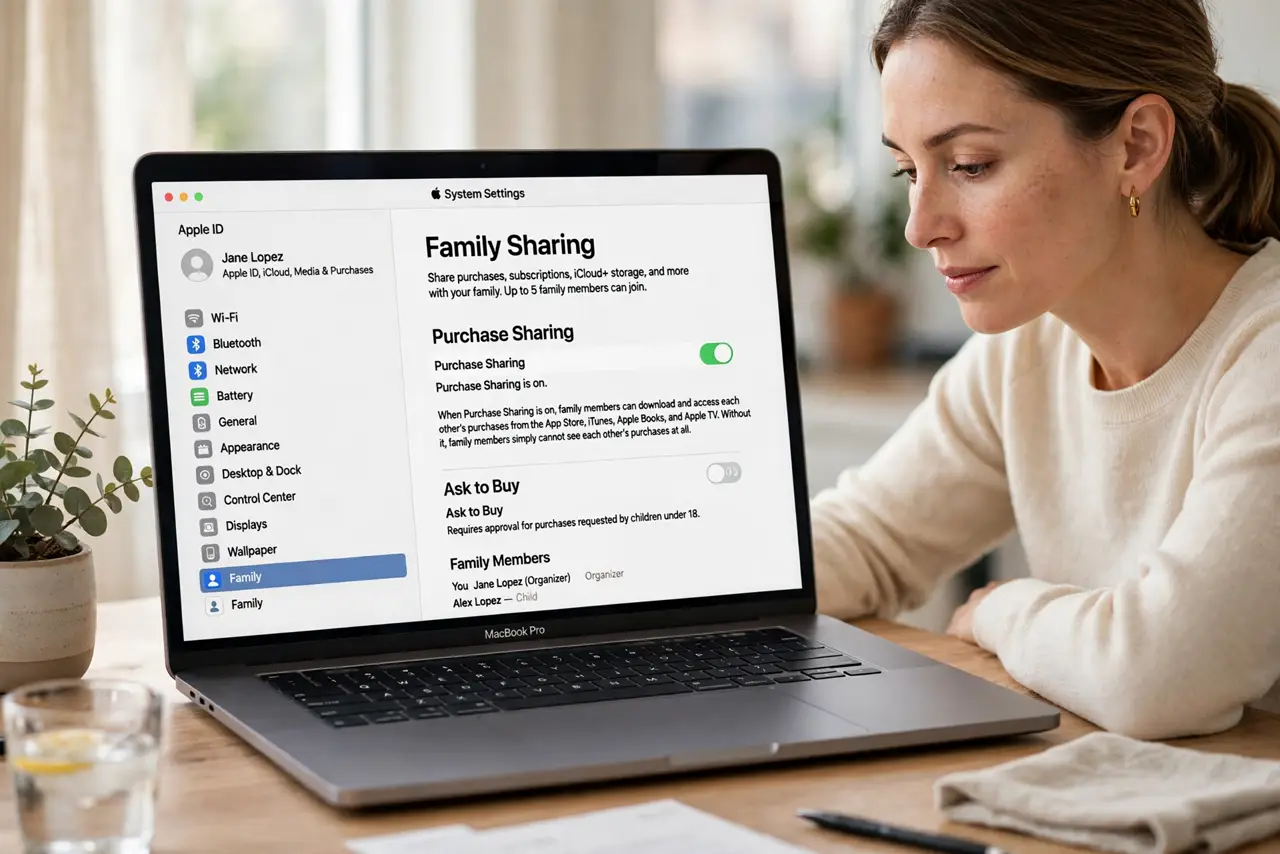
What NOT to do
- Do not buy the item again for each family member. Check sharing settings and eligibility first, since duplicate purchases are hard to refund.
- Do not assume every app or subscription shares. Item eligibility varies, and buying with sharing assumed is how families pay twice.
- Do not change the family organizer casually. Organizer changes affect payments and approvals for the whole group, not just one purchase.
- Do not share passwords to work around sharing limits. Password sharing breaks account security and can lock family members out.
Frequently asked questions
Why will one purchase not share?
Because purchase sharing may be off, the item may be ineligible for sharing, or it was bought under an account outside the family.
Do all apps and subscriptions share?
No. Some subscriptions, consumable items, and individual plans are excluded, even when purchase sharing is on.
Where do family members find shared purchases?
In the Purchased section of their store account, under family purchases, once sharing is enabled and the item is eligible.