Format a Drive for Mac
You plug in a brand-new external drive and the Mac either cannot write to it or does not see it at all. New drives ship formatted for Windows, and macOS needs its own format to work properly. Ten minutes in Disk Utility fixes it — after one critical backup step.
TL;DR / Quick Fix
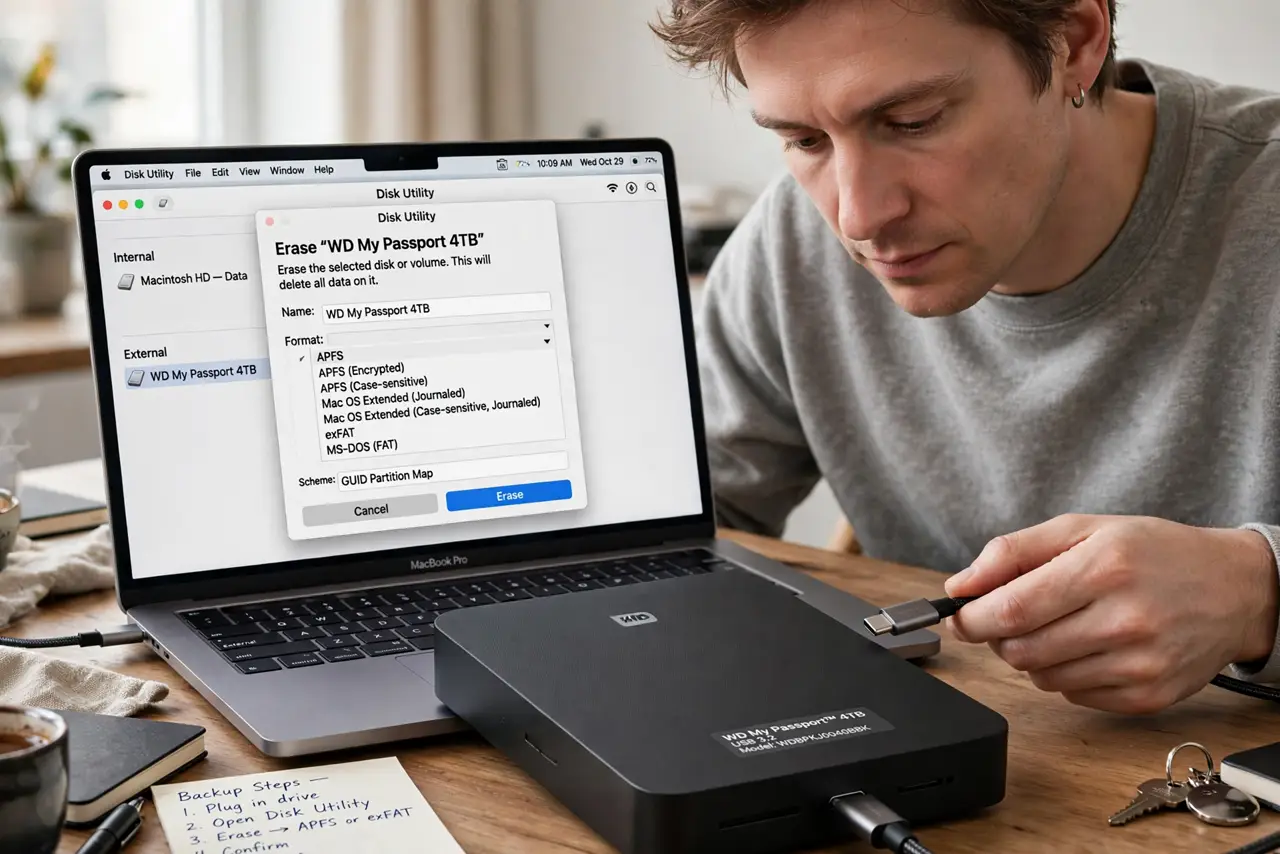
Quick fix: open Disk Utility, select the external drive, click Erase, and choose APFS for SSDs on modern Macs. Back up anything on the drive first — erasing is permanent. If the drive must also work on Windows, choose exFAT instead.
Follow these steps
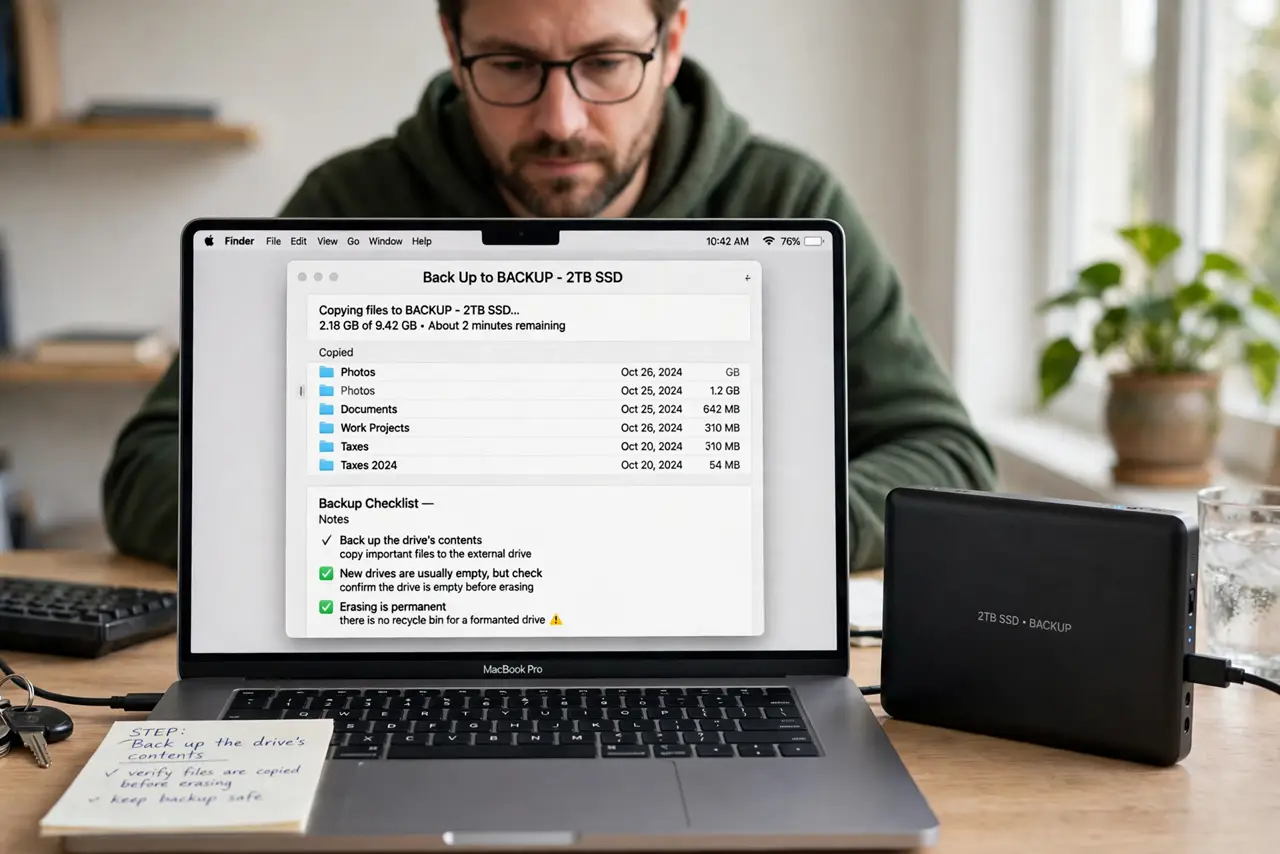
- Back up the drive's contents. New drives are usually empty, but check. Erasing is permanent — there is no recycle bin for a formatted drive.
- Open Disk Utility. Find it in Applications > Utilities, or search with Spotlight. This is macOS's drive management tool.
- Select the drive, not the volume. In the sidebar, click the top-level drive entry. Erasing a volume leaves partitions behind; erasing the drive starts truly clean.
- Click Erase and choose the format. Pick APFS for SSDs on modern Macs, or Mac OS Extended for old spinning drives — the APFS vs Mac OS Extended guide explains the choice.
- Choose GUID Partition Map. In the scheme dropdown, pick GUID Partition Map. It is the correct partition scheme for Macs.
- Name it and erase. Give the drive a clear name, click Erase, and wait. For a drive shared with Windows, the Mac-and-PC formatting guide covers the exFAT route.
What NOT to do
- Do not erase the wrong drive. Triple-check the name and size — internal and external drives sit side by side in Disk Utility.
- Do not unplug mid-format. Interrupting an erase can leave the drive in a half-formatted state.
- Do not use NTFS for a Mac-only drive. macOS reads NTFS but cannot write to it without extra software.
- Do not skip the backup because it is new. Refurbished and open-box drives sometimes contain surprises.
Frequently asked questions
Why can't my Mac write to the new drive?
It is probably NTFS-formatted for Windows. macOS reads NTFS but will not write to it — reformatting fixes it.
APFS or exFAT?
APFS for Mac-only use; exFAT if Windows needs access too. There is no format that is best at both.
How long does formatting take?
A quick erase takes under a minute. A secure multi-pass erase on a big drive can take hours — only needed when selling the drive.