Collaborate in Notes
Planning a trip, a move, or a project with someone, and the details are scattered across five text threads? Apple Notes lets multiple people edit the same note live — checklists, links, sketches, all syncing in real time. Most people never try it because the share button looks like it just sends a copy. Here is the collaboration hiding in plain sight.

TL;DR / Quick Fix
Quick fix: sharing an Apple Note takes seconds — open the note, tap share, and invite people by link or message. Collaborators edit together in real time, with every change syncing through iCloud. Use view-only links for reference notes, edit access for teamwork. See sync troubleshooting if edits stop appearing.
Follow these steps
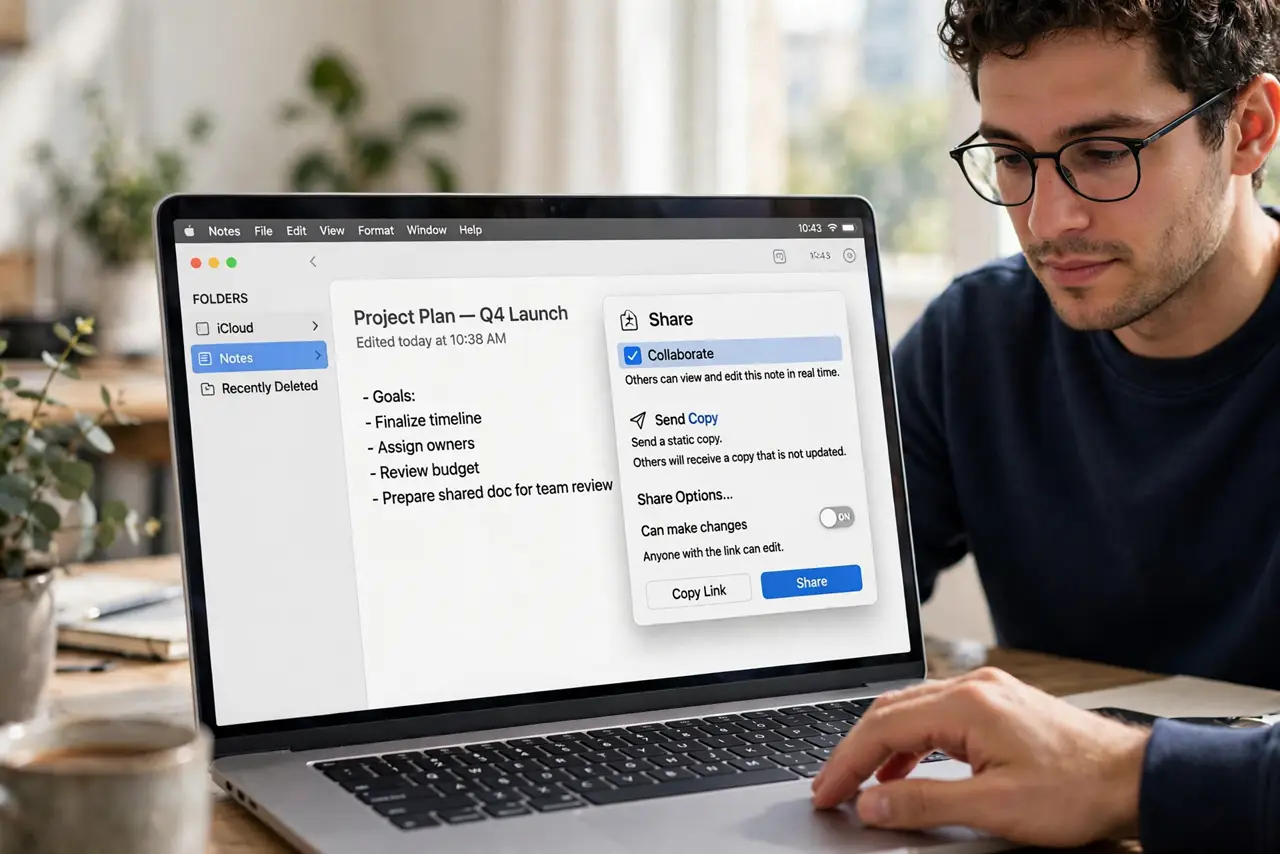
- Open the note and tap Share. In Notes on Mac, open the note and click the share icon (person with +). Choose Collaborate — not Send Copy — or people get a static duplicate instead of the live note.
- Pick how to invite people. Messages, Mail, or a link. Link-sharing is fastest for groups; Messages is tidier for one or two people. Anyone with an Apple ID can join.
- Set view or edit permissions. Can make changes for real collaborators; View only for reference. You can change this later per person — start restrictive, loosen as needed.
- Watch for the collaborator cursors. Everyone's edits appear live with colored highlights per person. It is genuinely real-time — two people can type in the same note without conflicts.
- Use mentions and checklists for tasks. Type @ plus a name to notify someone; shared checklists with assignments turn a note into a lightweight task list the whole group can tick off.
- Stop sharing when done. Share menu > Manage Shared Note > Stop Sharing. The note stays yours; collaborators keep nothing. Do this for sensitive notes the moment the project ends.
What NOT to do
- Do not choose Send Copy when you mean Collaborate. Copies fork instantly — you will end up with five versions and no idea which is current.
- Do not share a note containing passwords or financial details. Shared notes sync to other people's devices — keep secrets in a password manager, not a collaboration.
- Do not ignore the permission level. Edit access means they can delete content too — view-only exists for a reason.
- Do not collaborate on notes in the On My Mac section. Only iCloud notes can be shared — local notes simply will not offer the option.
Frequently asked questions
Can Android or Windows users join?
They can view shared notes in a browser via iCloud.com, but full editing needs an Apple device. For mixed-platform teams, that is a real limitation.
Why did my shared note stop syncing?
Usually an iCloud hiccup or a device signed out. The shared-note sync fix covers the common causes.
How many people can collaborate on one note?
Apple does not publish a hard limit, but performance degrades with large groups. For dozens of editors, a dedicated tool beats Notes.