Shared Note Stops Syncing? Fix It
A shared note stops syncing when the share changes, the account switches, or the connection drops during a sync. Check the share itself before editing, or two people can end up editing diverging copies.

TL;DR / Quick Fix
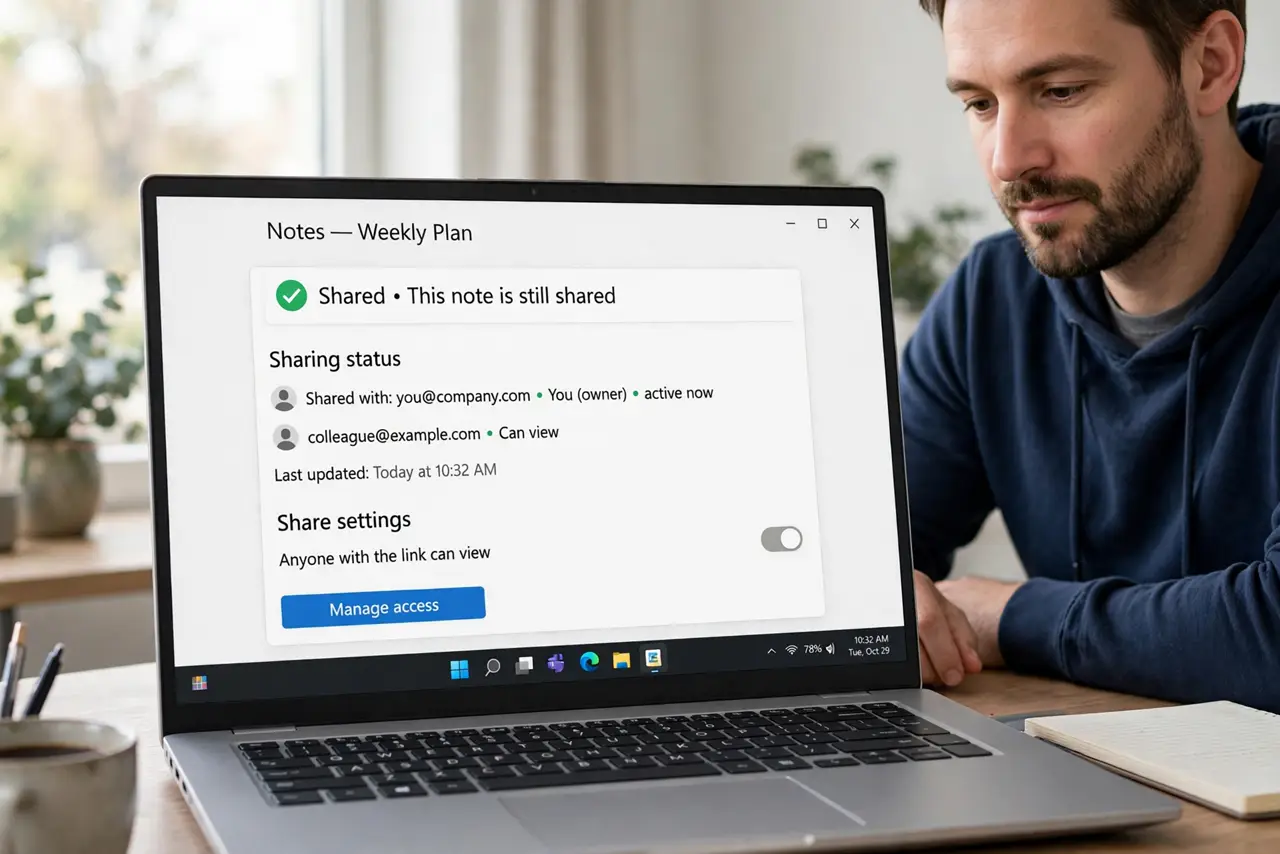
Quick fix: confirm the note is still shared with the right people, check you are signed in to the right account, and force a sync on a stable connection. If it still stalls, stop sharing and share the note again.
Follow these steps
- Confirm the note is still shared. Open the note's sharing settings and confirm the collaborators are still listed. A removed share stops sync silently, without an error on the note itself.
- Confirm the right account. Check the notes app is signed in to the account that owns or received the share. A second account shows a different set of notes.
- Check the connection and force a sync. Connect to a stable network, then force a sync and wait. A sync interrupted by a weak connection can leave the note stale until it completes.
- Check for a conflicting edit. Ask collaborators whether they edited the note recently. Simultaneous edits can stall a sync until one version is resolved.
- Stop sharing and share again. If sync still stalls, stop sharing the note, then share it again with the same people. A fresh share often restores a broken sync link.
- Test with a small edit. Add a small test line, sync, and ask a collaborator to confirm they see it. A visible test edit proves sync works again.
What NOT to do
- Do not keep editing a stale shared note. Your edits may overwrite a collaborator's newer changes when sync resumes.
- Do not duplicate the shared note as a personal copy. A duplicate will not sync, and changes will diverge.
- Do not share the note with a public link to fix sync. A proper collaborator share is safer and syncs correctly.
- Do not ignore a sync stall for days. The longer a note stays stale, the harder it is to merge changes.
Frequently asked questions
Why did a shared note stop syncing?
The share may have changed, the account may have switched, or a connection drop may have interrupted sync.
Will re-sharing delete the note content?
No. Re-sharing restores the sync link. The note content stays, provided you do not delete the note itself.
How do I know sync works again?
A small test edit visible to a collaborator is the clearest proof.