Virtual Camera in OBS on Mac
Your OBS scene looks perfect, but when you open Zoom or Teams the camera list has no OBS virtual camera in it. The virtual camera is a fake webcam that OBS creates — call apps only see it while OBS is running with the feature started, and macOS has to grant OBS camera permission first. This guide covers the safe order that makes it appear.
TL;DR / Quick Fix
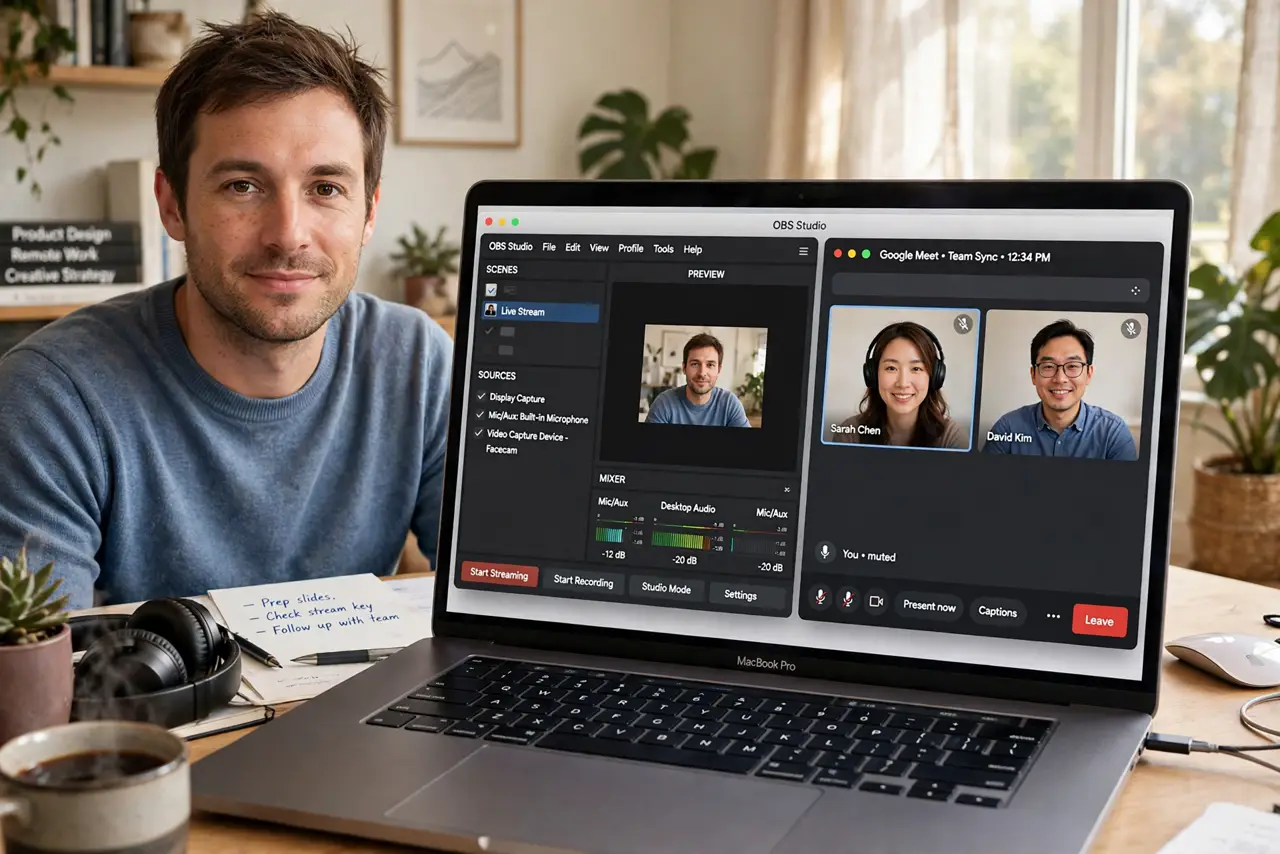
Quick fix: if OBS's virtual camera doesn't appear in your calls, start it inside OBS first, then reopen the call app so it picks up the new camera. On macOS, grant OBS camera permission in System Settings, and install OBS from its official disk image so the virtual camera registers.
Follow these steps
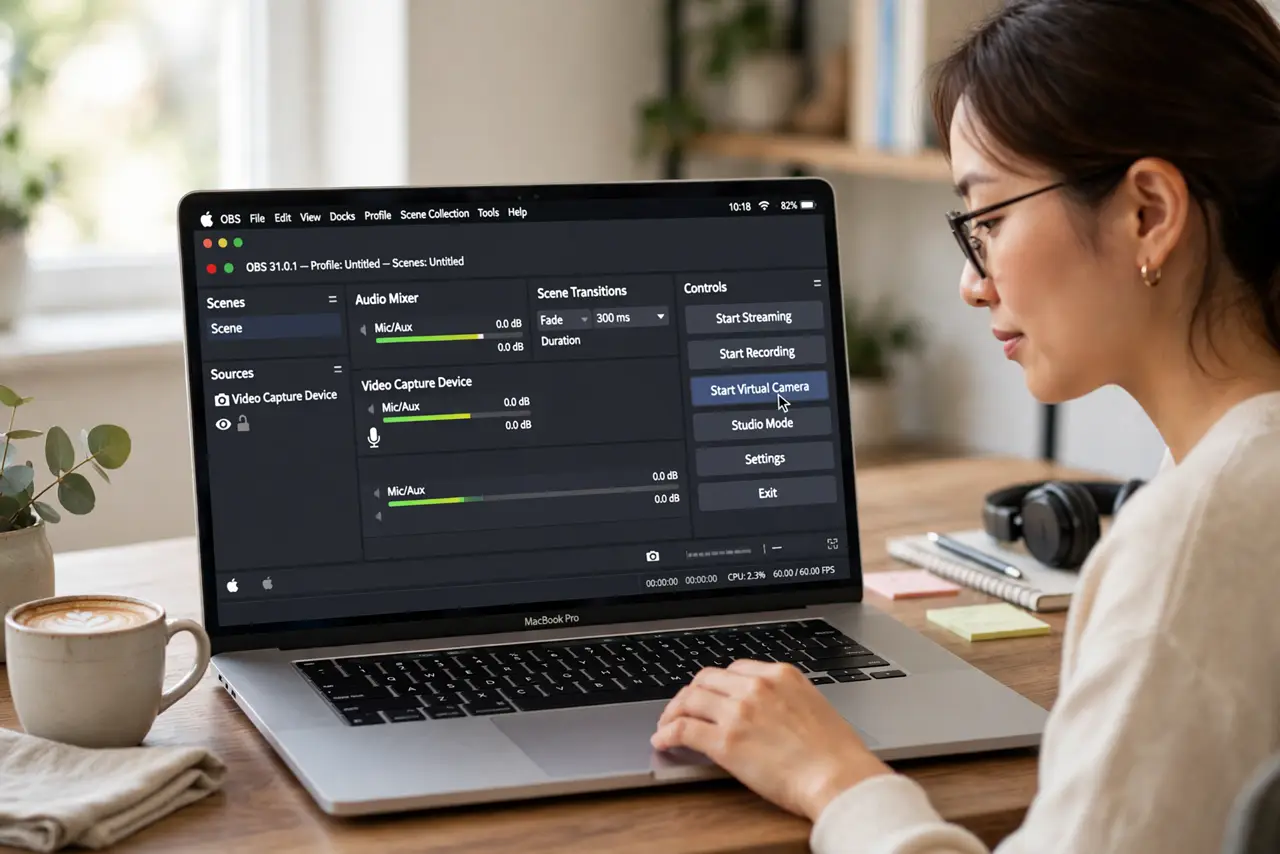
- Start the virtual camera inside OBS first. Open OBS and click Start Virtual Camera in the Controls dock before opening your call app. Call apps build their camera list at launch, so a virtual camera started afterward stays invisible until you relaunch the app.
- Restart the call app after starting it. Quit Zoom, Teams, or Meet completely, then open it again. This is the step most people skip — the camera list does not refresh while the app is running.
- Grant OBS camera permission in macOS. Open System Settings, go to Privacy and Security, then Camera, and make sure OBS is allowed. Without this, the virtual camera outputs a black feed even when it appears in the list. See the camera permission fix if the toggle is missing.
- Install OBS from the official disk image. Download OBS only from the official site and run the installer properly. Repacked or dragged-from-elsewhere copies can skip registering the virtual camera plugin, which is exactly what makes it missing.
- Select OBS Virtual Camera in the call app. In the call app's video settings, open the camera dropdown and choose OBS Virtual Camera. If you see your real webcam and the OBS entry, you picked correctly — the preview should mirror your OBS scene.
- Test before the real meeting. Join a test call or use the app's camera preview to confirm the feed. If it is black, recheck the macOS camera permission and restart OBS — do not reinstall everything in a panic.
What NOT to do
- Do not reinstall macOS to fix a missing virtual camera. This is almost always a permission or launch-order issue, not a broken system.
- Do not download OBS from random download sites. Repacked installers are the classic cause of a virtual camera that never registers.
- Do not expect the camera list to update while the call app is open. Starting the OBS virtual camera afterward requires a full relaunch of the call app.
- Do not use the virtual camera to impersonate someone else on calls. It is a presentation tool — using a fake camera feed to deceive people destroys trust.
Frequently asked questions
Why is my OBS virtual camera feed black?
The camera appears in the list but shows black when macOS has not granted OBS camera permission. Allow it in System Settings under Privacy and Security, then restart OBS.
Do I have to keep OBS open during the call?
Yes. The virtual camera only exists while OBS is running with Start Virtual Camera active. Quitting OBS removes it from every app instantly.
Does the virtual camera work on Apple Silicon Macs?
Yes. Current OBS releases include the virtual camera for both Apple Silicon and Intel Macs — just install the build that matches your machine.