Start Faster with Templates
Every document starts as a blank page, and every blank page starts with twenty minutes of fiddling with margins and fonts. Pages ships with dozens of professional templates — resumes, reports, newsletters, posters — that handle the design while you handle the words. Most Mac users have never opened the template chooser. Here is the faster way.
TL;DR / Quick Fix
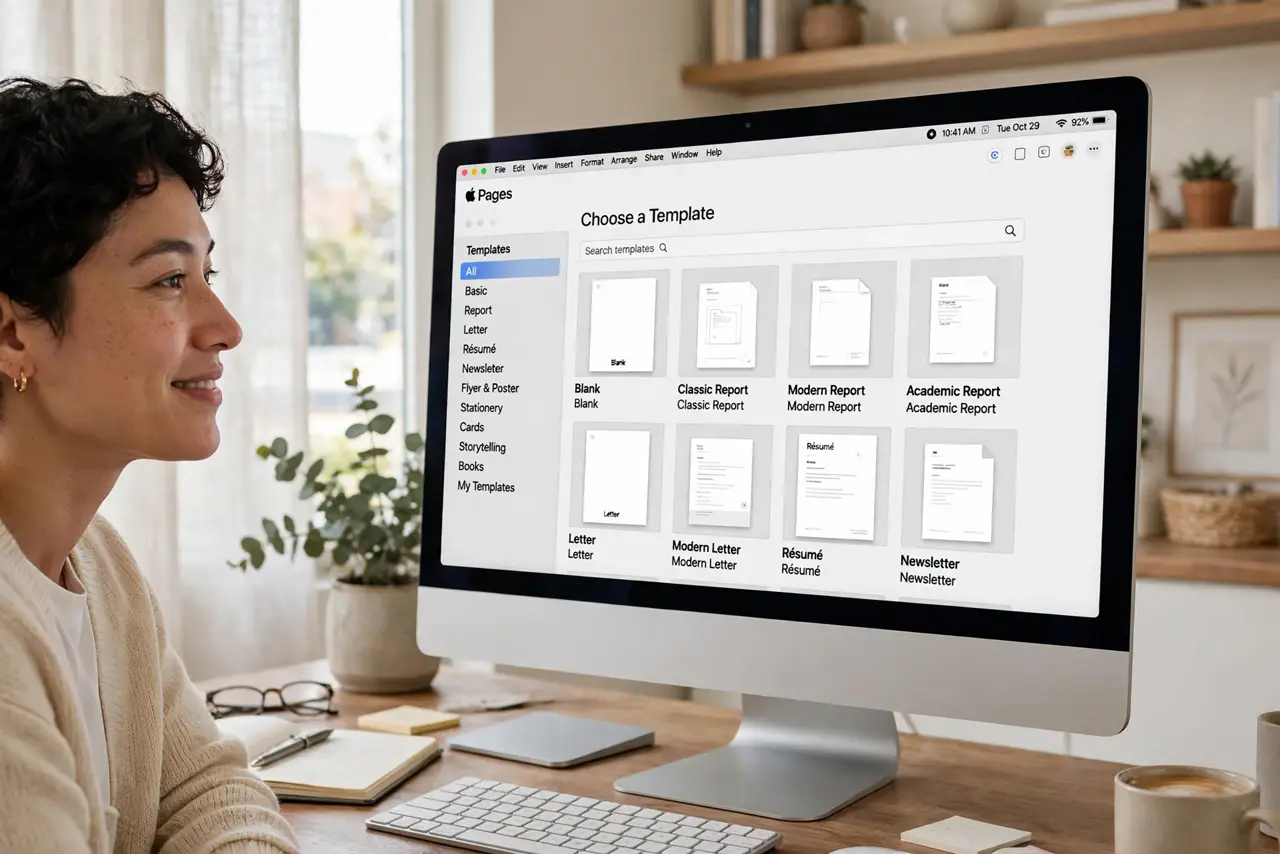
Quick fix: stop starting Pages documents from a blank page — File > New opens the template chooser with resumes, reports, flyers, and books ready to customize. Pick the closest match, swap in your content, and save your own designs as templates. Templates handle the layout; you handle the words.
Follow these steps
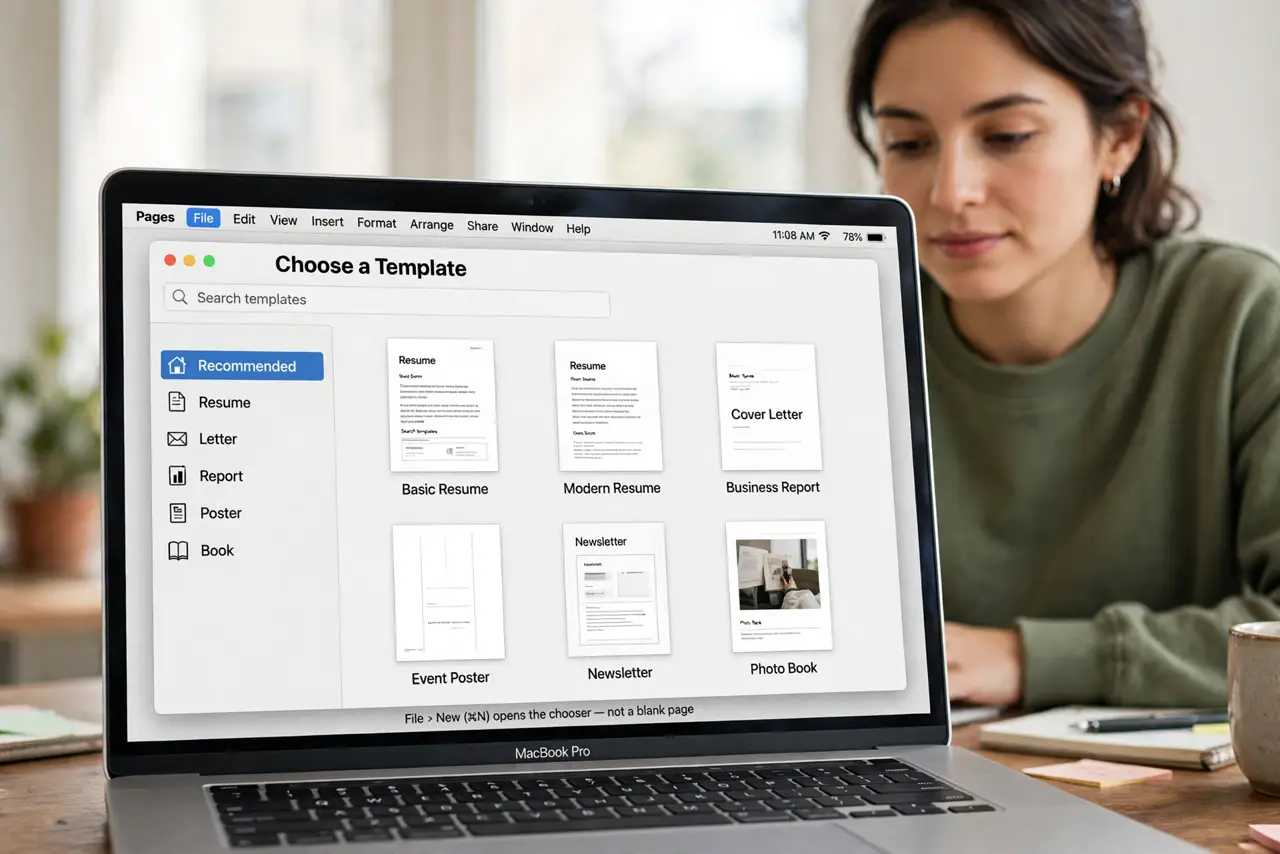
- Open the template chooser. File > New (or Command-N) opens the chooser, not a blank page. Browse categories — resumes, letters, reports, posters, books — or search for what you need.
- Pick the closest match, not the perfect one. No template will match your vision exactly. Choose the nearest layout and customize — starting at 80% done beats starting at zero every time.
- Swap content, keep the styles. Replace the placeholder text and images but keep the built-in paragraph styles (Heading, Body). Styled documents stay consistent; manually-formatted ones drift into chaos by page three.
- Customize the theme once. Change the fonts and colors to yours via Format > Font and the style panel. Do it once per document — the styles propagate everywhere automatically.
- Save your own as a template. File > Save as Template adds your customized design to My Templates in the chooser. Next month's report starts from YOUR layout, not Apple's.
- Share templates with your team. Export a template file and send it to colleagues — everyone starts from the same design, and the team's documents finally look related.
What NOT to do
- Do not fight the template's layout with manual spacing. If the design needs that much forcing, you picked the wrong template — choose another.
- Do not paste unstyled text from the web. Use Paste and Match Style, or the template's typography shatters into five fonts.
- Do not ignore the placeholder image frames. They are sized and positioned deliberately — replace the image inside the frame instead of deleting it.
- Do not save every document as a template. Templates are for repeating designs; a drawer full of one-off templates is just clutter.
Frequently asked questions
Where are my custom templates stored?
In the template chooser under My Templates, synced via iCloud. They are available on all your Macs signed into the same Apple ID.
Can I use Word templates in Pages?
You can open .dotx files, but formatting rarely survives perfectly. Rebuild critical layouts natively in Pages for reliable results.
Why does my template look different on iPhone?
Pages on iOS supports most templates, but complex layouts can reflow on small screens. Check important documents on the device before presenting.