'No Permission' on Your Own Mac Folder
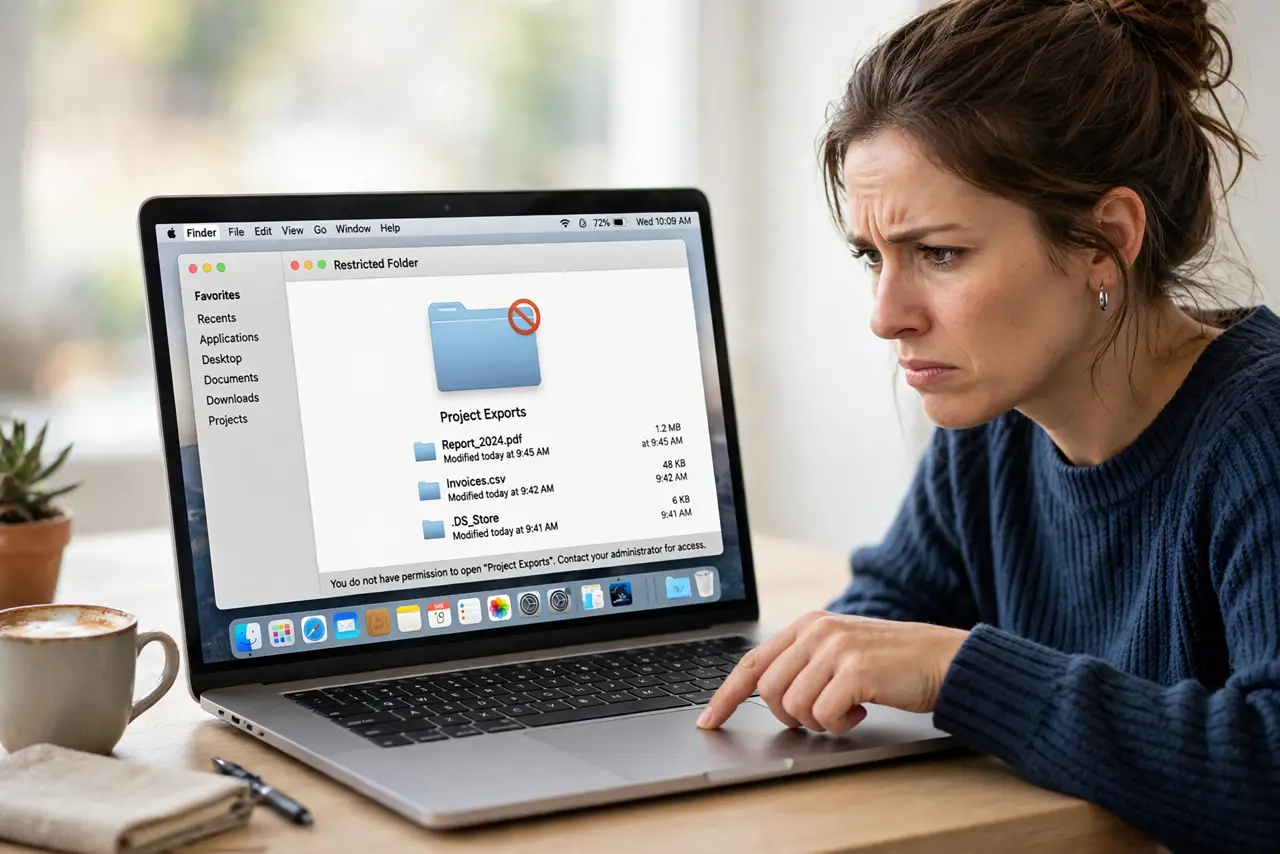
A folder on your own Mac — your own files — greets you with 'you don't have permission' or a red no-entry badge. Ownership got scrambled by a migration, a restore, or a disk repair. This guide gives the folder back to you without terminal wizardry.
TL;DR / Quick Fix
Quick fix: select the folder, press Command + I, unlock the lock, and set your account to Read & Write with 'Apply to enclosed items.' If the lock won't budge, you may need an administrator account — the Windows equivalent works the same way.
Follow these steps
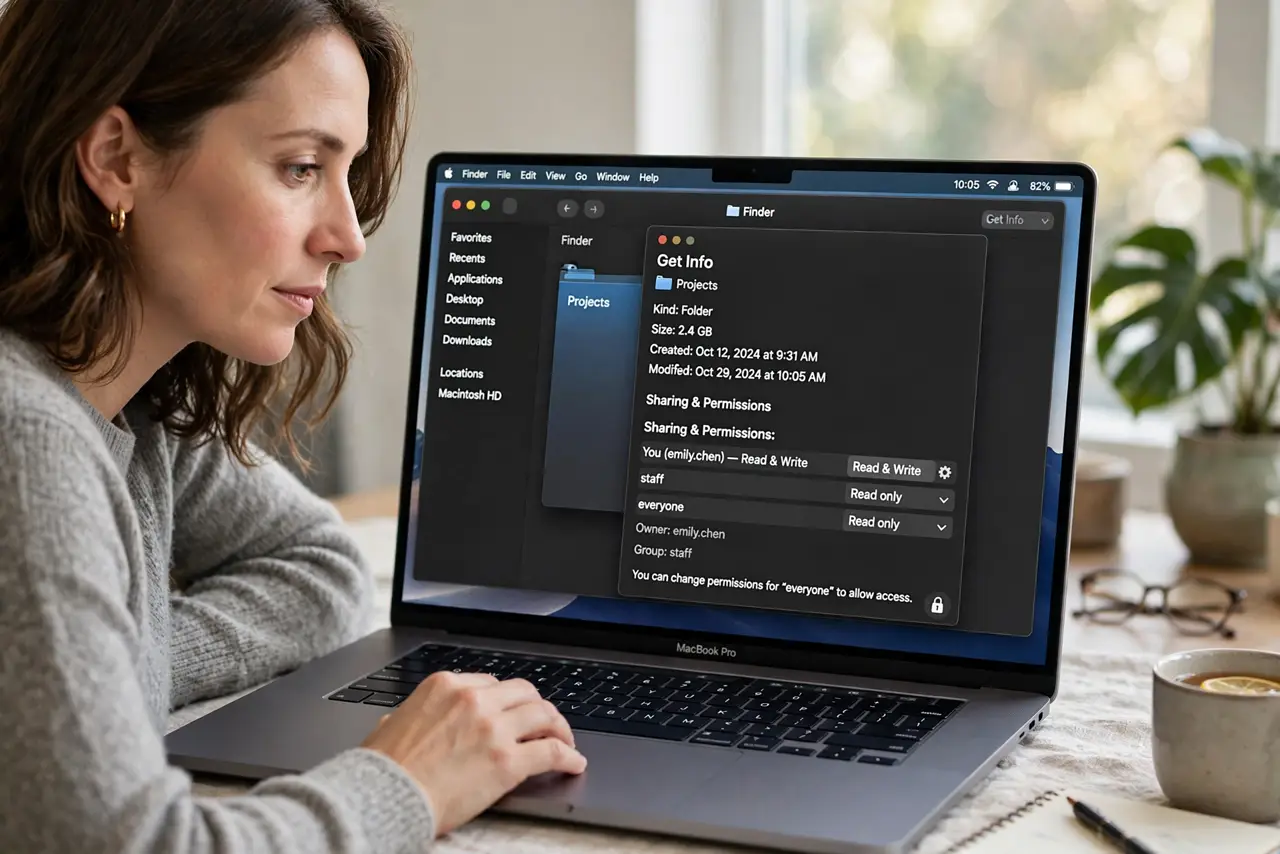
- Open Get Info on the folder. Select the folder in Finder and press Command + I. The Sharing & Permissions section at the bottom shows who owns it — often 'unknown' or another account after a migration.
- Unlock the permissions lock. Click the lock icon and enter an administrator password. Without unlocking, every permission control stays greyed out.
- Give yourself Read & Write. Set your account's privilege to Read & Write. If your account is missing from the list, add it with the + button first.
- Apply to enclosed items. Click the gear menu and choose 'Apply to enclosed items.' This pushes your ownership down into every subfolder and file — the step most people miss.
- Check the Ignore ownership option for external drives. For external drives, Get Info on the drive itself offers 'Ignore ownership on this volume.' Enabling it sidesteps permission tangles on portable drives.
- Restart the Finder. Hold Option, right-click the Finder icon, and choose Relaunch. Finder caches permission views, and a relaunch shows the true current state.
What NOT to do
- Do not change permissions on system folders. 'Fixing' /System or /Library permissions breaks macOS — only touch folders in your home directory.
- Do not set everything to Read & Write for 'everyone.' That fixes access by removing all security; give access to your account, not the world.
- Do not run recursive permission commands from the internet blindly. A mistyped path in a chmod command can lock you out of your whole home folder.
- Do not ignore the red badge on a Time Machine backup. Backups have special protections — use the Time Machine interface, not Finder permission edits.
Frequently asked questions
Why do I have no permission on my own folder?
Ownership scrambled during a migration, restore, or disk repair. The folder belongs to an 'unknown' user instead of you.
Can I fix it without the terminal?
Yes. Get Info > unlock > set your account to Read & Write > Apply to enclosed items covers nearly every case.
What if the lock won't unlock?
You need an administrator account. Log in as an admin — standard users cannot change ownership.