Scan Text with Your Phone
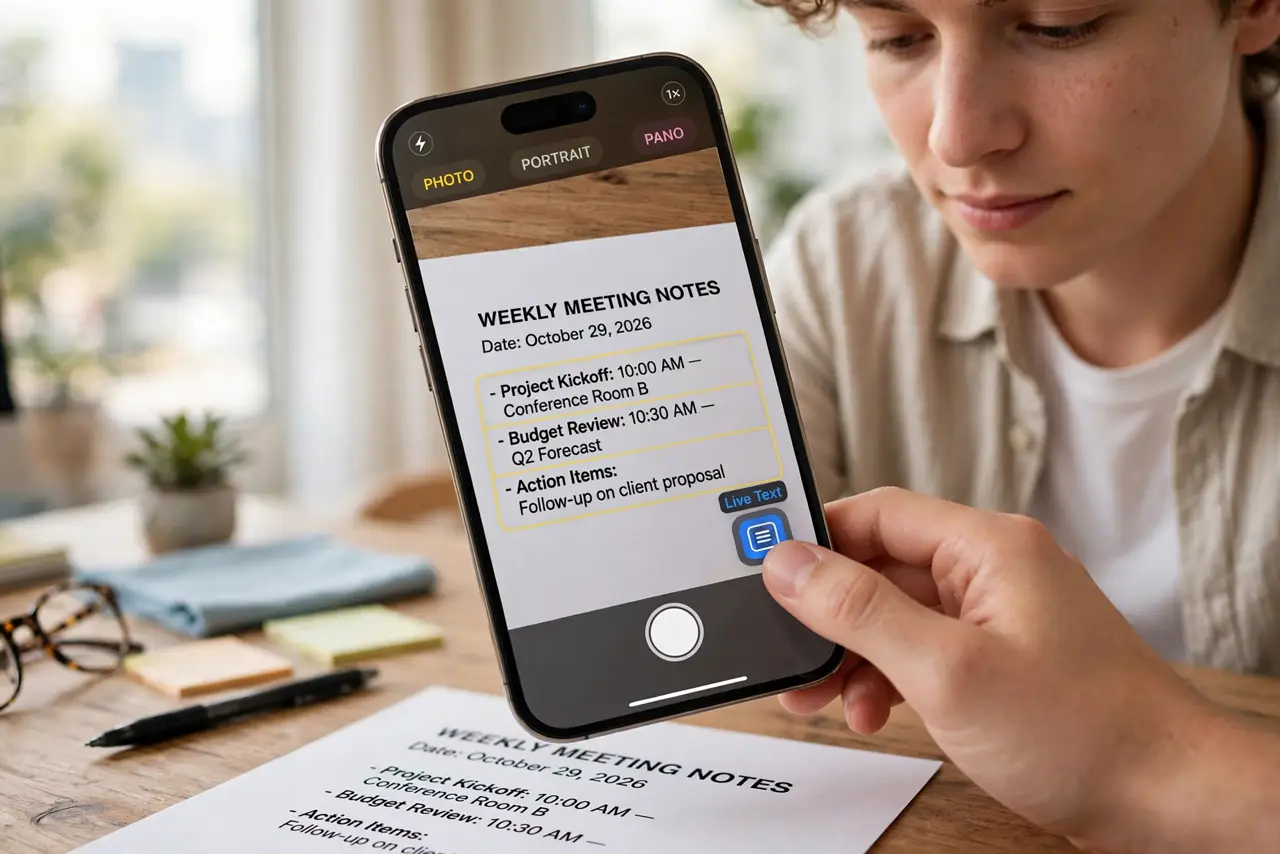
You're retyping a printed page word by word, and your phone could have done it in seconds. Modern phones capture text from anything the camera sees — Live Text on iPhone, Lens on Android — and let you copy it straight into your notes. Here's how to get clean results.

TL;DR / Quick Fix
Quick fix: point your phone camera at the page and use the text capture — Live Text on iPhone, Google Lens on Android — then tap to copy. Shoot in good light, hold steady, and keep the page flat. Always proofread: OCR misreads similar letters more often than you'd expect.
Follow these steps
- Use the built-in capture — no new app. iPhone: point the camera and tap the Live Text icon. Android: open Lens. Both are already on your phone — skip the ad-stuffed 'scanner' apps. For documents, see the straight-scan tips.
- Light the page well. Bright, even light is the difference between perfect capture and gibberish. Avoid shadows from your hand and glare from overhead lights — move until the page looks flat.
- Hold steady and keep the page flat. Brace your elbows, flatten curled pages, and fill the frame with text. Motion blur and curved pages are the top two accuracy killers.
- Tap the text and copy it. Once recognized, tap to select and copy, then paste into notes, email, or docs. On iPhone you can also use document scanning for multi-page jobs.
- Proofread before trusting it. OCR confuses similar letters — rn for m, 0 for O — more often than you'd expect. A quick read-through catches the errors that spellcheck misses.
- Know handwriting's limits. Printed text captures beautifully; handwriting is hit-or-miss depending on neatness. For handwriting, expect to correct more.
What NOT to do
- Do not install random scanner apps full of ads. Your phone's built-in capture is free, private, and better than most adware scanners.
- Do not expect perfect OCR on handwriting. Neat print works; doctor's-note scrawl doesn't — set expectations accordingly.
- Do not shoot in dim, uneven light. Bad lighting is the number one cause of 'OCR doesn't work' complaints — fix the light, not the app.
- Do not skip proofreading. OCR errors look plausible — a wrong digit in a phone number or price sails past spellcheck.
Frequently asked questions
Can it capture handwriting?
Sometimes — neat handwriting works, messy doesn't. Treat handwriting capture as a head start, not a finished job.
How do I scan multiple pages?
Use your phone's document scanner for multi-page PDFs, then copy text from the result — capture the pages first, extract text second.
Is my scanned text sent to the cloud?
On-device recognition keeps it local on modern phones. Check your specific app's settings if that matters to you.