Invite to Shared Albums
Family photos scatter across everyone's phones, and the good ones never reach the grandparents. Shared albums in Apple Photos let the whole family pool pictures into one place that everyone sees — but only if the invites actually go out and get accepted. Here is how to invite people properly.
TL;DR / Quick Fix
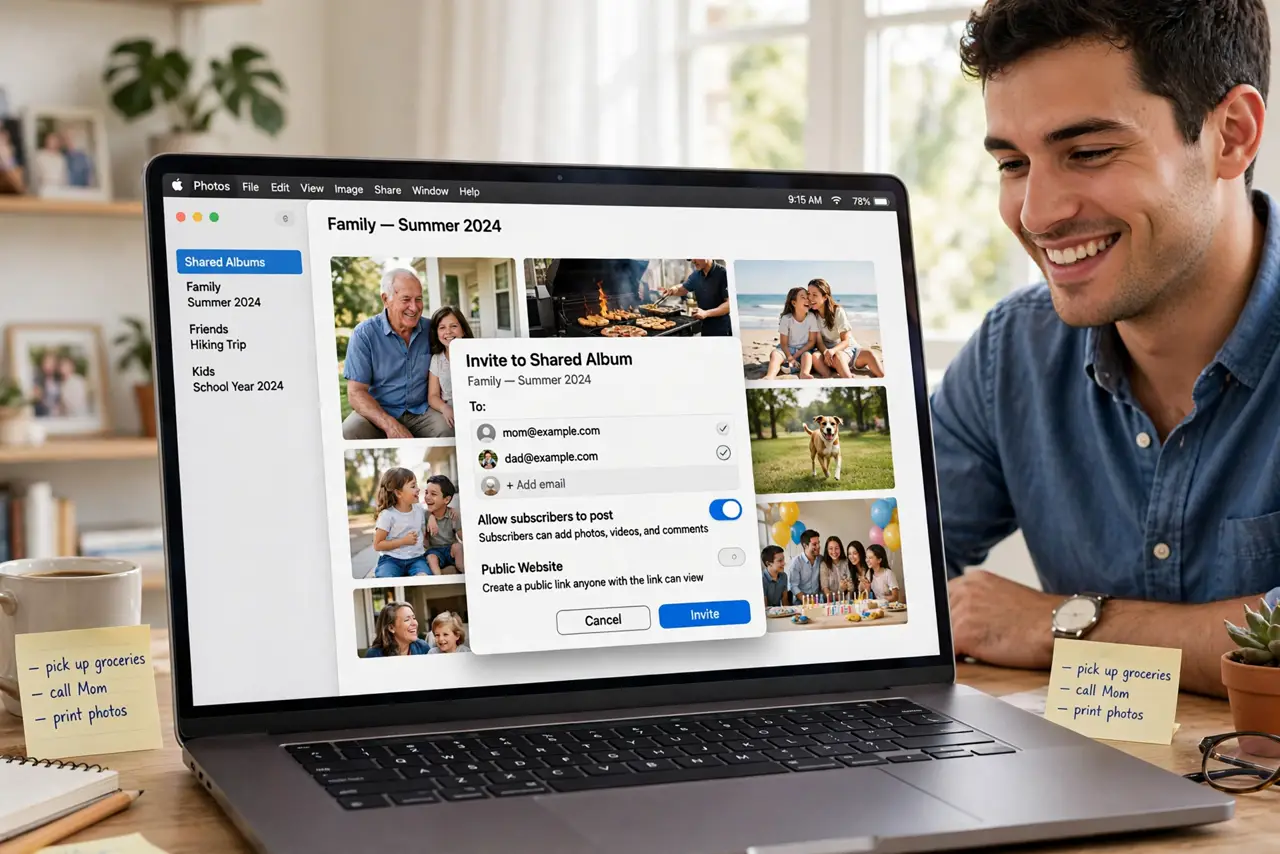
Quick fix: in Photos on Mac, open the shared album, click the people icon, and invite family by email or phone number — they can add their own photos too. Check that iCloud Photos sharing is on first. If someone cannot see updates, have them check their invite and connection.
Follow these steps
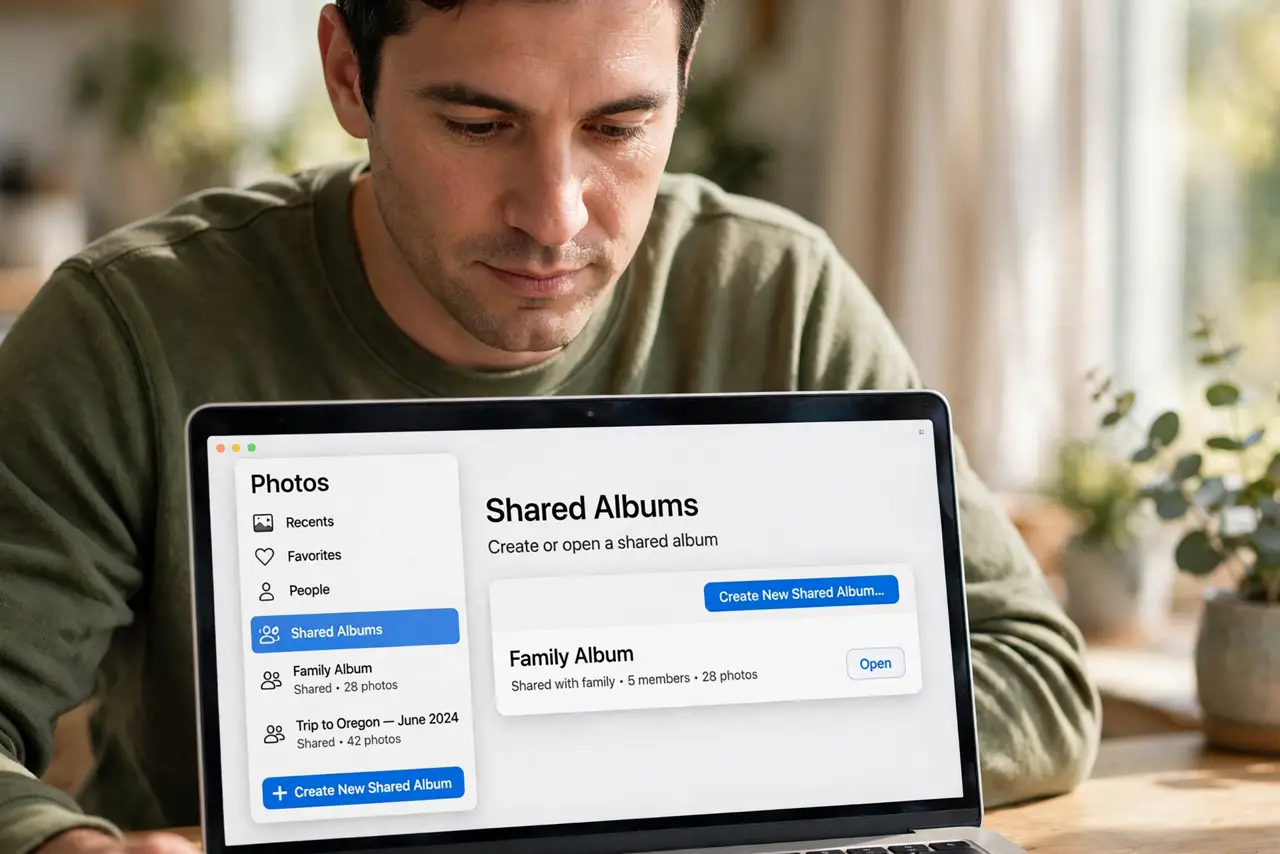
- Create or open the shared album. In Photos, find Shared Albums in the sidebar. Create a new one for the event or trip, or open the existing family album.
- Open the people settings. Click the people icon in the album toolbar. This is the guest list — who is invited, who accepted, and the album's sharing options.
- Send the invites. Add people by email or phone number. They get an invitation to join — see the shared albums overview for how shared albums work from the guest side.
- Let guests add photos. Turn on the option allowing subscribers to post. A shared album where only you can add photos is just a gallery — the magic is everyone contributing.
- Troubleshoot missing updates. If someone's album is not updating, have them check their connection and invite status — the shared album fixes cover the common causes.
- Mind the limits. Shared albums hold a generous but finite number of photos and videos. For huge archives, they complement — not replace — real backups.
What NOT to do
- Do not invite with the wrong contact details. Typos in emails or numbers send family photos to strangers — double-check each invite.
- Do not share sensitive photos to big groups. Everyone invited can save and re-share — keep intimate photos in smaller circles.
- Do not forget guests need an Apple ID. Non-Apple family can view via the public website link, but contributing needs an account.
- Do not use shared albums as your only backup. They compress and limit — keep the originals backed up properly too.
Frequently asked questions
How many people can join?
Shared albums support plenty of subscribers for family use — enough for extended family without worry.
Do shared albums use my iCloud storage?
No — shared album content does not count against your iCloud quota. That is one of their best features.
Can Android users see them?
Yes, via the public website link you can enable. They can view and download, but adding photos needs an Apple ID.