Per-Site Settings in Safari
One site keeps asking for your location, another autoplays videos at full blast, and a third shows a tiny unreadable font — while every other site behaves fine. Safari lets you set camera, microphone, location, autoplay, and zoom per website, so one bad site doesn't dictate your global settings. Here is the control room.
TL;DR / Quick Fix
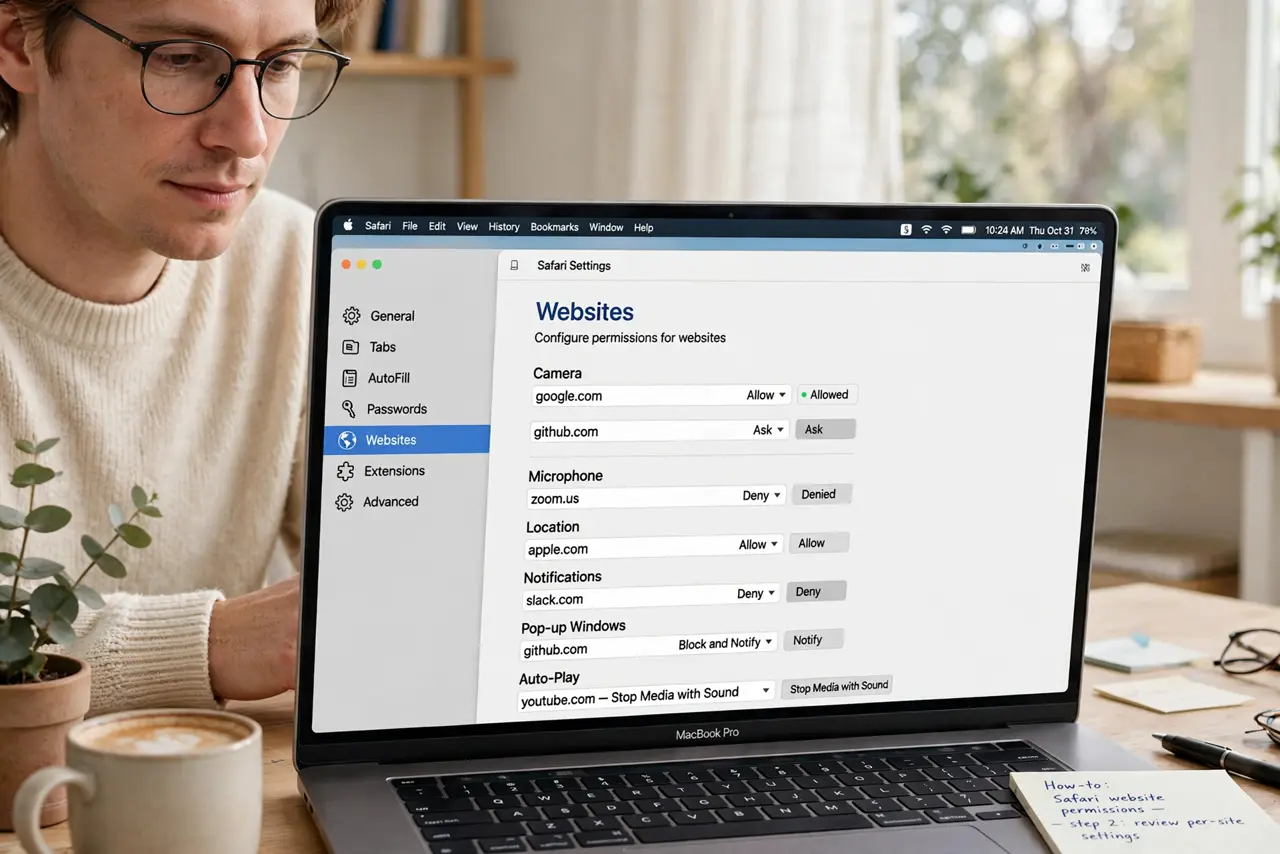
Quick fix: in Safari, open Settings > Websites to control camera, microphone, location, and autoplay permissions per site. Or right-click the address bar on any site and choose Settings for This Website. Changes apply instantly and remembered sites stay listed.
Follow these steps
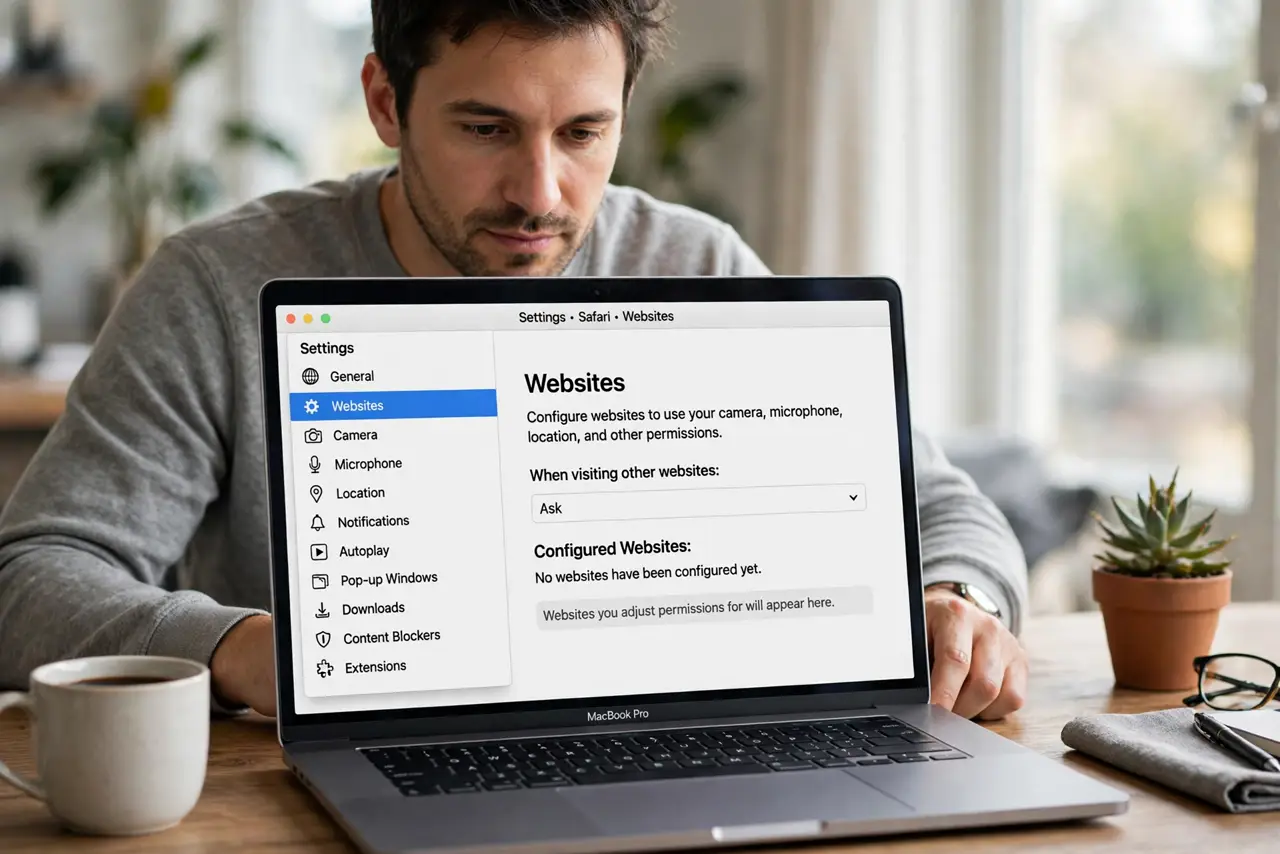
- Open the Websites panel. In Safari, go to Settings > Websites. The left sidebar lists every permission type: camera, microphone, location, notifications, autoplay, and more.
- Set defaults per permission. At the bottom of each section, choose the default for new sites — Deny camera globally, allow it per site. Defaults protect you; exceptions serve you.
- Customize the current site fast. Right-click (or long-press) the address bar and choose 'Settings for This Website'. Camera, mic, autoplay, reader mode, and zoom for this site only — two clicks.
- Review the remembered sites list. Each permission section lists sites you've customized. Prune ones you don't visit anymore — stale permissions are a quiet privacy leak.
- Fix a site that broke. If a video call or map fails, its permission is probably denied. Revisit the Websites panel, find the site, and switch that one permission to Allow — see missing camera permission for the app-level side.
- Handle autoplay aggressively. Set autoplay to 'Never Auto-Play' globally, then allow it only for sites where you want it. This one change dramatically calms the web.
What NOT to do
- Do not allow camera and mic for every site that asks. Defaults should be Ask or Deny; grant access only where you actually use it.
- Do not ignore the notifications permission. Sites that nag for notifications rarely deserve them — deny by default, allow for the few you want.
- Do not confuse per-site zoom with system zoom. Website zoom in Safari affects that site only; your Mac's display zoom is separate.
- Do not forget Reader mode is per-site too. Auto-Reader for news sites you read daily strips clutter beautifully — set it and forget it.
Frequently asked questions
Why does a site keep asking for location?
Its per-site setting is 'Ask' rather than Deny or Allow. Set it explicitly in the Websites panel — 'Ask' re-prompts every visit; see stuck location permission for system-level issues.
Can I reset all website permissions?
Yes — remove sites from each list in Settings > Websites, or reset Safari's website data. You'll re-grant permissions as you browse.
Do these settings sync to iPhone?
Some do via iCloud, but iOS manages website permissions separately in Settings > Apps > Safari. Check both if behavior differs between devices.